Skip to content

Programming can be cute.

  • LinkedIn
  • GitHub Profile
  • Stack Overflow Profile
  • About Me

cuteprogramming

  • Home
  • About
  • Experience
  • Product
  • Event

Category: Storage

Authentication of Azure API for FHIR® and the Import of Patient Info with Azure Function

July 6, 2020July 7, 2020 by Chun Lin, posted in ASP.NET, C#, Cloud Computing: Microsoft Azure, Core, Experience, Function, Storage
🎨  The credit of photo used: Singapore General Hospital 🎨 

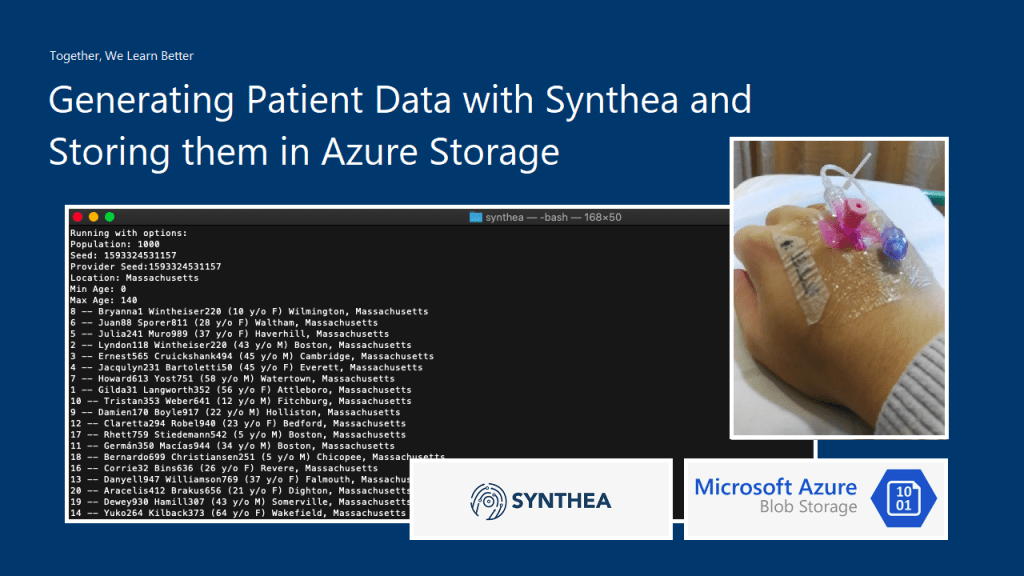
In the previous article, we talked about how to generate realistic but not real patient data using Synthea(TM) and then also how to store them securely in Azure Storage.

Setup Azure API for FHIR®

Today, we will continue the journey. The first step we need to do is to setup the Azure API for FHIR®.
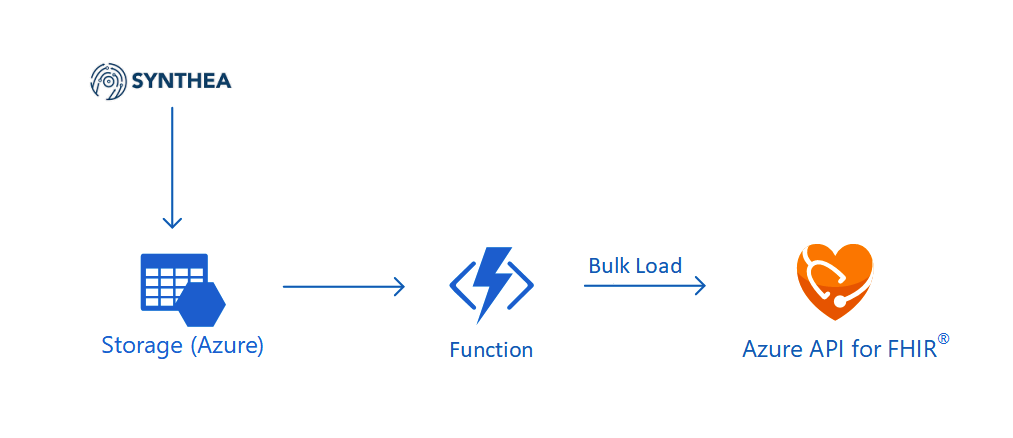
🎨 The architecture of the system we are going to setup in this article. 🎨

The Azure API for FHIR® is a managed, standards-based, and healthcare data platform available on Azure. It enables organisations to bring their clinical health data into the cloud based on the interoperable data standard FHIR®. The reason why we choose to use it is because security and privacy features are embedded into the service. As customers, we own and control the patient data, knowing how it is stored and accessed. Hence, it’s a PaaS that enables us build healthcare data solution easily.

When we are setting up the Azure API for FHIR®, we need to specify the version of FHIR® we are going to use. Currently there are only four milestone releases of FHIR®. The latest version, R4, was released in December 2018. On Azure, we can only choose either R4 or STU3 (which is the third release). We will go for R4.
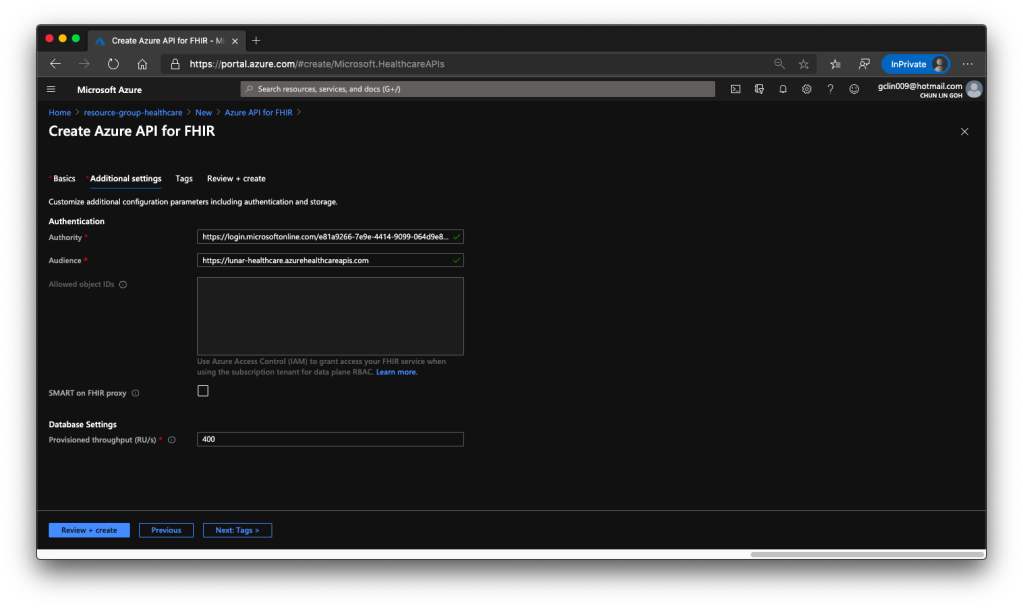
🎨 Default values of authentication and database settings when we’re creating the API. 🎨

For the Authentication of the API service, we will be using Azure Access Control (IAM) which is the default option. Hence, we will use the Authority and Audience default values.

When we are setting up this API service, we also need to specify the throughput of the database which will be used to store the imported patient data later.

After we click on the button to create the API service, it will take about 5 minutes to successfully deploy it on Azure.

After we have our Azure API for FHIR® deployed, we need to configure the CORS settings as specified on the Azure Healthcare APIs documentation. The update will take about 8 minutes to complete.

Register Client Application

Before we continue to develop our applications which integrate with Azure API for FHIR®, we will need to have a public client application. Client application registrations are Azure Active Directory representations of applications that can authenticate and ask for API permissions on behalf of a user.

The following screenshot shows how we register the client application with a redirect URI pointing to https://www.getpostman.com/oauth2/callback which will help us to test the connectivity via Postman later.
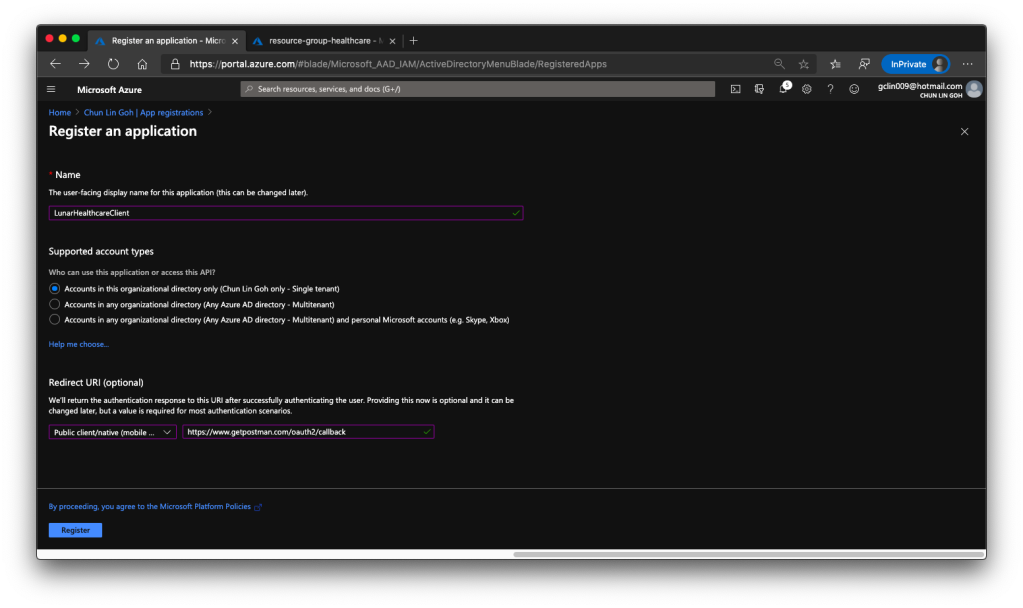
🎨 Registering a client application. 🎨

Once the client application is created we need to proceed to create a client secret, as shown in the following screenshot, so that later we can use it to request a token.
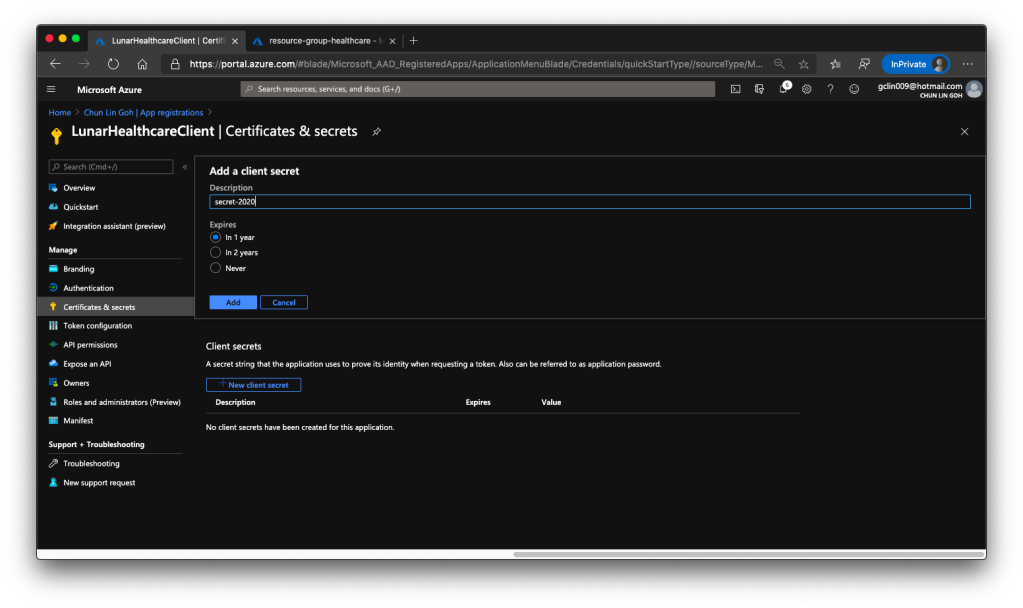
🎨 Creating a client secret which will expire one year later. 🎨

Then we have to allow this client application to access our Azure API for FHIR®. There are two things we need to do.

Firstly, we need to grant the client application a permission called user_impersonation from the Azure Healthcare APIs, as shown in the screenshot below.
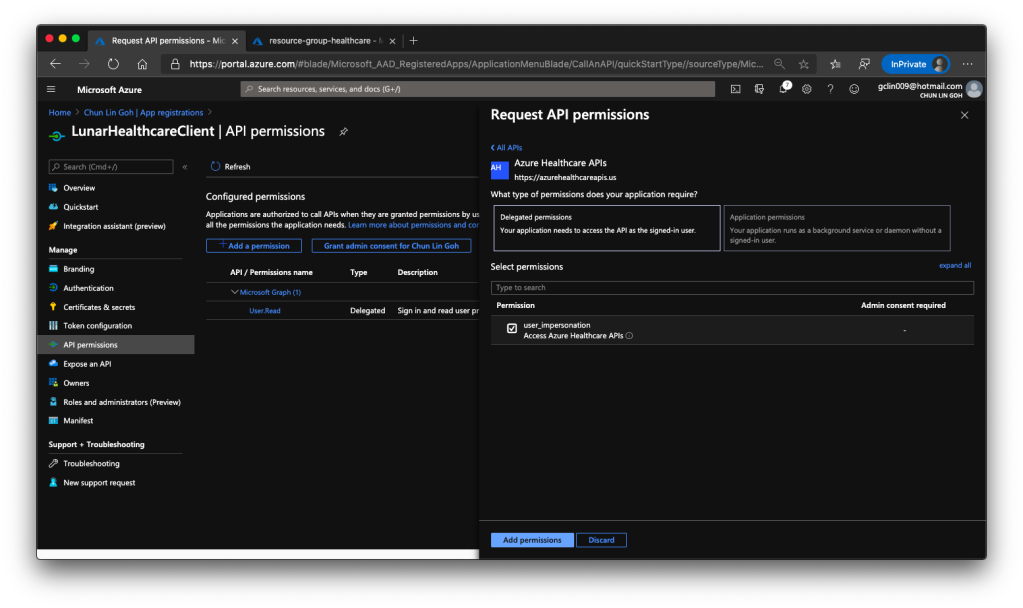
🎨 Granting API permissions. 🎨

Secondly, we need to head back to our Azure API for FHIR® to enable this client application to access it, as shown in the following screenshot.
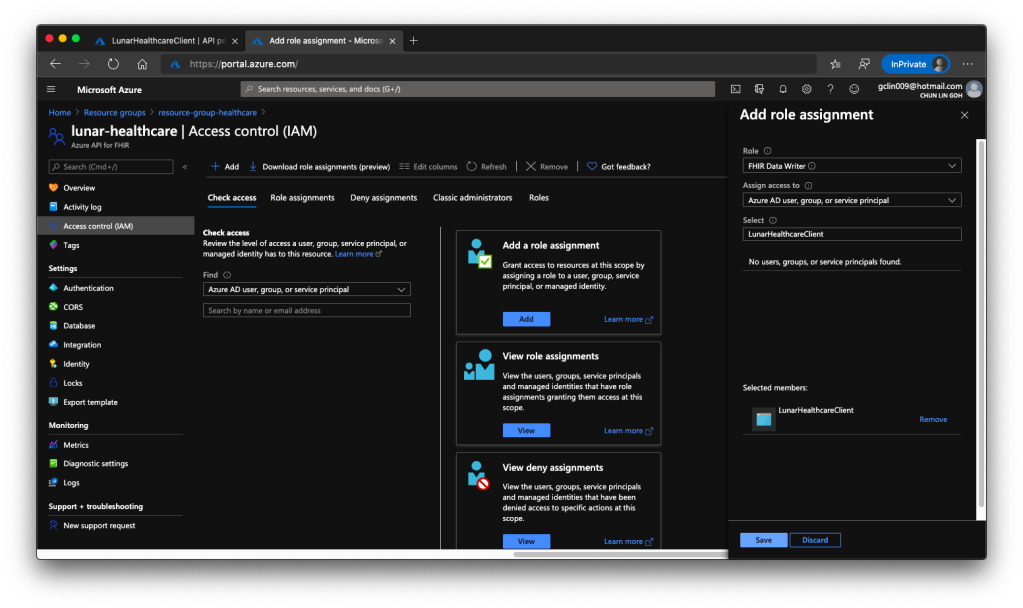
🎨 Adding the client application to have the role FHIR® Data Writer. 🎨

The reason we choose only “FHIR Data Writer” role is because this roles enable both read and write access to the API. Once the role is successfully added, we shall see something similar as shown in the screenshot below.

🎨 The client application can now read and write FHIR® data. 🎨

Test the API with Postman

To make sure our Azure API for FHIR® is running well, we can visit its metadata link without any authentication. If it is running smoothly, we shall see something as shown in the following screenshot.
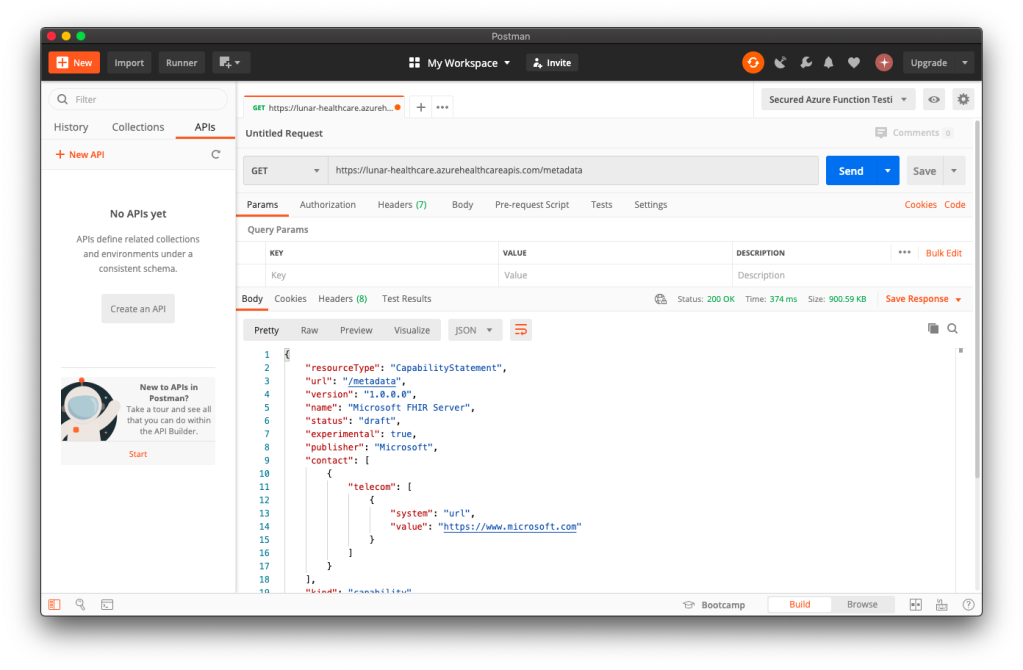
🎨 Yay, our Azure API for FHIR® is running! 🎨

To access the patient data, we need to authenticate ourselves. In order to do so, we first need to get an access token from the client application in Azure Active Directory. We do so by making a POST request to the following URL https://login.microsoftonline.com/<tenant-id>/oauth2/token.

As shown in the following screenshot, the Tenant ID (and also Client ID) can be found at the Overview page of the client application. The resource is basically the URL of the Azure API for FHIR®.
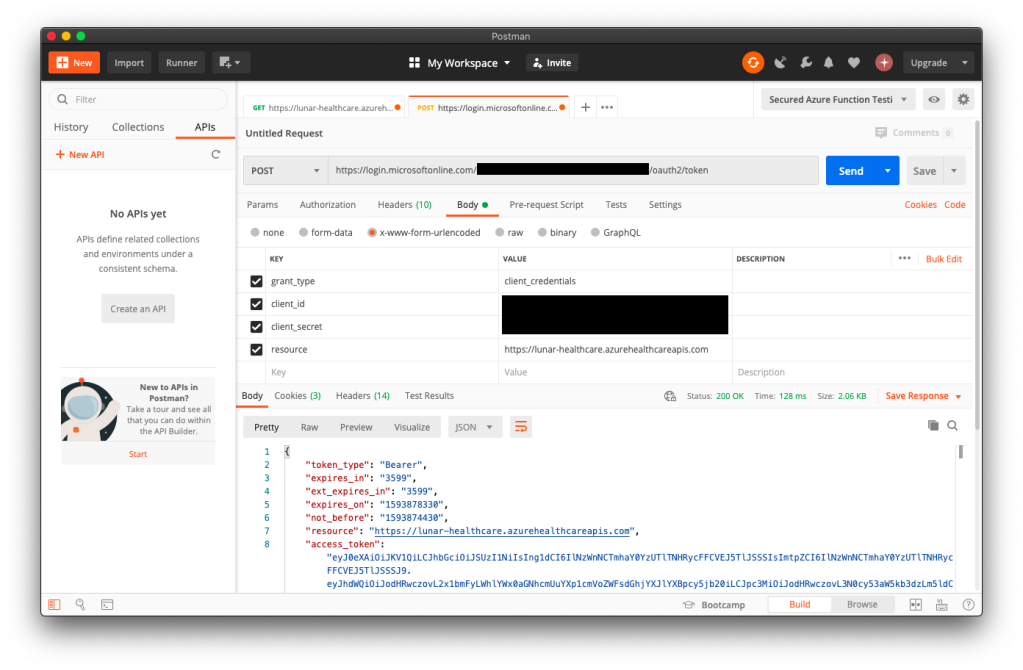
🎨 Successfully retrieved the access_token! 🎨

Once we have the access token, we then can access the Patient endpoint, as shown in the following screenshot.

🎨 Yay, we are successfully authenticated! 🎨

The official Azure documentation is not clear on the steps above. Luckily, with the help from Michael Hansen, the Principal Program Manager in Microsoft Healthcare NExT, I managed to understand how this works. You can refer to our discussion on GitHub to understand more.

🎨 Michael Hansen on Azure Friday with Scott Hanselman to talk about Azure API for FHIR®. (Source: YouTube) 🎨

Import Data from Azure Storage

Now that we have the realistic but real patient data in the Azure Storage and we have the Azure API for FHIR® with a SQL database. So the next step that we need to do is pump the data into the SQL database so that other clients can consume the data through the Azure API for FHIR®. In order to do so, we will need a data importer.

Firstly, we will create an Azure Function which will do the data import. There is an official sample on how to write this Function. I didn’t really follow the deployment steps given in the README of the project. Instead, I created a new Azure Function project in the Visual Studio and published it to the Azure. Interestingly, if I use VS Code, the deployment will fail.
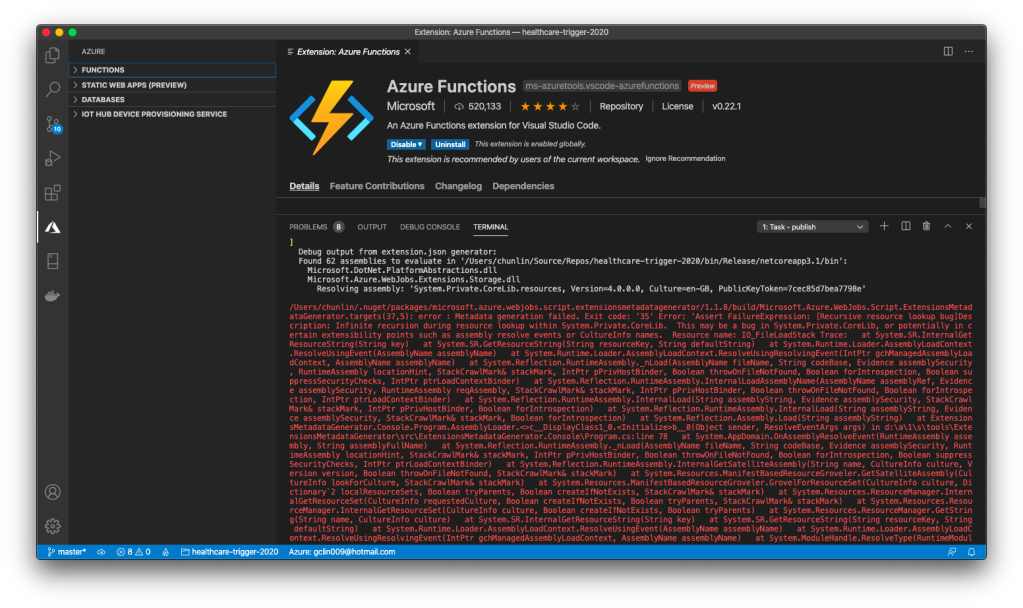
🎨 I could not publish Azure Function from local to the cloud via VS Code. 🎨

In Visual Studio, we will be creating a C# function which will run whenever a new patient data is uploaded to the container. Then the same function will remove the patient data from the Azure Storage once the data is fully updated.
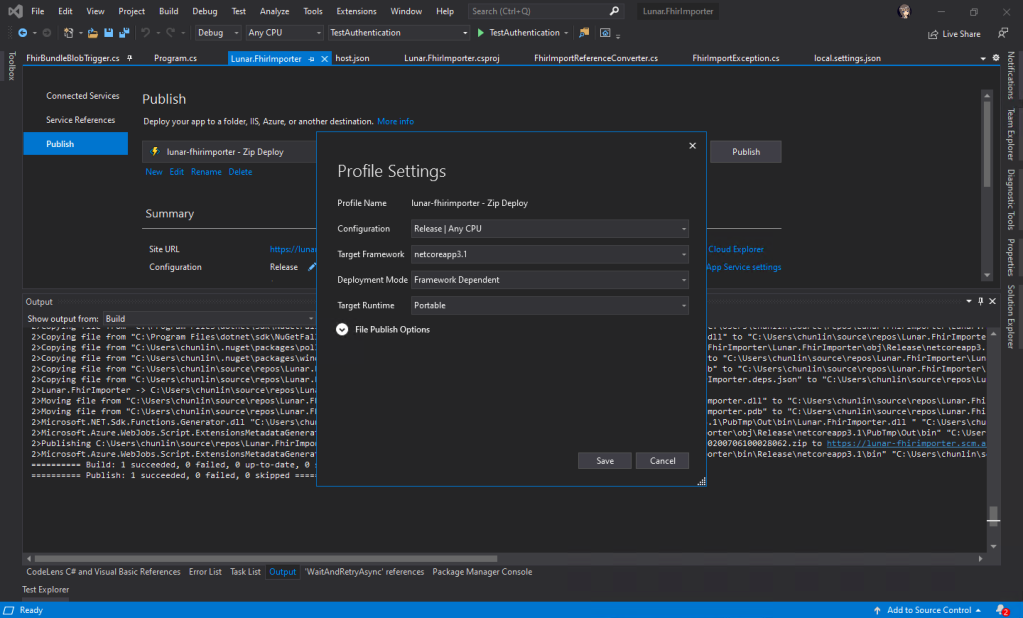
🎨 Publish successful on Visual Studio 2019. 🎨

When we are creating a new Azure Function project on Visual Studio, for the convenience later, it’s better we use back the Azure Storage that we use for storing the realistic but not real patient data for our Azure Function app storage as well, as shown in the following screenshot. Thus, the Connection Setting Name will be AzureWebJobsStorage and the Path will point to the container storing our patient data (I recreated the container from syntheadata used in previous article to fhirimport in this article).
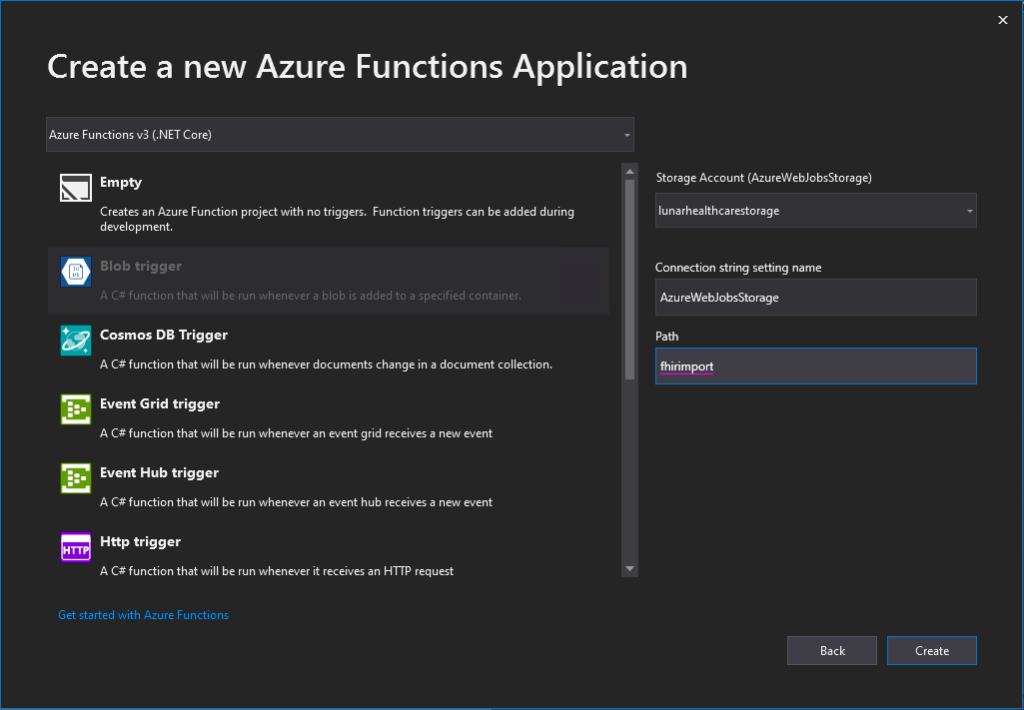
🎨 Creating new Azure Functions application. 🎨

After the deployment is successful, we need to add the following application settings to the Azure Function.

  • Audience: <found in Authentication of Azure API for FHIR®>
  • Authority: <found in Authentication of Azure API for FHIR®>
  • ClientId: <found in the Overview of the Client App registered>
  • ClientSecret: <found in the Certificates & secrets of the Client App>
  • FhirServerUrl: <found in the Overview of Azure API for FHIR®>
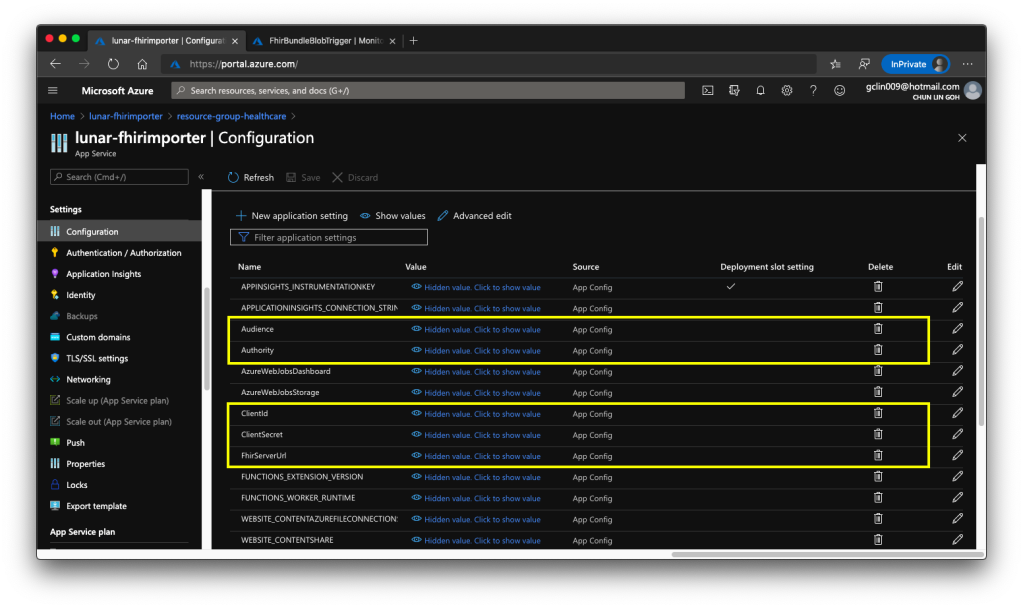
🎨 We need to add these five application settings correctly. 🎨

After that, in order to help us diagnose problems happening in each data import, it’s recommended to integrate Application Insights to our Azure Function. After that, we can use ILogger to log information, warnings, or errors in our Azure Function, for example

log.LogWarning($"Request failed for {resource_type} (id: {id}) with {result.Result.StatusCode}.");

Then with Application Insights, we can easily get the log information from the Azure Function in its Monitor section.

🎨 Invocation details of the Azure Function. 🎨

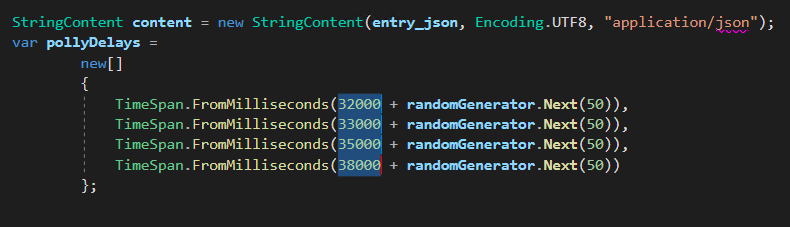
From the official sample code, I made a small change to the waiting time between each try of the request to the Azure API for FHIR®, as shown in the following screenshot.

In the FhirBundleBlobTrigger.cs, I increased the waiting time to have extra 30 seconds because the original waiting time is short that sometimes the data import will fail.
In the following screenshot, the Observation data can only be uploaded after 5 attempts. In the mean time, our request rate has exceeded the maximum API request rate and thus has been throttled too. So we cannot make calls to Azure API for FHIR® too frequent.
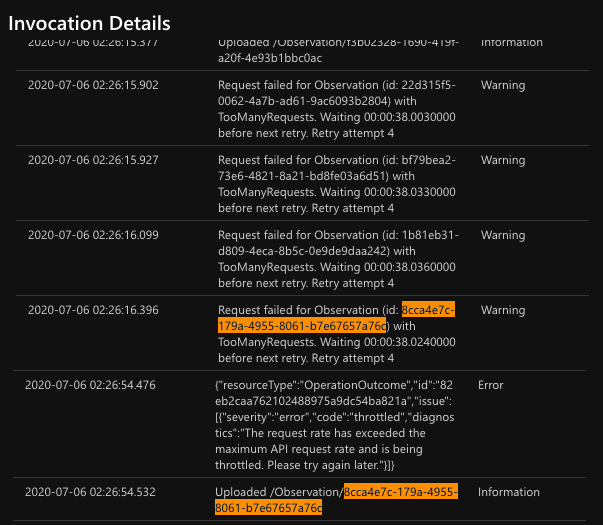
🎨 Five attempts with the same request with throttling happens. 🎨

Now, when we make a GET request to the Patient endpoint of Azure API for FHIR® with a certain ID, we will be able to get the corresponding patient data back on Postman.
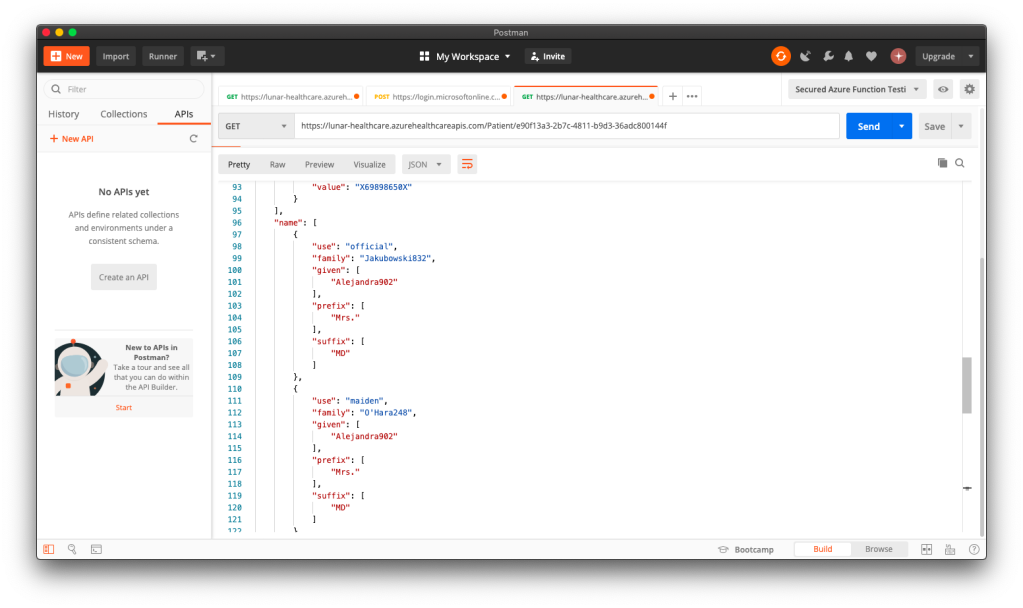
🎨 Successfully retrieved the patient data from the API service. 🎨

Yup, so at this stage, we have successfully imported data generated by Synthea(TM) to the Azure API for FHIR® database.
Tagged Azure, Azure Functions, FHIR, Microsoft, Storage Account3 Comments

Generating Patient Data with Synthea and Storing them in Azure Storage

June 29, 2020 by Chun Lin, posted in Cloud Computing: Microsoft Azure, Experience, Storage

Almost two years ago, I was hospitalised in Malaysia for nearly two weeks. After I returned to Singapore, I was then sent to another hospital for medical checkup which took about two months. So I got to experience the hospital operations in two different countries. Since then I always wondered how patient data was exchanged within the healthcare ecosystem.

Globally, there is an organisation which is in charge of coming up with the standards for the exchange, integration, sharing, and retrieval of electronic health information among the healthcare services. The organisation is known as Health Level Seven International, or HL7, which is founded in 1987.

One of the HL7 standards that we will be discussing in this article is called the FHIR® (Fast Health Interop Resources), an interoperability standard intended to facilitate the exchange of healthcare information between organisations.

In Microsoft Azure, there is a PaaS which is called Azure API for FHIR. With the API, it makes it easier for anyone working with health data to ingest, manage, and persist Protected Health Information in the cloud.

🎨  Michael Hansen, Principal Program Manager in Microsoft Healthcare NExT, introduced Synthea on Azure Friday. (Source: YouTube) 🎨 

Synthea(TM): A Patient Simulator

Before we deploy the Azure API for FHIR, we need to take care of an important part of the system, i.e. the data source. Of course, we must not use real patient data in our system to demo. Fortunately, with a mock patient data generator, called Synthea(TM), we are able to generate synthetic, realistic patient data.

There is a very simple command with different parameters, we can generate those patient data.

🎨  Examples of generating patient data using Synthea(TM). 🎨 

The following is part of the results when I executed the command with parameter -p 1000.

🎨  Realistic but not real patient data from Synthea(TM). 🎨 

Azure Storage Setup

With the patient data generated locally, we now can proceed to upload it to the Azure Storage so that the data can later be input to the Azure API for FHIR.

Here, we will be using the Blob Storage where Blob stands for Binary Large Object. A blob can be any type of file, even virtual machine disks. The blob storage is optimised for storing massive amount of data. Hence, it is suitable to store the JSON files that Synthea(TM) generates.

There are two main default access tiers for StorageV2 Azure Storage, i.e. Hot and Cold. Hot Tier is for storage accounts expected to have frequent data access, while Cold Tier is the opposite of it. Hence, Hot Tier will have lower data access cost as compared to the Cold Tier while Hot Tier will have the highest storage cost.

Since the data stored in our Storage account here is mainly to input into the Azure API for FHIR eventually and we will not keep the data long in the Storage account, we will choose the Hot Tier here.

🎨  Creating new storage account with the Hot Tier. 🎨 

For the Replication, it’s important to take note that the data in our Storage account is always replicated in the primary data centre to ensure durability and high availability. We will go with the LRS option, which is the Locally Redundant Storage.

With the LRS option, our data is replicated within a collection of racks of storage nodes within a single data center in the region. This will save our data when the failure only happens on a single rack. We choose this option not only because it is the cheapest Replication but also the lifespan of our data is very short in the Storage account.

Azure Storage – Security and Access Rights

Let’s imagine we need people from different clinics and hospitals, for example, to upload their patient data to our Azure Storage account. Without building them any custom client, would we able to do the job by just setting the correct access rights?

Permissions for a container in Storage account (Source: Microsoft Docs)

Yes, we can. We can further control the access to our blob container in the Storage account. For example, in the container importdata where all the JSON files generated by Synthea(TM) will be uploaded to, we can create a Stored Access Policy for that container which allows only Create and List, as shown in the screenshot below.

🎨  Adding a new Stored Access Policy for the container. 🎨 

With this Stored Access Policy, we then can create a Shared Access Signature (SAS). A SAS is a string that contains a security token, and it can be attached to an URL to an Azure resource. Even though here we will use it for our Storage account, but in fact, SAS is available to other Azure services as well. If you remember my previous article about Azure Event Hub, we’re using SAS token too in our mobile app.

I will demo with Microsoft Azure Storage Explorer instead because I can’t do the similar thing on the Azure Portal.

🎨  Creating a Shared Access Signature (SAS) for the container. 🎨 

There will be a URI generated after the SAS is created. This is the URI that we will share with those who have the patient data to upload.

With the SAS URI, they can choose to connect to Azure Storage with that URI, as shown in the screenshot below.

🎨  Connecting to Azure Storage with SAS URI. 🎨 

Once the SAS URI is correctly provided, they can then connect to the Azure Storage.

🎨  There is a need to make sure we are only connecting to resources we trust. 🎨 

Now the other parties can continue to upload the patient data to the Azure Storage. Since we already make sure the actions that they can do are only Create and List, they cannot delete files or overwrite the existing file, as shown in the following screenshot.

🎨  Deletion of file is prohibited according to the Shared Access Policy. 🎨 

At this point of time, I suddenly realised that, I could not upload new file too. Why is it so? Isn’t Create access right has been already given?

It turns out that, we need to also allow Read access right to allow the uploading of file. This is because during the upload process, Azure Storage will need to check the existence of the file. Without Read access right, it can’t do so, according to the log file downloaded from the Azure Storage Explorer. This actually surprised me because I thought List should do the job, not Read.

🎨  Uploading of file requires Read access. 🎨 

Hence, eventually, our Shared Access Policy for the container above is as follows. For the detailed explanation of each permission, please refer to the official documentation at https://docs.microsoft.com/en-us/rest/api/storageservices/create-service-sas.

🎨  The container importdata has RCL as its access policy. 🎨 

Azure Storage: Monitoring and Alerting

In Azure Storage, some of the collected metrics are the amount of capacity used as well as transaction metrics about the number of transactions and the amount of time taken for those transactions. In order to proactively monitor our Storage account and investigate problems, we can also set alerts on those metrics.

Metrics are enabled by default and sent to the Azure Monitor where the data will be kept for 3 months (93 days).

In Azure Monitor, the Insights section provides an overview of the health of our Storage accounts, as shown below.

🎨  General view of the health of the Storage account. 🎨 

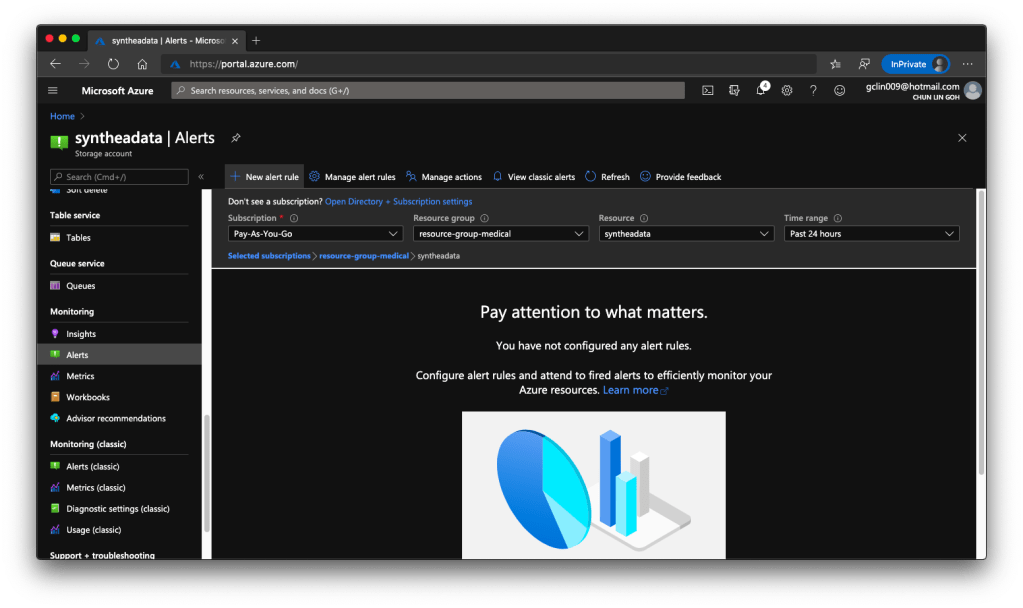
Finally, to create Alerts, we just need to head back to the Monitoring section of the corresponding Storage account. Currently, besides the classic version of the Monitoring, there is a new one, as shown in the following screenshot.

🎨  New Alerts page. 🎨 

With this, we can setup alerts such as informing us whenever the used capacity is over a certain threshold over a certain period of time. However, how would we receive the Alerts? Well, there are quite a few ways that we can choose under the Action Group.

🎨  Setting up email and SMS as alert channels in the Action Group. 🎨 

Next Step

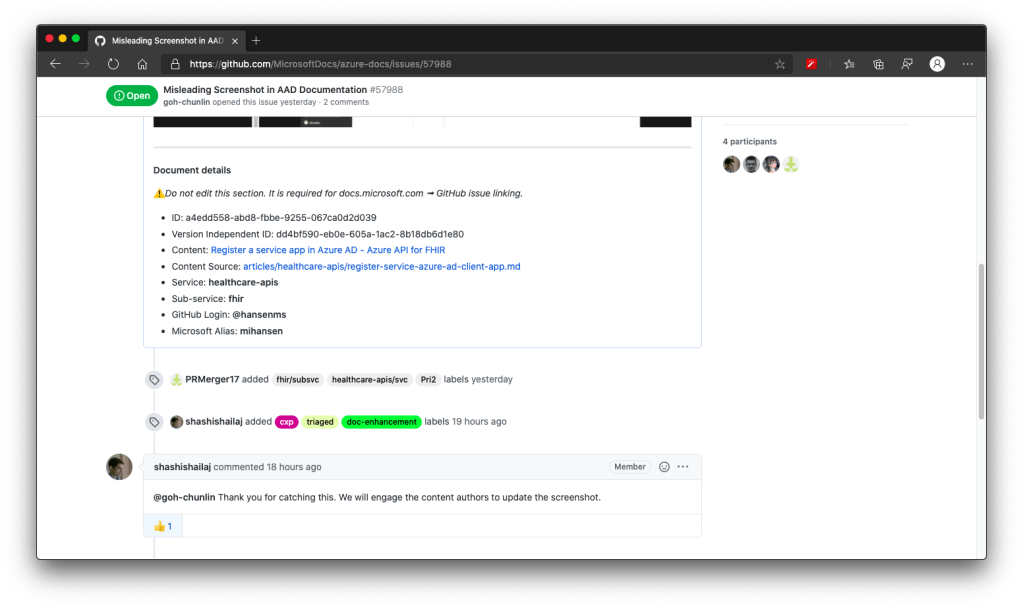
That’s all for the setup of input storage for our Azure API for FHIR. Currently, the official documentation of Azure API for FHIR has certain issues. I have reported to Microsoft on GitHub. Once the issues are fixed, we will proceed to see how we can import the data into the Azure API for FHIR.

🎨  Discussing the documentation issues with Shashi Shailaj on GitHub. 🎨 

Tagged Azure, Healthcare, Microsoft Azure, Storage Account, Synthea1 Comment

Posts navigation

Newer posts
Buy Me A Coffee

About This Blog

Recent Posts

  • SilverVector Case Study: Instant Observability for Orchard Core
  • SilverVector: The “Day 0” Dashboard Prototyping Tool
  • From k6 to Simulation: Optimising AWS Burstable Instances
  • A Kubernetes Lab for Massively Parallel .NET Parameter Sweeps
  • Beyond the Cert: In the Age of AI
  • The Blueprint Fallacy: A Case for Discrete Event Simulation in Modern Systems Architecture
  • Building a Gacha Bot in Power Automate and MS Teams
  • Securing APIs with OAuth2 Introspection
  • Observing Orchard Core: Traces with Grafana Tempo and ADOT
  • Observing Orchard Core: Metrics and Logs with Grafana and Amazon CloudWatch

Blogs of My Friends

Between Linux and Anime

As the blog name suggests, it is a cute blog about Linux and anime. The style of the blog has been a big influence on me. I especially like his post on "Philosophy of Doing" which is related to a famous anime, Clannad. The blogger is my SoC tutor and CVWO team leader who taught me a lot of web development skills which are even useful in my current job.

Just Another Hideout

A blog written by my SoC friend who shows great interest in games, animes, and technology products. He is famous with mental calculation, so he writes about random interesting math calculation projects done by him also.
Blog at WordPress.com.
  • Subscribe Subscribed
    • cuteprogramming
    • Join 73 other subscribers
    • Already have a WordPress.com account? Log in now.
    • cuteprogramming
    • Subscribe Subscribed
    • Sign up
    • Log in
    • Report this content
    • View site in Reader
    • Manage subscriptions
    • Collapse this bar
 

Loading Comments...