Automated GUI Testing of UWP Apps Using Appium and Azure DevOps

There is a popular yet simple checklist on how good a software team is from Joel Spolsky, who has been the CEO of Stack Overflow until last year (2019). The checklist is called the Joel Test. The test has only 12 items but 7 of them are related about DevOps, debugging, and testing.

Software testing makes sure that the software is doing exactly what it is supposed to do and it also points out all the problems and errors found in the software. Hence, involving testing as early as possible and as frequent as possible is a key to build a quality software which will be accepted by the customers or the clients.

There are many topics I’d love to cover about testing. However, in this article, I will only focus on my recent learning about setting up automated GUI testing for my UWP program on Windows 10.

Appium

One of the key challenges in testing UWP app is to do the GUI testing. In the early stage, it’s possible to do that manually by clicking around the app. However, as the app grows larger, testing it manually is very time consuming. After sharing my thoughts with my senior Riza Marhaban, he introduced me a test automation framework called Appium.

What is Appium? Appium is basically an open source test automation framework for iOS, Android, and Windows apps. Here it says Windows apps because besides UWP, using it to test WPF app is possible as well.

Together with Windows App Driver which enables Appium by using new APIs added in Windows 10 Anniversary Edition, we can use them to do GUI test automation on Windows apps. The following video demonstrates the results of GUI testing with Appium in my demo project Lunar.Paint.Uwp.

Here, I will list down those great tutorials about automated GUI testing of UWP apps using Appium which are ranked top in Google Search:

Some of them were written about four years ago when Barack Obama was still the President of the USA. In addition, none of them continues the story with DevOps. Hence, my article here will talk about GUI testing with Appium from the beginning of a new UWP project until it gets built on Azure DevOps.

🎨  Barack Obama served as the 44th president of the United States from 2009 to 2017. (Image Credit: CBS News) 🎨 

Getting Started with Windows Template Studio for UWP

Here, I will start a new UWP project using Windows Template Studio.

🎨  Configuring the Testing of the UWP app with Win App Driver. 🎨 

There is one section in the project configuration called Testing, as shown in the screenshot above. In order to use Appium, we need to add the testing with Win App Driver feature. After that, we shall see a Test Project suffixed with “Tests.WinAppDriver” being added.

By default, the test project has already come with necessary NuGet packages, such as Appium.WebDriver and MSTest.

🎨  NuGet packages in the test project. 🎨 

Writing GUI Test Cases: Setup

The test project comes with a file called BasicTest.cs. In the file, there are two important variables, i.e. WindowsApplicationDriverUrl and AppToLaunch.

The WindowsApplicationDriverUrl is pointing to the server of WinAppDriver which we will install later. Normally we don’t need to change it as the default value will be “http://127.0.0.1:4723”.

The AppToLaunch variable is the one we need to change. Here, we need to replace the part before “!App” with the Package Family Name, which can be found in the Packaging tab of the UWP app manifest, as shown in the screenshot below.

🎨  Package Family Name 🎨 

Take note that there is a line of comment right above the AppToLaunch variable. It says, “The app must also be installed (or launched for debugging) for WinAppDriver to be able to launch it.” This is a very important line. It means when we are testing locally, we need to make sure the latest of our UWP app is deployed locally. Also, it means that the UWP app needs to be available on the Build Agent which we will talk about in later part of this article.

I will not go through on how to write the test cases as they are available on my GitHub project: https://github.com/goh-chunlin/Lunar.Paint.Uwp/tree/master/Lunar.Paint.Uwp.Tests.WinAppDrive. Instead, I will highlight a few important points here.

Writing GUI Test Cases: AccessibilityId

In the test cases, to identify the GUI element in the program, we need to use

AppSession.FindElementByAccessibilityId(<The AccessibilityId of the GUI Element>);

By default, the AccessibilityId is mapped to the x:Name of the XAML control in our UWP app. For example, we have a “Enter” button as follow.

<Button x:Name="WelcomeScreenEnterButton"
        Content="Enter"... />

To access this button, in the test code, we can do like the following.

var welcomeScreenEnterButton = AppSession.FindElementByAccessibilityId("WelcomeScreenEnterButton");

Of course, if we want to have an AccessibilityId which is different from the Name of the XAML control (or the XAML control doesn’t have a Name), then we can specify the AccessibilityId in the XAML directly as follows.

<Button x:Name="WelcomeScreenEnterButton"
        AutomationProperties.AutomationId="EnterButton"
        Content="Enter"... />

Then to access this button, in the test code, we need to use EnterButton instead.

var welcomeScreenEnterButton = AppSession.FindElementByAccessibilityId("EnterButton");

Writing GUI Test Cases: AccessibilityName

The method above works well with XAML controls which are having simple text as the content. If the content property is not string, for example if the XAML control is a Grid that consists of many other XAML controls or the XAML control is a custom user control, then Appium will fail to detect the control with the AccessibilityId with the following exception message “OpenQA.Selenium.WebDriverException: An element could not be located on the page using the given search parameters”.

Thanks to GeorgiG from UltraPay, there is a solution to this problem. As GeorgiG pointed out in his post on Stack Overflow, the workaround is to overwrite the AutomationProperties.Name with a non-empty string value, such as “=”.

🎨  My comment on GeorgiG’s solution. 🎨 

Hence, in my demo project, I have the following code for a Grid.

<Grid x:Name="WelcomeScreen" AutomationProperties.Name="-">
    ...
</Grid>

Then in the test cases, I can easily access the Grid with the following code.

var welcomeScreen = AppSession.FindElementByAccessibilityId("WelcomeScreen");

Writing GUI Test Cases: Inspect Tool

The methods listed out above work fine for the XAML controls in our program. How about for the prompt? For example, when user clicks on the “Open” button and an “Open” window is prompted. How do we instruct Appium to react to that?

Here, we will need a tool called Inspect.

We first need to access the Developer Command Prompt for Visual Studio. Then we type “Inspect” to launch the Inspect tool.

🎨  Launched the “Inspect” tool from the Developer Command Prompt for VS 2019. 🎨 

Next, we can mouse over the Open prompt to find out the AccessibilityId of the GUI element that we need to access. For example, the AccessibilityId of the area where we key in the file name is 1148, as shown in the screenshot below.

🎨  Highlighted in red is the AccessibilityId of the File Name text input area. 🎨 

This explains why in the test cases, we have the following code to access it.

var openFileText = AppSession.FindElementByAccessibilityId("1148");

There is also a very good tutorial on how to deal with the Save prompt in the WinAppDriver sample on GitHub. In the sample, it shows how to interact with the Save prompt in the Notepad via Appium.

Alright, that’s all for how to write GUI test cases for our UWP app with Appium. I have the some simple test cases written in my demo project which has its source code available on my GitHub repo, please feel free to review it: https://github.com/goh-chunlin/Lunar.Paint.Uwp/tree/master/Lunar.Paint.Uwp.Tests.WinAppDriver.

🎨  All GUI test cases passed! 🎨 

Azure DevOps Build Pipeline Setup

Now, we have done our software test locally. How do we make the testing to be part of our build pipeline on Azure DevOps?

This turns out to be quite a complicated setup. Here, I setup the build pipeline based on the .NET Desktop pipeline in the template.

🎨  .NET Desktop build pipeline. 🎨 

Next, we need to make sure the pipeline is building our solution with VS2019 on Windows 10 at least. Otherwise, we will receive the error “Error CS0234: The type or namespace name ‘ApplicationModel’ does not exist in the namespace ‘Windows’ (are you missing an assembly reference?)” in the build pipeline.

🎨  The “Agent Specification” of the pipeline needs to be at least “windows-2019”. 🎨 

Now, if we queue our pipeline again, we will encounter a new error which states that “Error APPX0104: Certificate file ‘xxxxxx.pfx’ not found.” This is because for UWP app, we need to package our app with a cert. However, by default, the cert will not be committed to the Git repository. Hence, there is no such cert in the build pipeline.

To solve this problem, we need to first head to the Library of the Pipelines and add the following Variable Group.

🎨  This is basically the file name of the cert and its password. 🎨 

Take note that, the required cert is now still not yet available on the pipeline. Hence, we need to upload the cert as one of the Secured Files in the Library as well.

🎨  Uploaded pfx to the Azure DevOps Pipeline Library. 🎨 

So, how to we move this cert from the Library to the build pipeline? We need the following task.

🎨  Download secure file from the Library. 🎨 

This is not enough because the task will only copy the cert to a temporary storage on the build agent. However, when the agent tries to build, it will still be searching for the cert in the project folder of our UWP app, i.e. Lunar.Paint.Uwp.

Hence, as shown in the screenshot above, we have two more powershell script tasks to do a little more work.

The first script is to add the cert to the certificate store in the build agent. The script can be found on Damien Aicheh’s excellent tutorial about installing cert on Azure DevOps pipeline.

🎨  Installing the cert to the store. 🎨 

The second script after it is to copy the cert from the temporary storage in the build agent to the project folder.

🎨  Copy the cert to our UWP app project folder. 🎨 

Oh ya, as you can see in the screenshot above, I am using NuGet 5.5.1. By default, the NuGet is 4.4.1 in the template. I am worried that it may cause some problems as it did when it was building UWP NuGet library, so I change it to 5.5.1, which is the latest stable version.

With these three new tasks, the build task should be executed correctly.

🎨  Build solution task. 🎨 

Here, my BuildPlatform is x64 and the BuildConfiguration is set to release. Also in the MSBuild Arguments, I specify the PackageCertificatePassword because otherwise it will throw an error in the build process saying “[error]C:\Program Files (x86)\Microsoft Visual Studio\2019\Enterprise\MSBuild\Microsoft\VisualStudio\v16.0\AppxPackage\Microsoft.AppXPackage.Targets(828,5): Error : Certificate could not be opened: Lunar.Paint.Uwp_TemporaryKey.pfx.”

Introduction of WinAppDriver to the Build Pipeline

Okay, so how do we run the test cases above on Azure DevOps?

Actually, it only requires the following five steps as highlighted in the following screenshot.

🎨  The five steps for GUI testing. 🎨 

Firstly, we need to start the WinAppDriver.

Secondly, we need to introduce two tasks after it to execute some PowerShell scripts. Before showing what they are doing, we need to recall one thing.

Remember the one line of comment above the AppToLaunch variable in our test project? It says, “The app must also be installed (or launched for debugging) for WinAppDriver to be able to launch it.” Hence, we must install the UWP app using the files in AppxPackages generated by the Build task. This is what the two Powershell tasks are doing.

The first Powershell task is to import the cert to the store.

Import-Certificate -FilePath $(Build.ArtifactStagingDirectory)\AppxPackages\Lunar.Paint.Uwp_1.0.0.0_Test\Lunar.Paint.Uwp_1.0.0.0_x64.cer -CertStoreLocation 'Cert:\LocalMachine\Root' -Verbose

The second task, as shown in the following screenshot, is to install the UWP app using Add-AppDevPackage.ps1. Take note that here we need to do SilentContinue else it will wait for user interaction and cause the pipeline to be stuck.

🎨  Run the PowerShell file generated by Build Solution task directly to install our UWP app. 🎨 

At the point of writing this article, the Windows Template Studio automatically sets the Targeting of the UWP app to be “Windows 10, version 2004 (10.0; Build 19041)”. However, the Azure DevOps pipeline is still not yet updated to Windows 10 v2004, so we should lower the Target Version to be v1903 and minimum version to be v1809 in order to have the project built successfully on the Azure DevOps pipeline.

Thirdly, we will need the test with VsTest. This task exists in the default template and nothing needs to be changed here.

Fourthly, we need to stop the WinAppDriver.

That’s all. Now when the Build Pipeline is triggered, we can see the GUI test cases are being run as well.

🎨  Yay, our GUI test cases are being tested successfully. 🎨 

In addition, Azure DevOps will also give us a nice test report for each of our builds, as shown in the following the screenshot.

🎨  Test report in Azure DevOps. 🎨 

Conclusion: To Be Continued

Well, this is actually just the beginning of testing journey. I will continue to learn more about software testing especially in the DevOps part and share with you all in the future.

Feel free to leave a comment here to share with other readers and me about your thoughts. Thank you!

🎨 To be continued… (Image Credit: JoJo’s Bizarre Adventure) 🎨

Project Links

Building Driver Tracking System with Eventing in Microsoft Azure

Recently due to the coronavirus pandemic, ordering food from online platform becomes one of the popular choices here. Drivers will deliver the food to us without us leaving our house to pickup the food from the restaurants.

The drivers are all equipped with a smart phone that will send I’m not sure how those online food ordering platforms design their backend system to track the drivers. However, today I’d like to suggest how we can build such driver tracking system with Azure Event Hub and Stream Analytics.

The Traditional Approach

Previously, the approach that I took to build such system by building a Web API which provides endpoints for the mobile devices (assuming to be only Android and iOS) to send the GPS data to. Then our Web API will save the data to CosmosDB, which is a good choice for any serverless application that needs low order-of-millisecond response times.

However, this approach is costly in terms of hosting and maintainability, especially with the expensive CosmosDB even though there is now a free tier available for CosmosDB starting March 2020. Also it is not scalable unless we spent extra time working on the infrastructure to load balance the Web APIs and the reporting servers.

So, let’s see how we can use the robust Azure services and Microsoft tools to help us build a better tracking system.

Eventing in Azure

As we all know, GPS reporting of drivers in delivery industry needs real-time processing and the volume of data is always huge to a certain level that there are millions of events happening in every second.

Hence, in this article, I’d like to share with you all an alternative, which is cheaper (unfortunately, not free) and more scalable with higher maintainability.

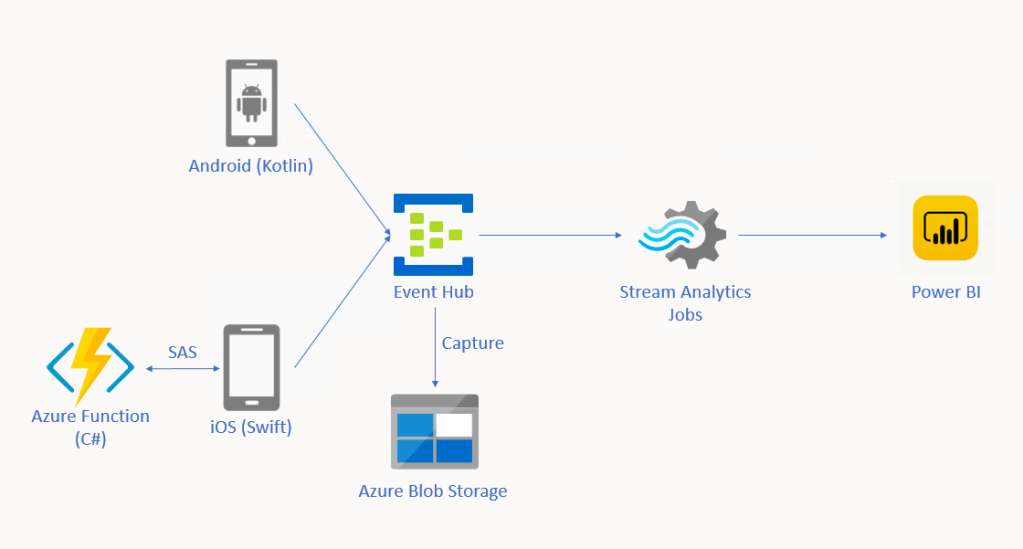
🎨  Alternative solution for driver tracking system with Eventing in Microsoft Azure. 🎨 

In this approach, we will be using tools such as Event Hub, Stream Analytics, and Power BI. There is also Azure Function needed for iOS side which I will explain why later in this article.

Event Hub

As shown in the diagram above, we remove the needs of building the API endpoints and maintaining a reporting module ourselves. Instead, we have Event Hub, a serverless Big Data streaming platform and event ingestion service which can provide real-time event processing and is able to stream million of events per second. Since it’s a serverless setup, we don’t need to provision server resources to handle the events and we also don’t have to pay for large upfront infrastructure cost.

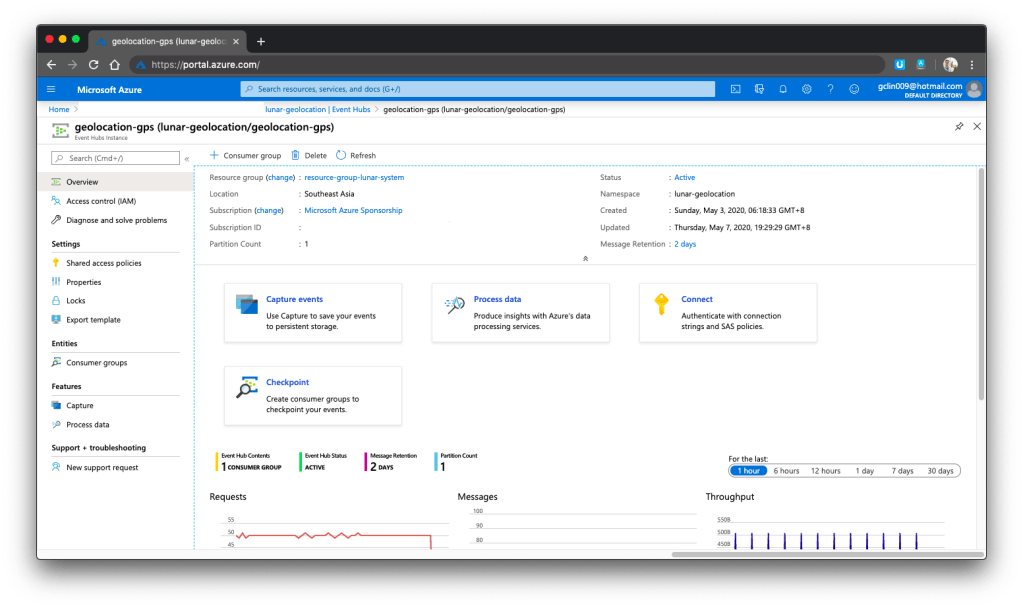
🎨  One of my event hubs that is receiving geolocation data from the mobile devices. 🎨 

Since Event Hub is an open multi-platform, it accepts a range of input methods. So later we shall see how data can be sent to Event Hub from both Android app and iOS app directly.

Event Hub Namespace Throughput Unit

There is a very interesting property in Event Hub Namespace called the Throughput Unit (TU), which is the amount of work that we want to assign to the namespace.

1 TU gives us 1MB/s ingress or 1,000 events/s and 2MB/s outgress or 2,000 events/s. We can scale our namespace up to 20 TUs.

🎨  Scaling the event hub namespace by its TU. 🎨 

In the screenshot above, we can see that there is also a functionality to auto-inflate our namespace which will auto scale-up the TU to a defined limit. This is good for handling sudden peak in volume. However, take note that there is no auto-deflate, so once the TU goes up, we need to use another way to scale it down when the peak is over.

One more thing to take note here is that the TU is shared among the Event Hubs under the namespace.

Capture in Event Hub

By default, Event Hub can store the data for one day. We can adjust it to be the maximum, which is 7 days (in Standard pricing tier only). This is to remind us that Event Hub should not be used as a data storage.

However, with the easy integration of Event Hub with the Azure Stream Analytics, Event Hub can serve as input of the Stream Analytics and output the data to places such as Power BI for data analysis and visualisation or SQL / Azure Storage for data storage.

In addition, we can also enable the Capture function in Event Hub. Capture will automatically persist the data to Azure Storage with no administrative cost. This is the easiest way to load streaming data into Azure without the need of Stream Analytics. The captured streaming data will be stored in the AVRO format which has the data serialised in a compact binary format.

🎨  Viewing the captured streaming data in Azure Storage on the portal. 🎨 

Mobile Clients

Now with the Event Hub setup, we will proceed to discuss how we can send data from our mobile devices to the Event Hub.

🎨  “Driving” on iOS Google map. 🎨 

Unfortunately, there are very little documentation about how to do this online, especially on Kotlin/Swift + Event Hub. Hence, I hope this article can help somebody out there who are interested in similar approach.

Since during the coronavirus pandemic, we are advised not to leave our house so how do I test in such a situation? I thus decide to cheat a bit here. Instead of using the actual mobile location, I will be running my apps on the emulator/simulator. What the apps do is then collecting the latitude and longitude of the points that I click on the app and send them to the Event Hub.

Connecting Android App with Event Hub

GitHub Repo: https://github.com/goh-chunlin/Lunar.Geolocation.Android

In the system, we have both Android and iOS mobile devices that will send GPS data of the users to the Event Hub. For the Android, I will be using Kotlin because it’s the modern recommended way of developing Android app.

If you are interested in using Java, Microsoft has a documentation for connecting Android app to Event Hub in Java. So far I still can’t find Microsoft documentation on using Kotlin to do this task, hence I will be using Kotlin.

Having said that, I will still be using the existing Java client library for Event Hub from the repository. However, there are a few configurations we need to take care of in order to use this Java library.

Firstly, we will add the dependency to the project as follows in the build.gradle of the app.

dependencies {
    ...
    implementation 'com.azure:azure-messaging-eventhubs:5.0.3'
    ...
}

Secondly, there is a need to make adjustment to our gradle file to specify the compatibility of Java in the compileOptions as shown below.

compileOptions {
sourceCompatibility JavaVersion.VERSION_1_8
targetCompatibility JavaVersion.VERSION_1_8
}

Without doing so, it will complain that no methods found for the Event Hub.

Thirdly, there are two markdown files in conflict after we add the library to the project. We can fix that by doing pickFirst.

packagingOptions {
pickFirst 'META-INF/LICENSE.md'
pickFirst 'META-INF/NOTICE.md'
}
🎨 Geolocation data will be sent in batches. 🎨

Another thing why we choose Event Hub is that it allows us to send data in batches. The following function shows how to send data in batch to the Event Hub.

private fun sendLatitudeAndLongitudeDataToAzure() {
    var producer = EventHubClientBuilder()
        .connectionString(BuildConfig.AZURE_EVENT_HUB_CONNECTION_STRING, BuildConfig.AZURE_EVENT_HUB_NAME)
        .buildProducerClient()

    val batch = producer.createBatch()

    recentLatitudeAndLongitudeRecords.forEach {
        batch.tryAdd(EventData(it))
    }

    if (batch.count > 0) {
        producer.send(batch)
    }

    producer.close()
}

The variable recentLatitudeAndLogitudeRecords is a collection of all recent latitude and longitude data collected by the device. In my demo code, which is not shown above, I make it to hold 10 records. So in just one send command, 10 geolocation records will be sent altogether to the Event Hub. The devices thus do not need to make multiple connections to the server to send multiple records.

I only highlighted the key points here for programming an Android app in Kotlin to connect to the Azure Event Hub. The complete demo code is available on GitHub for those who want to find out more about how we can integrate Event Hub in Android projects.

Connecting iOS App with Event Hub

GitHub Repo: https://github.com/goh-chunlin/Lunar.Geolocation.iOS

We should be glad that there is still Event Hub documentation and library available for Android platform because for iOS, there is basically nothing, not even an Event Hub SDK for iOS from Microsoft.

Luckily, there is an excellent blog post on how to connect iOS app to Event Hub written by Luis Delgado back in April 2016. Hmm… 2016? That was written when the President of the USA was still Barack Obama! As we can see, that article is quite outdated so I decided to write down a newer approach on how I do it with Swift 5.

🎨  Barack Obama served as the 44th president of the United States from 2009 to 2017. (Image Credit: CBS News) 🎨 

Since there is no Event Hub SDK for iOS, we have to use its REST APIs instead. For using Event Hub REST APIs, we first need to programmatically generate a SAS (Shared Access Signature) token in order to call the APIs.

This is where the Azure Function comes into picture. In Luis’ blog post, he setup an Azure Web App to host a NodeJS application which will generate SAS token. To be more cost effective, we will be using Azure Function with a short and sweet C# code as shown in the Microsoft documentation.

🎨  Simple C# code to generate SAS token (Please refer to my GitHub repo and its README file for the complete code). 🎨 

With this, then we can then use Alamofire, an HTTP networking library, to make a request to the Azure Event Hub. To send batch data, we first need to make sure the message body to have a valid JSON payload, which is something as follows.

[
{"Body": "<stringify of the record 01 JSON object to send>"}, 
{"Body": "<stringify of the record 02 JSON object to send>"}, 
...
]

We then also need to make sure we have set the Content-Type header to “application/vnd.microsoft.servicebus.json”. For more details, please refer to the Microsoft documentation on sending batch data.

Of course, here I also highlight only the key points to successfully send event data in batch from iOS using Swift 5 to Azure Event Hub. If you would like to find out more, I have my entire demo project for this available on my GitHub repository, please review it.

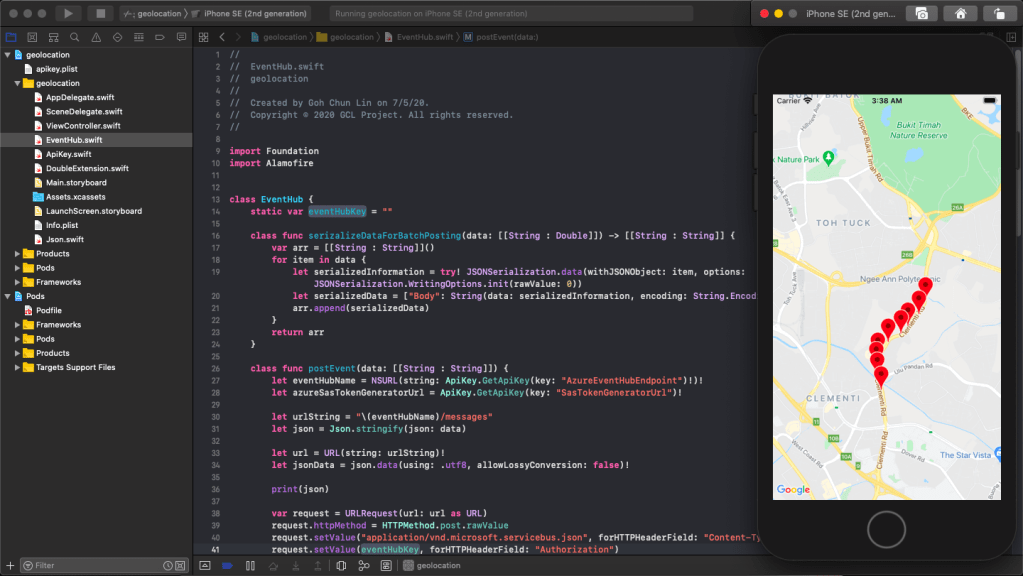
🎨 Running the app which is sending data to the Event Hub on iPhone simulator. 🎨

Stream Analytics

With the events sent from the mobile devices to the Event Hub, we now can link the Event Hub with the Stream Analytics. Take note that Stream Analytics is just one of the many ways of pulling data from the Event Hub. For example, if you are familiar with Apache Storm, you can link it up with that too.

Stream Analytics is a real-time analytics and complex event-processing engine that is designed to analyse and process high volumes of fast streaming data from multiple sources simultaneously. Besides Event Hub, it can also accept inputs from IoT devices or Blob Storage.

The reason why we choose Stream Analytics in our solution is that it requires no upfront infrastructure setup and it is easy to configure and scale.

Consumer Groups in Event Hub

The publish/subscribe mechanism of Event Hubs is enabled through consumer groups. Hence, when we are creating a new Stream Analytics Job, we need to specify the consumer group that we are going to use.

Consumer groups enable multiple consuming applications to each have a separate view of the event stream, and to read the data stream independently. Hence, it is recommended to create a new consumer group for each Stream Analytics Job.

Stream Analytics Query

One exciting feature in the Stream Analytics is the query of data. Stream Analytics has a SQL-like query language which accepts user-defined functions written in JavaScript.

The Stream Analytics accepts multiple inputs and multiple outputs with multiple queries. In our scenario, we have one input from the Event Hub and two outputs to two different datasets on the Power BI.

One dataset is to show all the data points collected by the mobile devices. We will use this dataset to plot the places visited by the drivers on a map. Another dataset will be showing the number of points collected in each mobile device.

Hence, we have the following queries in our Stream Analytics.

SELECT *
INTO [geolocation]
FROM [geolocation-input]

SELECT DeviceLabel, System.Timestamp() AS HappenedAt, COUNT(1) As NumberOfEvents
INTO [geolocation-count]
FROM [geolocation-input]
GROUP BY DeviceLabel, TumblingWindow(minute,3)  

The first query is very straight-forward. What is interesting is the second query where TumblingWindow is used. Tumbling windows are a series of fixed-sized, non-overlapping and contiguous time intervals. So what the query does is using the Aggregate Function Count() over the time window to count the number of data points collected in each device (identified with DeviceLabel) within the 3-minute time window. For more information about the Time Management in Stream Analytics, please read its documentation.

Another interesting point in the second query is the HappenedAt field. It gets its value from System.Timestamp(). In Stream Analytics, every event that flows through the system comes with a timestamp that can be accessed via System.Timestamp(). In our case, since we are using Event Hub, this time is the timestamp given by the Event Hub.

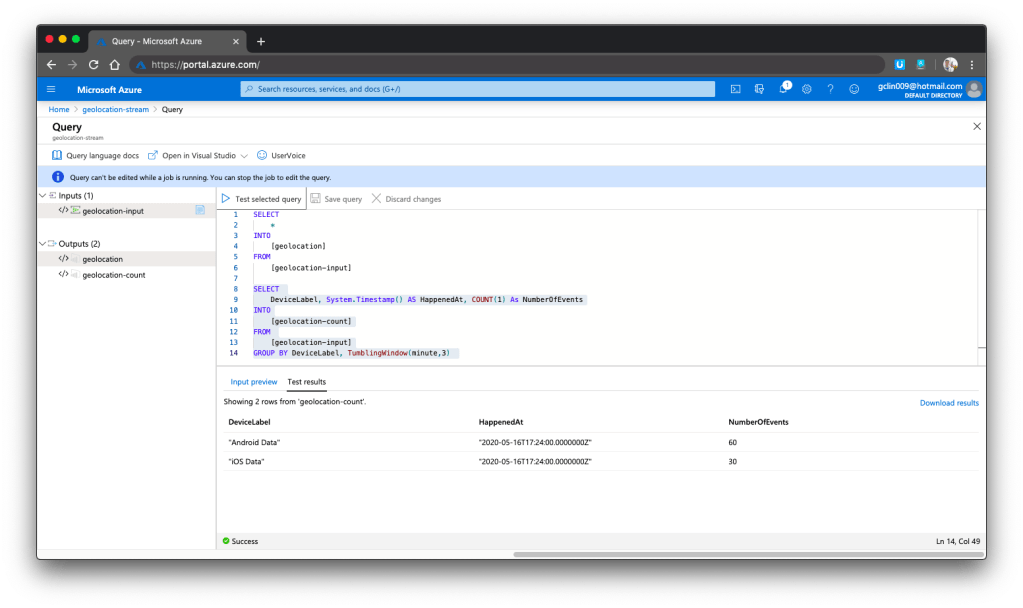
We can now test run the queries above on the Azure Portal, as shown in the screenshot below.

🎨  We can choose to test only the selected query and view its test results. 🎨 

Here, there are additional two things that I’d like to highlight.

Firstly, the data format that we sent to Event Hub is very important. Sometimes it is possible that the Event Hub can receive the messages but due to the wrong format in the messages, Stream Analytics cannot take them as inputs and there will be warning shown in the Overview page of the Stream Analytics.

Secondly, to view detailed logs so that we can better understand what’s happening in Stream Analytics when something goes wrong, it is important to understand how to debug using its Activity Log page and monitor its activities with Azure Monitor.

Data Visualisation with Power BI

Now, let’s see some colourful graphs.

In Power BI, with our setup above in the Stream Analytics, it should now show two datasets.

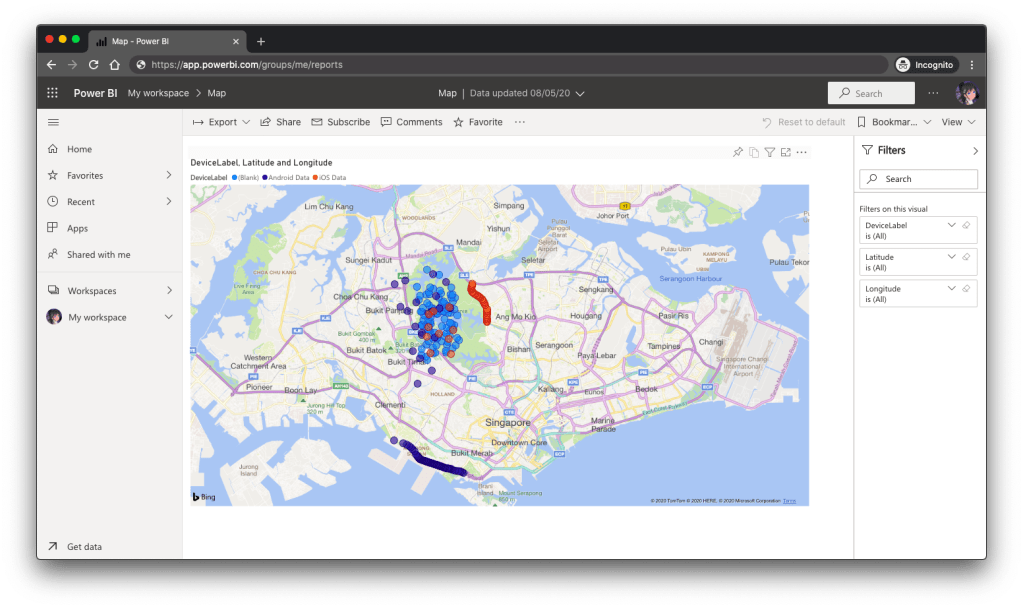
Firstly, we have the map in Power BI using the first dataset to show the location of the drivers. There are some data points having blank Device ID because it is a new field I added after I setup the first dataset in the Stream Analytics.

🎨  Map showing the driver locations using results returned from the first query in Stream Analytics. 🎨 

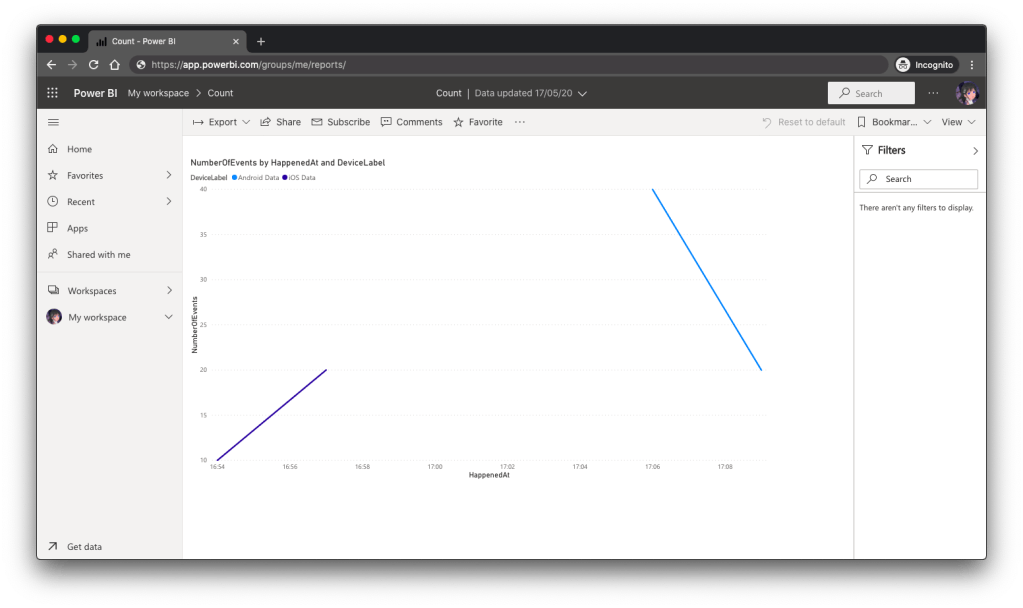
Secondly, we can also visualise the results returned from the second dataset using the Line Chart in Power BI, as shown below.

🎨  The second driver starts work after the first driver. 🎨 

Conclusion

So, what do you think about my alternative above? In fact, there are other ways of doing this as well. There is one more alternative that requires Azure Time Series Insights service which I will be researching. Hopefully I can have time to blog about it soon.

If you have any other better solution, feel free to let me know in the comment section. I may not have time to try all of them out but it may help other developers to find out more alternatives. Thank you in advance!

🎨  If you have a good suggestion to share, let’s discuss over a meal. 🎨 

RPG Game State Management with Dapr

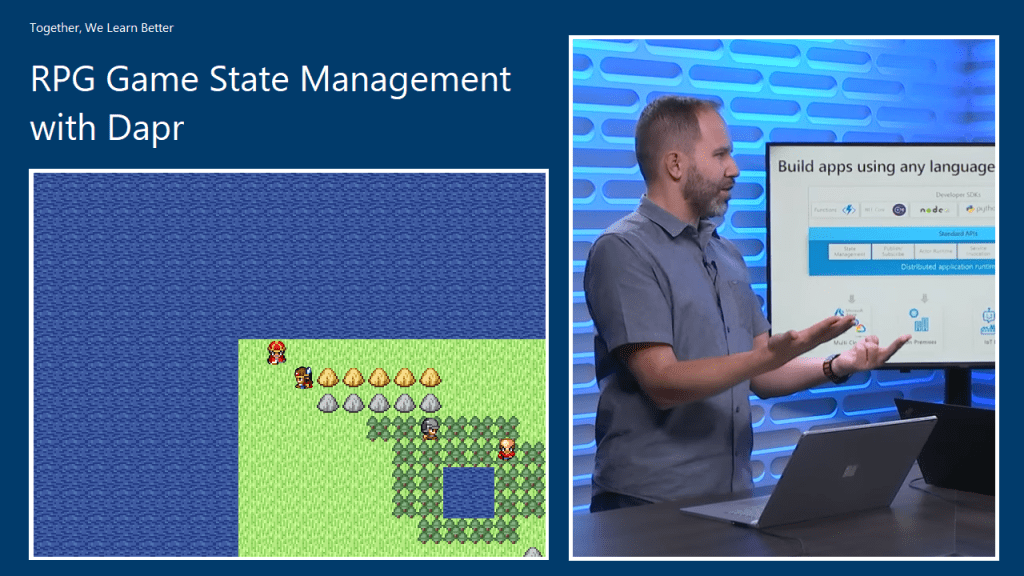
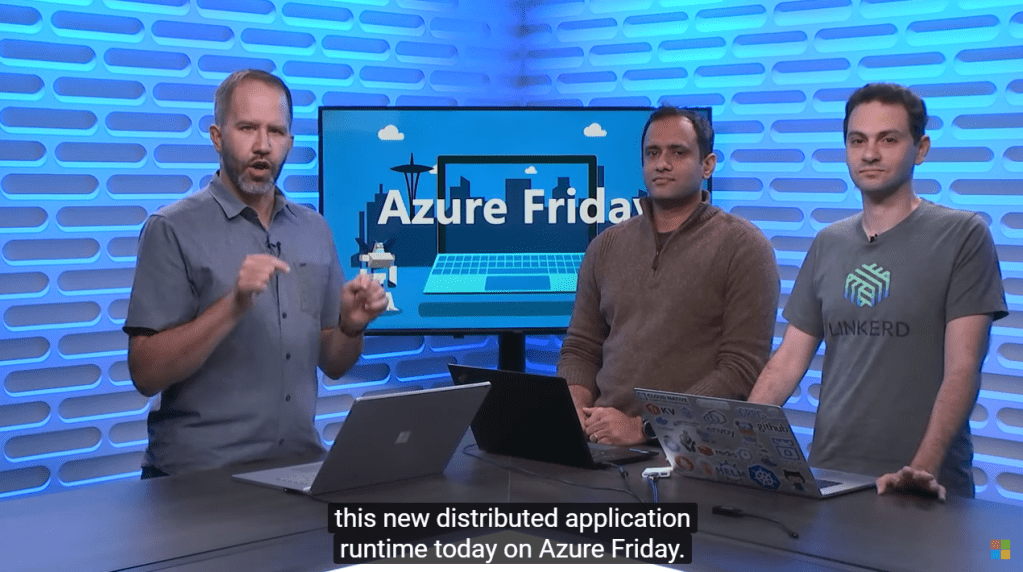
Last month, within one week after .NET Conf Singapore 2019 took place, Microsoft announced their Dapr (Distributed Application Runtime) project. Few days after that, Scott Hanselman invited Aman Bhardwaj and Yaron Schneider to talk about Dapr on Azure Friday.

🎨 Introducing Dapr. (Image Source: Azure Friday) 🎨

Dapr is an open-source, portable, and event-driven runtime which makes the development of resilient micro-service applications easier.

In addition, Dapr is light-weight and it can run alongside our application either as a sidecar process or container. It offers us some capabilities such as state management, which will be demonstrated in this article today, pub-sub, and service discovery which are useful in building our distributed applications.

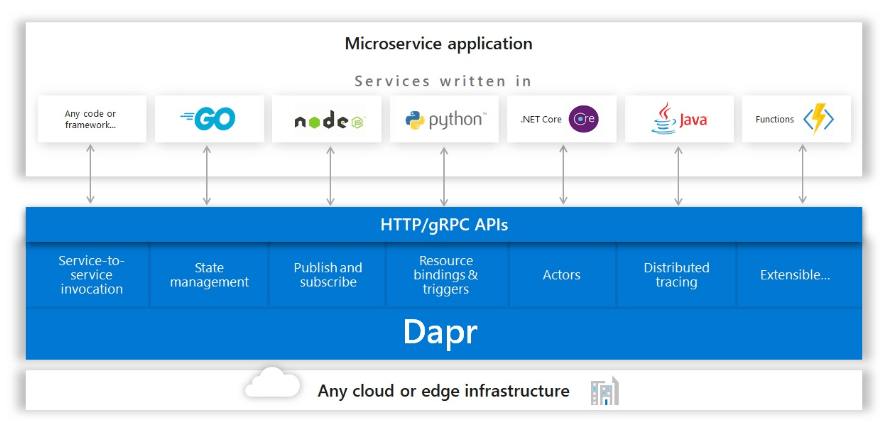
🎨 Dapr building blocks which can be called over standard HTTP or gRPC APIs. (Image Credit: Dapr GitHub Project) 🎨

Dapr makes developer’s life better when building micro-service application by providing best-practice building blocks. In addition, since building blocks communicate over HTTP or gRPC, another advantage of Dapr is that we can use it with our favourite languages and frameworks. In this article, we will be using NodeJS.

🎨 Yaron explains how developers can choose which building blocks in Dapr to use. (Image Source: Azure Friday) 🎨

In this article, we will be using only the state management feature in Dapr and using one of them doesn’t mean we have to use them all.

Getting Started

We will first run Dapr locally. Dapr can be run in either Standalone or Kubernetes modes. For our local development, we will run it in Standalone mode first. In the future then we will deploy our Dapr applications to Kubernetes cluster.

In order to setup Dapr on our machine locally and manage the Dapr instances, we need to have Dapr CLI installed too.

Before we begin, we need to make sure we have Docker installed on our machine and since the application we are going to build is a NodeJS RPG game, we will need NodeJS (version 8 or greater).

After having Docker, we can then proceed to install Dapr CLI. The machine that I am using is Macbook. On MacOS, the installation is quite straightforward with the following command.

curl -fsSL https://raw.githubusercontent.com/dapr/cli/master/install/install.sh | /bin/bash

After the installation is done, we then can use the Dapr CLI to install the Dapr runtime with the following command.

dapr init

That’s all for setting up the Dapr locally.

Project Structure

The NodeJS game that we have here is actually copied from the html-rpg project done by Koichiro Mori on GitHub. The following architecture diagram illustrates the components that make up our application.

🎨 Architecture diagram, inspired by the hello-world sample of Dapr project. 🎨

For the project, we have two folders in the project root, which is backend and game.

🎨 Project structure. 🎨

The game project is just a normal NodeJS project where all the relevant codes of the html-rpg is located in the public folder. Then in the app.js, we have the following line.

app.use(express.static('public))
🎨 Four character types (from top to bottom): King, player, soldier, and minister. 🎨

We also update the code of html-rpg so that whenever the player encounters the soldier or the minister face-to-face, the player HP will drop 10 points. To do so, we simply send HTTP POST request to the Dapr instance which is listening on port 4001 (will explain where this port number comes from later).

...
var data = {};
data["data"] = {};
data["data"]["playerHp"] = map.playerHp;

// construct an HTTP request
var xhr = new XMLHttpRequest();
xhr.open("POST", "http://localhost:4001/v1.0/invoke/backend/method/updatePlayerHp", true);
xhr.setRequestHeader('Content-Type', 'application/json; charset=UTF-8');

// send the collected data as JSON
xhr.send(JSON.stringify(data));
...

In the backend project, we will have the code to handle the /updatePlayerHp request, as shown in the code below.

app.post('/updatePlayerHp', (req, res) => {
    const data = req.body.data;
    const playerHp = data.playerHp;

    const state = [{
        key: "playerHp",
        value: data
    }];

    fetch(stateUrl, {
        method: "POST",
        body: JSON.stringify(state),
        headers: {
            "Content-Type": "application/json"
        }
    }).then((response) => {
        console.log((response.ok) ? "Successfully persisted state" : "Failed to persist state: " + response.statusText);
    });

    res.status(200).send();
});

The code above will get the incoming request and then persist the payer HP to the state store.

CosmosDB as State Store

By default, when we run Dapr locally, Redis state store will be used. The two files in the components directory in the backend folder, i.e. redis_messagebus.yaml and redis.yaml are automatically created when we run Dapr with the Dapr CLI. If we delete the two files and run Dapr again, it the two files will still be re-generated. However, that does not mean we cannot choose another storage as state store.

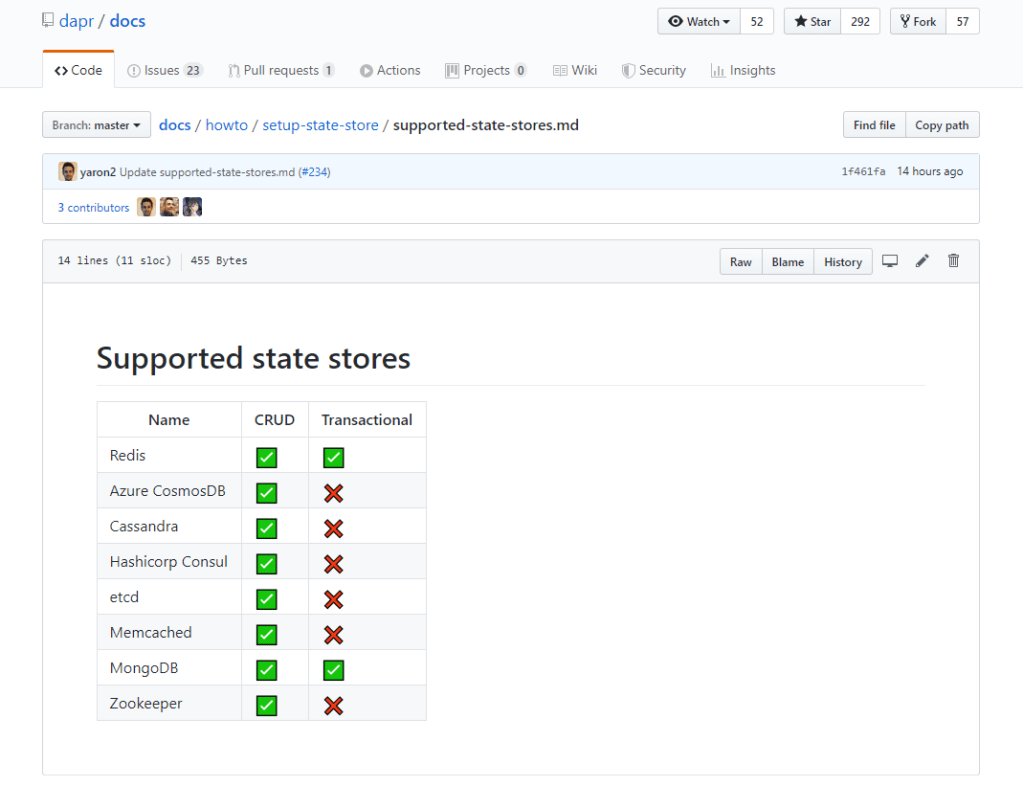
Besides Redis, Dapr also supports several other types of state stores, for example CosmosDB.

🎨 Supported state stores in Dapr as of 9th November 2019. I am one of the contributors to the documentation! =) 🎨

To use CosmosDB as state store, we simply need to replace the content of the redis.yaml with the following.

apiVersion: dapr.io/v1alpha1
kind: Component
metadata:
   name: statestore
spec:
   type: state.azure.cosmosdb
   metadata:
   - name: url
     value: <CosmosDB URI> 
   - name: masterKey
     value: <CosmosDB Primary Key>
   - name: database
     value: <CosmosDB Database Name>
   - name: collection
     value: <CosmosDB Collection Name> 

The four required values above can be retrieved from the CosmosDB page on the Azure Portal. There is, however, one thing that we need to be careful, i.e. the Partition Key of the container in CosmosDB.

🎨 Partition Key is a mandatory field during the container creation step. 🎨

When I was working on this project, I always received the following error log from Dapr.

== APP == Failed to persist state: Internal Server Error

Since Dapr project is quite new and it is still in experimental stage, none of my friends seem to know what’s happening. Fortunately, Yaron is quite responsive on GitHub. Within two weeks, my question about this error is well answered by him.

I had a great discussion with Yaron on GitHub and he agreed to update the documentation to highlight the fact that we must use “/id” as the partition key.

So, after correcting the partition key, I finally can see the state stored on CosmosDB.

🎨 CosmosDB reflects the current HP of the player which has dropped from 100 to 60. 🎨

In the screenshot above, we can also clearly see that “backend-playerHP” is automatically chosen as id, which is what being explained in the Partition Keys section of the documentation.

References

Unit Testing with Golang

Continue from the previous topic

Unit Testing is a level of automated software testing that units which can be modular parts of the program are tested. Normally, the “unit” refers to a function, but it doesn’t necessary always be so. A unit typically takes in data and returns an output. Correspondingly, a unit test case passes data into the unit and check the resultant output to see if they meet the expectations.

Unit Testing Files

In Golang, unit test cases are written in <module>_test.go files, grouped according to their functionality. In our case, when we do unit testing for the videos web services, we will have the unit test cases written in video_test.go. Also, the test files need to be in the same package as tested functions.

Necessary Packages

In the beginning, we need to import the “testing” package. In each of our unit test function, we will take in a parameter t which is a pointer to testing.T struct. It is the main struct that we will be using to call out any failure or error.

In our code video_test.go, we use only the function Error in testing.T to log the errors and to mark the test function fails. In fact, Error function is a convenient function in the package that combines calling of Log function and then the Fail function. The Fail function marks the test case has failed but it still allows the execution of the rest of the test case. There is another similar function called FailNow. The FailNow function is stricter and exits the test case once it’s encountered. So, if FailNow function is what you need, you have to call the Fatal function which is another convenient function that combines Log and FailNow instead of the Error function.

Besides the “testing” package, there is another package that we need in order to do unit testing for Golang web applications. It is the “net/http/httptest” package. It allows us to use the client functions of the “net/http” package to send an HTTP request and capturing the HTTP response.

Test Doubles, Mock, and Dependency Injection

Before proceeding to writing unit test functions, we need to get ready with Test Doubles. Test Double is a generic term for any case where we replace a production object for testing purposes. There are several different types of Test Double, of which a Mock is one. Using Test Doubles helps making the unit test cases more independent.

In video_test.go, we apply the Dependency Injection in the design of Test Doubles. Dependency Injection is a design pattern that decouples the layer dependencies in our program. This is done through passing a dependency to the called object, structure, or function. This dependency is used to perform the action instead of the object, structure, or function.

Currently, the handleVideoRequests handler function uses a global sql.DB struct to open a database connection to our PostgreSQL database to perform the CRUD. For unit testing, we should not depend on database connection so much and thus the dependency on sql.DB should be removed. The dependency on sql.DB then should be injected into the process flow from the main program.

To do so, firstly, we need to introduce a new interface called IVideo.

type IVideo interface {

GetVideo(userID string, id int) (err error)
GetAllVideos(userID string) (videos []Video, err error)
CreateVideo(userID string) (err error)
UpdateVideo(userID string) (err error)
DeleteVideo() (err error)

}

Secondly, we make our Video struct to implement the new interface and let one of the fields in the Video struct a pointer to sql.DB. Unlike in C#, we have to specify which interface the class is implementing, in Golang, as long as the Video struct implements all the methods that IVideo has (which is already does), then Video struct is implementing the IVideo interface. So now our Video struct looks as following.

type Video struct {
Db *sql.DB
ID int `json:"id"`
Name string `json:"videoTitle"`
URL string `json:"url"`
YoutubeVideoID string `json:"youtubeVideoId"`
}

As you can see, we added a new field called Db which is a pointer to sql.DB.

Now, we can create a Test Double called FakeVideo which implements IVideo interface to be used in unit testing.

// FakeVideo is a record of favourite video for unit test
type FakeVideo struct {
ID int `json:"id"`
Name string `json:"videoTitle"`
URL string `json:"url"`
YoutubeVideoID string `json:"youtubeVideoId"`
CreatedBy string `json:"createdBy"`
}


// GetVideo returns one single video record based on id
func (video *FakeVideo) GetVideo(userID string, id int) (err error) {
jsonFile, err := os.Open("testdata/fake_videos.json")
if err != nil {
return
}

defer jsonFile.Close()

jsonData, err := ioutil.ReadAll(jsonFile)
if err != nil {
return
}

var fakeVideos []FakeVideo
json.Unmarshal(jsonData, &fakeVideos)

for _, fakeVideo := range fakeVideos {
if fakeVideo.ID == id && fakeVideo.CreatedBy == userID {
video.ID = fakeVideo.ID
video.Name = fakeVideo.Name
video.URL = fakeVideo.URL
video.YoutubeVideoID = fakeVideo.YoutubeVideoID

return
}
}

err = errors.New("no corresponding video found")

return
}
...

So instead of reading the info from the PostgreSQL database, we read mock data from a JSON file which is stored in testdata folder. The testdata folder is a special folder where Golang will ignores when it builds the project. Hence, with this folder, we can easily read our test data from JSON file fake_videos.json through relative path from video_test.go.

Since now the Video struct is updated, we need to update our handleVideoAPIRequests method to be as follows.

func handleVideoAPIRequests(video models.IVideo) http.HandlerFunc {
    return func(writer http.ResponseWriter, request *http.Request) {
        var err error

       ...

        switch request.Method {
        case "GET":
            err = handleVideoAPIGet(writer, request, video, user)
        case "POST":
            err = handleVideoAPIPost(writer, request, video, user)
        case "PUT":
            err = handleVideoAPIPut(writer, request, video, user)
        case "DELETE":
            err = handleVideoAPIDelete(writer, request, video, user)
        }

        if err != nil {
            util.CheckError(err)
            return
        }
    }
}

So now we pass an instance of the Video struct directly into the handleVideoAPIRequests. The various Video methods will use the sql.DB that is a field in the struct instead. At this point of time, handleVideoAPIRequests no longer follows the ServeHTTP method signature and is no longer a handler function.

Thus, in the main function, instead of attaching a handler function to the URL, we call the handleVideoAPIRequests function as follows.

func main() {
...

mux.HandleFunc("/api/video/",
handleRequestWithLog(handleVideoAPIRequests(&models.Video{Db: db})))

...
}

Writing Unit Test Cases for Web Services

Now we are good to write unit test cases in video_test.go. Instead of passing a Video struct like in server.go, this time we pass in the FakeVideo struct, as highlighted in one of the test cases below.

func TestHandleGetAllVideos(t *testing.T) {
    mux = http.NewServeMux()
    mux.HandleFunc("/api/video/", handleVideoAPIRequests(&models.FakeVideo{}))
    writer = httptest.NewRecorder()

    request, _ := http.NewRequest("GET", "/api/video/", nil)
    mux.ServeHTTP(writer, request)

   if writer.Code != 200 {
        t.Errorf("Response code is %v", writer.Code)
    }

    var videos []models.Video
    json.Unmarshal(writer.Body.Bytes(), &videos)

    if len(videos) != 2 {
        t.Errorf("The list of videos is retrieved wrongly")
    }
}

By doing this, instead of fetching videos from the PostgreSQL database, now it will get from the fake_videos.json in testdata.

Testing with Mock User Info

Now, since we have implemented user authentication, how do we make it works in unit testing also. To do so, in auth.go, we introduce a flag called isTesting which is false as follows.

// This flag is for the use of unit testing to do fake login
var isTesting bool

Then in the TestMain function, which is provided in testing package to do setup or teardown, we will set this to be true.

So how do we use this information? In auth.go, there is this function profileFromSession which retrieves the Google user information stored in the session. For unit testing, we won’t have this kind of user information. Hence, we need to mock this data too as shown below.

if isTesting {
        return &Profile{
            ID: "154226945598527500122",
            DisplayName: "Chun Lin",
            ImageURL: "https://avatars1.githubusercontent.com/u/8535306?s=460&v=4",
        }
    }

With this, then we can test whether the functions, for example, are retrieving correct videos of the specified user.

Running Unit Test Locally and on Azure DevOps

Finally, to run the test cases, we simply use the command below.

go test -v

Alternatively, Visual Studio Code allows us to run specified test case by clicking on the “Run Test” link above the test case.

Running test on VS Code.

We can then continue to add the testing as one of the steps in Azure DevOps Build pipeline, as shown below.

Added the go test task in Azure DevOps Build pipeline.

By doing this, if any of the test cases fails, there won’t be a build made and thus our system becomes more stable now.