Submitting My First UWP App to the Microsoft Store

The credit of photo used: Fortune

Getting our apps to the market is always an exciting moment. I once remembered I worked with the business co-founders until mid-night when we launched our first version of the app. There was also a time when minister and other government officers visited the launch event of our UWP app. So, yup, publishing and releasing the apps to market is a crucial knowledge to learn for developers. Today, this post will share my journey of submitting my first UWP app to the Microsoft Store.

Microsoft Store is a digital distribution platform for distributing our UWP apps which. It has a great amount of users which can be helpful in getting exposure. Once our UWP apps are ready on the platform, Windows 10 users can conveniently download and install our apps to their Windows 10 machine. In addition, organizational customers can acquire our apps to distribute internally to their organizations through the Microsoft Store for Business.

As a staff in an education institute, I can access Microsoft Store for Education too.

When we package our apps using Visual Studio and then release it to the Microsoft Store, a special capability will be added automatically. It’s called runFullTrust, a restricted capability. It allows our apps to run at the full trust permission level and to have full access to resources on the users’ machine. Hence, we need to submit our apps to the Microsoft Store and then wait for approval from Microsoft before our apps can be released on the Microsoft Store.

So, let’s start the app publish journey with me now.

Mission 1: Setup App Manifest

Before we release our app, we should make sure it works as expected on all device families that we plan to support. It’s important to test our app with the Release configuration and check that our app behaves as expected.

After that, we will proceed to configure our app manifest file Package.appxmanifest. It’s an XML file that contains the properties and settings required to create our app package.

The Display Name and Description are controlled in the resource file Resources.resw. I also set my app to support the Landscape views only.

After that, we will need to upload the product logo. Even though there are many visual assets for different sizes of tiles, icons, package logo, and splash screen, what we need to do is simply just upload one logo image which is at least 400×400 pixels. Then Visual Studio will be able to help us to generate the necessary assets.
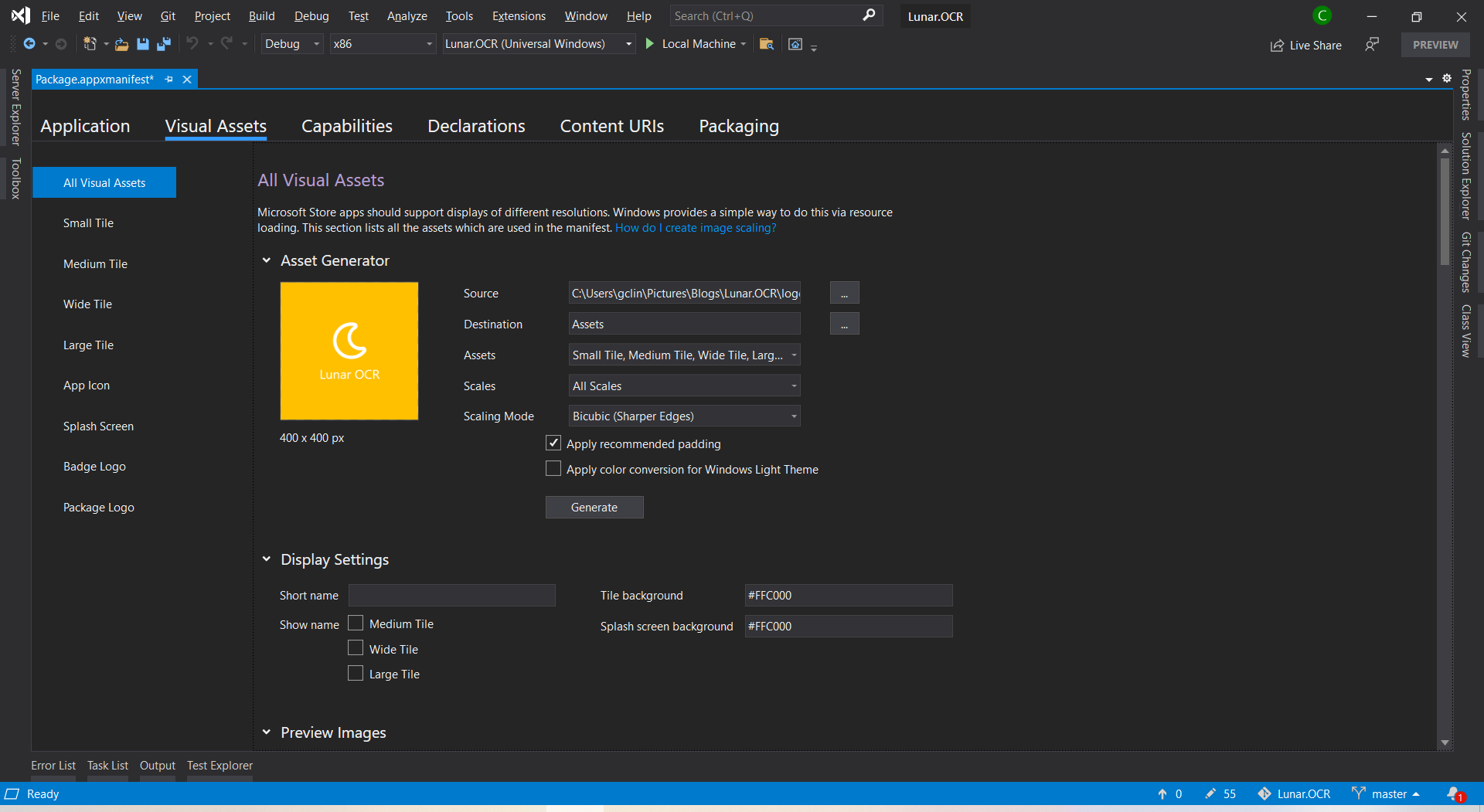
I set the background of tile and splash screen to be the same colour as the uploaded logo because the logo file comes with a background colour.

I will skip the Capabilities, Declarations, and Content URIs tabs here because they are not relevant to our app for now.

Mission 2: Create Developer Account

Before we proceed, we need to make sure we have a Microsoft Developer account so that we can submit our UWP apps to the Microsoft Store.

We need to pay a one-time registration fee with no renewal is required. In Singapore, individual account costs SGD 24 and company account is SGD 120.

After we have logged in to the Microsoft Partner Center, we can first reserve our product name first. So we can take our time developing and publishing our apps without worrying the name will be used by other developer or company within the next three months.

Reserving a name for our app before submitting it is similar to the act of placing packets of tissue on empty tables to reserve seats while we go grab our food. (Photo Credit: The Straits Times)

Mission 3: Associate App with the Microsoft Store

After we have successfully created a developer account, we can then associate our app with the Microsoft Store in Visual Studio.

Right click our solution and we can associate our app with the Microsoft Store.

After the association is done, we will see that, in the Packaging tab of our app manifest, the app has already been signed with a trusted certificate. This allows the users to install and run our app without installing the associated app signing certificate.

Mission 4: Create the App Package

Since we have already associated the app, now when we proceed to create the app package, we will have an option to distribute to the Microsoft Store for the app directly.
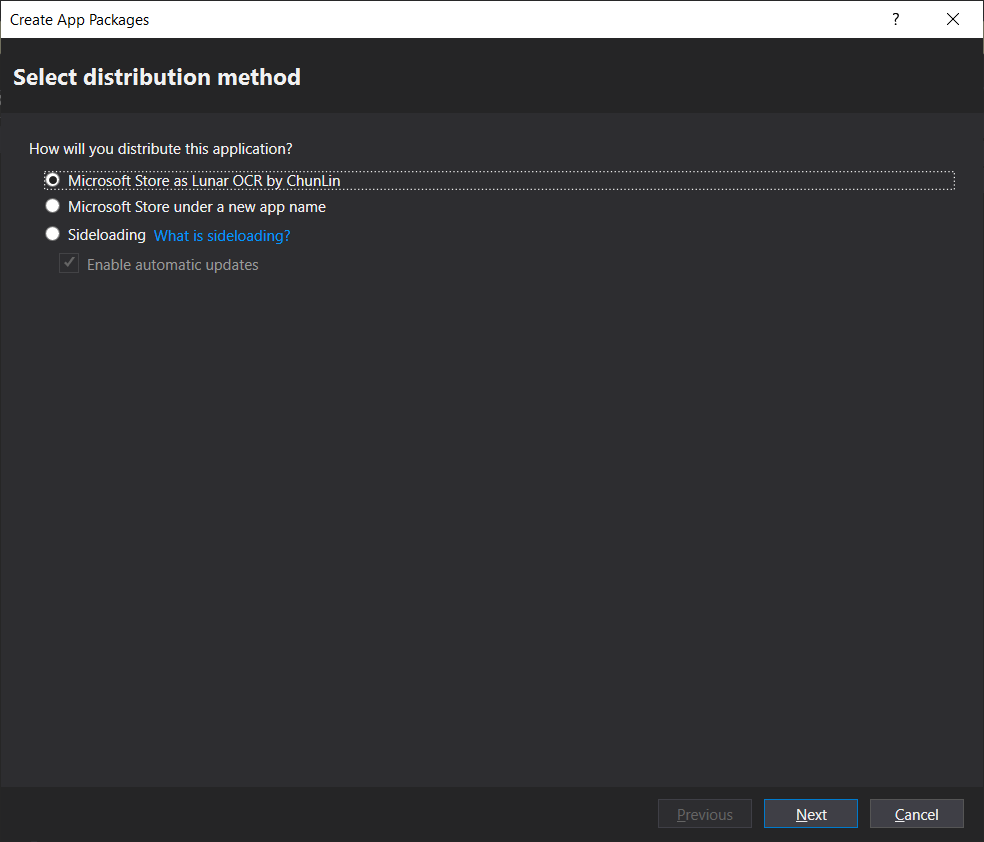
Choosing the distribution method.

After that, we will need to select the architectures for our app. In order to make it runnable on most of the platforms, we should choose relevant ones.

Windows 10 devices and architectures. (Image Source: MSIX Docs)

After that, we can proceed to create the app package. The app package creation will take about 1 to 2 minutes to complete. Then we will be promoted, as shown below, to validate our app package. The validation process involves a tool called Windows App Certification Kit (WACK). It is to make sure that our app complies with Microsoft Store requirements and is ready to publish.

Certification tests for our app on Windows App Certification Kit.

This mission is successfully completed as long as the Overall Result shows “PASSED”.

Mission 5: Publish to Microsoft Store!

Before we can submit our package on the Microsoft Partner Center, there are a few information we need to prepare.

Both privacy policy and website of my app are hosted as GitHub Pages.
  • Support Contact Info: Please do not enter email as Support Contact Info, provide URL of a support page of the app instead. I received many spam mails after using my email for this field. Haha.
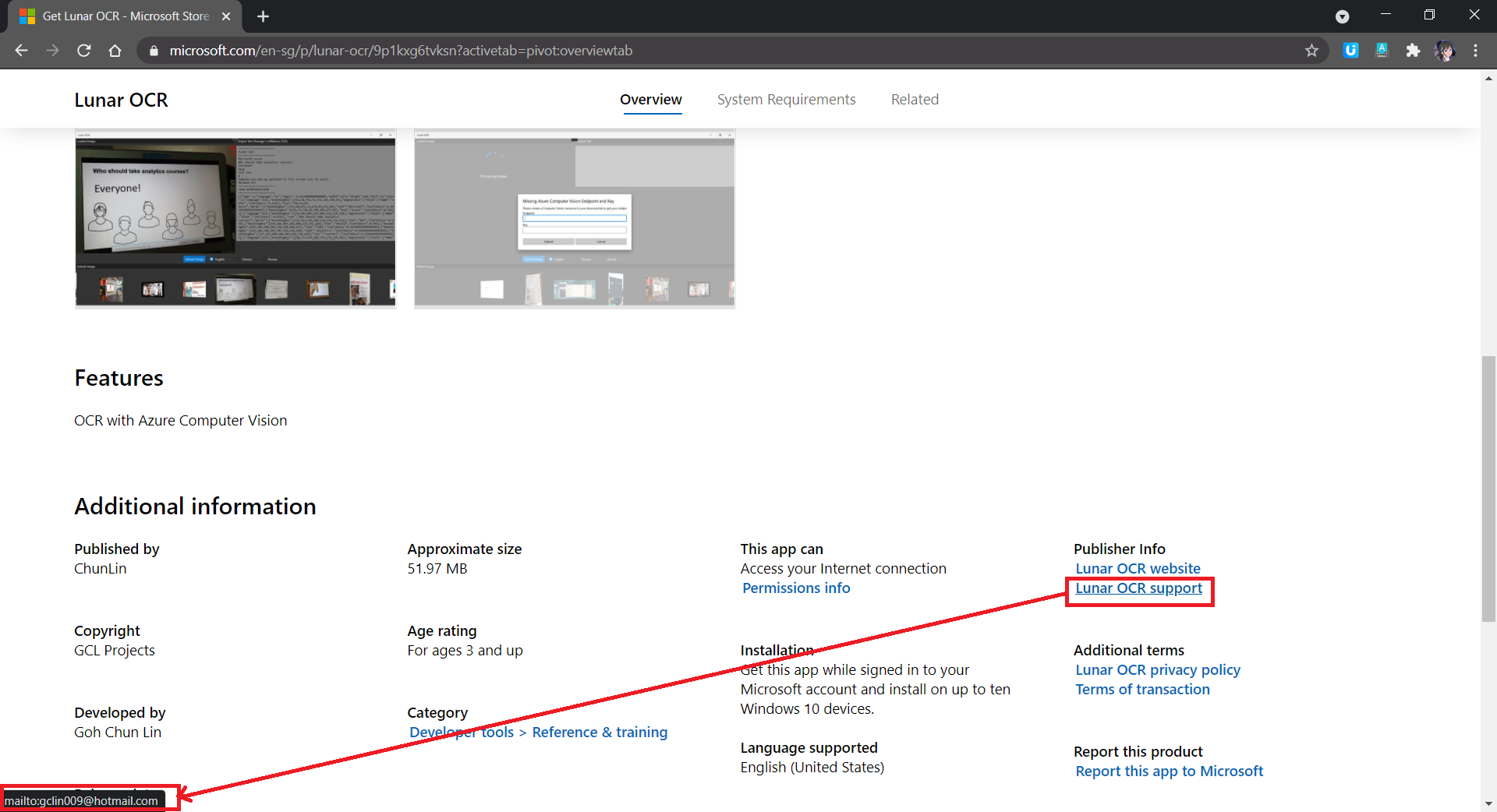
If email is used as Support Contact Info, web crawlers can easily retrieve our email address and spam us.
  • System Requirements: If customers are using hardware that doesn’t meet the minimum requirements, they may see a warning before they download our app.
  • Age Rating: There will be a tool to help us determine the rating of our app in each of the markets.
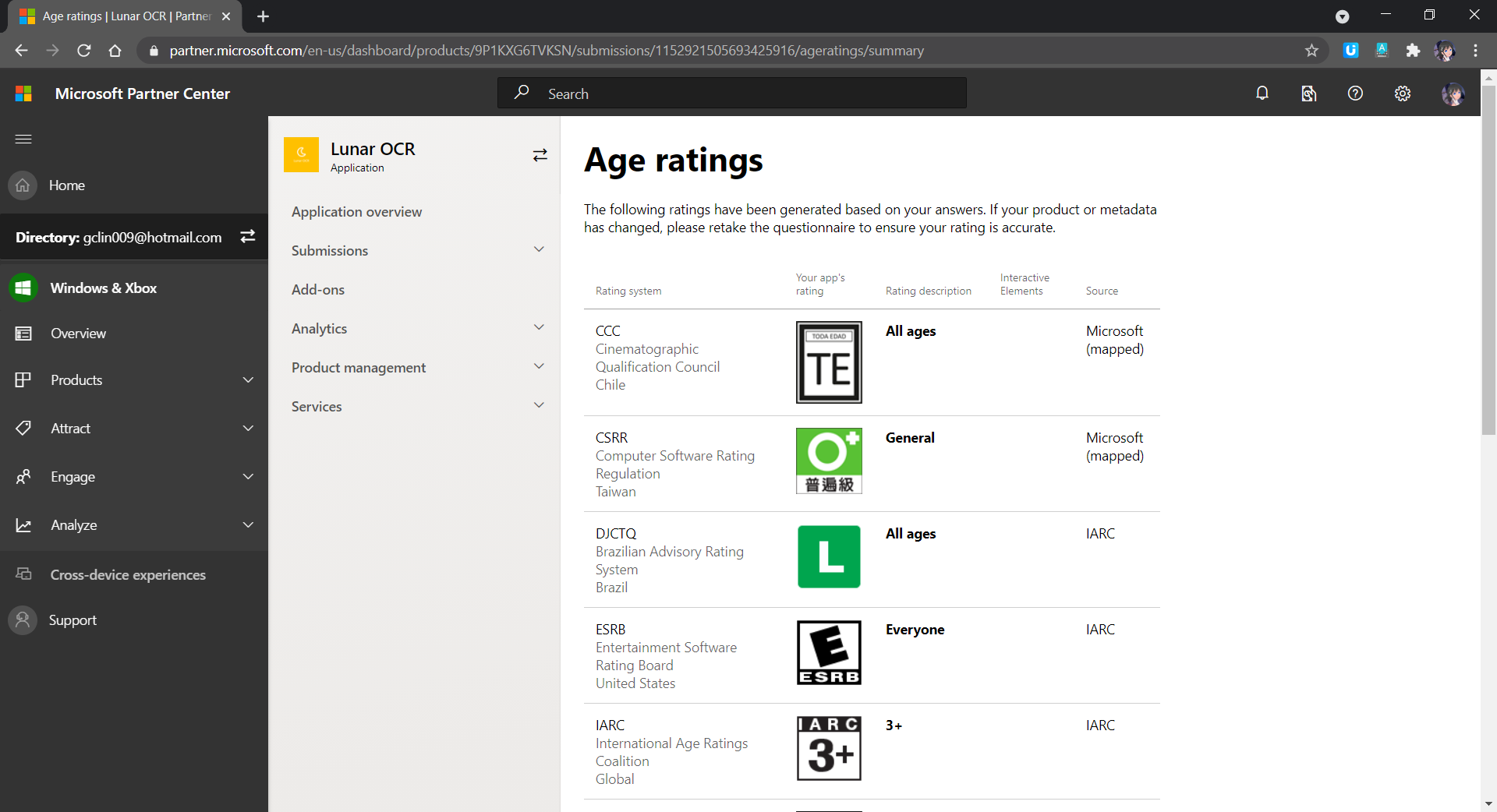
Age rating of our app.
  • Publish Date: By default, our app will be published to the Microsoft Store as soon as the submission passes certification. However, we can also manually publish it later or schedule the publish to a later date and time.

Once we have provided all the information above, we can proceed to upload our app package to the Packages section, as shown in the screenshot below.

If the submission is rejected, we simply replace the app package here with a new one and then resubmit the same submission.

After our submission is done, we just need to wait for the Microsoft staff to certify our app.

If our submission is rejected, we will see a report as follows under the Submission where there will be details on action to take.

Oh no, there is an uncaught exception in our app. We gonna fix it fast.

If there is no problem, we will be able to see our app on the Microsoft Store, as demonstrated in the following screenshot. The whole certification and release process is very fast to me.
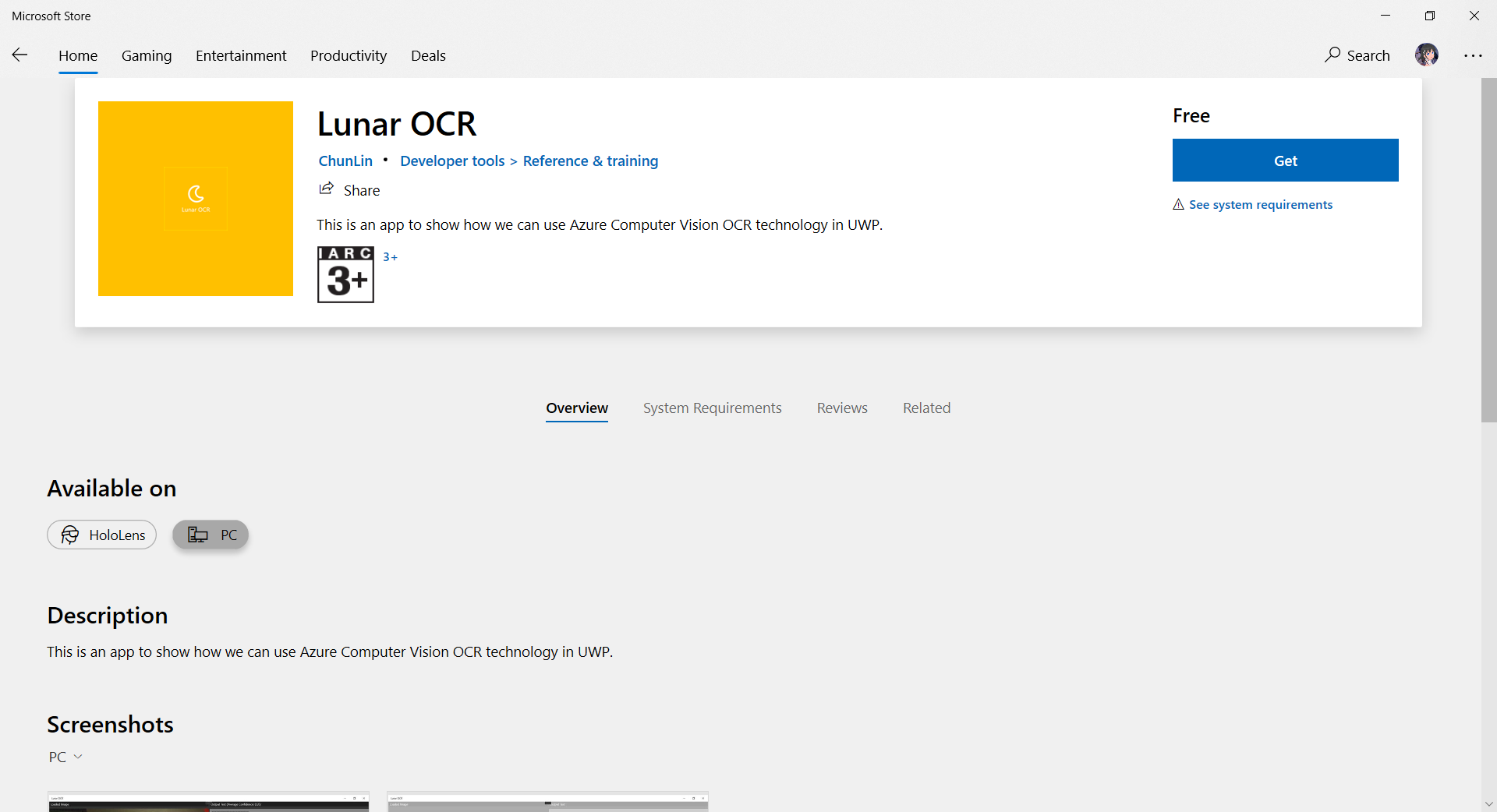
I submitted the app on Sunday night (SGT) and my app was approved on Monday night (SGT) after fixing the problems reported by Microsoft and re-submitting again for one time on Monday evening (SGT).

Mission 6: Monetise App with In-app Ads

Since I am supporting open-source software, so the apps I publish are all free to the public to download. However, it would still be great if I can get financial supports from users who love my work. Hence, monetisation our app with in-app ads is one of the options.

Unfortunately, starting from 2020, the Microsoft Ad Monetization platform for UWP apps had been shut down. So, we have no choice but to look into 3rd party solutions. The service that I am using is AdsJumbo, a verified advertisement network for Windows 10, desktop apps & games because it is straightforward to use.

It is better to get our app approved on Ads Jumbo before uploading our app with in-app ads to the Microsoft Store.

The approval process on Ads Jumbo is fast to me. My app was approved on the day I submitted it on Ads Jumbo. While waiting for approval, we can also first do a test so that we can visualise the ads positioning in our app, as shown below.
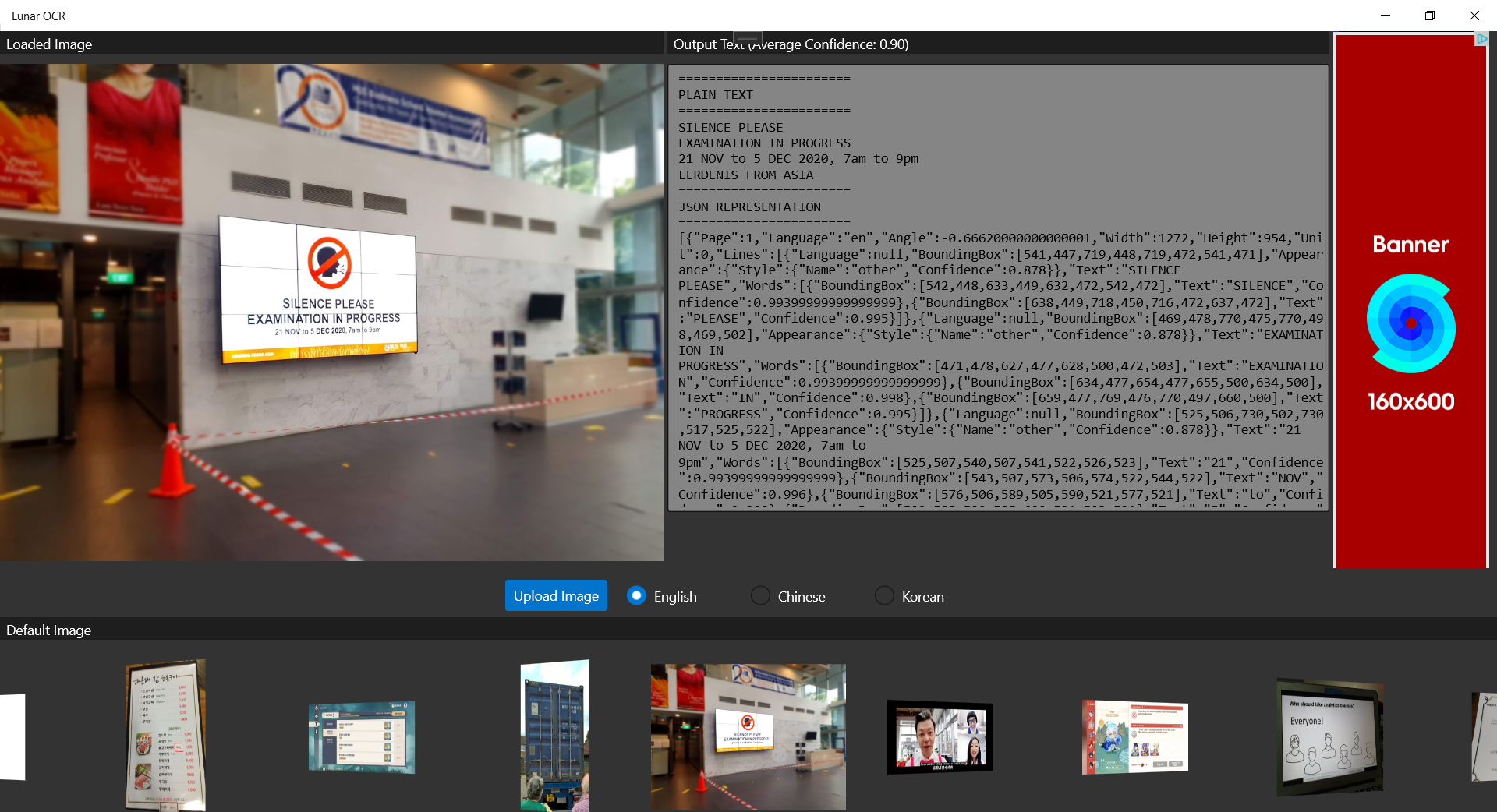
We should test to see how the ads would be positioned before publishing it.

Yup, that’s all about my journey of getting my first Windows 10 UWP app on the Microsoft Store. Please download it now and let me know what you think. Thank you!

Download URL: https://www.microsoft.com/en-sg/p/lunar-ocr/9p1kxg6tvksn

Source Code: https://github.com/goh-chunlin/Lunar.OCR/tree/microsoft-store

References

Implement OCR Feature in UWP for Windows 10 and Hololens 2

I have been in the logistics and port industry for more than 3 years. I have also been asked by different business owners and managers about implementing OCR in their business solutions for more than 3 years. This is because it’s not only a challenging topic, but also a very crucial feature in their daily jobs.

For example, currently the truck drivers need to manually key in the container numbers into their systems. Sometimes, there will be human errors. Hence, they always have this question about whether there is a feature in their mobile app, for example, that can extract the container number directly from merely a photo of the container.

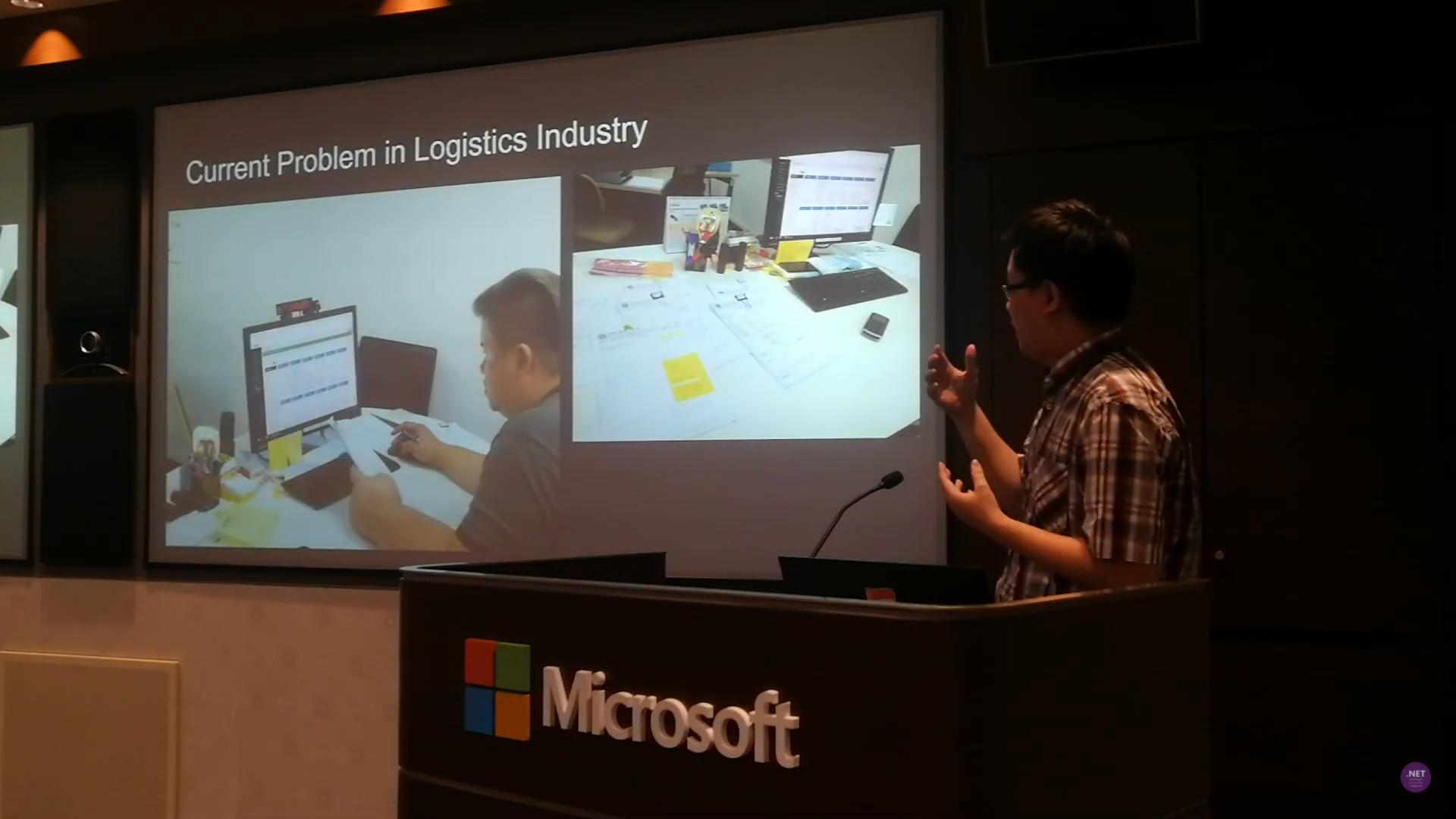
In 2019, I gave a talk about implementing OCR technology in the logistics industry during a tech meetup in Microsoft Tokyo. At that point of time, I demoed using Microsoft Cognitive Services. Since then many things have changed. Thus, it’s now a good time to revisit this topic.

Pen and paper is still playing an important role in the logistics industry. So, can OCR help in digitalising the industry? (Image Source: Singapore .NET Developers Community YouTube Channel)

Performing OCR Locally with Tesseract

Tesseract is an open-source OCR engine currently developed and led by Ray Smith from Google. The reason why I choose Tesseract is because there is no Internet connection needed. Hence, OCR can be done quickly without the need to upload images to the cloud to process.

In 2016, Hewlett Packard Enterprise senior developer, Yoisel Melis, created a project which enables developers to use Tesseract on Windows Store Apps. However, it’s just a POC and it has not been updated for about 5 years. Fortunately, there is also a .NET wrapper for Tesseract, done by Charles Weld, available on NuGet. With that package, we now can easily implement OCR feature in our UWP apps.

Currently, I have tried out the following two features offered by Tesseract OCR engine.

  1. Reading text from the image with confidence level returned;
  2. Getting the coordinates of the image.

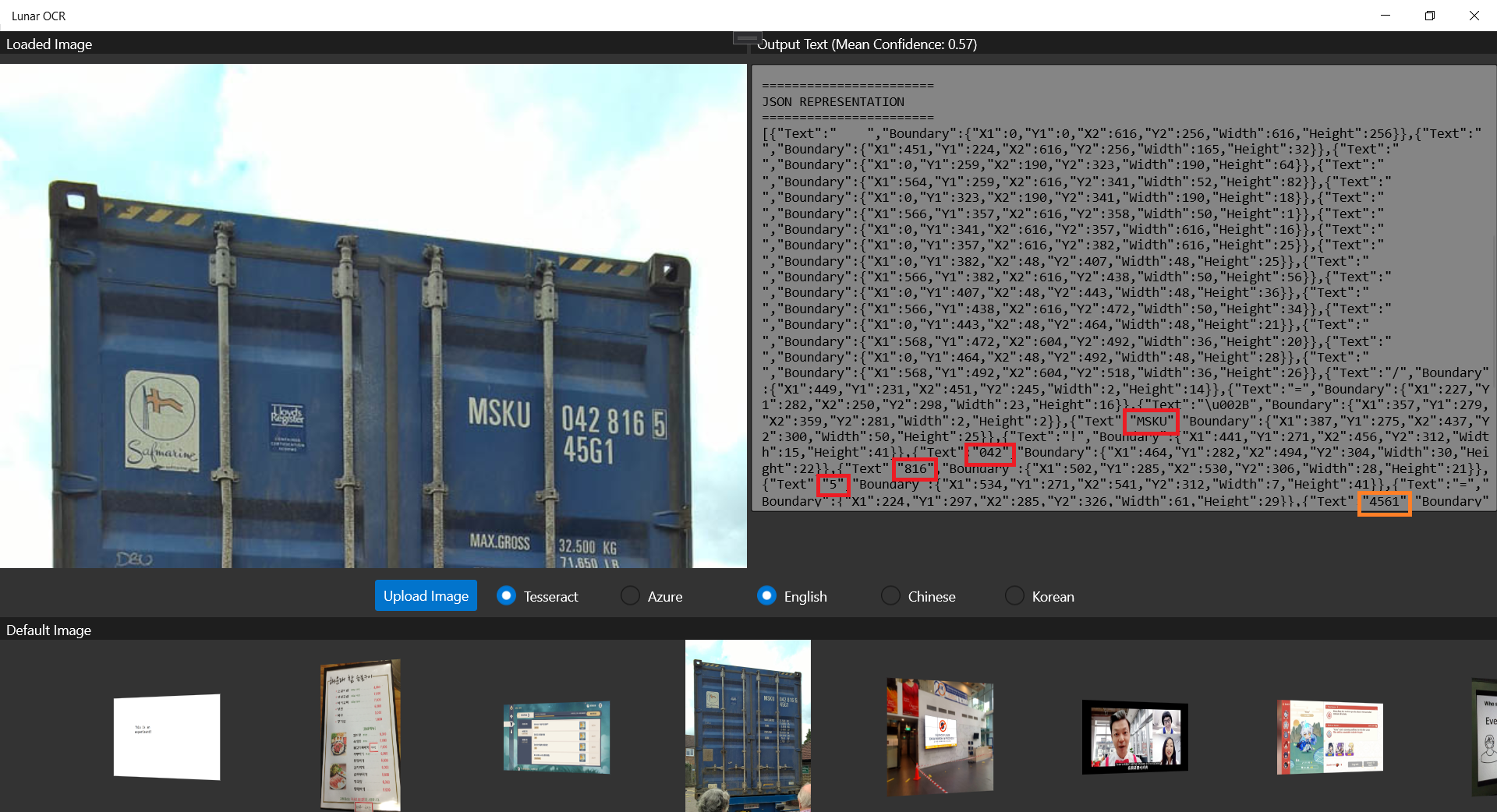
The following screenshot shows that Tesseract is able to retrieve the container number out from a photo of a container.

Only the “45G1” is misread as “4561”m as highlighted by the orange rectangle. The main container number is correctly retrieved from the photo.

Generally, Tesseract is also good at recognizing multiple fonts. However, sometimes we do need to train it based on certain font to improve the accuracy of text recognition. To do so, Bogusław Zaręba has written a very detailed tutorial on how to do it, so I won’t repeat the steps here.

Tesseract can also work with multiple languages. To recognise different languages, we simply need to download the corresponding language data files for Tesseract 4 and add them to our UWP project. The following screenshot shows the Chinese text that Tesseract can extract from a screenshot of a Chinese game. The OCR engine performs better on images with lesser noise, so in this case, some Chinese words are not recognised.

Many Chinese words are still not recognised.

So, how about doing OCR with Azure Cognitive Services? Will it perform better than Tesseract?

Performing OCR on Microsoft Azure

On Azure, Computer Vision is able to analyse content in images and video. Similar as Tesseract, Azure Computer Vision can also extract printed text written in different languages and styles from images. It currently also offers free instance which allows us to have 5,000 free transactions per month. Hence, if you would like to try out the Computer Vision APIs, you can start with the free tier.

So, let’s see how well Azure OCR engine can recognise the container number shown on the container image above.

Our UWP app can run on the Hololens 2 Emulator.

As shown in the screenshot above, not only the container number, but also the text “45G1” is correctly retrieved by the Computer Vision OCR API. The only downside of the API is that we need to upload the photo to the cloud first and it will then take one to two minutes to process the image.

Computer Vision OCR also can recognise non-English words, such as Korean characters, as shown in the screenshot below. So next time we can travel the world without worry with Hololens translating the local languages to us.

With Hololens, now I can know what I’m ordering in a Korean restaurant. I want 돼지갈비 (BBQ Pork)~

Conclusion

That’s all for my small little experiment on the two OCR engines, i.e. Tesseract and Azure Computer Vision. Depends on your use cases, you can further update the engine and the UWP app above to make the app works smarter in your business.

Currently I am still having problem of using Tesseract on Hololens 2 Emulator. If you know how to solve this problem, please let me know. Thanks in advance!

I have uploaded the project source code of the UWP app to GitHub, feel free to contribute to the project.

Together, we learn better.

References

Modern Data Warehouse with Azure

This month marks my third year in port and logistics industry.

In April, I attended a talk organised by NUS Business School on the future-ready supply chain. The talk is delivered by Dr Robert Yap, the YCH Group Executive Chairman. During the talk, Dr Yap mentioned that they innovated to survive because innovation was always at the heart of their development and growth. To him and his team, technology is not only an enabler for the growth of their business, but also a competitive advantage of the YCH Group.

In YCH Group, they have a vision of integrating the data flows in the supply chain with their unique analytics capabilities so that they can provide a total end-to-end supply chain enablement and transformation. Hence, today I’d like to share about how, with Microsoft Azure, we can build a data pipeline and modern data warehouse which helps to enable logistics companies to gear towards a future-ready supply chain.

Dr Yap shared about the The 7PL™ Strategy in YCH Group.

Two months ago, I also had the opportunity to join an online workshop to learn from Michelle Xie, Microsoft Azure Technical Trainer, about Azure Data Fundamentals. The workshop consists of four modules. In the workshop, we learnt core data concepts, relational and non-relational data offerings in Azure, modern data warehouses, and Power BI. Hence, I will share with you what I have learned in the workshop in this article as well.

About Data

Data is a collection of facts, figures, descriptions, and objects. Hence, data can be texts written on papers, or it can be in digital form and stored inside the electronic devices, or it could be facts that are in our mind. Data can be classified as follows.

Unstructured data like image is frequently used in combination with Machine Learning or Azure Cognitive Services capabilities to extract data.

ETL Data Pipeline

To build an data analytical system, we normally will have the following steps in a data pipeline to perform ETL procedure. ETL stands for Extract, Transform and Load. ETL loads data first into the staging storage server and then into the target storage system, as shown below.

ETL procedure in a data processing pipeline.
  • Data Ingestion: Data is moved from one or many data sources to a destination where it can be stored and further analysed;
  • Data Processing: Sometimes the raw data may not in the format suitable for querying. Hence, we need to transform and clean up the data;
  • Data Storage: Once the raw data has been processed, all the cleaned and transformed data will be stored to different storage systems which serve different purposes;
  • Data Exploration: A way of analysing performance through graphs and charts with business intelligence tools. This is helpful in making informed business decisions.
A map in the Power BI report showing the location of a prime mover within a time period.

In the world of big data, raw data often comes from different endpoints and the data is stored in different storage systems. Hence, there is a need of a service which can orchestrate the processes to refine these enormous stores of raw data into actionable business insights. This is where the Azure Data Factory, a cloud ETL service for scale-out serverless data integration and data transformation, comes into picture.

There are two ways of capturing the data in the Data Ingestion stage.

The first method is called the Batch Processing where a set of data is first collected over time and then fed into an analytics system to process them in group. For example, the daily sales data collected is scheduled to be processed every midnight. This is not just because midnight is the end of the day but also because the business normally ends at night and thus midnight is also the time when the servers are most likely to have more computing capacity.

Another method will be Streaming model where data is fed into analytics tools as it arrives and the data is processed in real time. This is suitable for use cases like collecting GPS data sent from the trucks because every piece of new data is generated in continuous manner and needs to be sent in real time.

Modern Data Warehouse

A modern data warehouse allows us to gather all our data at any scale easily, and to get insights through analytics, dashboard, and reports. The following image shows the data warehouse components on Azure.

Architecture diagram
Azure modern data warehouse architecture. (Image Source: Azure Docs)

For a big data pipeline, the data is ingested into Azure through Azure Data Factory in batches, or streamed near real-time using Apache Kafka, Event Hub, or IoT Hub. This data will then land in Azure Data Lake Storage long term persisted storage.

The Azure Data Lake Storage is an enterprise-wide hyper-scale repository for large volume of raw data. It is a suitable staging storage for our ingested data before the data is converted into a format suitable for data analysis. Thus, it can store any data in its native format, without requiring any prior transformations. Data Lake Storage can be accessed from Hadoop with the WebHDFS-compatible REST APIs.

As part of our data analytics workflow, we can use Azure Databricks as a platform to run SQL queries on the data lake and provide results for the dashboards in, for example, PowerBI. In addition, Azure Databricks also integrates with the MLflow machine learning platform API to support the end-to-end machine learning lifecycle from data preparation to deployment.

In the logistics industry, the need to store spatial data is greater than ever.

Let’s say a container trucking company collects data about each container delivery through an IoT device installed on the vehicle. Information such as the location and the speed of the prime mover is constantly sent from the IoT device to Azure Event Hub. We then can use Azure Databricks to correlate of the trip data, and also to enrich the correlated data with neighborhood data stored in the Databricks file system.

In addition, to process large amount of data efficiently, we can also rely on the Azure Synapse Analytics, which is basically an analytics service and a cloud data warehouse that lets us scale, compute, and store elastically and independently, with a massively parallel processing architecture.

Finally, we have Azure Analysis Services, which is an enterprise-grade analytics engine as a service. It is used to combine the data, define metrics, and secure the data in a single, trusted tabular semantic data model with enterprise-grade data models. As mentioned by Christian Wade, the Power BI Principal Program Manager in Microsoft, in March 2021, they have brought Azure Analysis Services capabilities to Power BI.

Pricing tiers available for Azure Analysis Services.

Relational Database Deployment Options on Azure and HOSTING COST

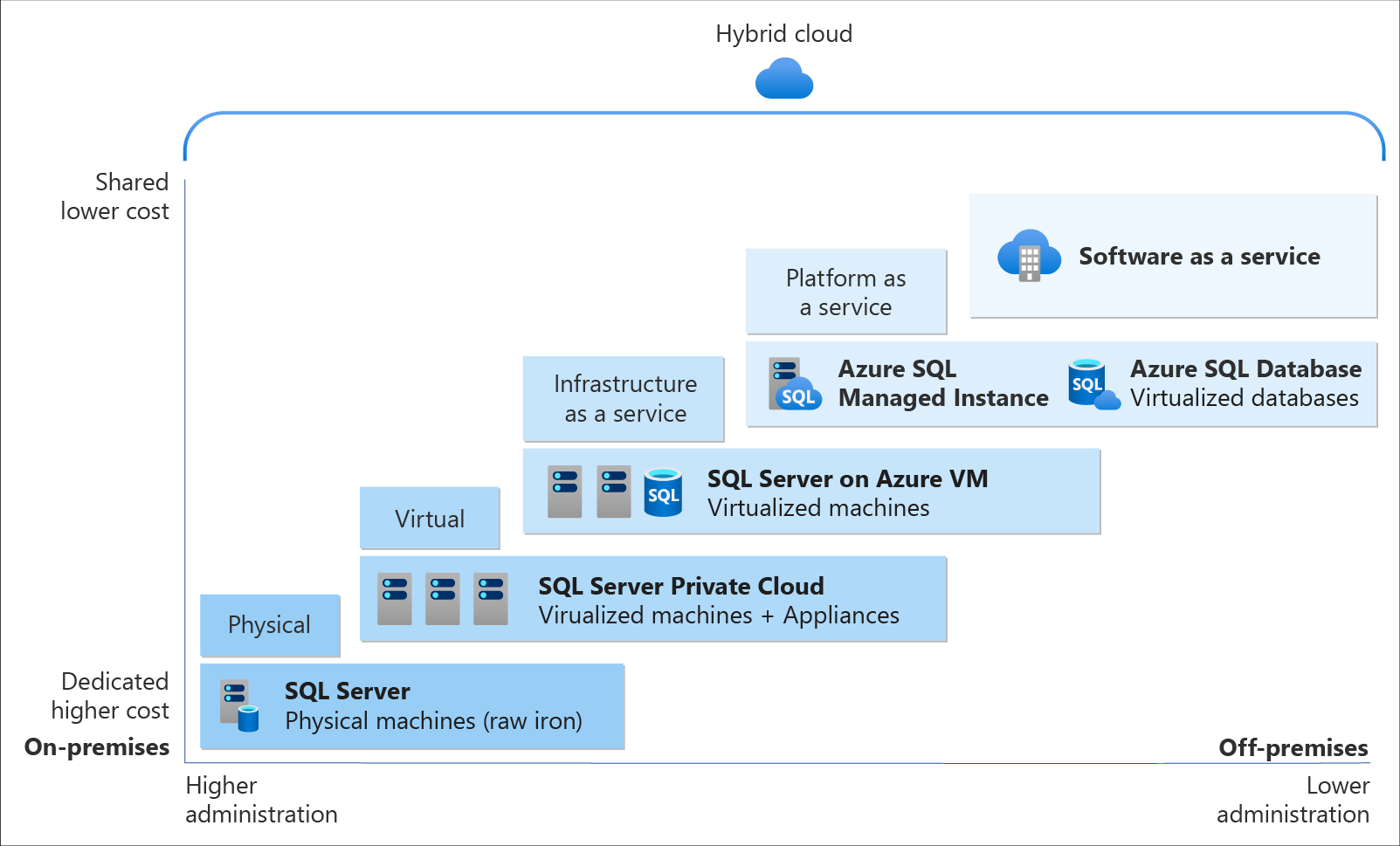
On Azure, there are two database deployment options available, i.e. IaaS and PaaS. IaaS option means that we have to host our SQL server on their virtual machines. For PaaS approach, we are able to either use Azure SQL Database, which is considered as DBaaS, or Azure SQL Managed Instance. Unless there is a need for the team to have OS-level access and control to the SQL servers, PaaS approach is normally the best choice.

Both PaaS and IaaS options include base price that covers underlying infrastructure and licensing. In IaaS, we can reduce the cost by shutting down the resources. However, in PaaS, the resources are always running unless we drop and re-create our resources when they are needed.

Cloud SQL Server options: SQL Server on IaaS, or SaaS SQL Database in the cloud.
The level of administration we have over the infrastructure and by the degree of cost efficiency. (Image Source: Azure Docs)

SQL Managed Instance is the latest deployment option which enables easy migration of most of the on-premises databases to Azure. It’s a fully-fledged SQL instance with nearly complete compatible with on-premise version of SQL server. Also, since SQL Managed Instance is built on the same PaaS service infrastructure, it comes with all PaaS features. Hence, if you would like to migrate from on-premise to Azure without management overhead but at the same time you require instance-scoped features, such as SQL Server Agent, you can try the SQL Managed Instance.

Andreas Wolter, one of the only 7 Microsoft Certified Solutions Masters (MCSM) for the Data Platform worldwide, once came to Singapore .NET Developers Community to talk about the SQL Database Managed Instance. If you’re new to SQL Managed Instance, check out the video below.

Spatial Data Types

Visibility plays a crucial role in the logistics industry because it relates to the ability of supply chain partners to be able to access and share operation information with other parties. Tracking the asset locations with GPS is one of the examples. However, how should we handle the geography data in our database?

Spatial data, also known as geospatial data, is data represented by numerical values in a geographic coordinate system. There are two types of spatial data, i.e. the Geometry Data Type, which supports Euclidean flat-earth data, and the Geography Data Type, which stores round-earth data, such as GPS latitude and longitude coordinates.

In Microsoft SQL Server, native spatial data types are used to represent spatial objects. In addition, it is able to index spatial data, provide cost-based optimizations, and support operations such as the intersection of two spatial objects. This functionality is also available in Azure SQL Database and Azure Managed Instances.

geom_hierarchy
The geometry hierarchy upon which the geometry and geography data types are based. (Image Source: SQL Docs)

Let’s say now we want to find the closest containers to a prime mover as shown in the following map.

The locations of 5 containers (marked as red) and location of the prime mover (marked as blue).

In addition, we have a table of container positions defined with the schema below.

CREATE TABLE ContainerPositions
(
    Id int IDENTITY (1,1),
    ContainerNumber varchar(13) UNIQUE,
    Position GEOGRAPHY
);

We can then simply use spatial function as shown below like STDistance, which will return the shortest distance between the two geography locations, in our query to sort the containers having the shortest to the longest distance from the prime mover.

The container “HKXU 200841-9” is the nearest container to the prime mover.

In addition, starting from version 2.2, Entity Framework Core also supports mapping to spatial data types using the NetTopologySuite spatial library. So, if you are using EF Core in your ASP .NET Core project, for example, you can easily get the mapping to spatial data types.

In the .NET Conference Singapore 2018, we announced the launch of Spatial Extension in EF Core 2.2.

Non-Relational DatabaseS on Azure

Azure Table Storage is one of the Azure services storing non-relational structured data. It provides a key/attribute store with a schema-less design. Since it’s a NoSQL datastore, it is suitable for datasets which do not require complex joins and can be denormalised for fast access.

Each of the Azure Table Storage consists of relevant entities, similar to a database row in RDBMS. Then each entity can have up to 252 properties to store the data together with a partition key. Entities with the same partition key will be stored in the same partition and the same partition server. Thus, entities with the same partition key can be queried more quickly. This also means that batch processing, the mechanism for performing atomic updates across multiple entities, can only operate on entities stored in the same partition.

In Azure Table Storage, using more partitions increases the scalability of our application. However, at the same time, using more partitions might limit the ability of the application to perform atomic transactions and maintain strong consistency for the data. We can then make use of this design to store, for example, data from each of the IoT devices in a warehouse, into different partition in the Azure Table Storage.

For a larger scale of the system, we can also design a data solution architecture that captures real-time data via Azure IoT Hub and store them into Cosmos DB which is a fast and flexible distributed database that scales seamlessly with guaranteed latency and throughput. If there is existing data in other data sources, we can also import data from data sources such as JSON files, CSV files, SQL database, and Azure Table storage to the Cosmos DB with the Azure Cosmos DB Migration Tool.

Azure Cosmos DB Migration Tool can be downloaded as a pre-compiled binary.

Globally, supply chain with Industry 4.0 is transformed into a smart and effective procedure to produce new outlines of income. Hence, the key impression motivating Industry 4.0 is to guide companies by transforming current manual processes with digital technologies.

Hard-copy of container proof of delivery (POD), for example, is still necessary in today’s container trucking industry. Hence, storing images and files for document generation and printing later is still a key feature in the digitalised supply chain workflow.

Proof of Delivery is now still mostly recorded on paper and sent via email or instant messaging services like Whatsapp. There is also no acceptable standard for what a proof of delivery form should specify. Each company more or less makes up their own rules.

On Azure, we can make use of Blob Storage to store large, discrete, binary objects that change infrequently, such as the documents like Proof of Delivery mentioned earlier.

In addition, there is another service called Azure Files available to provide serverless enterprise-grade cloud file shares. Azure Files can thus completely replace or supplement traditional on-premises file servers or NAS devices.

Hence, as shown in the screenshot below, we can upload files from a computer to the Azure File Share directly. Then the files will be accessible in another computer which is also connected to the Azure File Share, as shown below.

We can mount Azure File Share on macOS, Windows, and even Linux.

The Data Team

Setting up a new data team, especially in a startup, is a challenging problem. We need to explore roles and responsibilities in the world of data.

There are basically three roles that we need to have in a data team.

  • Database Administrator: In charge of operations such as managing the databases, creating database backups, restoring backups, monitoring database server performance, and implementing data security and access rights policy.
    • Tools: SQL Server Management Studio, Azure Portal, Azure Data Studio, etc.
  • Data Engineer: Works with the data to build up data pipeline and processes as well as apply data cleaning routine and transformations. This role is important to turn the raw data into useful information for the data analysis.
    • Tools: SQL Server Management Studio, Azure Portal, Azure Synapse Studio.
  • Data Analysis: Explores and analyses data by creating data visualisation and reporting which transforms data into insights to help in business decision making.
    • Tools: Excel, Power BI, Power BI Report Builder

In 2016, Gartner, a global research and advisory firm, shared a Venn Diagram on how data science is multi-disciplinary as shown below. Hence, there are some crucial technical skills needed, such as statistics, querying, modelling, R, Python, SQL, and data visualisation. Besides the technical skill, the team also needs to be equipped with business domain knowledge and soft skills.

The data science Venn Diagram. (Image source: Gartner)

In addition, the data team can also be organised in two manners, according to Lisa Cohen, Microsoft Principal Data Science Manager.

  • Embedded: The data science teams are spread throughout the company and each of the teams serves specific functional team in the company;
  • Centralised: There will be a core data team providing services to all functional teams across the company.

References

Run an Audio Server on Azure

Recently with music-streaming services like Spotify and YouTube Music getting popular, one may ask whether it’s possible to setup personal music-streaming service. The answer is yes.

There is a solution called Subsonic, which is developed by Sindre Mehus. However, Subsonic is no longer open source after 2016. Hence, we would talk about another open-source project inspired by Subsonic, i.e. Airsonic. According the the official website, the goal of Airsonic is to provide a full-featured, stable, self-hosted media server based on the Subsonic codebase that is free, open source, and community driven. So, let’s see how we can get Airsonic up and running on Azure.

Ubuntu on Microsoft Azure

Azure Virtual Machines supports running Linux and Windows. Airsonic can be installed on both Linux and Windows too. Since Linux is an open-source software server, it will be cheaper to run it on Azure than a Windows server.

Currently, Azure supports common Linux distributions including Ubuntu, CentOS, Debian, Red Hat, SUSE. Here, we would choose to use Ubuntu because it certainly has the upper hand when it comes to documentation and online help which makes finding OS-related solutions to easy. In addition, Ubuntu is updated frequently with LTS (Long Term Support) version released once every two years. Finally, if you are users of Debian-style distributions, Ubuntu will be a comfortable pick.

Ubuntu LTS and interim releases timeline. (Source: ubuntu.com)

Azure VM Size, Disk Size, and Cost

We should deploy a VM that provides the necessary performance for the workload at hand.

The B-series VMs are ideal for workloads that do not need the full performance of the CPU continuously. Hence, things like web servers, small databases, and our current project Airsonic is a suitable use case for B-series VMs. Hence, we will go for B1s which has only 1 virtual CPU and 1GiB of RAM. We don’t choose B1ls which has the smallest memory and lowest cost among Azure VM instances is because the installation of Airsonic on B1ls is found to be not successful. The lowest we can go is only B1s.

Choosing B1s as the VM size to host Airsonic.

For the OS disk type, instead of the default Premium SSD option, we will go for Standard SSD because it is not only a lower-cost SSD offering, but also more suitable for our audio application which is lightly used.

Remove Public Inbound Ports and Public IP Address

It’s not alright to have SSH port exposed to the Internet because there will be SSH attacks. Hence, we will remove the default public inbound ports. This will make all traffic from the Internet will be blocked. Later we will need to use a VPN connection instead to connect to the VM.

Remove all public inbound ports.

By default, when we create a VM on Azure Portal, there will be a public IP address given. It’s always recommended to not have public IP bound to the VM directly even there is only a single VM. Instead, we should deploy a load balancer in front of the VM and then have the VM bound to the load balancer. This will eventually make our life easier when we want to scale out our VM.

To not have any public IP address assigned to the VM, as shown in the screenshot below, we need to change the value of Public IP to “None”.

Setting Public IP to “None”.

Setup Virtual Network and VPN Gateway

When we create an Azure VM, we must create a Virtual Network (VNet) or use an existing VNet. A VNet is a virtual, isolated portion of the Azure public network. A VNet can then be further segmented into one or more subnets.

It is important to plan how our VM is intended to be accessed on the VNet before creating the actual VM.

The VNet configuration that we will be setting up for this project.

Since we have removed all the inbound public ports for the VM, we need to communicate with the VM through VPN. Hence, we currently need to have at least two subnets where one is for the VM and another one is for the VPN Gateway. We will add the subnet for VPN Gateway later. Now, we just do as follows.

Configuring VNet for our new VM.

Setup Point-to-Site (P2S) VPN Connection

There are already many tutorials available online about how to setup P2S VPN on Azure, for example the one written by Dishan Francis in Microsoft Tech Community, so I will not talk about how to setup the VPN Gateway on Azure. Instead, I’d like to highlight that P2S Connection is not configurable on Azure Portal if you are choosing the Basic type of the Azure VPN Gateway.

Once the VM deployment is successful, we can head to where the VNet it is located at. Then, we add the VPN Gateway subnet as shown in the screenshot below. As you can see, unlike the other subnets, the Gateway Subnet entry always has its name fixed to “GatewaySubnet” which we cannot modify.

Specifying the subnet address range for the VPN Gateway.

Next, we create a VPN Gateway. Since we are using the gateway for P2S, the type of VPN needs to be route-based. The gateway SKU that we chose here is the lowest cost, which is VpnGw1. Meanwhile, the Subnet field will be automatically chosen once we specify our VNet.

Creating a route-based VPN gateway.

The VPN gateway deployment process takes about 25 minutes. So while waiting for it to complete, we can proceed to create self-sign root and client certificates. Only root cert will be used in setting up the VPN Gateway here. The client certificate is used for installation on other computers which need P2S connections.

Once the VPN gateway is successfully deployed, we will then submit the root cert data to configure P2S, as shown below. In the Address pool field, I simply use 10.4.0.0/24 as the private IP address range that I want to use. VPN clients will dynamically receive an IP address from the range that we specify here.

Configuring Point-to-site. Saving of this will take about 5 minutes.

Now, we can download the corresponding VPN client to our local machine and install it. With this, we will get to see a new connection having our resource group name as its name available as one of the VPN connections on our machine.

A new VPN connection available to connect to our VM.

We can then connect to our VM using its private IP address, as shown in the screenshot below. Now, at least our VM is secured in the sense that its SSH port is not exposed to the public Internet.

We will not be connected with our VM through PuTTY SSH client if the corresponding VPN is disconnected.

Upgrade Ubuntu to 20.04 LTS

Once we have successfully connected to our VM, if we are using the Ubuntu 18.04 provided on Azure, then we will notice a message reminding us that there is a newer LTS version of Ubuntu available, which is Ubuntu 20.04, as shown in the screenshot below. Simply proceed to upgrade it.

New release of Ubuntu 20.04.2 LTS is available now.

Set VM Operating Hours

Since in cloud computing, we pay for what we use. Hence, it’s important that our VMs are only running when it’s necessary. If the VM doesn’t need to run 24-hour everyday, then we can configure its auto start and stop timings. For my case, I don’t listen to music when I am sleeping, so I will turn off the audio server between 12am to 6am.

To start and stop our VM at a scheduled time of the day, we can use the Tasks function, which is still in preview and available under Automation section of the VM. It will create two Logic Apps which will not automatically start or stop the VM.

Instead, I have to change the Logic Apps to send HTTP POST requests to start and powerOff endpoints of Azure directly, as suggested by R:\ob.ert in his post “Start/Stop Azure VMs during off-hours — The Logic App Solution”.

Changed the Logic Apps generated by the auto-power-off-VM template to send POST request to the powerOff endpoint directly.

Install Airsonic and Run as Standalone Programme

Since our VM will be automatically stopped and started everyday, it’s better to integrate Airsonic programme with Systemd so that Airsonic will be automatically run on each boot. There is a tutorial on how to set this up in the Airsonic documentation, so I will not describe the steps here. However, please remember to install Open JDK 8 too because Airsonic is based on Java to run.

Checking the airsonic.service status.

By default, Airsonic will be available at the port 8080 and it is listening on the path /airsonic. If the installation is successful, with our VPN connection connected, then we shall be able to see the following login screen in our first visit. Please immediately change the password as instructed for security purpose.

Welcome to Airsonic!

Public IP on VM Only via Load Balancer

We need to allow Airsonic music streaming over the public Internet and thus the VM needs to be accessible via public IP. However, since we have already earlier configured our VM to not have any public IP address, there needs to be a public load balancer bound to the VM. This setup gives us the flexibility to change the VM in the backend on the fly and secure the VM from Internet traffic.

Now, we can create a public load balancer, as shown in the screenshot below. The reason why Basic SKU which has no SLA is used here is because it’s free. SLA is optional to me here because this VM will be just a personal audio server.

Creating a new load balancer.

Basic SKU public IP address supports a dynamic as the default IP address assignment method. This means that a public IP address will be released from a resource when the resource is stopped (or deleted). The same resource will receive a different public IP address on start-up next time. If this is not what you expect, you can choose to use a static IP address to ensure it remains the same.

We now need to attach our VM to the backend pool of the load balancer, as shown in the following screenshot.

Attaching VM to the backend pool of the Azure Load Balancer.

After that, in order to allow Airsonic to be accessible from the public Internet, we shall set an inbound NAT (Network Address Translation) rule on the Azure Load Balancer. Here since I have only one VM, I directly set the VM as the target and setup a custom port mapping from port 80 to port 8080 (8080 is the default port used by Airsonic), as shown below.

A new inbound NAT rule has been set for the Airsonic VM.

Also, at the same time, we need to allow port 8080 in the Network Interface of the VM, as highlighted in the screenshot below.

Note: The VM airsonic-main-02 shown in the screenshot is the 2nd VM that I have for the same project. It is same as airsonic-main VM.

Allow inbound port 8080 on the Airsonic VM.

Once we have done all these, we can finally access Airsonic through the public IP address of the load balancer.

Enjoy the Music

By default, the media folder that will be used by Airsonic is at /var/music, as shown below. If this music folder does not exist yet, simply proceed to create one.

Airsonic will scan the media folder every day at 3am by default.

By default, the media folder is not accessible by any of the users. We need to explicitly give users the access to the media folders, as shown in the screenshot below.

Giving user access to the media folders.

As recommended by Airsonic, the music folders we add to /var/music and other media folders are better organized in an “artist/album/song” manner. This will help Airsonic to automatically build the albums. In addition, since I have already entered the relevant properties such as title and artist name to the music files, so Airsonic can read them and display on the web app, as shown in the screenshot below.

The cover image is automatically picked up from an image file named cover.png in the corresponding album folder.

In addition, both Airsonic and Subsonic provide the same API. Hence, we can access our music on Airsonic through Subsonic mobile apps as well. Currently I am using the free app Subsonic Music Streamer on my Android phone and it works pretty well.

The music on our Airsonic server can be accessed through Subsonic mobile app too!

References