Introduction
Deploying web application itself is already a very interesting experience. If you are good at computing, you can follow the steps below and try to make your own web application running on Windows Azure.
Before the start of the talk, you should know about Cloud Computing and Windows Azure. There is also an interesting article about this topic about the differences between cloud and other hosting services: Click here.
Phase 0: Getting Started
There are a few things that you need to install before you deploy your web application on Windows Azure. First of all, I’d like to remind you that all things below are done using the Microsoft Visual Web Developer 2008 Express with SP1. I am not sure whether there is a difference between using Web Developer and Eclipse.
After installing the Web Developer, you can use the Microsoft Web Platform Installer to easily install the necessary tools. The download link for Microsoft Web Platform Installer is http://www.microsoft.com/web/downloads/platform.aspx. At a minimum, install the following components:
1. Web Server –> ASP.NET
2. Web Server –> CGI
3. SQL —> SQL Server 2008 with Service Pack 1
4. Azure Tools —> Windows Azure Tools for Microsoft Visual Studio 2008 v1.0
Next, you have to make sure that WCF HTTP Activation is enabled for your PC. To check this, please go to the Programs and Features in the Control Panel and check the WCF HTTP Activation checkbox under Microsoft .NET Framework in Turn Windows features on or off page.
After doing all these, you now should be able to deploy your PHP or ASP web application to the Windows Azure. However, in order to allow your PHP application connects to the MySQL database on Windows Azure, you have to install more stuff as stated below.
First of all, you must have PHP binaries for IIS (not the one in WAMP), MySQL binaries (without installer) and PhpMyAdmin package in your local machine. The versions for these three components are 5.2.12, 5.1.41 and 3.2.1, respectively, in my computer. The download links of these three components are listed here:
– PHP Binaries for IIS
– MySQL Binaries (Without Installer)
– PhpMyAdmin Package
Phase 1: Setup: Using the MySQL PHP Solution Accelerator
What is MySQL PHP Solution Accelerator? The Microsoft staff introduced it in the workshop. It is something to make the process of deploying PHP + MySQL application on Windows Azure become faster and easier.
The steps are listed below.
1. Click here to Install the MySQL PHP Solution Accelerator
2. Extract the PHP binaries for IIS to the “php” folder in the PhpMyAdminWebRole directory, i.e.
“..\AzureMySQLPHP_x86\PhpMyAdminWebRole\php”
3. Extract the MySQL binaries to the “mysql” folder in the MySQL_Worker Role directory, i.e.
“..\AzureMySQLPHP_x86\MySQL_WorkerRole”
4. Extract the PhpMyAdmin files to the directory “..\AzureMySQLPHP_x86\PhpMyAdminWebRole\PHPMyAdmin\”
Phase 2: Create Windows Azure Cloud Service

After putting all the files into the MySQL PHP Solution Accelerator, now you can start your Microsoft Visual Web Developer 2008 Express Edition. After that, you just need to follow the steps listed below.
1. Create a new “Windows Azure Cloud Service” solution in Visual Studio
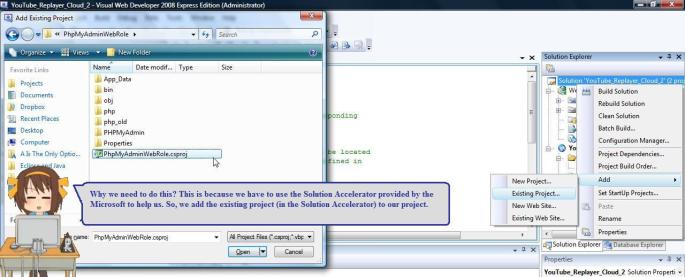
2. Choose “Add” -> “Existing Project…” and open “MySql_WorkerRole.csproj” (Can be found in the
Solution Accelerator).
3. Again, choose “Add” -> “Existing Project…” and open “PhpMyAdminWebRole.csproj” (Also can be
found in the Solution Accelerator).
Phase 3: Configuring MySQL Worker Role
This is the difficult part. Here we only show you how to configure the work role to have only 1 instance.

First of all, you have to double click on the MySql_WorkerRole under Roles in the Solution Explorer window. Then there will be a new tab named MySql_WorkerRole [Role] appearing on the main window. There are several options available on the left site of the configuration page, choose Settings.

After that, for each item listed below, you have to first press ‘Add Setting’ button and then keying in the info (each of them is ordered in this format: Name, Type, Value).
– DiagnosticsConnectionString, ConnectionString, UseDevelopmentStorage=true
– DataConnectionString, ConnectionString, UseDevelopmentStorage=true
– TableStorageEndpoint, String, http://table.core.windows.net
– BlobStorageEndpoint, String, http://blob.core.windows.net
– ContainerName, String, mysqlphp11
– FullBackupHour, String, 06:00
– IncrementalBackupDuration, String, 10
– RecycleThreadSleepTime, String, 300
– EnableWindowsAzureDrive, String, False
– EnableBackup, String, False
Note: We will be using the Dev Fabric Storage in this walkthrough, feel free to use your cloud storage if any.
Please press Ctrl+S now. Next, we will move on to the next part in the configuration page, which is Endpoints. Same as previous one, for each item listed below, you have to first press ‘Add Endpoint’ button and then keying in the info (each of them is ordered in this format: Name, Type, Protocol).
– PeerEndpointIn, Internal, tcp
– MasterElectionService, Internal, tcp
– MySQL, Internal, tcp
– InstanceManagerEndpontIn, Internal, tcp
Now save it and move on to the last part of the MySQL Worker Role configuration, which is Local Storage. Same as what you did previously, for each item listed below, you have to first press ‘Add Local Storage’ button and then keying in the info (each of them is ordered in this format: Name, Size (MB)).
– MySQLStorage, 200
– MySQLDatastore, 1024
– BlobBackup, 500
Alright, now please save it before we see the PhpMyAdmin page showing on our screen.

Now, please open up the C# file MySQLAccess.cs in the “MySql_WorkerRole” project. Please add a line of code: private const string REL_PATH_TO_PHP_INI = “./../../PhpMyAdminWebRole/approot/php/php.ini”; inside the internal class MySQLClient. It is a relative path to your php.ini file.
After that, please modify the function Start(int id) so that it looks something like this:
public bool Start(int id)
{
    try
    {
        //Modified by Chun Lin:
        string baseDir = RoleEnvironment.GetLocalResource("MySQLStorage").RootPath.Replace('\\', '/');
        string dataDir = RoleEnvironment.GetLocalResource("MySQLDatastore").RootPath.Replace('\\', '/');
        string blobDir = RoleEnvironment.GetLocalResource("BlobBackup").RootPath.Replace('\\', '/');
        LogError("MySql Base directory: {0}", baseDir);
        LogError("MySql Data directory: {0}", dataDir);
        string command = Path.Combine(baseDir, @"bin\mysqld.exe");
        SetupBlobBackup(blobDir);
        if (!File.Exists(command))
        {
            SetupAzureMySql(baseDir);
            SetupAzureMySqlDataDir(dataDir);
        }
        MySqlConnection rootConn = GetConnection(_endpointName);
        if (IsRunning(_endpointName))
        {
            int currentId = GetMySqlServerId();
            if (currentId == id)
            {
                return true;
            }
            //TODO:make sure shutdown existing SQL
            command = Path.Combine(baseDir, @"bin\mysqladmin.exe");
            Process.Start(command, "-u root shutdown");
        }
        RoleInstanceEndpoint instance;
        //Get the "MySQL" instance
        instance = RoleEnvironment.CurrentRoleInstance.InstanceEndpoints["MySQL"];
        //Get the port of the instance
        string port = instance.IPEndpoint.Port.ToString();
        //Added by Chun Lin:
        Environment.SetEnvironmentVariable("MasterPort", port, EnvironmentVariableTarget.Process);
        //Added by Chun Lin: Get the IP address of the instance
        string masterHost = instance.IPEndpoint.Address.ToString();
        Environment.SetEnvironmentVariable("MasterHost", masterHost, EnvironmentVariableTarget.Process);
        string iniFile = Path.Combine(baseDir, "my.ini");
        File.Copy("my.ini", iniFile, true);
        //update the my.ini file with mysql server details
        UpdateMyIni(iniFile, baseDir, dataDir, port, id.ToString());
        ProcessStartInfo startInfo = new ProcessStartInfo(command);
        startInfo.RedirectStandardOutput = true;
        startInfo.WorkingDirectory = baseDir;
        startInfo.UseShellExecute = false;
        //Modified by Chun Lin:
        startInfo.CreateNoWindow = false;
        //Added by Chun Lin:
        startInfo.Arguments = "--console";
        Process driver = new Process();
        driver.StartInfo = startInfo;
        driver.Start();
        StreamReader sr = driver.StandardOutput;
        string output = sr.ReadToEnd();
        while (!IsRunning(_endpointName))
        {
            Thread.Sleep(TimeSpan.FromSeconds(10));
        }
    }
    catch (Exception ex)
    {
         LogError("Error in MySqlAccess start(): {0}", ex.Message + ex.StackTrace);
         return false;
    }
    return true;
}
Phase 4: Run PhpMyAdmin
Now, you can just press F5 to run it.

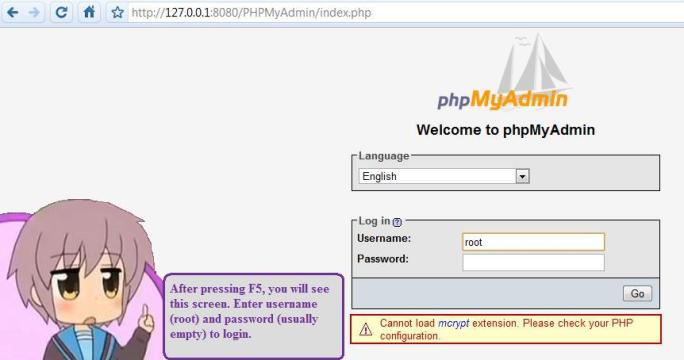
Sometimes, you will face a problem here: You cannot log in to the PhpMyAdmin site. What you need to do is just editing the config.inc.php file in the PHPMyAdmin root folder. If you cannot find it, please create it. You have to first check that $cfg[‘blowfish_secret’] is set (If not, you can enter anything there, for example $cfg[‘blowfish_secret’] = ‘Secret’; as shown below). Then, for user and password, you can leave them as ‘root’ and ”, respectively. Of course, to allow no password, you have to add this line: $cfg[‘Servers’][$i][‘AllowNoPassword’] = true;. The following code is just part of the code in config.inc.php. The rest of the code is not shown here because there is no modification needed for it.
/*
 * This is needed for cookie based authentication to encrypt password in
 * cookie
 */
$cfg['blowfish_secret'] = 'Secret'; /* YOU MUST FILL IN THIS FOR COOKIE AUTH! */
/*
 * Servers configuration
 */
$i = 0;
/*
 * First server
 */
$i++;
/* Authentication type */
$cfg['Servers'][$i]['auth_type'] = 'cookie';
/* Server parameters */
$cfg['Servers'][$i]['host'] = '127.0.0.1';
$cfg['Servers'][$i]['connect_type'] = 'tcp';
$cfg['Servers'][$i]['compress'] = false;
/* Select mysqli if your server has it */
$cfg['Servers'][$i]['user'] = 'root';
$cfg['Servers'][$i]['password'] = '';
$cfg['Servers'][$i]['extension'] = 'mysql';
$cfg['Servers'][$i]['AllowNoPassword'] = true;

Alright, even after doing this step, there will still be some people getting this error when they try to log in to the PhpMyAdmin. The error says that “#2003 – The Server Is Not Responding”. It is possible that you MySQL Server is not running. Thus, please install it (Remember that the MySQL we downloaded before is “without installer”, hence you may need to download the installer this time). Finally, you need to configure your MySQL Server (Online help: Step-by-Step guide for Installing MySQL on Windows).
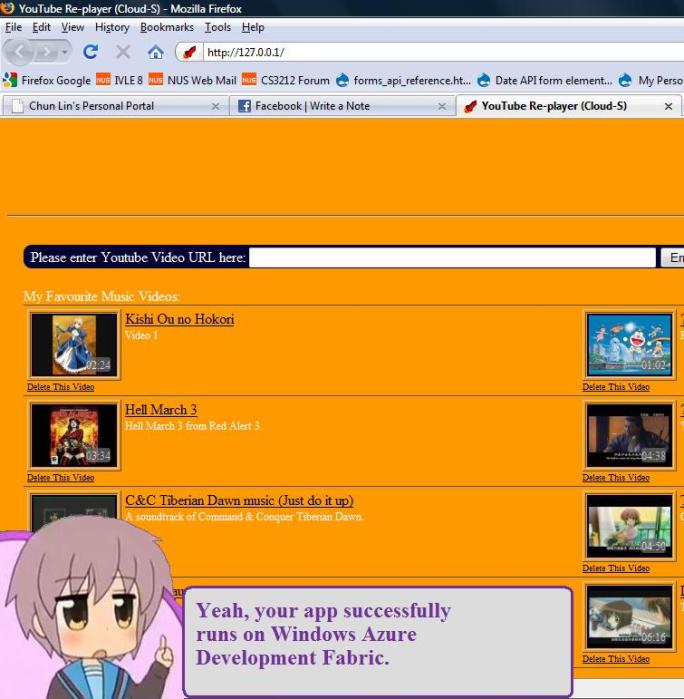

One of my favourite references: http://innovativesingapore.com/post/Deploying-PHP-MySQL-Wordpress-on-Azure.aspx



 cuteprogramming