Database Mirroring in Azure

Not many people that I know like to try things that they are not familiar with because unfamiliar is scary. However, working in startup, like my current company, basically forces one to always learn more and learn faster. Hence, after getting approval from the top management, my senior and I migrated our web applications to Microsoft Azure.

Just when we thought we did everything beautifully, our instances on Azure went down for 72 minutes on 4 August, one month after the migration. The reason given by Microsoft team is that there was an issue in one of the clusters within the DC. 3 weeks later, our database instance on Azure went down again for 22 minutes because of a scheduled system update.

Fortunately, Microsoft Singapore is willing to guide us to make high availability in our web applications possible. I am very happy to have Chun Siong, Technical Evangelist from Microsoft Singapore, to help us out.

Last month, Chun Siong successfully to have the database mirroring setup for our database instances on Azure. Since he did all of the work himself, in order to learn and to master the database mirroring, I had to do everything myself from the beginning again.

In this post, I will share the mistakes I made when I tried doing database mirroring myself so that I won’t repeat the same mistakes again.

Beginning of the Journey

There is an easy-to-follow tutorial available on MSDN about how to implement database mirroring in Azure. I used it as a reference to setup one principle database server, one mirror database server, and one witness server within the same availability set.

Elements in my simple database mirroring setup.

Mistake #1: Firewall Blocking Remote Access of SQL Server

If I had read the tutorial carefully, I wouldn’t have to make this mistake because it’s mentioned in the beginning of the tutorial.

I found out this mistake only when I tried to connect to the mirror server from the principal database server. It kept throwing me the Error 1418 saying that the mirror server was not reachable. After reading a checklist of the error, I found out that it’s because I never create an inbound rule on Windows Firewall to allow the access of the SQL server.

Thanks Chun Siong for pointing it out also. =)

By the way, on the article about Error 1418 (http://msdn.microsoft.com/en-us/library/aa337361.aspx), there is a checklist to check if everything is done correctly. I copied and pasted it below for quick reference.

  1. Make sure that the mirror database is ready for mirroring.
  2. Make sure that the name and port of the mirror server instance are correct.
  3. Make sure that the destination mirror server instance is not behind a firewall.
  4. Make sure that the principal server instance is not behind a firewall.
  5. Verify that the endpoints are started on the partners by using the state or state_desc column the of the sys.database_mirroring_endpoints catalog view. If either endpoint is not started, execute an ALTER ENDPOINT statement to start it.
  6. Make sure that the principal server instance is listening on the port assigned to its database mirroring endpoint and that and the mirror server instance is listening on its port. If a partner is not listening on its assigned port, modify the database mirroring endpoint to listen on a different port.

If the items above are not helpful to you, there is also another detailed blog post about this Error 1418 written by Pinal Dave.

There is a need to allow the access of SQL server in three instances.

Mistake #2: Typo when Creating Certificates

In the tutorial, the recommended way to deploy database mirroring is to use certificates. After certificates of three servers are created, we need to grant login permission on each server to another two servers. That is when we will use the certificates to create a common login account id called DBMirroringLogin.

I had one typo in the password in one of the certificates.  only realized it at the very end when I tried to connect to my witness server. So, yup. Be careful during the database mirroring configuration steps. One small mistake can waste us time to find out why.

Grant login permissions to other two servers.

Mistake #3: Mismatch Edition of Principal and Mirror

I only had time to learn database mirroring using my personal account after work. So I screamed in my room at the moment when I realized that it is not allowed to have mirror server using Standard Edition while the principal is not using Standard Edition.

The mirror server instance cannot be Standard Edition if the principal server instance is not Standard Edition.

So in the end, I shut down the mirror instance and created another virtual machine which has Enterprise Edition SQL Server installed. Fortunately, it could be done quite fast on Microsoft Azure. I did not want to use back the old name so I named the new mirror server mydb-01-kagami.

Kagami means "mirror" in Japanese. (Image Credit: Lucky Star)
Kagami means “mirror” in Japanese. (Image Credit: Lucky Star)

Mistake #4: Three Virtual Machines Not in Same Availability Set

The principal database, witness, and mirror database instances need to be put inside the same availability set.

When I was deploying the database mirroring, I forgot to have the witness instance in the same availability set as principal and mirror. So end up I couldn’t successfully connect to the witness from the principal.

Three instances need to be in the same available set.

Work and Learn

I spent about three days in Microsoft office to learn from Chun Siong. I then took another one month to do it myself. Wait, what? One month, seriously? Don’t be surprised. As usual, I have only little time (about half an hour per day) after work to do my personal projects. Sometimes, once I reached my room from office, I just jumped into bed and fell asleep within minutes. So, in fact, I only spent about 15 to 20 hours on learning database mirroring myself. Hence, I am really glad that I have colleagues as well as friends from Microsoft to be willing to support me in my learning journey.

Finally, some little notes to myself and readers who want to try out database mirroring (on Azure).

  1. Be very careful during the whole database mirroring configuration process. Don’t have typo or set something wrongly. You may need to delete and create a new instance because of the mistakes;
  2. Witness (but not principal and mirror) can use Express Edition of SQL Server. So, to save cost, please use that;
  3. Set database to full recovery model before backing up the database on principal;
  4. Remember to enable named pipes;
  5. Use Database Mirroring Monitor to understand more about the status of mirroring session.
  6. Some good resources to refer to:
It's enjoyable to work in Microsoft Singapore office. You can see the beautiful MBS from there.
It’s enjoyable to work in Microsoft Singapore office. You can see the beautiful MBS from there.

Monitoring Azure VM with System Center Advisor

MS System Center Advisor + Azure VM

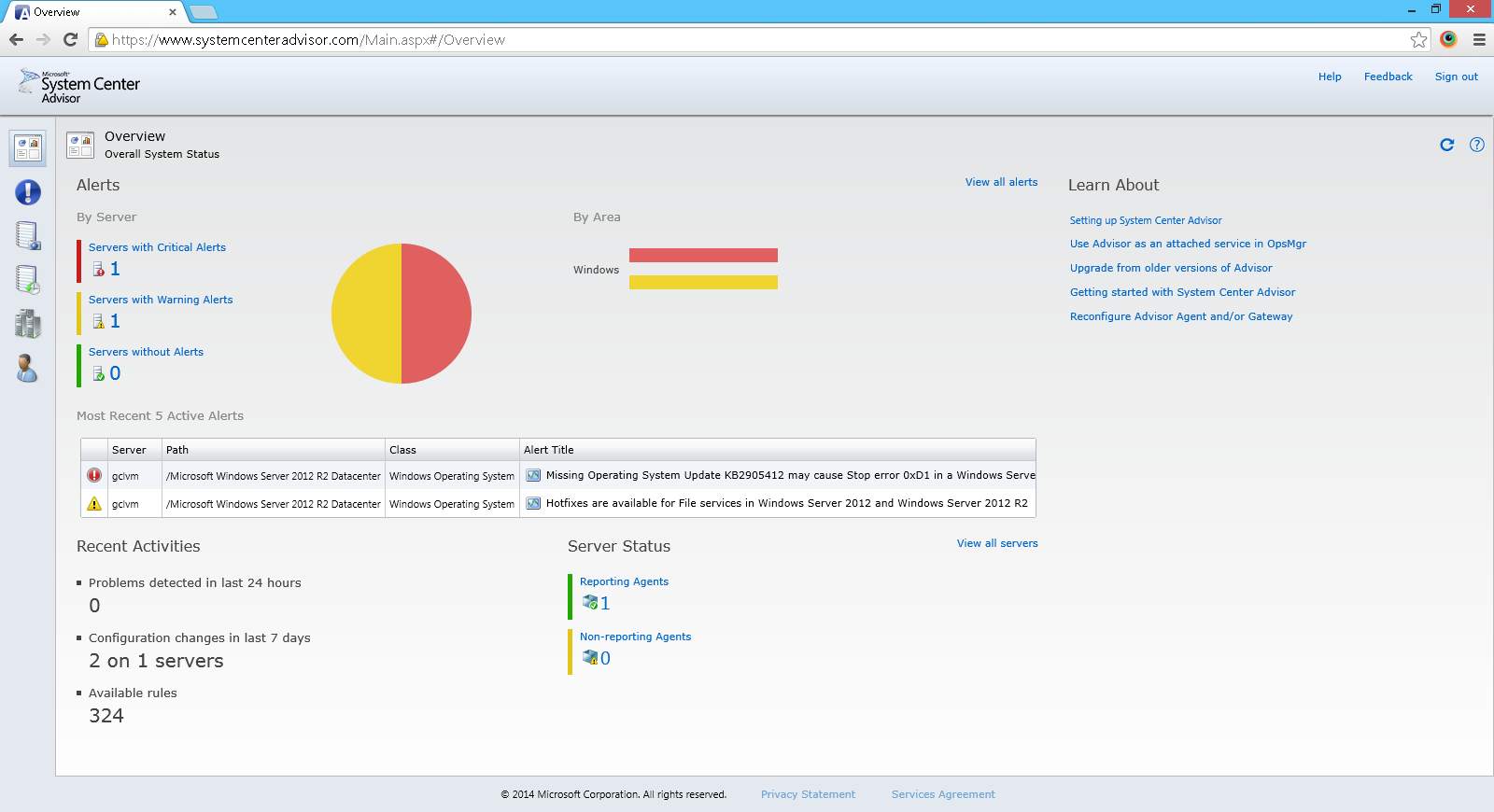
In order to proactively avoid problems in our Microsoft Azure Virtual Machines, it’s necessary to have the system admin to receive alerts for unpatched, misconfigured, or unsupported configurations. System Center Advisor from Microsoft can do this. System Center Advisor is a free web service which monitors and analyses installation of Microsoft Server 2008 (and later versions).

Alerts and regular assessment of server configurations

Activate and Deploy System Center Advisor

Before we can configure System Center Advisor, we need to enable the service on the Advisor website. To do that, we just login to the website with the same Microsoft account  to activate it. After that, we need to deploy a software, which is part of Advisor, on our server on Azure. The software needs to be installed locally in the virtual machine.

Activated account before the deployment of Advisor software on the server

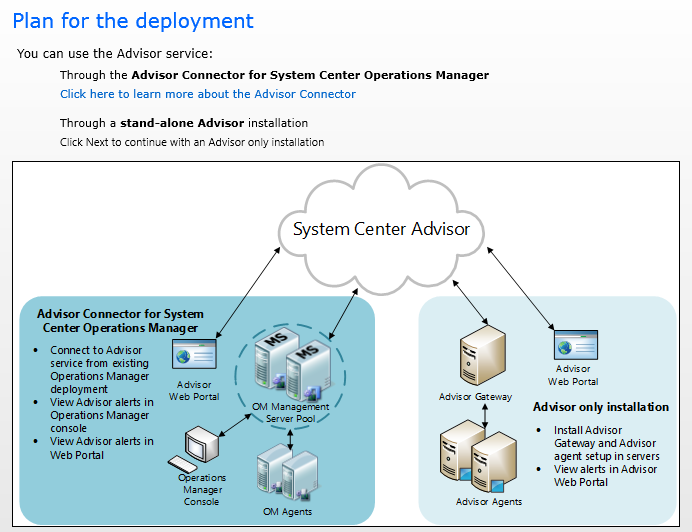
To deploy Advisor on the server, we need to install gateways and agents on our selected servers. Due to the fact that we are going to only install a stand-alone Advisor to give the system admin a way to access the alerts in Advisor web portal, we just need to install gateways and agents on selected servers.

The agent is responsible for collecting data about the server and storing it locally on the server. For every 24 hours, the agent will then pass the information to the gateway which is in charge of sending the information to the Advisor account.

Plan for Advisor Deployment

After the Advisor configuration is completed, within the next 24 hours, we should already be able to see the data being shown in the Advisor web portal.

Conclusion

The entire installation process is very simple. There are also a few related online articles that I found, as listed below.

Setting Up MS SQL Server on Azure Virtual Machine

MS SQL Server 2012 + Azure VM

So, now we have an ASP .NET web application running on Microsoft Azure. What we are going to do next is to host our MS SQL Server on the cloud also.

There are two options available in Microsoft Azure to host our SQL database. One is the well-known Azure SQL Database, an implementation of Platform as a Service for a relational database service in the cloud. The other one option is introduced after the new Infrastructure as a Service capabilities of Microsoft Azure. It is now possible to easily deploy instances of MS SQL Server in Azure Virtual Machine.

Azure SQL Database or SQL Server in Azure VM?

Personally, I prefer to directly deploy SQL Server in the virtual machine. At least the entire process looks about the same as what I have already done in our on-premise database server. So, having SQL Server deployed on Azure virtual machine actually means that the developers do not need to make huge changes to our existing applications. In addition, it’s also because migrating existing applications to the cloud normally needs to emulate on-premises behaviour. In short, choosing SQL Server in Azure virtual machine saves the time on migration.

The following is a nice decision diagram that I found on MSDN blog for us to choose which option to use. Also, there is a comparison summary between those two options, Azure SQL Database or SQL Server in Azure Virtual Machine.

To use Azure SQL Database or SQL Server in Azure VM?
To use Azure SQL Database or SQL Server in Azure VM? (Image Credit: MSDN Windows Azure Blog)


Creating the Virtual Machine with MS SQL Server Installed

There entire process of creating a virtual machine to host the MS SQL Server is similar to the creation of virtual machine for Windows Server. The only main difference is probably the part of choosing an appropriate image. There are a few editions of SQL Server 2012 for us to choose. You can find a comprehensive comparison among them on MSDN website, again.

Choose "SQL Server 2012" image to deploy MS SQL Server on the new virtual machine.
Choose “SQL Server 2012” image to deploy MS SQL Server on the new virtual machine.

The following table shows the pricing of each edition running on Azure VM as well as the disk sizes available. Here I only pay attention to the memory intensive instances, i.e. A5, A6, and A7. They have larger RAM and disk sizes for the virtual machine and they are thus considered optimal for hosting databases and other high-throughput application. The data shown in the table is applicable for virtual machines deployed in Asia Pacific Southeast, i.e. Singapore.

Asia Pacific Southeast (Singapore) VM pricing for each edition of SQL Server
Asia Pacific Southeast (Singapore) VM pricing for each edition of SQL Server (screenshot taken on 20 April 2014)

Connect to SQL Server Database Engine on Azure VM

After the virtual machine is up and running, we can immediately RDP in to the VM. Then in there, we just need to launch Microsoft SQL Server Management Studio to access the database with the Windows Authentication.

Running SQL Server Management Studio on the virtual machine.

Open TCP Port 1433

SQL Server typically uses TCP port 1433 for remote connections to the database. So, we need to add an endpoint as well as to open the port in the virtual machine firewall for this. However, to avoid security attack, it’s recommended to specify a different Public Port when creating the endpoint in Azure.

1433: A TCP port normally used by MS SQL Server for remote connection to the database.

SQL Server Authentication

We need to change the server authentication to “SQL Server and Windows Authentication mode”. This enables us to create logins in SQL Server which are not based on Windows user accounts. Both the login ID and passwords will be stored in the SQL Server. This allows SQL Server to continue supporting our third-party applications that require SQL Server Authentication. After that, we just right-click on the server in Microsoft SQL Server Management Studio Object Explorer to restart the server.

SQL Server and Windows Authentication Mode

Connecting Application to the SQL Server

To connect your ASP .NET web application with the database, in web.config, you can just key in the server name, port number together with login ID and password in the following connection string that is used to connect the instance of the SQL Server running on Azure VM.

<add key=”strDBconn” value=”Data Source=****.cloudapp.net,<port-number>;Initial Catalog=<database name>;UID=<login ID>;PWD=<login password>” />

Conclusion

The steps taken to deploy a Microsoft SQL Server on Azure virtual machine are quite straight-forward. There is also an official detailed documentation about provisioning a SQL Server Azure Virtual Machine. I like one of its diagrams which shows the two main connection paths. The complete diagram is shown below.

SQL Server Azure VM Connection Paths
SQL Server Azure VM Connection Paths (Image Credit: Microsoft Azure Documentation Center)

In addition, there are some other online resources which has more detailed discussion on several topics, such as

Having Fun with Microsoft Azure Virtual Machine

Azure VM + Windows Server 2012 R2 + IIS 8 + Filezilla

Last year April, I received a newsletter from Windows Azure Team saying that Windows Azure Virtual Machines were generally available. Finally, full control and management of virtual machines on Azure is now possible! The release undoubtedly successfully brought Microsoft Azure closer to Amazon who is also focusing on IaaS.

The reason that I’m so happy with the announcement is because I have already an ASP .NET Web Application running on my server running on Windows Server 2008 in a data centre. I would like to find out how to host it on cloud. Since I have already tried out Amazon last time with friends, so now I am interested to see how fun it will be to host my application on Azure and what benefits it will provide.

Beginning of Journey: When Affinity Group Brings Your Services Together

Before creating a new virtual machine in Azure, I create a new Affinity Group. Affinity Groups will be able to group Microsoft Azure services by locating them in the same data centre to optimize performance.

Create a new affinity group.

Create Virtual Machine

Same as Amazon, I am allowed to create my virtual machine in Microsoft Azure with an image that is already offered in the Microsoft Azure Management Portal. So, there is no need for me to upload any Windows Server image created on-premise. Thus, the first step is to choose an image. Surprisingly, they provide also things like Ubuntu Servers, Oracle servers, openSUSE, and so on.

I need to choose operating system running on the vm from the Gallery.
I need to choose operating system running on the VM from the Gallery.

There are sometimes multiple versions available for one image. So after choosing an image, for example the Windows Server 2012 R2 Datacenter, I get to choose the version of the OS that I want. As a best practice, it’s recommended to always choose the one with latest release date.

Size of the new virtual machine is the next thing that I can configure. Virtual machines on Azure are categorized into two tiers, i.e. Basic and Standard. What are the differences between the two tiers? Standard Tier is what we have been using before. Basic Compute Tier is just recently announced. It is having similar spec as the Standard tier but with lower price. In additional, Basic Compute Tier doesn’t come with load balancer and auto-scailing.

After choosing the tier, I will be able to pick one of the available sizes for the virtual machine from the Size dropdown list. There are many size codes, from A0 to A7. As David Aiken, Azure Group Technical Manager, said in Windows Azure for IT Pros Jump Start, the letter “A” and the number behind the “A” don’t mean anything. Seriously, it’s just a code. Also, the code has nothing to do with the paper size that we are familiar with. By the way, I think David did predict it correctly. There is really a A5 size introduced recently. Wow.

David Aiken explaining the naming of sizes for virtual machine.
“It was fun naming them”. David Aiken explaining the naming of sizes for virtual machine.

Of course, the smaller the instance, the lower the price we need to pay. The following is a screenshot of the virtual machine pricing details for Asia Pacific Southeast (i.e. Singapore) which I am interested at. You can read more about the details on pricing and available VM disk sizes on Microsoft websites as well.

Asia Pacific Southeast (Singapore) VM Pricing (screenshot taken on 18 April 2014)

After the size for the new virtual machine is decided, the next thing that I need to do is create a user account to access the VM later. There is a nice feature in the management console is that it does not allow us to use “admin” or “administrator” as the user name for security purpose.

Configure Virtual Machine: Cloud Service, Affinity Group, and Availability Set

Up to this point, the virtual machine earlier is not yet created. There is other configuration needed. First of all, we need to decide which Cloud Service to use. Cloud Service is basically a boundary of management, configuration, networking, security, etc that hosts the virtual machines in it. So, virtual machine must be stored in a cloud service. By doing so, we do not need to worry about hardware failure and network issues because Cloud Service will be there to help making our applications on the virtual machines are continuously available when those issues happen. Thus. it’s a way to make your application highly-available.

In addition, all virtual machines created in Azure can automatically communicate with other virtual machines in the same Cloud Service. So, we can then easily configure Azure Load Balancer to distribute traffic among multiple virtual machines in the same Cloud Service.

Secondly, in the “Region/Affinity Group/Virtual Network” dropdown, since I have created an Affinity Group in advance, so I get to choose not just the usual region but also Affinity Groups that I have created.

Thirdly, since I don’t have a Storage Account yet, so by default, it will choose the only option “Use an automatically generated storage account”.

Finally, I will create an Availability Set for this virtual machine. Availability Set tells the Fabric Controller (which functions as the kernel of Azure OS) to place virtual machines across fault domains (groups of resources anticipated to fail together, i.e. same rack / same server) and update domains (groups of resources that will be updated together). An availability set makes sure that your application is not affected by single points of failure, like the network switch or the power unit of a rack of servers. It is okay not to create Availability Set before the virtual machine is created but specifying Availability Set after the virtual machine has been provisioned will cause reboot.

Virtual Machine Configuration Page

The Endpoints

To allow communication with the virtual machine from external resources, endpoints need to be added in order to have them to handle the inbound network traffic to the virtual machine. In addition, when an endpoint is created, there is a need to create an inbound rule in the Windows Firewall with Advanced Security in the virtual machine to allow the traffic route through the endpoint.

So, in order to enable public to view the ASP .NET web applications that I host on the virtual machine, I will first need to create an endpoint for HTTP on the Azure management portal for the virtual machine. After that, I just need to install the IIS windows feature on the virtual machine together with Application Development feature added to allow HTTP traffic.

Finally, I also add endpoints for the FTP (such as port 21) because I need FTP access to this server. There was an interesting error when I try to upload file to the FTP Server using Filezilla. The error said, “The supplied message is incomplete. The signature was not verified.” Luckily, there are already people discussing online going on with some solutions to the problem. One of them is applying a hotfix from Microsoft which I have the link to it in the list below. It turns out that this error will only occur on Windows Server 2012 (R2) and Windows 8(.1).

There are some online articles which help me to better configure the endpoints and have both the web server and FTP setup on the virtual machine.

Conclusion

Basically, this covers the basic stuff of setting up Azure virtual machine as both a web server and FTP server. It is quite straightforward and about the same as what I did on Amazon EC2. If you would like to learn more, I’d suggest you to attend the online courses about Microsoft Azure on Microsoft Virtual Academy.