Entity Framework and Database

By using Entity Framework, we can save a lot of time on writing SQL ourselves because Entity Framework, a Microsoft-supported ORM for .NET, is able to generate the SQL for us.

I started to use ADO .NET when I was building .NET web applications in my first job. I learnt about how to call stored procedures with ADO .NET. I witnessed how my colleague wrote a 400-line SQL to complete a task which we normally will choose to do it in C#. I also realized the pain of forgetting to update the stored procedure when the C# code is already different.

After that, my friend introduced me Entity Framework when I was working on my first ASP .NET MVC project. Since then, I have been using Entity Framework because it enables me to deliver my web applications faster without writing (and debugging) any SQL myself. I read a very interesting article comparing between Entity Framework and ADO .NET. The author also acknowledged that the performance of Entity Framework was slower than hand-coded ADO .NET. He emphasized that, however, Entity Framework did maximize his productivity.

How I react when I read a 400-line stored procedure submitted by my colleague.

What Is Happening in Database with Entity Framework?

The SQL generated by Entity Framework is believed to be pretty good. However, it’s still nice to be aware of what SQL is being generated. For example, I have the following code to retrieve Singapore weather info.

using (var db = new ApplicationDbContext())
{
    var forecastRecords = db.SingaporeWeathers.ToList();
}

In Visual Studio, I can just mouse-over “SingaporeWeather” to get the following query.

SELECT 
    [Extent1].[RecordID] AS [RecordID], 
    [Extent1].[LocationID] AS [LocationID], 
    [Extent1].[WeatherDescription] AS [WeatherDescription], 
    [Extent1].[Temperature] AS [Temperature], 
    [Extent1].[UpdateDate] AS [UpdateDate]
FROM [dbo].[SingaporeWeathers] AS [Extent1]

If I have the following code which retrieves only records having temperature greater than 37, then I can use ToString().

using (var db = new ApplicationDbContext())
{
    var query = from sw in db.SingaporeWeathers where sw.Temperature > 37 select sw;
    Console.WriteLine(query.ToString());
}
SELECT
     [Extent1].[RecordID] AS [RecordID],
     [Extent1].[LocationID] AS [LocationID],
     [Extent1].[WeatherDescription] AS [WeatherDescription]
     [Extent1].[Temperature] AS [Temperature],
     [Extent1].[UpdateDate] AS [UpdateDate]
FROM [dbo].[SingaporeWeathers] AS [Extent1]
WHERE [Extent1].[Temperature] > cast(37 as decimal(18))

I am using DBContect API, so I can just use ToString(). Alternatively, you can also use ToTraceString(), which is a method of ObjectQuery, to get the generated SQL.

SQL Logging in Entity Framework 6

It is a great news for developer when Entity Framework is announced to have SQL Logging feature added For example, to write database logs to a file, I just need to do as follows.

using (var db = new ApplicationDbContext())
{
    var logFile = new StreamWriter("C:\\temp\\log.txt");
    db.Database.Log = logFile.Write;
    var forecastRecords = db.SingaporeWeathers.Where(x => x.Temperature > 37).ToList();
    logFile.Close();
}

Then in the log file, I can see logs as follows.

...
Closed connection at 6/6/2015 10:59:32 PM +08:00
Opened connection at 6/6/2015 10:59:32 PM +08:00
SELECT TOP (1) 
    [Project1].[C1] AS [C1], 
    [Project1].[MigrationId] AS [MigrationId], 
    [Project1].[Model] AS [Model], 
    [Project1].[ProductVersion] AS [ProductVersion]
FROM ( SELECT 
    [Extent1].[MigrationId] AS [MigrationId], 
    [Extent1].[Model] AS [Model], 
    [Extent1].[ProductVersion] AS [ProductVersion], 
    1 AS [C1]
    FROM [dbo].[__MigrationHistory] AS [Extent1]
    WHERE [Extent1].[ContextKey] = @p__linq__0
) AS [Project1]
ORDER BY [Project1].[MigrationId] DESC
-- p__linq__0: 'MyWeb.Migrations.Configuration' (Type = String, Size = 4000)
-- Executing at 6/6/2015 10:59:32 PM +08:00
-- Completed in 70 ms with result: SqlDataReader

Closed connection at 6/6/2015 10:59:32 PM +08:00
Opened connection at 6/6/2015 10:59:32 PM +08:00
SELECT 
    [Extent1].[RecordID] AS [RecordID], 
    [Extent1].[WeatherDate] AS [WeatherDate], 
    [Extent1].[WeatherDescription] AS [WeatherDescription], 
    [Extent1].[WeatherSecondaryDescription] AS [WeatherSecondaryDescription], 
    [Extent1].[IconFileName] AS [IconFileName], 
    [Extent1].[Temperature] AS [Temperature], 
    [Extent1].[UpdateDate] AS [UpdateDate]
FROM [dbo].[Weathers] AS [Extent1]
WHERE [Extent1].[Temperature] > cast(37 as decimal(18))
-- Executing at 6/6/2015 10:59:33 PM +08:00
-- Completed in 28 ms with result: SqlDataReader
...

So, as you can see, even the Code First migration related activity is logged as well. If you would like to know what are being logged, you can read an article about SQL Logging in EF6 which was written before it’s released.

Migration and the Verbose Flag

Speaking of Code First migration, if you would like to find out the SQL being generated when Update-Database is executed, you can add a Verbose flag to the command.

Update-Database -Verbose

Navigation Property

“I have no idea why tables in our database don’t have any relationship especially when we are using relational database.”

I heard from my friend that my ex-colleague shouted this in the office. He left his job few days after. I think bad codes and bad design do anger some of the developers. So, how do we do “relationship” in Entity Framework Code First? How do we specify the foreign key?

I quit!
I quit!

In Entity Framework, we use the Navigation Property to represent the foreign key relationship inside the database. With Navigation Property, we can define relationship between entities.

If we have a 1-to-1 Relationship between two entities, then we can have the following code.

public class Entity1
{
    [Key]
    public int Entity1ID { get; set; }
    public virtual Entity2 Entity2 { get; set; }
}

public class Entity2
{
    [Key, ForeignKey("Entity1")]
    public int Entity1ID { get; set; }
    public virtual Entity1 Entity1 { get; set; }
}

By default, navigation properties are not loaded. Here, the virtual keyword is used to achieve the lazy loading, so that the entity is automatically loaded from the database the first time a property referring to the entity is accessed.

However, there are people against using virtual keyword because they claim that lazy loading will have subtle performance issue in the application using it. So, what they suggest is to use the include keyword, for example

dbContext.Entity1.Include(x => x.Entity2).ToArray();

By specifying the ForeignKey attribute for Entity1ID in Entity2 class, Code First will then create a 1-to-1 Relationship between Entity1 and Entity2 using the DataAnnotations attributes.

For 1-to-n Relationship, we then need to change the navigation property, for example, in Entity1 class to use collection as demonstrated in the code below.

public class Entity1
{
    [Key]
    public int Entity1ID { get; set; }
    public virtual ICollection<Entity2> Entity2s { get; set; }
}

Finally, how about n-to-m Relationship? We will just need to change the navigation property in both Entity1 and Entity2 classes to use collection.

public class Entity2
{
    [Key]
    public int Entity2ID { get; set; }
    public virtual ICollection<Entity1> Entity1s { get; set; }
}

Together with the following model builder statement.

protected override void OnModelCreating(DbModelBuilder modelBuilder)
{
    modelBuilder.Entity<Entity2>()
        .HasMany(e2 => e2.Entity1s)
        .WithMany(e1 => e1.Entity2s)
        .Map(e12 => 
            {
                e12.MapLeftKey("Entity1ID");
                e12.MapRightKey("Entity2ID");
                e12.ToTable("Entity12");
            });
}

The code above is using Fluent API which won’t be discussed in this post.

Database Context Disposal

When I first used Scaffolding in MVC 5, I noticed the template of controller class it generates look something as follows.

public class MyController : Controller
{
    private MyContext db = new MyContext();
    
    protected override void Dispose(bool disposing)
    {
        if (disposing) 
        {
            db.Dispose(); 
        } 
        base.Dispose(disposing);
    }
}

Before using Scaffolding, I have always been using the Using block, so I only create database context where I have to, as recommended in a discussion on StackOverflow. Also, the Using block will have the Dispose() be called automatically at the end of the block, so I don’t need to worry about forgetting to include the Dispose() method to dispose the database context in my controller.

Azure SQL: Database Backup and Restore

Before ending this post, I would like to share about how DB backup and restore is done in Azure SQL Database.

First of all, Azure SQL Database has built-in backups and even self-service point in time restores. Yay!

For each activate databases, Azure SQL will create a backup and geo-replicate it every hour to achieve 1-hour Recovery Point Objective (RPO).

If there is a need to migrate the database or archive it, we can also export the database from Azure SQL Database. Simply click on the Export button in the SQL Databases section of Azure Management Portal and then choose an Azure blob storage account to export the database to.

Finally, just provide the server login name and password to the database and you are good to go.
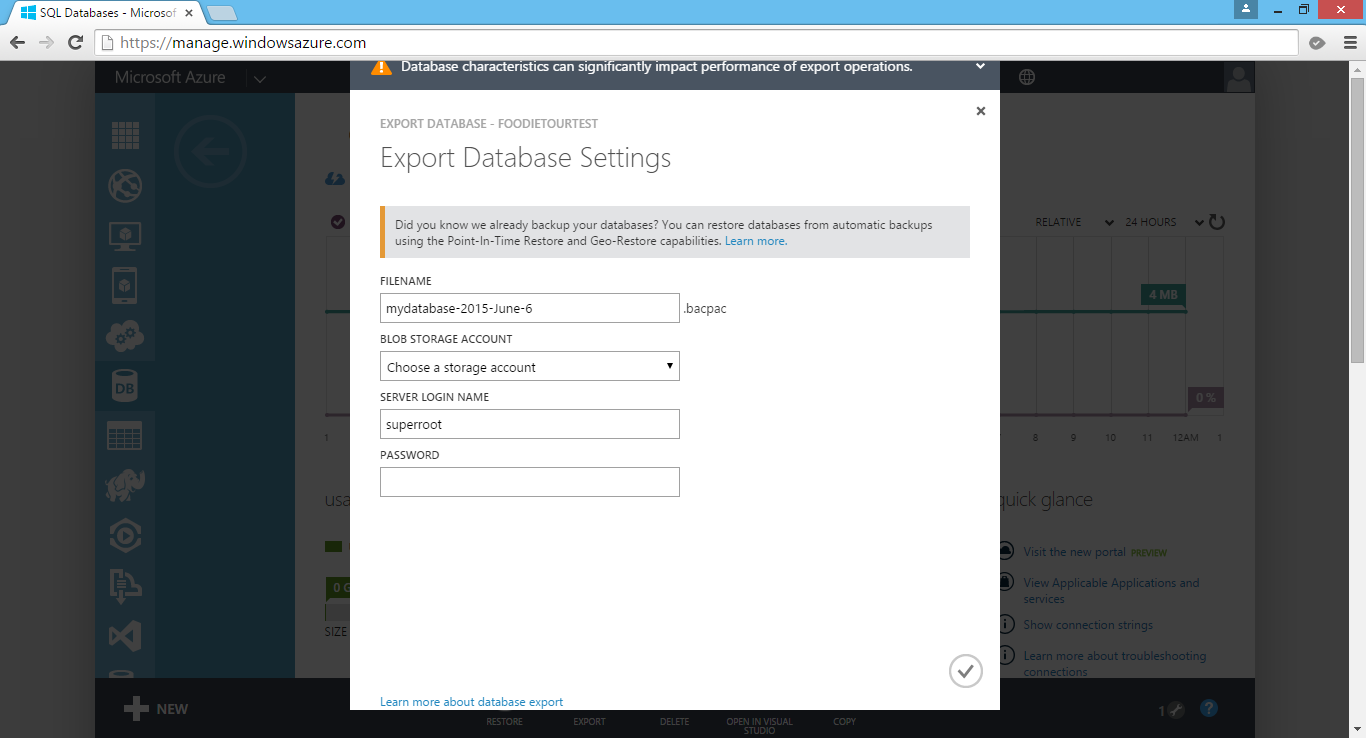
Export DB from Azure SQL Database.

Later, we can also create a new database using the BACPAC file which is being generated by the Export function. In the Azure Management Portal, click New > Data Services > SQL Database > Import. This will open the Import Database dialog, as shown in the screenshot below.
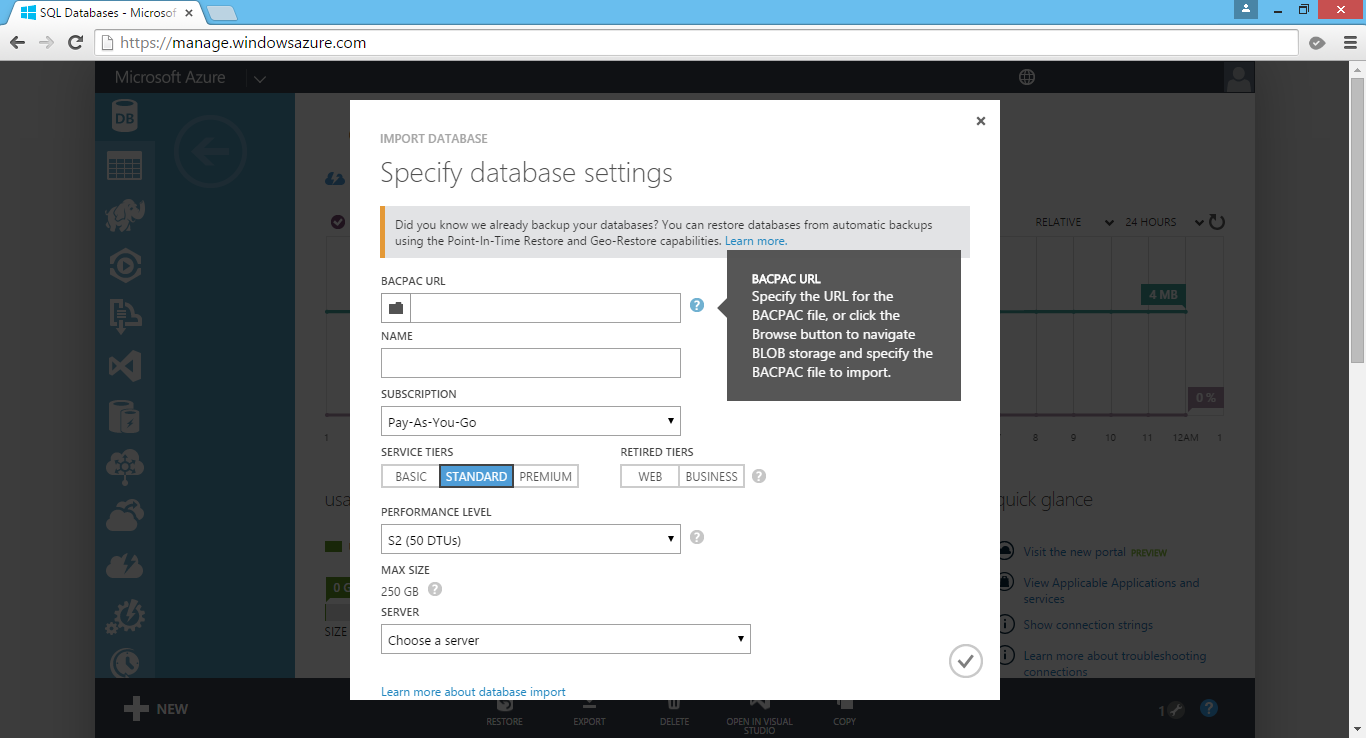
Create a new database in Azure SQL Database by import BACPAC file.

Okai, that’s all for this post on Entity Framework, database, and Azure SQL Database. Thank you for your time and have a nice day!

Summer 2015 Self-Learning Project

This article is part of my Self-Learning in this summer. To read the other topics in this project, please click here to visit the project overview page.

Summer Self-Learning Banner

Visual Studio Online and Git

Visual Studio Online

Visual Studio Online (VSO) is a Team Foundation Server (TFS) hosted on the Microsoft Azure and offered as software development team collaboration tool that works with popular IDEs like Visual Studio and Eclipse.

The reason that I like to use VSO is its version control. VSO allows us to create unlimited private code repositories. In addition, the first 5 users are able to use the repositories and other basic features in VSO for free. If there are more than 5 users in the team, we are allowed to pay for only those extra users which is only USD2-8 per user.

Yup, we are using Visual Studio Online.

In my team, we are sharing our codes on Visual Studio Online (VSO) using a Git repository.

I actually would like to share the stories about how my team works with VSO and Git. However, due to the fact that our codes are not supposed to be shown to the public, so I decide to not write anything about it. Thus, I am just going to share a few VSO-related tutorials that I found useful.

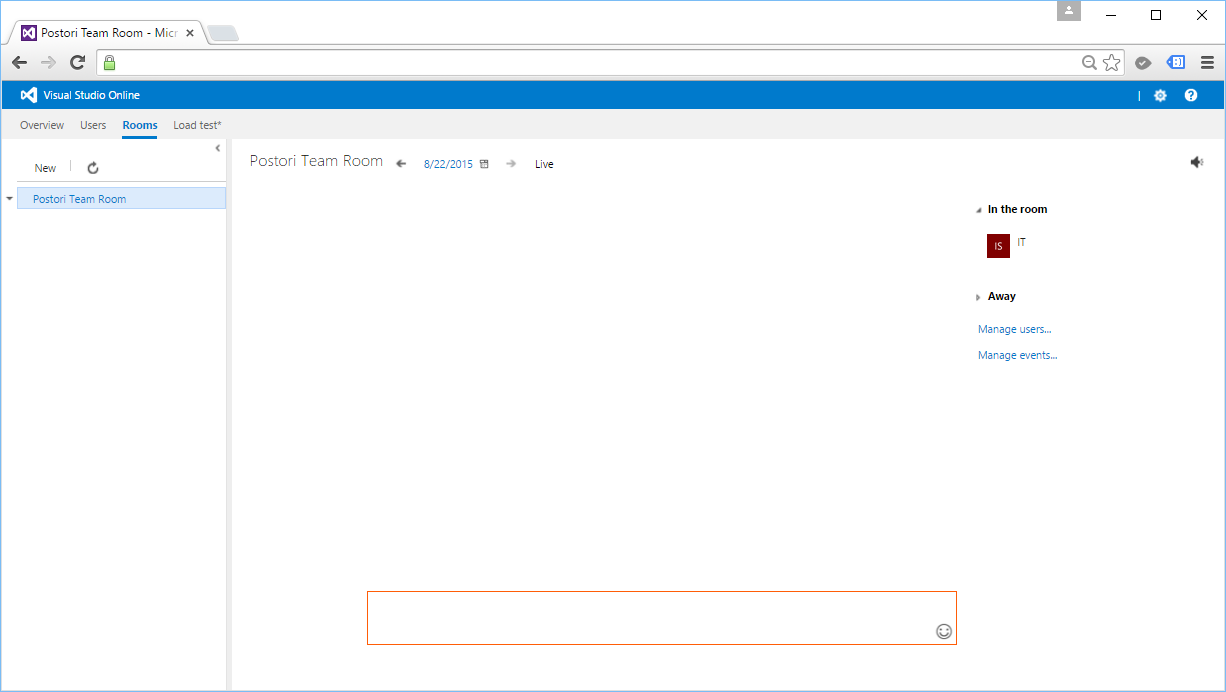
Another feature that we have tried is Team Room. Currently, we are already using Skype and Whatsapp. So, we don’t use Team Room in the end because we don’t want to trouble ourselves just to have another way of communicating with each other. We are just a team of 4-5 programmers anyway. =)

Yup, no one in the Team Room.

Summer 2015 Self-Learning Project

This article is part of my Self-Learning in this summer. To read the other topics in this project, please click here to visit the project overview page.

Summer Self-Learning Banner

Load Balancing in Azure PaaS and Redis Cache

Azure Load Balancer

In Azure PaaS, Cloud Service automatically includes the Azure Load Balancer in front of web role instances for external endpoints. Hence, it allows scaling and when we specify more than one instance in web role, the Azure Load Balancer is responsible for routing incoming traffic to role instances.

When a role instance is brought online by Windows Azure, the OnStart method will be called and the role instance will be marked as Busy. Azure Load Balancer thus will not direct traffic to the role instance. Hence, having more than one role instance actually help on keeping the website accessible while deploying new code to the site.

Azure Load Balancer 5-Tuple Hash

Azure Load Balancer does not use Sticky Session. The distribution algorithm used by the balancer is 5 Tuple (Source IP, Source Port, Destination IP, Destination Port, and Protocol Type) Hash to map traffic to available instances. Hence, connections initiated from the same client computer cannot be guaranteed to always reach the same instance. Hence, it is important to build a fully stateless web application.

Where to Store ASP .NET Session State?

If we are going to use load balancing in our ASP .NET web applications, Session State can no longer be kept in memory of an instance. Instead, the Sessions need to be stored in SQL Server or State Server. Those are the three popular Session-State Modes available, i.e. InProc, SQLServer, and StateServer.

Now, with Azure Redis Cache, we can use the 4th option, the Custom mode, to store Session State values.

First of all, we need to download RedisSessionStateProvider from Nuget so that all necessary assembly references will be added automatically to our web application project. In addition, there will be new lines added to web.config, as shown below, to help us get started with Redis Cache Session State Provider.

<sessionState mode="Custom" customProvider="MySessionStateStore">
    <providers>
        <!--
            <add name="MySessionStateStore" 
            host = "127.0.0.1" [String]
            port = "" [number]
            accessKey = "" [String]
            ssl = "false" [true|false]
            throwOnError = "true" [true|false]
            retryTimeoutInMilliseconds = "0" [number]
            databaseId = "0" [number]
            applicationName = "" [String]
            connectionTimeoutInMilliseconds = "5000" [number]
            operationTimeoutInMilliseconds = "5000" [number]
            />
        -->
        <add name="MySessionStateStore" type="Microsoft.Web.Redis.RedisSessionStateProvider" host="127.0.0.1" accessKey="" ssl="false" />
    </providers>
</sessionState>

As shown in the commented section, we need to provide values to a few attributes before we can use the Redis Cache. Those values can be easily found on the new Azure Preview Portal. So, a complete configuration should be as follows.

<add name="MySessionStateStore" 
type="Microsoft.Web.Redis.RedisSessionStateProvider"
host="contoso5.redis.cache.windows.net"
accessKey="..." 
ssl="true" 
/>

Yup, that’s all. We can now happily use Redis Cache Session State Provider to make Session variables works well with the load balancing in our web applications. =)

For more information about Redis Cache Session State Provider, please read its documentation.

Summer 2015 Self-Learning Project

This article is part of my Self-Learning in this summer. To read the other topics in this project, please click here to visit the project overview page.
Summer Self-Learning Banner

Troubleshooting and Diagnostics in Cloud Service

As a developer working on web applications deployed on the cloud, I am always asked to make sure the applications are always up and running. Hence, it is very important to understand some of the diagnostics resources available for Azure.

Logs

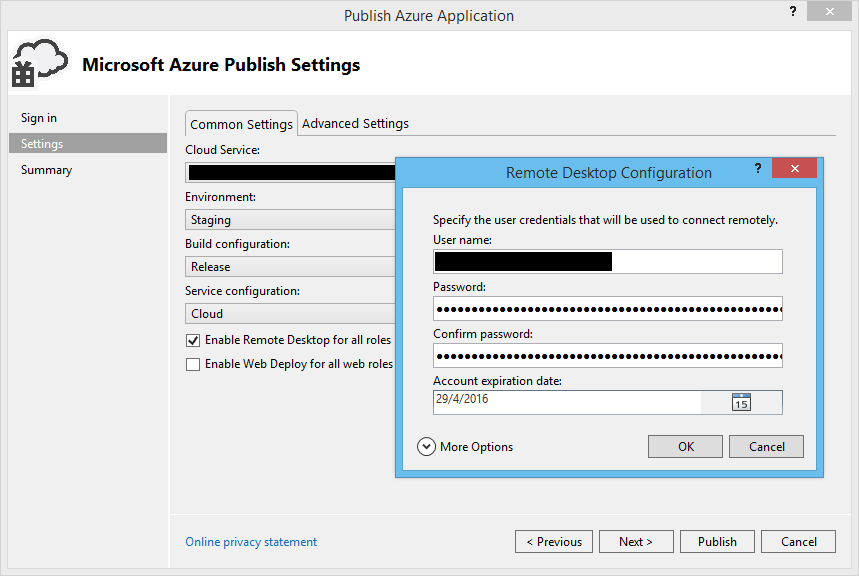
The first thing that comes to my mind is reading the Event Logs and IIS Logs in the VMs. To allow this, we first need to enable Remote Desktop for all roles.

You can enable Remote Desktop for all roles before publish.

This approach should be familiar for those who are using on-premise. So, where to find the log files?

Kevin Williamson from Microsoft has listed out most commonly visited diagnostic data locations.

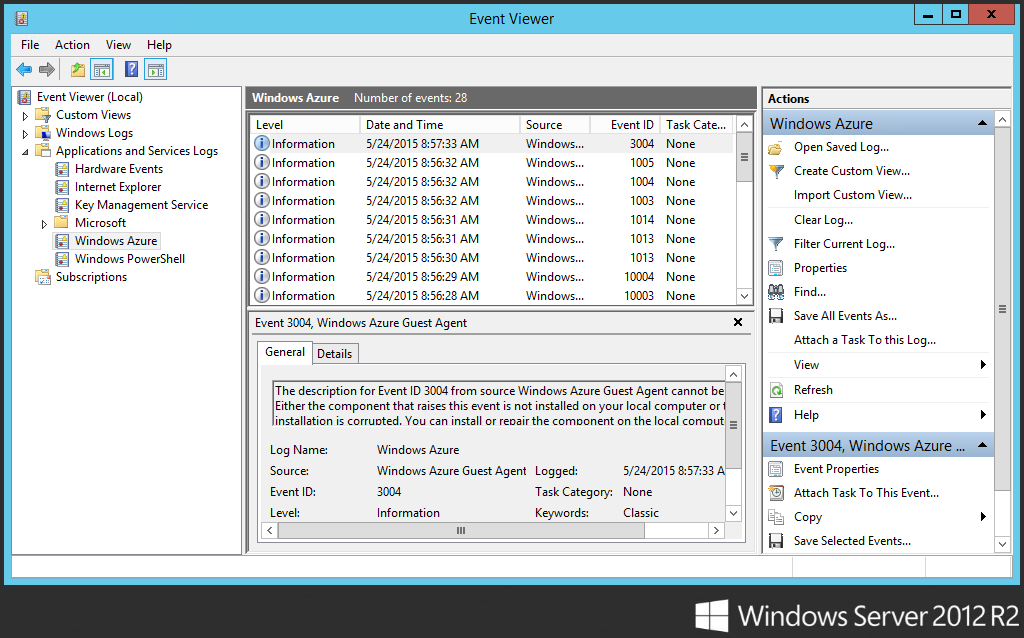
  • Azure Event Logs: Diagnostic output from the Windows Azure Runtime, including information such as role start/stop, startup tasks, crashes, recycles, etc.
Location of Azure Event Logs
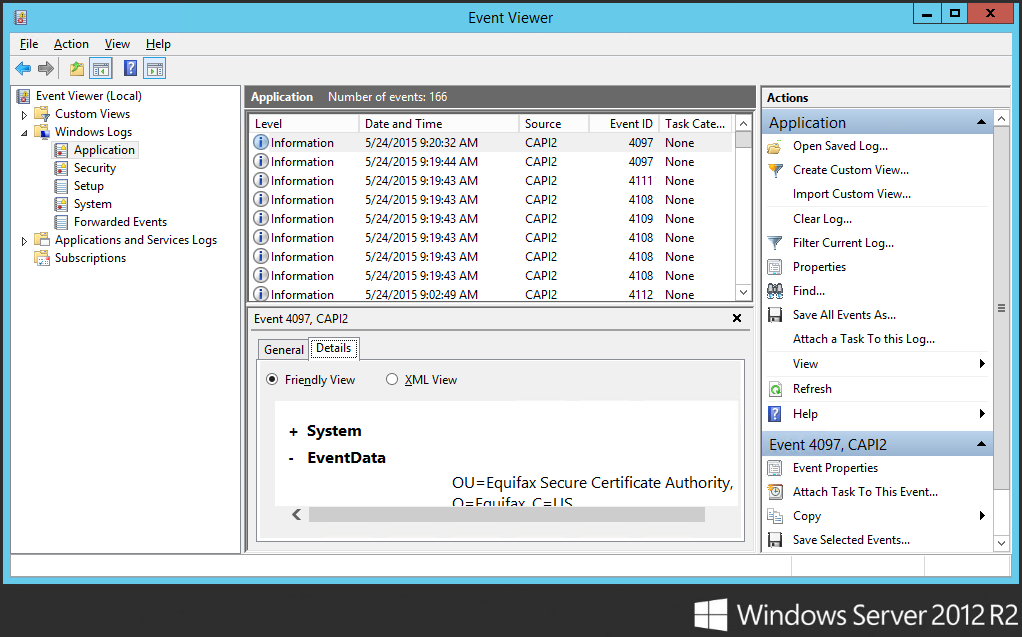
  • Application Event Logs: Often can find w3wp.exe (a process associated with the application pool in IIS) related errors here.
Location of Application event logs.
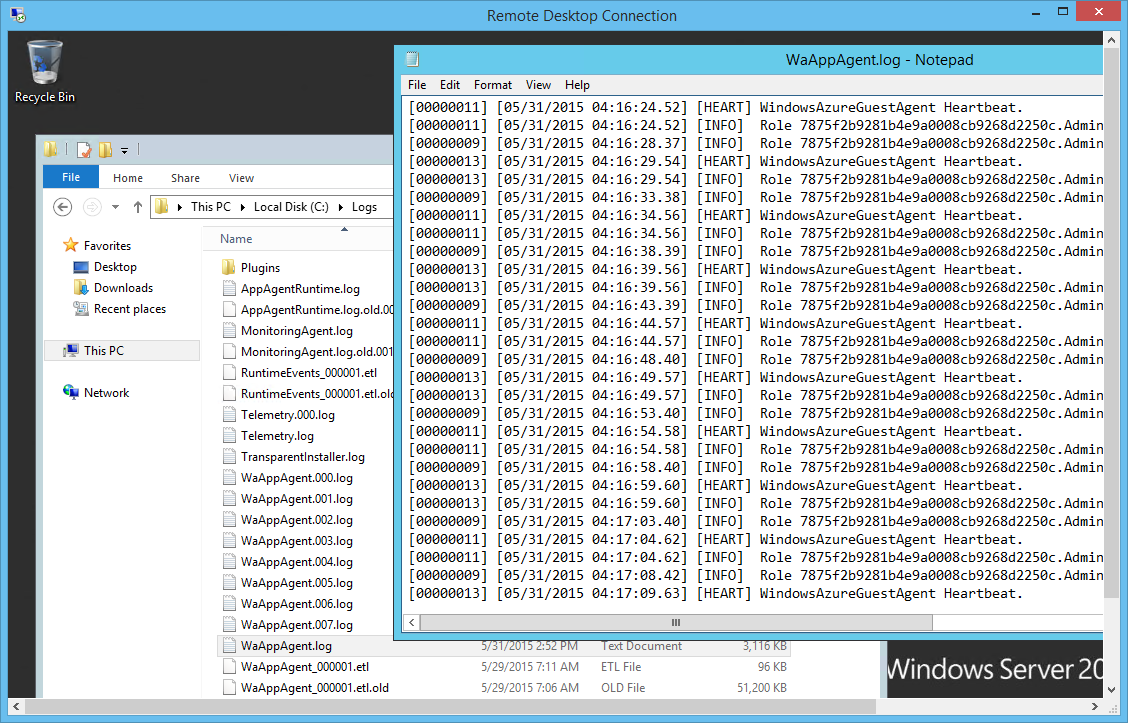
  • App Agent HeartBeat Logs: Useful for determining the current state of the role within the VM. It can be used to find out the health status of the role in the past as well. These logs are generated by WindowsAzureGuestAgent.exe.
Location of App Agent Heartbeat logs.

When I viewed the App Agent Heartbeat logs two hours after my website went down, I saw the following records in the file.

[00000011] [06/19/2015 05:59:43.37] [HEART] WindowsAzureGuestAgent Heartbeat.
[00000011] [06/19/2015 05:59:43.37] [INFO] Generating substatus from system events.
[00000011] [06/19/2015 05:59:43.37] [INFO] Substatus is Sites are being deployed. [2015-06-19T05:59:42Z]
[00000011] [06/19/2015 05:59:43.37] [INFO] Role 1234f2b2986b4e9a1234cc9268d2250c.MyWebRole_IN_0 is reporting state NotReady with sub-status Starting and details Starting role... Sites are being deployed. [2015-06-19T05:59:42Z].
[00000008] [06/19/2015 05:59:46.64] [INFO] Role 1234f2b2986b4e9a1234cc9268d2250c.MyWebRole_IN_0 has current state Unhealthy, desired state Started, and goal state execution status StartInProgress.

After my website went back online, then I found the following records which marked the role to be healthy then.

[00000011] [06/19/2015 06:00:03.70] [HEART] WindowsAzureGuestAgent Heartbeat.
[00000011] [06/19/2015 06:00:03.70] [INFO] Role 1234f2b2986b4e9a1234cc9268d2250c.MyWebRole_IN_0 is reporting state Ready.
[00000008] [06/19/2015 06:00:06.89] [INFO] Role 1234f2b2986b4e9a1234cc9268d2250c.MyWebRole_IN_0 has current state Started, desired state Started, and goal state execution status StartSucceeded.
  • App Agent Runtime Logs: If you would like to get an overview of the events happening over time to a role, you can refer to AppAgentRuntime.log in C:\Logs which logs major changes to the role without logging heartbeats.
  • IIS Logs: To determine whether a problem is caused by the website itself or comes from Azure, it is always good to check the IIS logs first.
Location of IIS logs: C:\Resources\Directory\{DeploymentID}.{Rolename}.DiagnosticStore\LogFiles\Web
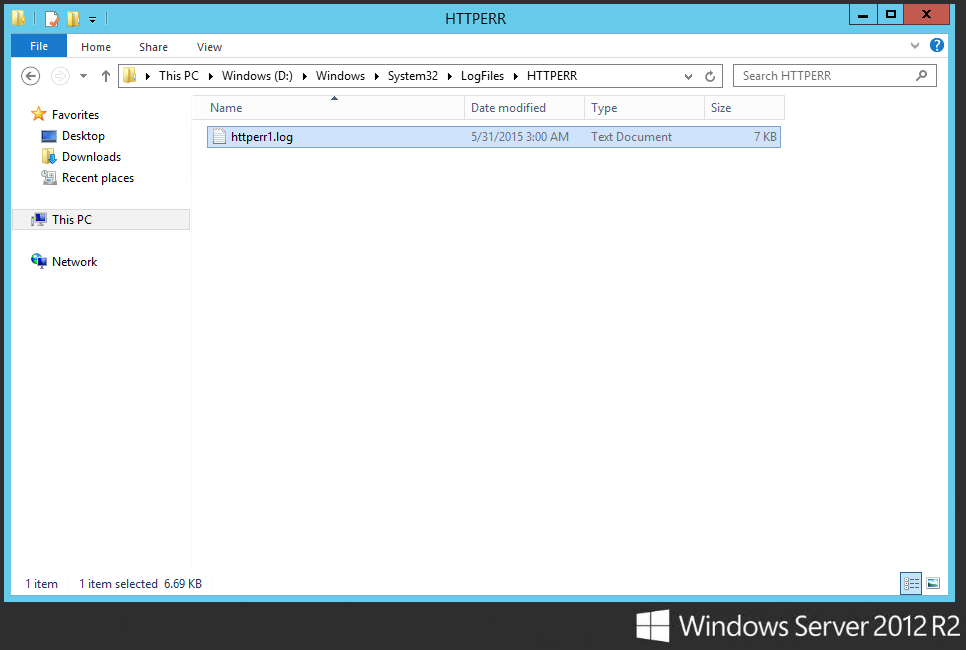
  • HTTP.SYS Logs: Very important to troubleshoot an issue with a hosted service website not responding. The evidence of, for example, IIS not being able to process the high-volume requests can be found in HTTP.SYS logs.
HTTP.SYS logs can be found here!

Monitoring ASP .NET Web Application with Application Insights

If you would like to have a graphical dashboard with diagrams showing availability, performance, usage, failures, and other events happening on your web apps, please try out Application Insights too.

The reason I like it very much because with Visual Studio 2013, Application Insights can be added to the application with just a few clicks.

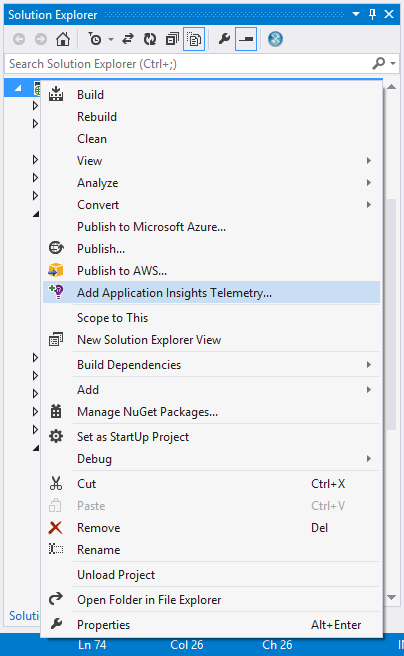
Just right click your project in Solution Explorer and choose "Add Application Insights Telemetry".
Just right click your project in Solution Explorer and choose “Add Application Insights Telemetry”.

After Application Insights is successfully added, the ApplicationInsights.config file with an instrumentation key will be added to your project.

However, by doing this, Visual Studio will not add the JavaScript SDK to the web pages of the project. If you are interested to know more about load time and user events, you can proceed to add it. After the JavaScript SDK is successfully added, you should be able to see the following lines of codes in your web pages.

    var appInsights=window.appInsights||function(config){
    function s(config){...}({instrumentationKey:"02gh149f-3ce6-47cf-b49a-6efg14d83928"});
 
     window.appInsights=appInsights;
     appInsights.trackPageView();

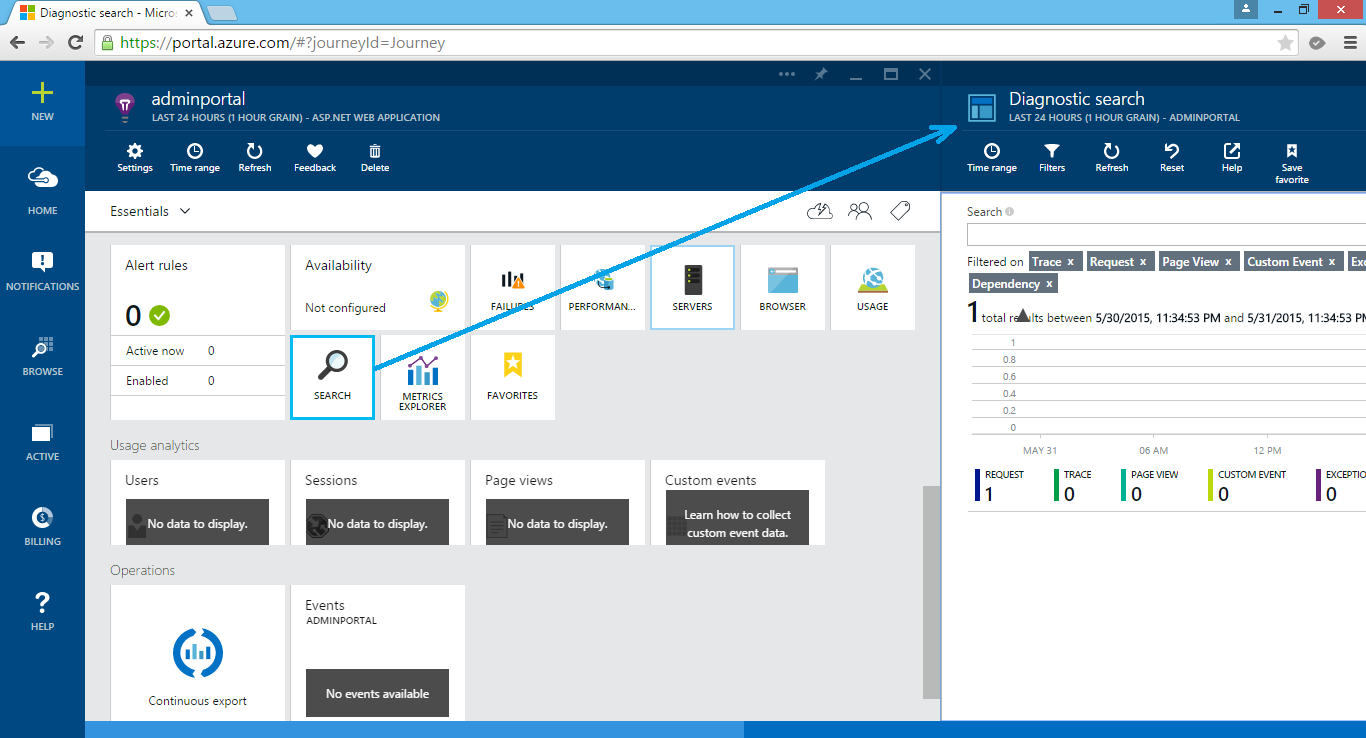
Now, if you right-click on the same project again, you will be able to launch the Application Insights of the project in the new Azure portal.

Application Insights on Azure.

Yup, let’s start improving our web applications based on these useful insights and reports. =)

Summer 2015 Self-Learning Project

This article is part of my Self-Learning in this summer. To read the other topics in this project, please click here to visit the project overview page.

Summer Self-Learning Banner