Recently I encounter some problems while using Session in my ASP.NET web application project. Although most of the problems have been solved, there are still rooms of improvement to gain more stability because it should be stable enough to use for real-world high-load business transactions.
Before working on the future improvement, I would like to write down stuff that I learnt from the project as well as interesting and useful articles that I found so that I can share them with my friends.
By the way, the project is basically about building an online shop that sells anime products, for example anime key chains. Also, there would be white-label service available. This means that we use the same website for other local anime shops to re-brand the website so that it appears as if they made it. Thus, the way I differentiate between the sources of transaction is using Session variables.
From my anime product collection: A phone strap featuring Saya Tokido from Little Busters! EX.
Why Session State?
HTTP is a stateless protocol, as we all know. Thus, we can’t store client information on a page. Nowadays, there is a newly available option that allows us to work against stateless nature of HTTP. It is the HTML5 Web Storage. However, personally I don’t like to spend time on figuring how to make my web application to be backwards compatible.
One of the main reasons why I choose to use Session State is because it is extremely easy to implement and any type of object can be stored in the Session. For example, I can just throw the entire online shopping cart into one Session variable easily with just one line of code.
Session["dsCart"] = new ShoppingCart(); // Store the shopping cart into Session
The way I do white-label website is that I provide the URL of the web application homepage to the anime shops. What they need to do is just embedding it in an iframe.
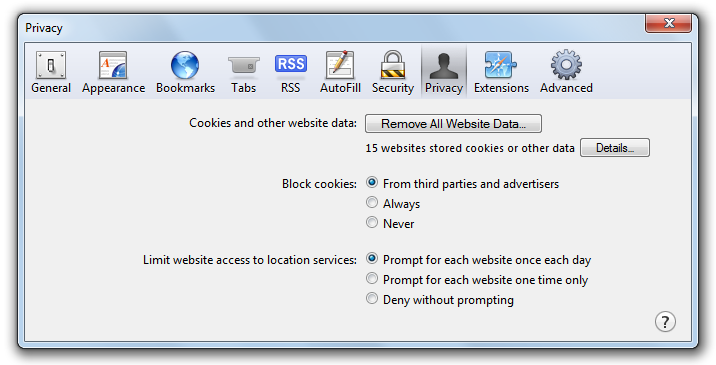
Everything worked fine until we realized that it did not work in Safari. The reason is because Safari has enforced its cookie policy with 5.1.4. By default, Safari blocks cookies from third parties and advertisers. But wait… Why should I care about the cookie policy when I am just using Session State?
By default, Safari blocks all cookies coming from third parties.
The reason is very simple. The Session State relies on the cookies. Of course, there are cookieless sessions available and cookieless sessions are there because users may have disabled the cookies on their browsers. However, cookieless session has a security problem because it makes the session ID easier to be retrieved.
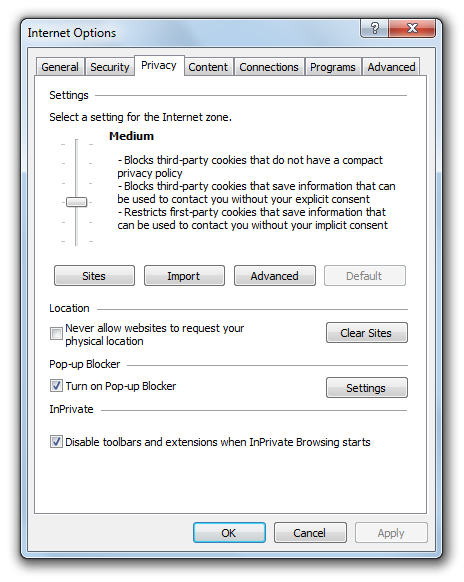
In fact, IE9 has the same problem as well. The Privacy Settings in IE9 is by default set to “Medium” where all third-party cookies are blocked. However, due to the fact that only those which do not have a compact privacy policy will be blocked, I can easily solve it by having IIS to send a compact policy in HTTP header.
Hence, in the CodeBehind of all the web pages, I have this method, ShowSessionTimeoutMessage(), which takes in the Session State object as parameter and returns a JavaScript code which will be taken care by ScriptManager.RegisterClientScriptBlock. What it does is basically just prevent user from using the system once the Session has ended. This is to avoid the null reference errors in the application when the Session variables are all null. Also, it will show a message telling the user to start his/her online purchase from the first page again.
Personally, I do not like how I solve the Safari cookie policy problem. Thus, I will be finding better ways to solve it in the future. Also, if possible, I will try to make my entire ASP.NET web application to not use Session variables at all. Then I will not have all the problems mentioned above. Ah-ha!
Few days after the Dream Build Launch hackathon held at Microsoft Singapore office, Desmond and I received an email from Microsoft. The email is to inform us that our app, EsplanadeGo!, that we built during the 24-hour hackathon was selected as one of the applications with high potential on the Windows Store and thus both of us got the opportunity to take part in the Premier Field Engineer (PFE) consultation sessions.
I had been excited about it ever since I received the email and confirmed the 2-hour timeslot for our PFE consultation session. We’re actually invited twice to the PFE consultation session. The first time was in 25 July. During the consultation session, we received feedback from Noemi, Premier Field Engineer from Microsoft Philippines, through Skype. During the consultation session, we went through each item listed on Application Profile Survey. In the survey, as the developers of the app, we needed to answer the questions related to the user experience, user interface and performance of our app.
Through the PFE consultation session, we found out some of the mistakes we made in our app. With the suggestion given by Noemi, we were able to further improve our app which was later reviewed again in 16 August. After the second review, we were finally granted a token which allowed us to submit our Win8 app to the Windows Store. Hence, I decided to have this post to share the problems we encountered in our Win8 app development journey as well as some of the solutions we tried.
Network Connectivity Detection
As what Justin shared in his talk “HTML5 – The road to multi-platform serenity” during the Geekcamp.SG, it’s important to check for the network connection status of a mobile device and to make sure the mobile apps that we build can function properly even in an environment without the Internet access.
In order to have the event handler to be added to the NetworkStatusChanged event at the moment our app runs, we have the following code in our App.xaml.cs.
namespace EsplanadeGo
{
    public delegate void NetworkStatusKenaChangedEventHandler(object sender, NetworkStatusKenaChanged e);
    ...

    sealed partial class App : Application
    {
        public static event NetworkStatusKenaChangedEventHandler NetworkKenaChanged;
        public static bool registeredNetworkStatusNotif = false;
        ...

        public App()
        {
            ...
            if (!registeredNetworkStatusNotif)
            {
                NetworkInformation.NetworkStatusChanged += new NetworkStatusChangedEventHandler(OnNetworkStatusChange);
                registeredNetworkStatusNotif = true;
            }
    }

    public statis bool isConnected()
    {
        ConnectionProfile profile = NetworkInformation.GetInternetConnectionProfile();
        return (profile != null && profile.GetNetworkConnectivityLevel().Equals(NetworkConnectivityLevel.InternetAccess));
    }

    void OnNetworkStatusChange(object sender)
    {
        NetworkKenaChanged(this, new NetworkStatusKenaChanged(isConnected()));
    }

    ...
}
The reason why we have another event defined by us triggered when OnNetworkStatusChange event occurs is that we need to show a message to our user telling him/her that there is currently no Internet access. However, we cannot directly add the code in OnNetworkStatusChange() because a change to the UI through a non-GUI thread will raise an error: Element not found.
After doing some searching on the Internet, I found a solution suggested by invalidusername on StackOverflow. Although that is a Windows Phone 7 related discussion, his method works very well in our Win8 app. So, when App class receives a notification about the change of network connectivity status, it will trigger another event, NetworkKenaChanged, which is subscribed by all the pages in our app. As a result, no matter where the user enters our app, the user will always receive the notification about the change of network connectivity.
Here is what we have in our NetworkStatusKenaChanged class (By the way, “kena” is Singlish, which is served as the passive marker as “by” in English).
public class NetworkStatusKenaChanged:EventArgs
{
    bool isConnected = false;

    public NetworkStatusKenaChanged(bool isConnected):base()
    {
        this.isConnected = isConnected;
    }

    public book ConnectionStatus
    {
        get { return isConnected; }
    }
 }
Thus, in every single page in our app, after subscribing the event, what we need to do is just having the following code to show the message telling our user that there is no Internet connection.
private async void App_NetworkKenaChanged(object sender, NetworkStatusKenaChanged e)
{
    if(App.isConnected())
    {
        await Dispatcher.RunAsync(Windows.UI.Core.CoreDispatcherPrority.Normal,
            async() => { RetrieveItemInfoFromWeb(); });
    }
    else
    {
        await Dispatcher.RunAsync(Windows.UI.Core.CoreDispatcherPrority.Normal, async() =>
            {
                MessageDialog msg = new MessageDialog("There is no Internet connection.",
                    "No Internet Access");
                await msg.ShowAsync();
            });
    }
}
Since EsplanaGo! uses data from the Internet, so it’s important to inform the user if there is no Internet connection.
Local Storage
In the first design of our app, Esplanade web pages would be crawled each time when the app was launched. As suggested in the Application Profile Survey, unnecessary or repeated downloads should be minimized. Thus, now, our app will crawl one Esplanade web page only when a certain tile is clicked by the user.
In addition, since the data we use in our app is live data. So, we need to store the data in local storage so that our app is still usable under the environment without the Internet access.
There are nothing much to store in local storage for our app. What we are going to store is just be the info of the events, such as date, venue and description of the event. Since they are just texts, so we can easily do the local storing with ApplicationData.LocalSettings, as shown below.
// For storing local settings
Windows.Storage.ApplicationDataContainer localData = Windows.Storage.ApplicationData.Current.LocalSettings;
// Save event info to Local Settings
localData.Values["Title"] = individualEvent.Name;
localData.Values["Subtitle"] = individualEvent.DateTime;
localData.Values["ImagePath"] = individualEvent.ImagePath;
localData.Values["Description"] = individualEvent.Venue;
localData.Values["Content"] = synopsis.ToString();
To retrieve the information from local storage, we simply need to use the ApplicationDataContainer.Values property to access the setting in the localData container.
Cached Images Hide-and-Seek
Something that I did not find out before attending the second PFE consultation session is that how come the event thumbnails are cached without us doing anything in our code.
During the second consultation session, we spent about half an hour just to find out the place where the thumbnails were cached. It turns out that the cached thumbnails are actually located in “C:\Users\<UserName>\AppData\Local\Packages\<AppName>\AC\INetCache”. It is a hidden folder which “Hide protected operating system files (Recommended)” under the Folder Views needs to be unchecked first before it can be visible.
Allow to display protected OS files.The images are actually cached and stored in separate folders.
For the <AppName>, it can be found in the Windows App Certificate Kit Test (WACK) Results report.
The AppName can be found in the Windows App Certificate Kit (WACK) Test Results.
It is interesting to know that the caching of images used in the app is automatically handled without doing any programming. Thus, we only store the path to the image in the local settings without storing the image itself.
Besides, under the directory “C:\Users\<UserName>\AppData\Local\Packages\<AppName>\Settings”, there should be a file named settings.dat where values stored in local settings can be found.
Handle PLM State Appropriately
PLM stands for “Process Life-cycle Management”. As stated in the Application Profile Survey, handling PLM is “to allow your users to switch across apps and feel like they never left your app”.
One way of doing that is saving the application data when the app is being suspended. This helps the app to be resumed even if it is terminated by Windows. There is, in fact, a list of official guidelines for app suspend and resume available as well.
For our app, EsplanadeGo!, due to the fact that we already store the relevant information when the user clicks on a tile, so we do not need to write any code for the app suspend. What we do is actually just to have the following code in the App.xaml.cs to load the saved states of the app.
/// <summary>
/// Invoked when the application is launched normally by the end user. Other entry points
/// will be used when the application is launched to open a specific file, to display
/// search results, and so forth.
/// </summary>
/// <param name="args">Details about the launch request and process.</param>
protected override async void OnLaunched(LaunchActivatedEventArgs args)
{
    // Do not repeat app initialization when already running, just ensure that
    // the window is active
    if (args.PreviousExecutionState == ApplicationExecutionState.Running)
    {
        Window.Current.Activate();
        return;
    }
    // Create a Frame to act as the navigation context and associate it with
    // a SuspensionManager key
    var rootFrame = new CharmFrame { CharmContent = new CustomCharmFlyout() };
    SuspensionManager.RegisterFrame(rootFrame, "AppFrame");
    if (args.PreviousExecutionState == ApplicationExecutionState.Terminated)
    {
        // Restore the saved session state only when appropriate
        await SuspensionManager.RestoreAsync();
    }
    if (rootFrame.Content == null)
    {
        // When the navigation stack isn't restored navigate to the first page,
        // configuring the new page by passing required information as a navigation parameter
        if (!rootFrame.Navigate(typeof(ItemsPage), "AllGroups"))
        {
            throw new Exception("Failed to create initial page");
        }
    }
    // Place the frame in the current Window and ensure that it is active
    Window.Current.Content = rootFrame;
    Window.Current.Activate();
}
If you are using a template project offered by Visual Studio 2012, then all these are actually done for you already. Thanks nice guy Visual Studio. =P
So, when will the app terminated? According to MSDN on the topic of application life-cycle, “Windows may terminate your app after it has been suspended for a number of reasons. The user may manually close your app, or sign out, or the system may be running low on resources.” Thus, in the code above, there is this line which helps us to check if the app is terminated by Windows or not:
The capabilities of the app can be hidden through the Package.appxmanifest in Visual Studio.
Meanwhile, it is also important to not show permissions that are not even used in the app. For example, an app like our EsplanadeGo! which only display data should not have permission settings like Webcam, Microphone, Location and so on. All these can be managed under the Capabilities tab in Package.appxmanifest.
App Bar
In the second version of EsplanadeGo!, we introduce a Refresh function in the App Bar. The position of the button in App Bar is important. Based on and the UX design guidelines in MSDN and the official guidelines for commands in the App Bar, we should always places persistent and default commands on the right side of the App Bar and starts our commands on the right.
Refresh function is available in EsplanadeGo!.
The following is the XAML code to include a Refresh button in the App Bar.
Previously, we wrongly put a Share command in the App Bar to invoke sharing. This is, in fact, not a recommended way of using the App Bar, as specified in the guidelines for sharing content.
RenRen with Our App: Share Fun with Your Friends
The reason why we had a Share command in the App Bar is because we implemented Share Source Contract in our app. When I first heard about Sharing Charm two month ago, I had always wanted to tried it out once myself.
To have this feature, I use DataTransferManager in our app. The following code is what I have in one of our pages to allow user to share an event info, such as event name and description to other app (RenRen HD, Mail, etc.).
DataTransferManager dataTransferManager;
protected override void OnNavigatedTo(NavigationEventArgs e)
{
    base.OnNavigatedTo(e);
    // Register this page as a share source.
    this.dataTransferManager = DataTransferManager.GetForCurrentView();
    this.dataTransferManager.DataRequested += new TypedEventHandler<DataTransferManager, DataRequestedEventArgs>(this.DataRequested);
}
protected override void OnNavigatedFrom(NavigationEventArgs e)
{
    base.OnNavigatedFrom(e);
    // Unregister this page as a share source.
    this.dataTransferManager.DataRequested -= new TypedEventHandler<DataTransferManager, DataRequestedEventArgs>(this.DataRequested);
}
private void DataRequested(DataTransferManager sender, DataRequestedEventArgs e)
{
    var selectedItem = (SampleDataItem)this.itemsViewSource.View.CurrentItem;
    if (selectedItem != null)
    {
        DataRequest request = e.Request;
        request.Data.Properties.Title = selectedItem.Title != null ? selectedItem.Title : "";
        request.Data.Properties.Description = selectedItem.Subtitle != null ? selectedItem.Subtitle : "";
        request.Data.SetText(selectedItem.Content);
    }
}
Sharing event info with RenRen friends.
Here, I need to apologize to my friends on RenRen because I spammed their wall when I was testing this feature. =P
Logos: Design Is Important Also
During our first PFE consultation session, we were asked to have a better design for our app logo. To give the users a better experience when they are using our app, we were advised to have the same logo used for Wide Logo, Small Logo and Splash Screen.
EsplanadeGo! Logo on Start MenuEspanadeGo! Small Logo now uses the same logo as the Wide Logo.
In addition, it is important not to have app name appeared on both logo and the tile at the same time. Hence, it there is already a word “Esplanade” as part of the logo, then we should hide the app name”EsplanadeGo!” on the tile on Start page.
ProgressRing, Not Onion Ring: The App Is Still Loading!
Back in the old days, we have only things like progress bar to show the loading speed of tasks. Now, in Windows 8, we have a cooler control known as the Progress Ring. I love how a progress ring can be added to the GUI easily with just one line in XAML.
To implement that look-and-feel, I modified the sample code generated by Visual Studio in SampleDataSource.cs as follows.
namespace EsplanadeGo.Data
{
    public interface IResizable
    {
        int Width { get; set; }
        int Height { get; set; }
    }

/// <summary>
/// Base class for <see cref="SampleDataItem"/> and <see cref="SampleDataGroup"/> that
/// defines properties common to both.
/// </summary>
[Windows.Foundation.Metadata.WebHostHidden]
public abstract class SampleDataCommon : HelloWorldSplit.Common.BindableBase, IResizable
{
    ...
    public SampleDataCommon(String uniqueId, String title, String subtitle, String imagePath, String description, int width, int height)
    {
        ...
        this._width = width;
        this._height = height;
    }

    ...
    private int _width = 0;
    public int Width
    {
        get { return this._width; }
        set { this.SetProperty(ref this._width, value); }
    }
    private int _height = 0;
    public int Height
    {
        get { return this._height; }
        set { this.SetProperty(ref this._height, value); }
    }
}
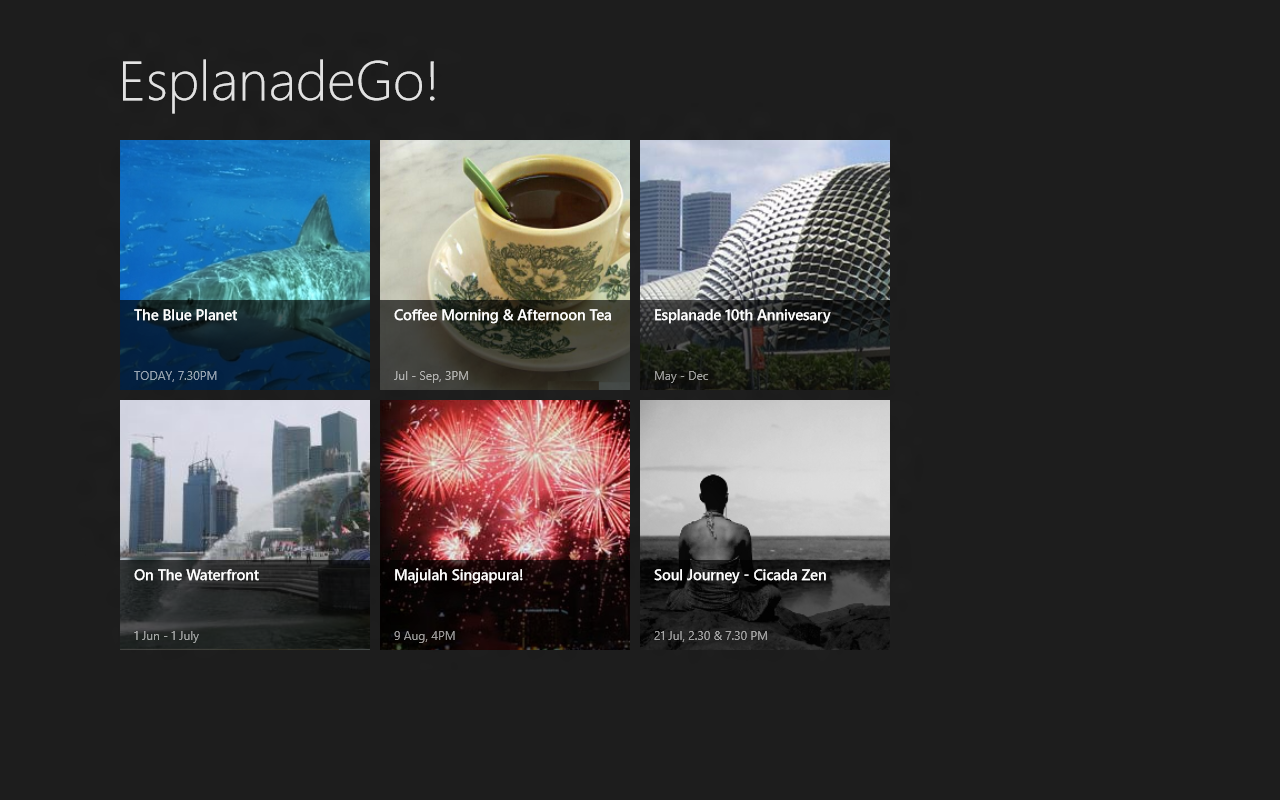
The latest version of EsplanadeGo! homepage design with VariableSizedWrapGrid.
Having Dinner with EsplanadeGo!
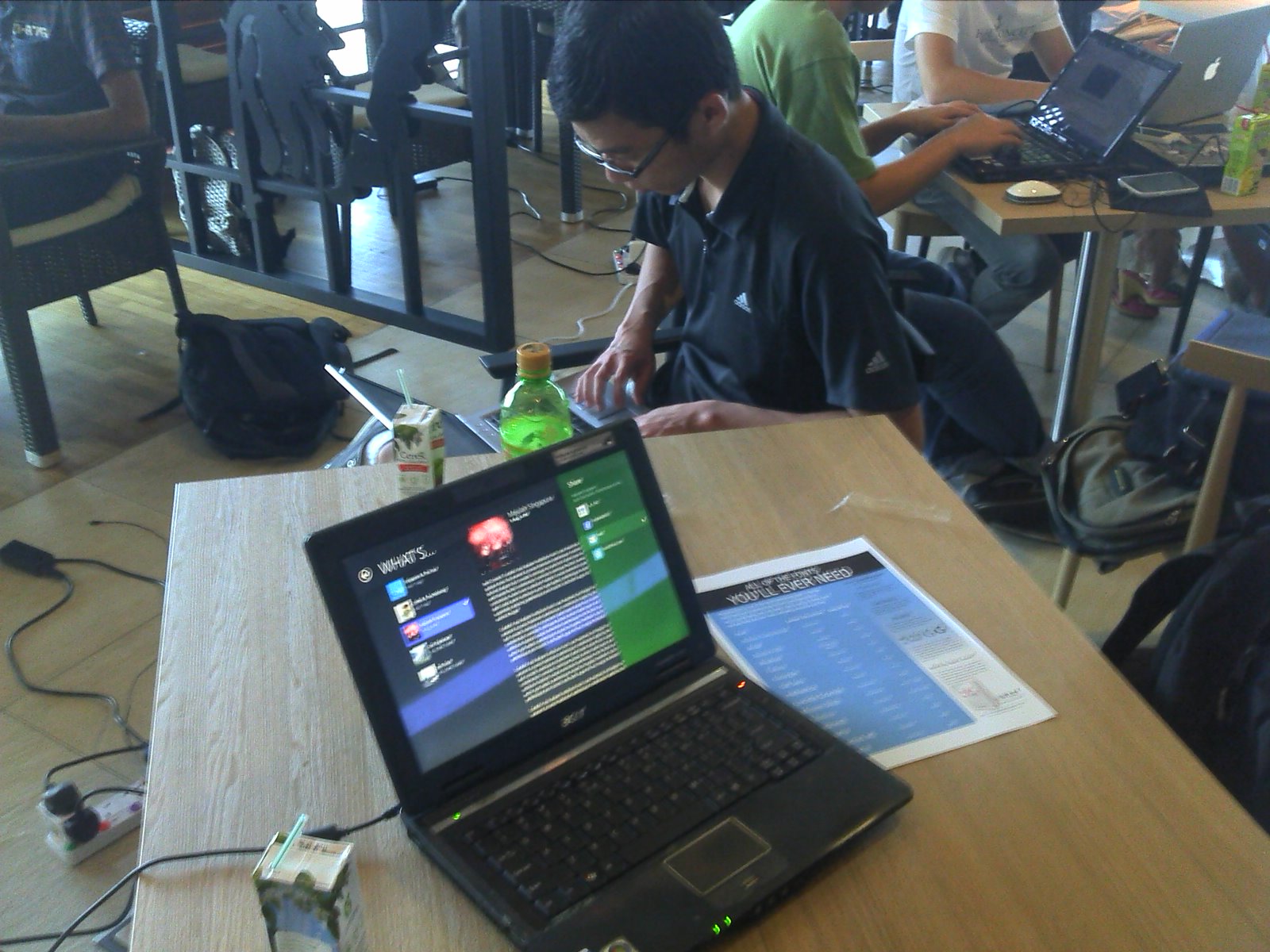
In the last few weeks, I went to Bugis Junction and some other restaurants with Internet access to have dinner so that I can work on our EsplanadeGo! project after work. Although my daily work is already all about C# and ASP.NET and I have only my dinner time to work on this project, it is still quite fun to work on EsplanadeGo! (Imagine, coding with nice food in a comfortable environment. How fun is that? =P).
Thanks to this project, I get to try many new stuff that I haven’t seen before and share the new technology with my colleagues and my boss. Yup, they all love it very much and would like to learn more about Windows 8 app development. Who knows? Maybe one day our company will have our first mobile app on Surface. =P
Last month when I read a Facebook post from Spiffy that Microsoft Singapore was going to organize a hackathon, I immediately emailed my friends about it. Desmond, one of my OneSync Dev Team teammates, gave me a prompt reply saying that he was interested to join it as well.
The event is called Dream Build Launch. It’s an event specially prepared for local developers to build their (first) Windows 8 metro-style app. Since the event was held on Saturday, I can happily participated in it without applying for leave. There are a few reasons why I would like to join the hackathon. Firstly, I wanted to learn more about WinRT. After listening to the talk delivered by Hammad Rajjoub and Bruce Wang from Microsoft in the Microsoft Campfire, I always wanted to try out the interesting features offered by WinRT.
Secondly, it’s a very good opportunity to meet imba software developers in Singapore. So, during the event, I was quite happy to see many friends from School of Computing (SoC), NUS taking part in the event also. Some of them were actually Microsoft interns. It’s also fun to share our ideas about what we’re going to build with them.
Thirdly, due to the fact that the event was held at Microsoft Singapore office, so I was very excited to see the working life in Microsoft. Their workplace was just renovated not too long ago. The office shared the same building as the NTUC centre. It’s a very clean and comfortable workplace.
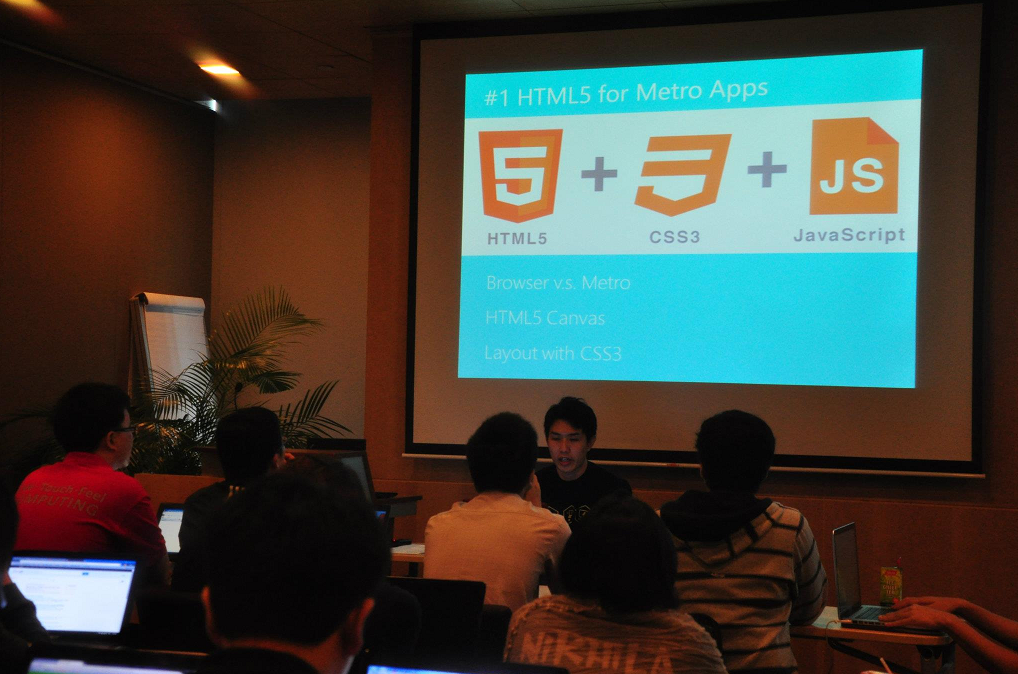
HTML5 for Metro Apps talk given by Alex Goh. Photo Credits: Spiffy
Before the hackathon began, there were two lab sessions held. Since both of the lab sessions were held at the same time, so the participants could only choose to attend one of them, either JavaScript lab or C# lab. Desmond and I finally decided to attend the JavaScript one because we’re interested to see how a metro-app could be built using HTML5 and JavaScript. I couldn’t find the slides they used in the JavaScript lab session. However, Hammad Rajjoub did share some links to the related topics on the Facebook group of the event, for example how to style controls to your preferences in metro-style apps using JavaScript and HTML. For the C# lab session delivered by Bruce Wang which both of us didn’t attend, his slides can be found here.
The hackathon began at around 1pm. We had about 22 hours to complete our app. According to the rules of the hackathon, our app needed to have a theme and the theme was ” I ❤ SG” (I love Singapore).
Introducing EsplandeGo! – The First Esplanade App on Windows 8
Three days before the event, I was thinking what kind of app we should build. After having dinner at Raffles City, I walked to CityLink Mall and then I saw an advertisement about the events in Esplanade. Then I suddenly had an idea. Why don’t we build an app about Esplanade? So, I walked to Esplanade which is located nearby to get more ideas for the app that we’re going to build.
Photo was taken when I visited Singapore River with Desmond and Thuat
After coming back from Esplanade, I was so excited about the idea. Thus I immediately wrote the first version of our app and emailed some screenshots of the app to Desmond to explain to him the idea of building an app which listed Esplanade events. I named the app “EsplanadeGo!”.
The screenshot of the first version that I built in half an hour
Yup, so during the event, we continued on building the app.
There is one thing that I forgot to do is making sure our program could run in an environment which had no Internet access. So, when I tried to run it on MRT after the end of the hackathon, then I realized our app actually crashed because there was no Internet connection. >__<
Nice People, Nice Food
I like the Dream Build Launch hackathon very much. I like the workplace as well. Coding in such a nice environment is truly enjoyable. I could see the beautiful Singapore Strait clearly from the office. Watching sea, drinking free coffee, coding stuff. That partially explains why people like to work in Microsoft Singapore.
Besides the nice view, I enjoyed the speeches given by the developers and staff from Microsoft Singapore. The lab session also helped me to understand more about the possibility of WinRT, especially the way we could use JavaScript to build a Win8 app.
In the event, I also met some friendly participants during the event. It’s fun to talk to them and listen to their ideas.
Last but not least, the lunch, dinner and supper provided by Microsoft Singapore are extremely good. So, Desmond and I had to queue for about 20 minutes just to get the food.
In EF Media Player 3, the implementation of videos viewing history recording and video bookmarking takes me about two days to figure out the way to do it.
Video Bookmarking
In order to have those features, storage is a important issue. The history and bookmark records need to be stored somewhere. There are a few approaches to this problem. One is of course the serialization. I can basically store the history and bookmark by doing serialization. This approach was tried and successfully implemented by our CS2103 team when we’re trying to store the data of our apps. In C#, thanks to the .NET library, I can actually store the data and records in settings as well. All these stored records will be persisted between application execution sessions.
Loading Values from Settings
System.Collections.Hashtable savedViewedVideos = new System.Collections.Hashtable();
// Try to load previously saved viewed videos (if any) to the list.
if (Properties.Settings.Default[“viewedVideosList”] != null){
foreach (String recordEntry in Properties.Settings.Default.viewedVideosList){
string[] entryBreakdown = recordEntry.Split(‘*’);
if (entryBreakdown[1].Equals(VideoRecordType.NEWLY_ADDED.ToString())) savedViewedVideos.Add(entryBreakdown[0], VideoRecordType.PREVIOUSLY_PLAYED.ToString());
else
savedViewedVideos.Add(entryBreakdown[0], entryBreakdown[1]);
}}
I actually use a small trick here by using array list as a name-value collection. Every element in the array list is a string containing an asterisk symbol. Before the asterisk, it is the file path of the video and after it will be the video record type:
Storing Values to Settings
Why don’t I use the name-value collection which is also provided by .NET? The reason is simple. This is because the name-value collection doesn’t have a schema predefined. So, why do we need a schema here? This is because all the values stored in the settings are stored in XML format in the user.config file. Hence, without a schema defined, the values cannot be updated later using Properties.Settings.Default.Save();. Fortunately, the schema of the array list is provided. So, in order to avoid the troubles of defining schema for the name-value collection, I chose array list here.
Currently, there are still a lot of people discussing why they can’t update the values stored in the name-value collection and other similar data types. I am not sure about the causes of their problems but I think not having a schema for the data types they are using may be a reason for some of them.
More about settings: http://msdn.microsoft.com/en-us/library/aa730869(VS.80).aspx





 cuteprogramming