Razor Learning Notes

Razor is still a new markup language to me, after working on ASP .NET Web Form projects for 3 years. I started to learn Razor in the beginning of this year (2015), so I decide to note down what I find interesting in my Razor learning journey and then share it here.

A Powerful HTML Helper Method: EditorFor

When I first started learning Razor, I was confused by EditorFor and TextboxFor. So, what is the difference between both of them?

TextboxFor is easy to understand. It is a helper method is used to render a TextBox on the web page no matter which type of the data is passed to the method.

EditorFor is more powerful than TextboxFor. Besides rendering a TextBox, it can also render other HTML elements based on the type of the data. For example, if the datatype is boolean, it renders a checkbox. If the datatype is calendar, it will render a textbox with calendar popup (which is not so nice looking as compared to the calendar popup created using XDSoft DateTimePicker).

Even though the datatype is specified to be DateTime, EditorFor does not provide a control for time section.

EditorFor Accepts Custom Templates

By default, the EditorFor will create a textbox with calendar popup for data which is DateTime. We can change it to use another look-and-feel by create our own template.

So let’s say we want the EditorFor to render five dropdown boxes for each of the following components in DateTime: Year, Month, Day, Hour, and Minute.

Firstly, I create a file called DropDownDateTime.cshtml file which is in charge of the look-and-feel of the custom template. This file needs to be put under /Views/Shared/EditorTemplates. Also, please take note that the filename must be same as the corresponding data type.

@model MyProject.Models.DropDownDateTime
@{
    List<SelectListItem> years = new List<SelectListItem>();
    int prevYearCount = Model.PreviousYearCount;
    int nextYearCount = Model.NextYearCount;
    for (int i = Model.DateTime.Year - prevYearCount; i <= Model.DateTime.Year + nextYearCount; i++)
    {
        years.Add(new SelectListItem() { 
            Text = i.ToString(), 
            Value = i.ToString(), 
            Selected = (i == Model.DateTime.Year ? true : false) });
    }

    List<SelectListItem> months = new List<SelectListItem>();
    for (int i = 1; i <= 12; i++)
    {
        months.Add(new SelectListItem() {
            Text = i.ToString("00"), 
            Value = i.ToString(), 
            Selected = (i == Model.DateTime.Month ? true : false) });
    }
 
    List<SelectListItem> days = new List<SelectListItem>();
    for (int i = 1; i <= 31; i++)
    {
        days.Add(new SelectListItem() { 
            Text = i.ToString("00"), 
            Value = i.ToString(), 
            Selected = (i == Model.DateTime.Day ? true : false) });
    }

    List<SelectListItem> hours = new List<SelectListItem>();
    for (int i = 0; i < 24; i++)
    {
        hours.Add(new SelectListItem() { 
            Text = i.ToString("00"), 
            Value = i.ToString(), 
            Selected = (i == Model.DateTime.Hour ? true : false) });
    }

    List<SelectListItem> minutes = new List<SelectListItem>();
    for (int i = 0; i < 60; i += 15)
    {
        minutes.Add(new SelectListItem() { 
            Text = i.ToString("00"), 
            Value = i.ToString(), 
            Selected = (i == Model.DateTime.Minute ? true : false) });
    }
}

@Html.DropDownList("years", years)
@Html.DropDownList("months", months)
@Html.DropDownList("days", days) at 
@Html.DropDownList("hours", hours) : 
@Html.DropDownList("minutes", minutes)

So, with the help of this template, whenever I pass in a data which has DropDownDateTime as its type, EditorFor will automatically render the five dropdown lists, as shown in the screenshot below.

Yup, customized look-and-feel for DateTime picker.

Razor and Content

When I am building apps using ASP .NET Web Forms, I often need to add some server codes within the HTML in .aspx file. For example,

<h2>Animes</h2>

<ul>
    <% foreach (var anime in animeCollection) { %>
        <li><%= anime.Name %></li>
    <% } %>
</ul>

In Razor, we do not need to explicitly denote the start and end of the server blocks within our HTML. The Razor parser is smart enough to implicitly identify when a server block ends by looking for HTML tags. Hence, Razor is able to keep the HTML clean, as shown in the sample coe below.

<h2>Animes</h2>

<ul>
    @foreach (var anime in animeCollection) {
        <li>@anime.Name</li>
    }
</ul>

However, there are sometimes where the Razor parser cannot do the job properly, especially when we need to mix Razor and Javascript code. For example, when we are rendering diagram using Google Charts, as shown in the sample below.

@{ int counter = 0; }


    var data = new google.visualization.DataTable();

    data.addColumn('string', 'Sales Date');
    data.addColumn('number', 'Sales');

    data.addRows([
        @foreach (var record in dailySalesSummaryRecords)
        {
            counter++;
            if (counter == dailySalesSummaryRecords.Count())
            {
                @:['@record.Key', @record.TotalSales.ToString("0.00")]
            }
            else
            {
                @:['@record.Key', @record.TotalSales.ToString("0.00")],
            }
        }]
    );
    
    ...

The two lines highlighted above are Razor code within JS. Both of them are actually doing the same thing. Just that one of them has no trailing comma which is to avoid browsers like Internet Explorer 8 to throw errors.

The @: Character Sequence is used to explicitly tell Razor to interpret the following line of content as content. However, @: can only work on single line. So for scenarios with multiple lines of content, we need to do something as follows.

...
@: Line one of content
@: Line two of content
@: Line three of content
...

Alternatively, we can just use <text> Tag to effectively mark the start and end of content.

...
<text>
    Line one of content
    Line two of content
    Line three of content
</text>
...

To read more about @: Character Sequence and <text> Tag, please refer to a detailed blog post about them on ScottGu’s Blog.

Razor Encodes String by Default

Yes, Razor encodes string by default. So what should we do if we want rendering without encoding? Well, we can do something as follows.

@Html.Raw(" alert('Hello World!'); ")

<text> Tag, Html.Raw, and Encoding

There is a very interesting discussion on Stack Overflow about how to correctly doing encoding/decoding in Razor with JavaScript. It starts with a question on how to avoid the apostrophe characters in s.Name to be rendered as ‘.

    $(function () { 
        $('#calendar').fullCalendar({
        header: { left: '', center: 'title', right: 'month,agendaWeek,agendaDay' },
        month: 5,
        year: 2011,
        editable: false,
        events: [
            @foreach (var s in ViewBag.Sessions)
            {
                @:{
                @:title: '@s.Name',
                @:start: new Date(@s.Starts.Year, @s.Starts.Month-1, @s.Starts.Day),
                @:end: new Date(@s.Ends.Year, @s.Ends.Month-1, @s.Ends.Day)
                @:},
            }
        ]});
    });

First of all, we change the code to use <text> because the content is multiple lines. Using @: repeatedly seems a bit strange to me.

<text>
    {
        title: '@s.Name'
        start: new Date(@s.Starts.Year, @s.Starts.Month-1, @s.Starts.Day),
        end: new Date(@s.Ends.Year, @s.Ends.Month-1, @s.Ends.Day)
    }
</text>

Next, we will apply Html.Raw so that apostrophes won’t be encoded as ‘.

<text>
    {
        title: '@Html.Raw(s.Name)'
        start: new Date(@s.Starts.Year, @s.Starts.Month-1, @s.Starts.Day),
        end: new Date(@s.Ends.Year, @s.Ends.Month-1, @s.Ends.Day)
    }
</text>

However, without encoding apostrophes, we may break the JavaScript code with the existence of apostrophes characters, such as

title: 'Jiahao's Birthday'

So, we need to still encode it using JavaScriptStringEncode.

<text>
    {
        title: '@Html.Raw(HttpUtility.JavaScriptStringEncode(s.Name))'
        start: new Date(@s.Starts.Year, @s.Starts.Month-1, @s.Starts.Day),
        end: new Date(@s.Ends.Year, @s.Ends.Month-1, @s.Ends.Day)
    }
</text>

Wait… We don’t want apostrophes to be encoded as ‘ in the first place? Why do we doing encoding now?

This is because JavaScriptStringEncode, a newly introduced method in .NET 4, will encode apostrophes not as &#39 which is something not human-friendly, but it will encode it as \’. So yup, this solve the problem.

JavaScriptStringEncode is a great feature which helps us to handle encoding C# string to a JavaScript string. It is able to escape not only apostrophes, but also double quotes (“), question marks (?), backslash (\), and ampersand (&).

Summer 2015 Self-Learning Project

This article is part of my Self-Learning in this summer. To read the other topics in this project, please click here to visit the project overview page.


Summer Self-Learning Banner

Summer 2015 Self-Learning

Summer Self-Learning
It has been about half a year since I started to learn ASP .NET MVC and Entity Framework (EF). In this period of time, I have learnt about not just MVC and EF, but also Azure PaaS, Google Maps API, web application security, cool jQuery plugins, Visual Studio Online, etc.

In the beginning of May, I started to note down useful things I’d learned in my learning journey. Months of bringing together information in this summer has helped me compile my notes about what I’ve learned in the past 6 months. I have currently completed compiling notes for 17 topics that I’ve learnt in this summer.

I listed down the title of the 17 posts below to give you a quick overview about all the 17 topics.

Contents

ASP .NET MVC and Entity Framework

Security

Microsoft Azure

Google APIs

Web Development Tools

Learning After Work

I’m working in Changi Airport. The office working hour is from 8:30am to 6pm. In addition, I am staying quite far from the airport which will take about one hour for me to travel from home to office. Hence, the only time that I can have sufficient time to work on personal projects is weekends.

This summer self-learning project is originally planned to be done by the end of May. Normally, it takes me about one day to finish writing a post. After that, if I find any new materials about the topics, I will then modify the post again. Sometimes, however, I am just too tired and I would not write anything even though it’s weekend. Hence, I end up finishing all the 17 topics three months later.

This summer learning project covers not only what I’ve learnt in my personal projects, but also new skills that I learn in my workplace. I always enjoy having a chat with my colleagues about the new .NET technology, app development, Azure hosting, and other interesting development tools. So yup, these 17 articles combine all the new knowledge I acquire.

I’m also very happy that that I am able to meet developers from both .NET Developers Community Singapore and Azure Community Singapore and share with them what I’ve learnt. That gives me a great opportunity to learn from those experienced .NET developers. =)

Azure Community March Meetup in Microsoft Singapore office.

I am not that hardworking to work on personal projects every day. Sometimes, I will visit family and friends. Sometimes, I will travel with friends to overseas. Sometimes, I will play computer games or simply just sleep at home. So ya, this self-learning project takes a longer time to complete. =D

Working on personal projects after work is stressful also. Yup, so here is a music that helps reducing my stress. =)

Journey to ASP .NET MVC 5 (Episode 2)

ASP .NET MVC - Google Search - Automapper - Excel - Amazon SES

Previous Episode: https://cuteprogramming.wordpress.com/2015/03/01/journey-to-asp-net-mvc-5/

I first said hi to ASP .NET MVC in the beginning of this year. On 28th January, I attended the .NET Developers Singapore meetup and listened to Nguyen Quy Hy’s talk about ASP .NET MVC. After that, I have been learning ASP .NET MVC and applying this new knowledge in both my work and personal projects.

After 6 months of learning ASP .NET MVC, I decided to again write down some new things that I have learnt so far.

URL in ASP .NET MVC and Google Recommendation

According to Google recommendation on URLs, it’s good to have URLs to be as simple as possible and human-readable. This can be easily done with the default URL mapping in ASP .NET MVC. For example, the following code allows to have human-readable URL such as http://www.example.com/Ticket/Singapore-Airlines.

routes.MapRoute(
    name: "Customized",
    url: "Ticket/{airlineName}",
    defaults: new { controller = "Booking", action = "Details", airlineName = UrlParameter.Optional }
);

In addition, Google also encourages us to use hyphens instead of underscores in our URLs as punctuation to separate the words. However, by default, ASP .NET MVC doesn’t support hyphens. One of the easy solutions is to extend the MvcRouteHandler to automatically replace underscores with hyphens.

public class HyphenatedRouteHandler : MvcRouteHandler
{
    protected override IHttpHandler GetHttpHandler(RequestContext requestContext)
    {
        requestContext.RouteData.Values["controller"] =
        requestContext.RouteData.Values["controller"].ToString().Replace("-", "_");

        requestContext.RouteData.Values["action"] =
        requestContext.RouteData.Values["action"].ToString().Replace("-", "_");
 
        return base.GetHttpHandler(requestContext);
    }
}

Then in the RouteConfig.cs, we will replace the default route map to the following mapping.

routes.Add(
    new Route("{controller}/{action}/{id}",
    new RouteValueDictionary(
        new { controller = "Home", action = "Index", id = UrlParameter.Optional }),
        new HyphenatedRouteHandler())
);

By doing this, we can name our controllers and actions using underscores and then we set all the hyperlinks and links in sitemap to use hyphens.

There are actually many discussions about this online. I have listed below some of the online discussions that I found to be interesting.

  1. Allow Dashes Within URLs using ASP.NET MVC 4
  2. ASP .NET MVC Support for URL’s with Hyphens
  3. Asp.Net MVC: How Do I Enable Dashes in My URLs?
  4. Automate MVC Routing

MVC-ViewModel

Previously when I was working on WPF projects, I learnt the MVVM design pattern. So, it confused me when there was also a “View Model” in MVC. I thought with the use of View Model in ASP .NET MVC, I would be using MVVM too. It later turns out to be not the case.

In MVC, the View Model is only a class and is still considered part of the M (Model). The reason of having ViewModel is for the V (View) to have a single object to render. With the help of ViewModel, there won’t be too much of UI logic code in the V and thus the job of the V is just to render that single object. Finally, there will also be a cleaner separation of concerns.

Why is ViewModel able to provide the V a single object? This is because ViewModel can shape multiple entities from different data models into a single object.

public class CartViewModel
{
    ...

    public List<CartItems> items { get; set; }
 
    public UserProfile user { get; set; }
}

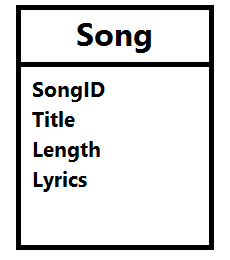
Besides, what I like about ViewModel is that it contains only fields that are needed in the V. Imagine the following model Song, we need to create a form to edit everything but the lyrics, what should we do?

The Song model.
The Song model.

Wait a minute. Why do we need to care about this? Can’t we just remove the Lyrics field from the edit form? Well, we can. However, generally we do not want to expose domain entities to the V.

If people manage to do a form post directly to your server, then they can add in the Lyrics field themselves and your server will happily accept the new Lyrics value. There will be a bigger problem if we are not talking about Lyrics, but something more critical, for example price, access rights, etc.

You want to control what is being passed into the binder.
You want to control what is being passed into the binder. (Image Credit: Microsoft Virtual Academy)

Please take note that the default model binder in ASP .NET MVC automatically binds all inbound properties.

The first simple solution is to use the bind attribute to indicate which properties to bind.

Edit([Bind(Include = "SongID,Title,Length")] Song song)

I don’t like this approach because it’s just a string. There are many mistakes can happen just because of having typo in a string.

So the second solution that I use often is creating a ViewModel which we can use to define only the fields that are needed in the edit form (V).

Same as M (Model), ViewModel also has validation rules using data annotation or IDataErrorInfo.

AutoMapper

By using ViewModel, we need to having mapping code to map between the view model and the domain model. However, writing mapping code is very troublesome especially when there are many properties involved.

Luckily, there is AutoMapper. AutoMapper performs object-object mapping by transforming an input object of one type into an output object of another type.

Mapper.CreateMap<Location, LocationViewModel>();

AutoMapper has a smart way to map the properties from view model and the domain model. If there is a property called “LocationName” in the domain model, AutoMapper will automatically map to a property with the same name “LocationName” in the view model.

Session, ViewData, ViewBag, and TempData

In my first e-commerce project which is using ASP .NET, Session is widely used. From small things like referral URL to huge cart table, all are stored in Session. Everyone in the team was satisfied with using Session until the day we realized we had to do load balancing.

There is a very interesting discussion on Stack Overflow about the use of Session in ASP .NET web applications. I like how one of them described Session as follows.

Fundamentally, session pollutes HTTP. It makes requests (often containing their own state) dependent on the internal state of the receiving server.

In the e-commerce project, we are using In-Process Session State. That means the session has “affinity” with the server. So in order to use load balancing in Microsoft Azure, we have to use Source IP Affinity to make sure the connections initiated from the same client computer goes to the same Datacenter IP endpoint. However, that will cause an imbalanced distribution of traffic load.

Another problem of using In-Process Session State is that once there is a restart on IIS or the server itself, the session variables stored on the server will be gone. Hence, for every deploy to the server, the customers will be automatically logged out from the e-commerce website.

Then you might wonder why we didn’t store session state in a database. Well, this won’t work because we store inserialisable objects in session variables, such as HtmlTable. Actually, there is another interesting mode for Session State, called StateServer. I will talk more about it in my another post about Azure load balancing.

Source IP Affinity
Source IP Affinity

When I was learning ASP .NET MVC in the beginning, I always found creating view model to be not intuitive. So, I used ViewBag and ViewData a lot. However, this caused headaches for code maintenance. Hence, in the end, I started to use ViewModel in MVC projects to provide better Separation of Concern and easily maintainable code. Nevertheless, I am still using ViewBag and ViewData to provide extra data from controller to view.

So what is ViewData? ViewData is a property allowing data to be passed from a controller to a view using a dynamic-bound dictionary API. In MVC3, a new dynamic property called ViewBag was introduced. ViewBag enables developers to use simpler syntax to do what ViewData can do. For example, instead of writing

ViewData["ErrorMessage"] = "Please enter your name";

, we can now write

 ViewBag.ErrorMessage = "Please enter your name";

.

ViewData and ViewBag help to pass data from a controller to a view. What if we want to pass data from a controller to another controller, i.e. redirection. Both ViewData and ViewBag will contain null values once the controller redirects. However, this is not the case for TempData.

There is one important feature in TempData is that anything stored in it will be discarded after it is accessed in the next request. So, it is useful to pass data from a controller to another controller. Unfortunately, TempData is backed by Session in ASP .NET MVC. So, we need to be careful when to use TempData as well and how it will behave in load balancing servers.

JsonResult

Sometimes, I need to return JSON-formatted content to the response. To do so, I will use JsonResult class, for example

[AllowCrossSiteJson]
public JsonResult GetAllMovies()
{
    Response.CacheControl = "no-cache";
    try
    {
        using (var db = new ApplicationDbContext())
        {
            var availableMovies = db.Movies.Where(m => m.Status).ToList();
            
            return Json(new 
            { 
                success = true, 
                data = availableMovies
            }, 
            JsonRequestBehavior.AllowGet);
        }
    }
    catch (Exception ex)
    {
        return Json(new 
        { 
            success = false, 
            message = ex.Message 
        }, 
        JsonRequestBehavior.AllowGet);
    }
}

There are a few new things here.

(1) [AllowCrossSiteJson]

This is my custom attribute to give access to requests coming from different domains. The following code shows how I define the class.

public class AllowCrossSiteJsonAttribute : ActionFilterAttribute
{
    public override void OnActionExecuting(ActionExecutingContext filterContext)
    {
        filterContext.RequestContext.HttpContext.Response.AddHeader(
            "Access-Control-Allow-Origin", "*");
       
        base.OnActionExecuting(filterContext);
    }
}

(2) Response.CacheControl = “no-cache”;

This is to prevent caching to the action. There is a great post on Stack Overflow which provides more alternatives to prevent caching.

(3) return Json()

This is to return an instance of the JsonResult class.

(4) success

If you are calling the GetAllMovies() through AJAX, probably you can do something as follows to check if there is any exception or error thrown.

$.ajax({
    url: '/GetAllMovies',
    success: function(data) {
        // No problem
    },
    error: function(XMLHttpRequest, textStatus, errorThrown) {
        var obj = JSON.parse(jqXHR.responseText);
        alert(obj.error);
    }
});

The error callback above will only be triggered when the server returns non-200 status code. I thus introduced another status field to tell the caller more info, for example an exception raised in C# code or any invalid value being passed to GetAllMovies method through AJAX. Hence, in the AJAX call, we just need to update it to

$.ajax({
    url: '/GetAllMovies',
    success: function(data) {
        if (data.success) {
            // No problem
        } else {
            alert(data.message);
        }
    },
    error: function(XMLHttpRequest, textStatus, errorThrown) {
        var obj = JSON.parse(jqXHR.responseText);
        alert(obj.error);
    }
});

(5) JsonRequestBehavior.AllowGet

To give permission to GET request for GetAllMovies method. This has thing to do with JSON Hijacking which will be discussed in my another post.

ActionResult

Other than JsonResult, there are many other ActionResult classes which represent the result of an action method and their respective helper methods.

Currently, I use the following frequently.

  1. ViewResult and View: Render a view as a web page;
  2. RedirectToRouteResult and RedirectToAction: Redirect to another action (TempData is normally used here);
  3. JsonResult and Json: Explained above;
  4. EmptyResult and null: Allow action method to return null.

Export Report to Excel

Two years ago, I wrote a post about how to export report to Excel in ASP .NET Web Form project. So, how do we export report to Excel in MVC project? There are two ways available.

First one can be done using normal ViewResult, as suggested in a discussion on Stack Overflow.

public ActionResult ExportToExcel()
{
    var sales = new System.Data.DataTable("Sales Report");
    sales.Columns.Add("col1", typeof(int));
    sales.Columns.Add("col2", typeof(string));

    sales.Rows.Add(1, "Sales 1");
    sales.Rows.Add(2, "Sales 2");
    sales.Rows.Add(3, "Sales 3");
    sales.Rows.Add(4, "Sales 4");

    var grid = new GridView();
    grid.DataSource = sales;
    grid.DataBind();

    Response.ClearContent();
    Response.Buffer = true;
    Response.AddHeader("content-disposition", "attachment; filename=Report.xls");
    Response.ContentType = "application/ms-excel";
    Response.Charset = "";
 
    StringWriter sw = new StringWriter();
    HtmlTextWriter htw = new HtmlTextWriter(sw);
    grid.RenderControl(htw);

    Response.Output.Write(sw.ToString());
    Response.Flush();
    Response.End();

    return View("Index");
}

Second way will be using FileResult, as suggested in another discussion thread on Stack Overflow. I simplified the code by removing the styling related codes.

public sealed class ExcelFileResult : FileResult
{
    private DataTable dtReport;

    public ExcelFileResult(DataTable dt) : base("application/ms-excel")
    {
        dtReport = dt;
    }

    protected override void  WriteFile(HttpResponseBase response)
    {
        // Create HtmlTextWriter
        StringWriter sw = new StringWriter();
        HtmlTextWriter tw = new HtmlTextWriter(sw);

        tw.RenderBeginTag(HtmlTextWriterTag.Table);

        // Create Header Row
        tw.RenderBeginTag(HtmlTextWriterTag.Tr);
        DataColumn col = null;
        for (int i = 0; i < dtReport.Columns.Count; i++)
        {
            col = dtReport.Columns[i];
            tw.RenderBeginTag(HtmlTextWriterTag.Th);
            tw.RenderBeginTag(HtmlTextWriterTag.Strong);
            tw.WriteLineNoTabs(col.ColumnName);
            tw.RenderEndTag();
            tw.RenderEndTag();
        }
        tw.RenderEndTag();

        // Create Data Rows
        foreach (DataRow row in dtReport.Rows)
        {
            tw.RenderBeginTag(HtmlTextWriterTag.Tr);
            for (int i = 0; i <= dtReport.Columns.Count - 1; i++)
            {
                tw.RenderBeginTag(HtmlTextWriterTag.Td);
                tw.WriteLineNoTabs(HttpUtility.HtmlEncode(row[i]));
                tw.RenderEndTag();
            }
            tw.RenderEndTag();
        }

        tw.RenderEndTag();

        // Write result to output-stream
        Stream outputStream = response.OutputStream;
        byte[] byteArray = Encoding.Default.GetBytes(sw.ToString());
        response.OutputStream.Write(byteArray, 0, byteArray.GetLength(0));
    }
}

To use the code above, we just need to do the following in our controller.

public ExcelFileResult ExportToExcel()
{
    ...
    ExcelFileResult actionResult = new ExcelFileResult(dtSales) 
    { 
        FileDownloadName = "Report.xls" 
    };

    return actionResult;
}

Sending Email

To send email from my MVC project, I have the following code to help me out. It can accept multiple attachments too. So I also use it to send email with report generated using the code above attached. =)

In the code below, I am using Amazon Simple Email Service (SES) SMTP.

public Task SendEmail(
    string sentTo, string sentCC, string sentBCC,  string subject, string body, 
    string[] attachments = null) 
{
    // Credentials:
    var credentialUserName = "<username provided by Amazon SES>;
    var sentFrom = "no-reply@mydomain.com";
    var pwd = "<password provided by Amazon SES>";

    // Configure the client:
    System.Net.Mail.SmtpClient client = 
        new System.Net.Mail.SmtpClient("email-smtp.us-west-2.amazonaws.com");
    client.Port = 25;
    client.DeliveryMethod = System.Net.Mail.SmtpDeliveryMethod.Network;
    client.UseDefaultCredentials = false;

    // Create the credentials:
    System.Net.NetworkCredential credentials = 
        new System.Net.NetworkCredential(credentialUserName, pwd);
    client.EnableSsl = true;
    client.Credentials = credentials;

    // Create the message:
    var mail = new System.Net.Mail.MailMessage(sentFrom, sentTo);
    string[] ccAccounts = sentCC.Split(new char[] { ';' }, StringSplitOptions.RemoveEmptyEntries);
 
    foreach (string ccEmail in additionalCcAccounts)
    {
        mail.CC.Add(ccEmail);
    }
    
    string[] bccAccounts = sentBCC.Split(new char[] { ';' }, StringSplitOptions.RemoveEmptyEntries);

    foreach (string bccEmail in additionalBccAccounts) 
    {
        mail.Bcc.Add(bccEmail); 
    }
    
    mail.Subject = subject;
    mail.Body = body;
    mail.IsBodyHtml = true;

    if (attachments != null) 
    {
        for (int i = 0; i < attachments.Length; i++)
        {
            mail.Attachments.Add(new System.Net.Mail.Attachment(attachments[i]));
        }
    }

    client.SendComplete += (s, e) => client.Dispose();
    return client.SendMailAsync(mail);
}

To send an email without attachment, I just need to do the following in action method.

var emailClient = new Email();
await emailClient.SendEmail(
    "to@mydomain.com", "cc1@mydomain.com;cc2@domain.com", "bcc@mydomain.com", 
    "Email Subject", "Email Body");

To send email with attachment, I will then use the following code.

string[] attachmentPaths = new string[1];

var reportServerPath = Server.MapPath("~/report");

attachmentPaths[0] = reportServerPath + "\\Report.xls";

var emailClient = new Email();
await emailClient.SendEmail(
    "admin@mydomain.com", "", "", 
    "Email Subject", "Email Body", attachmentPaths);

Yup, that’s all what I have learnt so far in my MVC projects. I know this post is very, very long. However, I am still new to MVC and thus I am happy to be able to share with you what I learn in the projects. Please correct me if you find anything wrong in the post. Thanks! =)

Summer 2015 Self-Learning Project

This article is part of my Self-Learning in this summer. To read the other topics in this project, please click here to visit the project overview page.

Summer Self-Learning Banner

Here Comes the Win2D

Win2D - VS2015

I am very fortunate to be able to attend the Singapore .NET Developer meetup of this month. The topics of the meetup are MVVM, Windows 10, and Win2D. We are glad to have experienced developer, Riza, to be one of the speakers.

Riza's sharing his thoughts about Win2D.
Riza’s sharing his thoughts about Win2D. (Image Credit: .NET Developer Singapore Community)

Due to time constraint, Riza only managed to show us some basic codes for Win2D, a WinRT API for Immediate Mode 2D Graphic Rendering with GPU Acceleration.

Immediate Mode and Retained Mode are two main categories in Graphics API. What are they? I always use the following explanations to help me differentiate between the two modes.

Retained Mode does not directly cause actual graphic rendering. Example: WPF.

Immediate Mode will directly cause actual graphic rendering. Example: Direct2D and System.Drawing library.

Last year, Microsoft proudly announced the Win2D which developers could use it to bring hardware accelerated Direct2D graphics to Windows 8.1 Universal Apps. This undoubtedly is a great news for game developers who would like to publish their games on Surface and Windows Phone in the future.

Let’s Start Coding!

I thus decided to read through some online tutorials to try out this new cool API. The following are two tutorials that I read.

  1. Introduction to Win2D
  2. Win2D – WinRT API for 2D Graphics

The first app that I developed is an app similar to what is being shown in the first tutorial listed above.

Pavel’s code doesn’t work well when I am using the latest version of Win2D from Nuget (Version 0.0.20). For example, the way he sets the speed of the moving circle is as follows.

circle.Speed = new Vector2(-circle.Speed.X, circle.Speed.Y);

However, this won’t work in my project. So, I changed it to the code below.

circle.Speed = new Vector2() { X = -circle.Speed.X, Y = circle.Speed.Y };

For those who play with XNA Framework often should know Vector2 quite well. Yup, it is a vector with 2 components, X and Y. In Win2D, besides Vector2, there are also Vector3 and Vector4.

Required Nuget Package

Before doing the coding, there is a need to add Win2D to the Windows 8.1 Universal App project first.

The interface of Nuget Package Manager has changed in VS2015! Here, we can find Win2D package.

VS2015 and Azure

As you can see from the screenshot above, it’s actually VS2015 on Microsoft Azure! On Azure, we can easily create a VM with one of the following editions of VS2015 installed: Professional, Enterprise, and Community. Hence, I no longer need to download VS2015 to my own laptop. =)

However, when I first started the VS 2015 on the new VM, I encountered two problems once I tried to compile my Windows 8.1 Universal App.

Firstly, it said developer license couldn’t be approved because of having no Desktop Experience feature enabled.

“We couldn’t get your developer license for Windows Server 2012 R2”

This was easily solved by enabling the Desktop Experience feature. In the beginning, I was having a hard time finding where to enable the Desktop Experience. Thanks to a blog post written by Tamer Sherif Mahmoud, I found the option as shown in the following screenshot.

Desktop Experience option is actually under User Interfaces and Infrastructure.

Secondly, VS2015 complaint that the Windows 8.1 Universal App couldn’t be activated by the Built-in Adminstrator.

“This app can’t be activated by the Built-in Adminstrator”

What I did to fix this problem is only switching on the Admin Approval Mode for the Built-in Administrator account in Local Group Policy Editor, as shown in the screenshot below.

Enable the UAC: Admin Approval Mode for the Built-in Administrator Error - Solution Step 3 - UAC Admin Approval Mode for Built-in Administrator account.
Enable the UAC: Admin Approval Mode for the Built-in Administrator Error – Solution Step 3 – UAC Admin Approval Mode for Built-in Administrator account.

After doing all these, I could finally compile my first Windows 8.1 Universal App in VS2015.

The UI

<Page
 x:Class="MyUniversal.MainPage"
 xmlns="http://schemas.microsoft.com/winfx/2006/xaml/presentation"
 xmlns:x="http://schemas.microsoft.com/winfx/2006/xaml"
 xmlns:local="using:MyUniversal"
 xmlns:d="http://schemas.microsoft.com/expression/blend/2008"
 xmlns:mc="http://schemas.openxmlformats.org/markup-compatibility/2006"
 xmlns:win2d="using:Microsoft.Graphics.Canvas.UI.Xaml" 
 mc:Ignorable="d">
    <Grid x:Name="_mainGrid" Background="{ThemeResource ApplicationPageBackgroundThemeBrush}">
        <win2d:CanvasControl ClearColor="Black" Grid.Row="1" Draw="OnDraw" x:Name="_canvas" Tapped="OnTapped" />
    </Grid>
</Page>

In order to use CanvasControl, I need to include Microsoft.Graphics.Canvas.UI.Xaml, as highlighted in green in the code above.

The Logic

The following is my Main method.

public MainPage()
{
    this.InitializeComponent();
    _width = (float)Window.Current.Bounds.Width;
    _height = (float)Window.Current.Bounds.Height;
    _timer.Tick += (s, e) => {
        Dictionary<CircleData, int> reference = _circles.ToDictionary(x => x.Key, x => x.Value);

        foreach (var circleKeyPair in reference)
        {
            var circle = circleKeyPair.Key;

            int circleRadiusChangingSpeed = circleKeyPair.Value;

            float posX = circle.Speed.X + circle.Center.X; 
            float posY = circle.Speed.Y + circle.Center.Y;
            circle.Radius += circleRadiusChangingSpeed;

            if (circle.Radius > _height / 4 || circle.Radius <= 0)
            {
                _circles[circle] = -1 * circleKeyPair.Value;
            }

            var radius = circle.Radius;
            if (posX + radius > _width || posX - radius < 0) 
            {
                circle.Speed = new Vector2() { X = -circle.Speed.X, Y = circle.Speed.Y };
            } 
            else if (posY + radius > _height || posY - radius < 0) 
            {
                circle.Speed = new Vector2 { X = circle.Speed.X, Y = -circle.Speed.Y };
            }
            circle.Center = new Vector2 { X = circle.Speed.X + circle.Center.X, Y = circle.Speed.Y + circle.Center.Y };
        }
        
        _canvas.Invalidate();
    };
    
    _timer.Start();
}

In the code, I first define the area to have the circles by declaring two variables _width and _height to be the width and height of the current window. I can’t use the width and height (or even actualWidth and actualHeight) of the grid because they are always 0.

Then same as Pavel, I also move the circles around by having the following code.

circle.Center = new Vector2 { X = circle.Speed.X + circle.Center.X, Y = circle.Speed.Y + circle.Center.Y };

Here, I can’t set X = posX and Y = posY because the circle.Speed here, which is used to define the moving speed and direction, can be already different as the circle.Speed when posX and posY were calculated.

In addition, I also add in the code to change the size of the circle every time it moves. The circle will grow until a certain size and then its radius will be decreased to 0. Once the radius is 0, it will start to increase again.

if (circle.Radius > _height / 4 || circle.Radius <= 0)
{
    _circles[circle] = -1 * circleKeyPair.Value;
}

For those who are wondering what the following line of code does, it is basically just a way to make the canvas control to redraw.

_canvas.Invalidate();

For the OnTapped and OnDraw, I am using the same codes as Pavel’s.

The following screenshot shows the colourful circles created by clicking on the app a few times.

Colourful circles created with DrawCircle.

That is done using DrawCircle. So, let’s see what will happen if I change to use FillCircle with an image, as taught in the second tutorial mentioned above.

session.FillCircle(circle.Center, circle.Radius, circle.CircleInnerImageBrush);

The CircleInnerImageBrush is created in the following way.

CanvasBitmap image = await CanvasBitmap.LoadAsync(_canvas.Device,
    new Uri("<URL to the image here>"));
CanvasImageBrush imageBrush = new CanvasImageBrush(_canvas.Device, image)
{
     ExtendX = CanvasEdgeBehavior.Clamp,
     ExtendY = CanvasEdgeBehavior.Wrap,
     SourceRectangle = new Rect(0, 0, image.Bounds.Width, image.Bounds.Height)
};

Then I am able to get the following cool effects!

FillCircle + Image
FillCircle + Image

Win2D is Open Source

That’s what I have learnt so far after listening to Riza’s 10-minute sharing on Win2D. I will probably try out the API more in the near future because Win2D looks very promising!

In case, you wonder how much I spent on running VS2015 on Azure, running an A4 (8 cores, 14GB memory) instance for about one week costed me about USD 90.

Oh ya, Win2D is open source! For those who are interested to find out more, please take a look at their GitHub site.