[KOSD] Change of FromQuery Model Binding from .NET 6 to .NET8

Recently, while migrating our project from .NET 6 to .NET 8, my teammate Jeremy Chan uncovered an undocumented change in model binding behaviour that seems to appear since .NET 7. This change is not clearly explained in the official .NET documentation, so it can be something developers easily overlook.

To illustrate the issue, let’s begin with a simple Web API project and explore a straightforward controller method that highlights the change.

[ApiController]
public class FooController
{
[HttpGet()]
public async void Get([FromQuery] string value = "Hello")
{
Console.WriteLine($"Value is {value}");

return new JsonResult() { StatusCode = StatusCodes.Status200OK };
}
}

Then we assume that we have nullable enabled in both .NET 6 and .NET 8 projects.

<Project Sdk="Microsoft.NET.Sdk.Web">

<PropertyGroup>
<Nullable>enable</Nullable>
...
</PropertyGroup>

...

</Project>

Situation in .NET 6

In .NET 6, when we call the endpoint with /foo?value=, we shall receive the following error.

{
"type": "https://tools.ietf.org/html/rfc7231#section-6.5.1",
"title": "One or more validation errors occurred.",
"status": 400,
"traceId": "00-5bc66c755994b2bba7c9d2337c1e5bc4-e116fa61d942199b-00",
"errors": {
"value": [
"The value field is required."
]
}
}

However, if we change the method to be as follows, the error will not be there.

public async void Get([FromQuery] string? value)
{
if (value is null)
Console.WriteLine($"Value is null!!!");
else
Console.WriteLine($"Value is {value}");

return new JsonResult() { StatusCode = StatusCodes.Status200OK };
}

The log when calling the endpoint with /foo?value= will then be “Value is null!!!”.

Hence, we can know that query string without value will be interpreted as being null. That is why there will be a validation error when value is not nullable.

Thus, we can say that, in order to make the endpoint work in .NET 6, we need to change it to be as follows to make the value optional. This will not mark value as a required field.

public async void Get([FromQuery] string? value = "Hello")

Now, if we call the endpoint with /foo?value=, we shall receive see the log “Value is Hello” printed.

Situation in .NET 8 (and .NET 7)

Then how about in .NET 8 with the same original setup, i.e. as shown below.

public async void Get([FromQuery] string value = "Hello")

In .NET 8, when we call the endpoint with /foo?value=, we shall see the log “Value is Hello” printed.

So, what is happening here?

In .NET 7, a new Interface IParsable<TSelf> was introduced. Thus, starting from the .NET 7, IParsable<TSelf>.TryParse API is used for binding controller action parameter values.

Initial research shows that, under the hood, .NET 7 onwards, the new model binding implementation is used and it causes this to happen.

References

KOSD, or Kopi-O Siew Dai, is a type of Singapore coffee that I enjoy. It is basically a cup of coffee with a little bit of sugar. This series is meant to blog about technical knowledge that I gained while having a small cup of Kopi-O Siew Dai.

[KOSD] Multiple Parallel Operations in Entity Framework Core (.NET 8)

In a .NET Web API project, when we have to perform data processing tasks in the background, such as processing queued jobs, updating records, or sending notifications, it’s likely designed to concurrently perform database operations using Entity Framework (EF) in a BackgroundService when the project starts in order to significantly reduce the overall time required for processing.

However, by design, EF Core does not support multiple parallel operations being run on the same DbContext instance. So, we need to approach such background data processing tasks in a different manners as discussed below.

Code Setup

Let’s begin with a simple demo project setup.

In many ASP.NET Core applications, DbContext is registered with the Dependency Injection (DI) container, typically with a scoped lifetime. For example, in Program.cs, we can configure MyDbContext to connect to a MySQL database with .

builder.Services.AddDbContext<MyDbContext>(options =>
options.UseMySql(connectionString));

Next, we have a scoped service defined as follows. It will retrieve a set of relevant records from the database MyTable.

public class MyService : IMyService
{
private readonly MyDbContext _myDbContext;

public MyService(MyDbContext myDbContext)
{
_myDbContext = myDbContext;
}

public async Task RunAsync(CancellationToken cToken)
{
var result = await _myDbContext.MyTable
.Where(...)
.ToListAsync();

...
}
}

Here we will be consuming this MyService in a background task. In Program.cs, using the code below, we setup a background service called MyProcessor with the DI container as a hosted service.

builder.Services.AddHostedService<Processor>();

Hosted services are background services that run alongside the main web application and are managed by the ASP.NET Core runtime. A hosted service in ASP.NET Core is a class that implements the IHostedService interface, for example BackgroundService, the base class for implementing a long running IHostedService.

As shown in the code below, since MyService is a scoped service, we first need to create a scope because there will be no scope created for a hosted service by default.

public class MyProcessor : BackgroundService
{
private readonly IServiceProvider _services;
private readonly IList<Task> _processorWorkTasks;

public Processor(IServiceProvider services)
{
_services = services;
_processorWorkTasks = new List<Task>();
}

protected override async Task ExecuteAsync(CancellationToken cToken)
{
int numberOfProcessors = 100;

for (var i = 0; i < numberOfProcessors; i++)
{
await using var scope = _services.CreateAsyncScope();
var myService = scope.ServiceProvider.GetRequiredService<IMyService>();

var workTask = myService.RunAsync(cToken);
_processorWorkTasks.Add(workTask);
}

await Task.WhenAll(_processorWorkTasks);
}
}

As shown above, we are calling myService.RunAsync, an async method, without await it. Hence, ExecuteAsync continues running without waiting for myService.RunAsync to complete. In other words, we will be treating the async method myService.RunAsync as a fire-and-forget operation. This can make it seem like the loop is executing tasks in parallel.

After the loop, we will be using Task.WhenAll to await all those tasks, allowing us to take advantage of concurrency while still waiting for all tasks to complete.

Problem

The code above will bring us an error as below.

System.ObjectDisposedException: Cannot access a disposed object.
Object name: ‘MySqlConnection’.

System.ObjectDisposedException: Cannot access a disposed context instance. A common cause of this error is disposing a context instance that was resolved from dependency injection and then later trying to use the same context instance elsewhere in your application. This may occur if you are calling ‘Dispose’ on the context instance, or wrapping it in a using statement. If you are using dependency injection, you should let the dependency injection container take care of disposing context instances.

If you are using AddDbContextPool instead of AddDbContext, the following error will occur also.

System.InvalidOperationException: A second operation was started on this context instance before a previous operation completed. This is usually caused by different threads concurrently using the same instance of DbContext. For more information on how to avoid threading issues with DbContext, see https://go.microsoft.com/fwlink/?linkid=2097913.

The error is caused by the fact that, as we discussed earlier, EF Core does not support multiple parallel operations being run on the same DbContext instance. Hence, we need to solve the problem by having multiple DbContexts.

Solution 1: Scoped Service

This is a solution suggested by my teammate, Yimin. This approach is focusing on changing the background service, MyProcessor.

Since DbContext is registered as a scoped service, within the lifecycle of a web request, the DbContext instance is unique to that request. However, in background tasks, there is no “web request” scope, so we need to create our own scope to obtain a fresh DbContext instance.

Since our BackgroundService implementation above already has access to IServiceProvider, which is used to create scopes and resolve services, we can change it as follows to create multiple DbContexts.

public class MyProcessor : BackgroundService
{
private readonly IServiceProvider _services;
private readonly IList<Task> _processorWorkTasks;

public Processor(
IServiceProvider services)
{
_services = services;
_processorWorkTasks = new List<Task>();
}

protected override async Task ExecuteAsync(CancellationToken cToken)
{
int numberOfProcessors = 100;

for (var i = 0; i < numberOfProcessors; i++)
{
_processorWorkTasks.Add(
PerformDatabaseOperationAsync(cToken));
}

await Task.WhenAll(_processorWorkTasks);
}

private async Task PerformDatabaseOperationAsync(CancellationToken cToken)
{
using var scope = _services.CreateScope();
var myService = scope.ServiceProvider.GetRequiredService<IMyService>();
await myService.RunAsync(cToken);
}
}

Another important change is to await for the myService.RunAsync method. If we do not await it, we risk leaving the task incomplete. This could lead to problem that DbContext does not get disposed properly.

In addition, if we do not await the action, we will also end up with multiple threads trying to use the same DbContext instance concurrently, which could result in exceptions like the one we discussed earlier.

Solution 2: DbContextFactory

I have proposed to my teammate another solution which can easily create multiple DbContexts as well. My approach is to update the MyService instead of the background service.

Instead of injecting DbContext to our services, we can inject DbContextFactory and then use it to create multiple DbContexts that allow us to execute queries in parallel.

Hence, the service MyService can be updated to be as follows.

public class MyService : IMyService
{
private readonly IDbContextFactory<MyDbContext> _contextFactory;

public MyService(IDbContextFactory<MyDbContext> contextFactory)
{
_contextFactory = contextFactory;
}

public async Task RunAsync()
{
using (var context = _contextFactory.CreateDbContext())
{
var result = await context.MyTable
.Where(...)
.ToListAsync();

...
}
}
}

This also means that we need to update AddDbContext to AddDbContextFactory in Program.cs so that we can register this factory as follows.

builder.Services.AddDbContextFactory<MyDbContext>(options =>
options.UseMySql(connectionString));

Using AddDbContextFactory is a recommended approach when working with DbContext in scenarios like background tasks, where we need multiple, short-lived instances of DbContext that can be used concurrently in a safe manner.

Since each DbContext instance created by the factory is independent, we avoid the concurrency issues associated with using a single DbContext instance across multiple threads. The implementation above also reduces the risk of resource leaks and other lifecycle issues.

Wrap-Up

In this article, we have seen two different approaches to handle concurrency effectively in EF Core by ensuring that each database operation uses a separate DbContext instance. This prevents threading issues, such as the InvalidOperationException related to multiple operations being started on the same DbContext.

The first solution where we create a new scope with CreateAsyncScope is a bit more complicated but If we prefer to manage multiple scoped services, the CreateAsyncScope approach is appropriate. However, If we are looking for a simple method for managing isolated DbContext instances, AddDbContextFactory is a better choice.

References

KOSD, or Kopi-O Siew Dai, is a type of Singapore coffee that I enjoy. It is basically a cup of coffee with a little bit of sugar. This series is meant to blog about technical knowledge that I gained while having a small cup of Kopi-O Siew Dai.

[KOSD] Learning from Issues: Troubleshooting Containerisation for .NET Worker Service

Recently, we are working on a project which needs a long-running service for processing CPU-intensive data. We choose to build a .NET worker service because with .NET, we are now able to make our service cross-platform and run it on Amazon ECS, for example.

Setup

To simplify, in this article, we will be running the following code as a worker service.

using Microsoft.Extensions.Hosting;

using NLog;
using NLog.Extensions.Logging;

Console.WriteLine("Hello, World!");

var builder = Host.CreateApplicationBuilder(args);

var logger = LogManager.Setup()
.GetCurrentClassLogger();

try
{
builder.Logging.AddNLog();

logger.Info("Starting");

using var host = builder.Build();
await host.RunAsync();
}
catch (Exception e)
{
logger.Error(e, "Fatal error to start");
throw;
}
finally
{
// Ensure to flush and stop internal timers/threads before application-exit (Avoid segmentation fault on Linux)
LogManager.Shutdown();
}

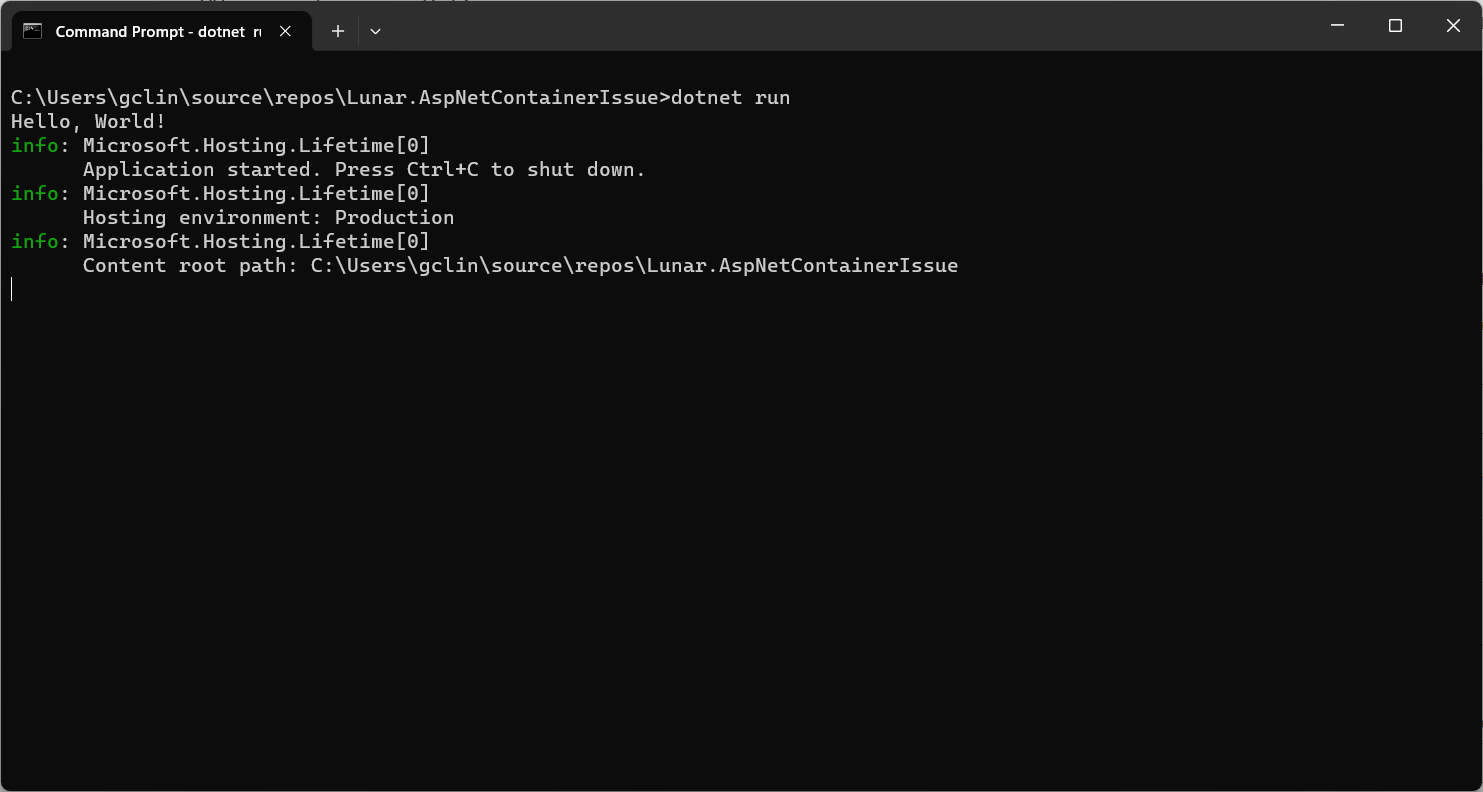
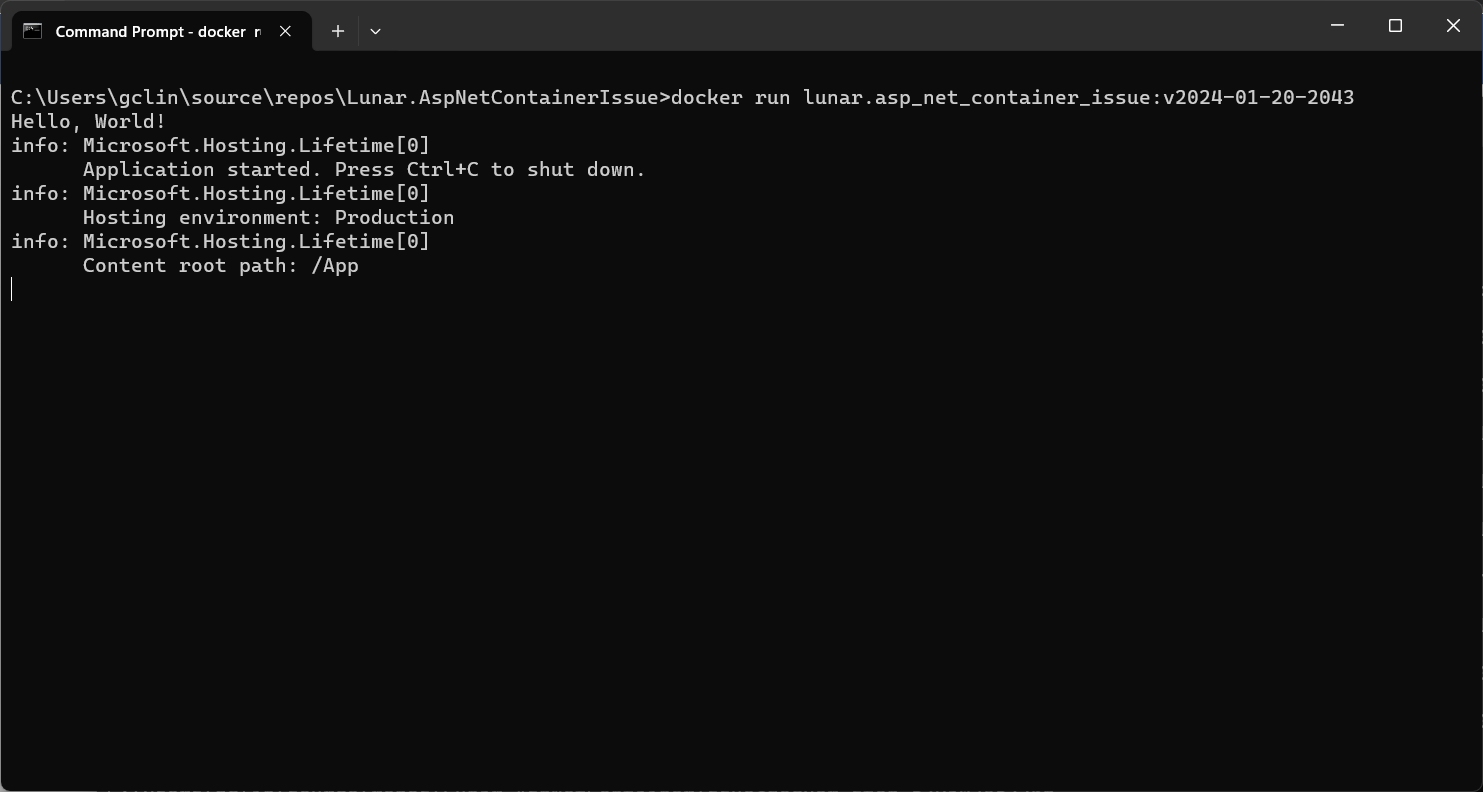
So, if we run the code above locally, we should be seeing the following output.

The output of our simplified .NET worker service.

In this project, we are using the NuGet library NLog.Extensions.Logging, thus the NLog configuration is by default read from appsettings.json, which is provided below.

{

"NLog":{
"internalLogLevel":"Info",
"internalLogFile":"Logs\\internal-nlog.txt",
"extensions": [
{ "assembly": "NLog.Extensions.Logging" }
],
"targets":{
"allfile":{
"type":"File",
"fileName":"C:\\\\Users\\gclin\\source\\repos\\Lunar.AspNetContainerIssue\\Logs\\nlog-all-${shortdate}.log",
"layout":"${longdate}|${event-properties:item=EventId_Id}|${uppercase:${level}}|${logger}|${message} ${exception:format=tostring}"
}
},
"rules":[
{
"logger":"*",
"minLevel":"Trace",
"writeTo":"allfile"
},
{
"logger":"Microsoft.*",
"maxLevel":"Info",
"final":"true"
}
]
}
}

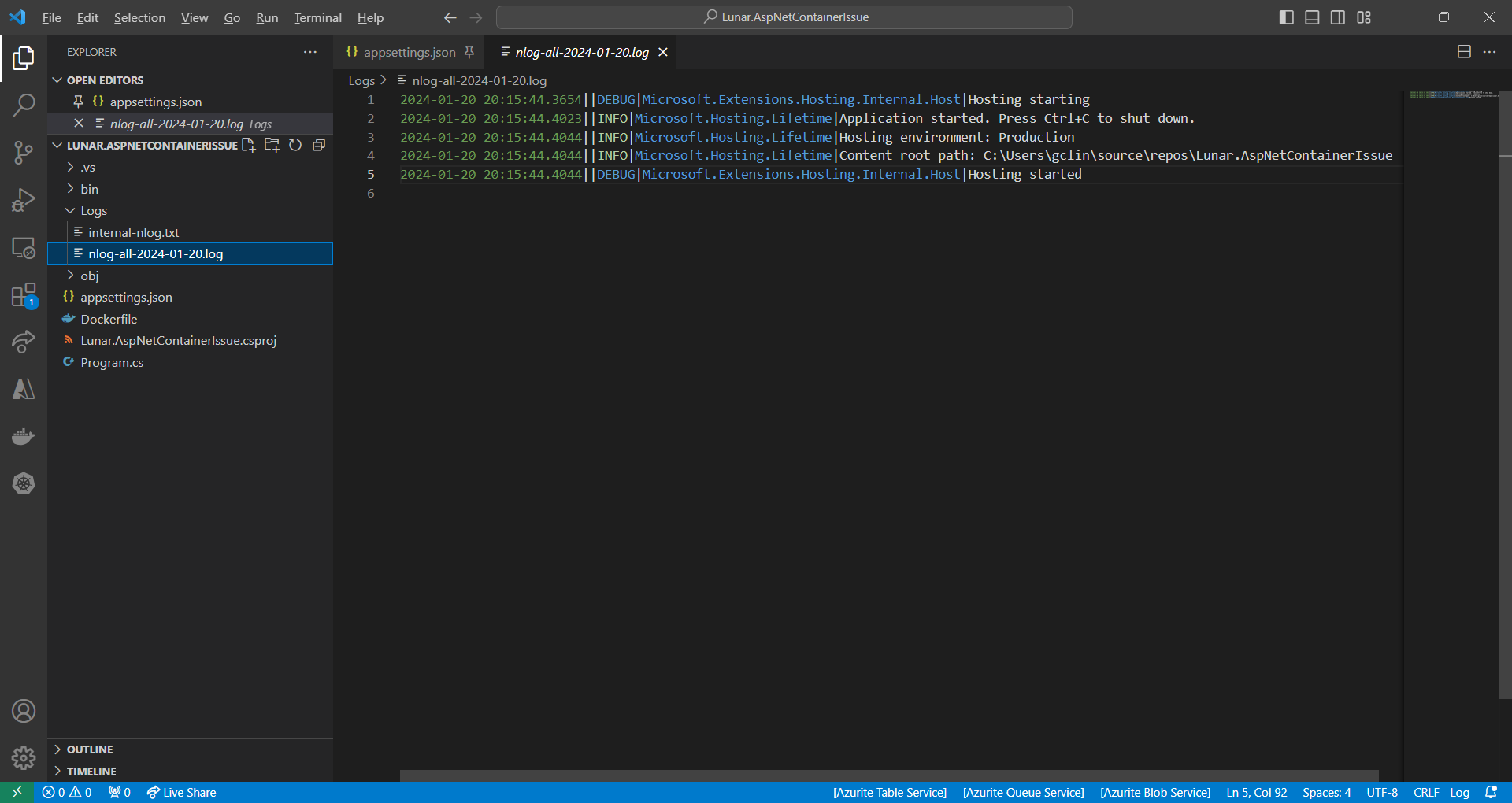
So, we should be having two log files generated with one showing something similar to the output on the console earlier.

The log file generated by NLog.

Containerisation and the Issue

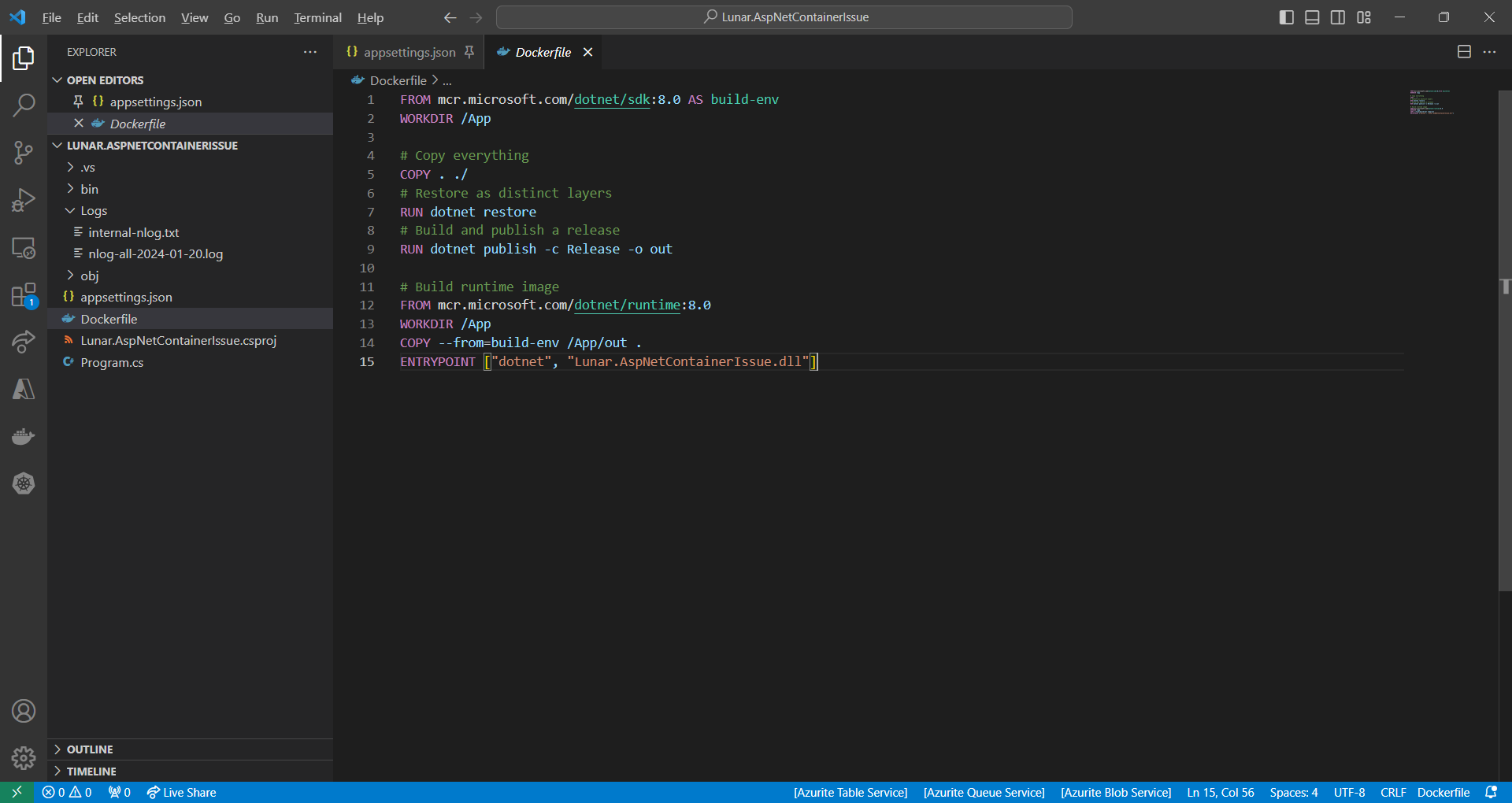
Since we will be running this worker service on Amazon ECS, we need to containerise it first. The Dockerfile we use is simplified as follows.

Simplified version of the Dockerfile we use.

However, when we run the Docker image locally, we receive an error, as shown in the screenshot below, saying “You must install or update .NET to run this application.” However, aren’t we already using .NET runtime as stated in our Dockerfile?

No framework is found.

In fact, if we read the error message clearly, it is the ASP .NET Core that it could not find. This confused us for a moment because it is a worker service project, not a ASP .NET project. So why does it complain about ASP .NET Core?

Solution

This problem happens because one of the NuGet packages in our project relies on ASP.NET Core runtime being present, as discussed in one of the StackOverflow threads.

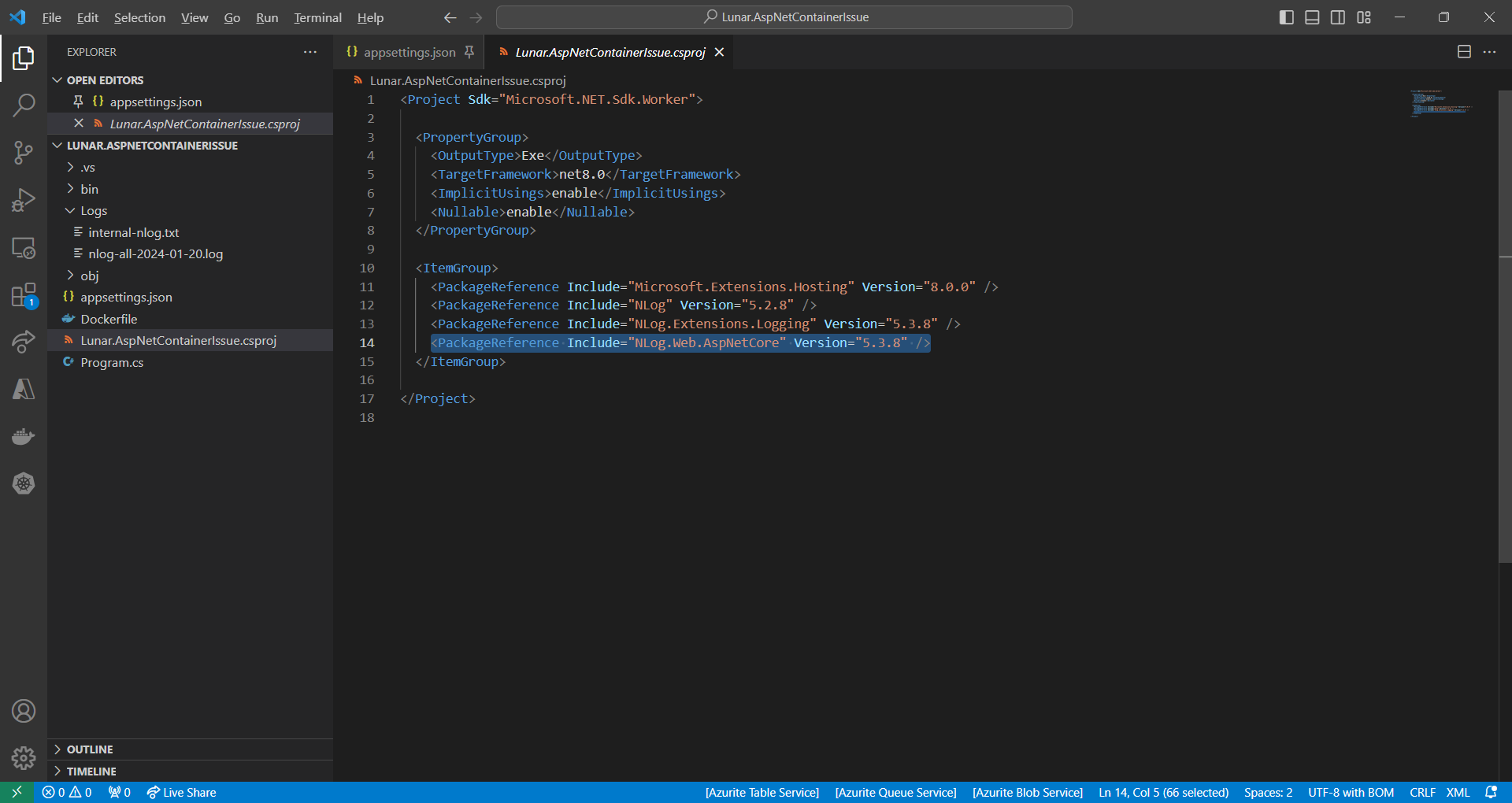
We accidentally include the NLog.Web.AspNetCore NuGet package which supports only ASP .NET Core platform. This library is not used in our worker service at all.

NLog.Web.AspNetCore supports only ASP .NET platform.

So, after we remove the reference, we can now run the Docker image successfully.

WRAP-UP

That’s all for how we solve the issue we encounter when developing our .NET worker service.


KOSD, or Kopi-O Siew Dai, is a type of Singapore coffee that I enjoy. It is basically a cup of coffee with a little bit of sugar. This series is meant to blog about technical knowledge that I gained while having a small cup of Kopi-O Siew Dai.
Migrate to TLS 1.2 for Azure Blob Storage

Objective

In November 2023, Azure conveyed through an email notification that, starting from 31st October 2024, all interactions with their services must be safeguarded using Transport Layer Security (TLS) version 1.2 or later. Post this date, their support for TLS versions 1.0 and 1.1 will be discontinued.

By default, Azure Storage already supports TLS 1.2 on public HTTPS endpoints. However, for some companies, they are still using TLS 1.0 or 1.1. Hence, to maintain their connections to Azure Storage, they have to update their OS and apps to support TLS 1.2.

About TLS

The history of TLS can be traced back to SSL.

SSL stands for “Secure Sockets Layer,” and it was developed by Netscape in the 1990s. SSL was one of the earliest cryptographic protocols developed to provide secure communication over a computer network.

SSL has been found to have several vulnerabilities over time, and these issues have led to its deprecation in favor of more secure protocols like TLS. In 2019, TLS 1.0 was introduced as an improvement over SSL. Nowadays, while the term “SSL” is still commonly used colloquially to refer to the broader category of secure protocols, it typically means TLS.

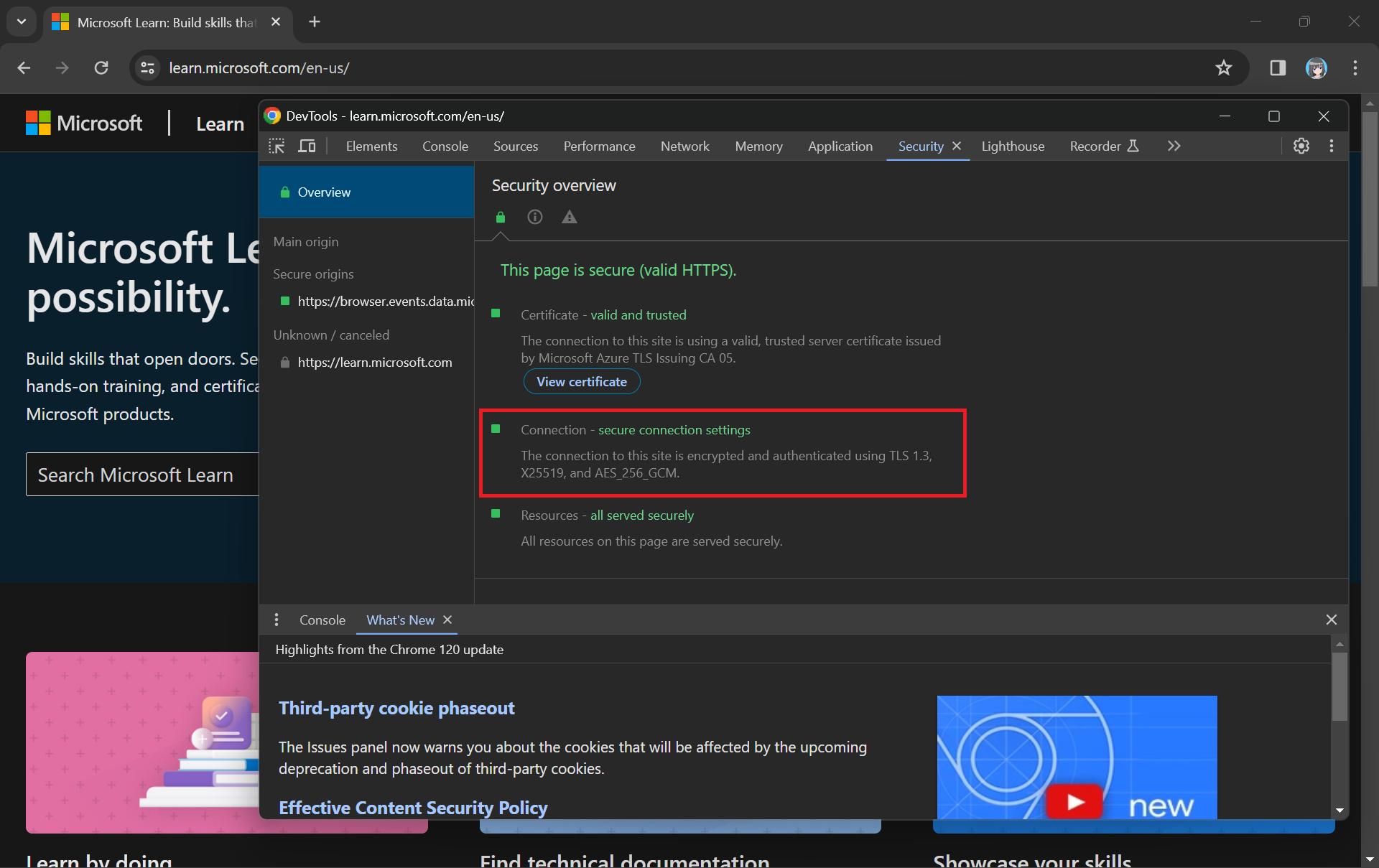
When we see “https://&#8221; in the URL and the padlock icon, it means that the website is using either TLS or SSL to encrypt the connection.

While TLS addressed some SSL vulnerabilities, it still had weaknesses, and over time, security researchers identified new threats and attacks. Subsequent versions of TLS, i.e. TLS 1.1, TLS 1.2, and TLS 1.3, were developed to further enhance security and address vulnerabilities.

Why TLS 1.2?

By the mid-2010s, it became increasingly clear that TLS 1.2 was a more secure choice, and we were encouraged to upgrade our systems to support it instead. TLS 1.2 introduced new and stronger cipher suites, including Advanced Encryption Standard (AES) cipher suites, providing better security compared to older algorithms.

Older TLS versions (1.0 and 1.1) are deprecated and removed to meet regulatory standards from NIST (National Institute of Standards and Technologies). (Photo Credit: R. Jacobson/NIST)

Ten years after TLS 1.2 was officially released as a standardised protocol, TLS 1.3 was introduced by the Internet Engineering Task Force (IETF).

The coexistence of TLS 1.2 and TLS 1.3 is currently part of a transitional approach, allowing organisations to support older clients that may not yet have adopted TLS 1.3.

For Microsoft Azure, if the service we are using still have a dependency on TLS 1.0 or 1.1, we are advised to migrate them to TLS 1.2 or 1.3 by 31 October 2024.

Monitoring TLS Version of Requests

Before we enabling that, we should setup logging to make sure that our Azure policy is working as intended. Here, we will be using Azure Monitor.

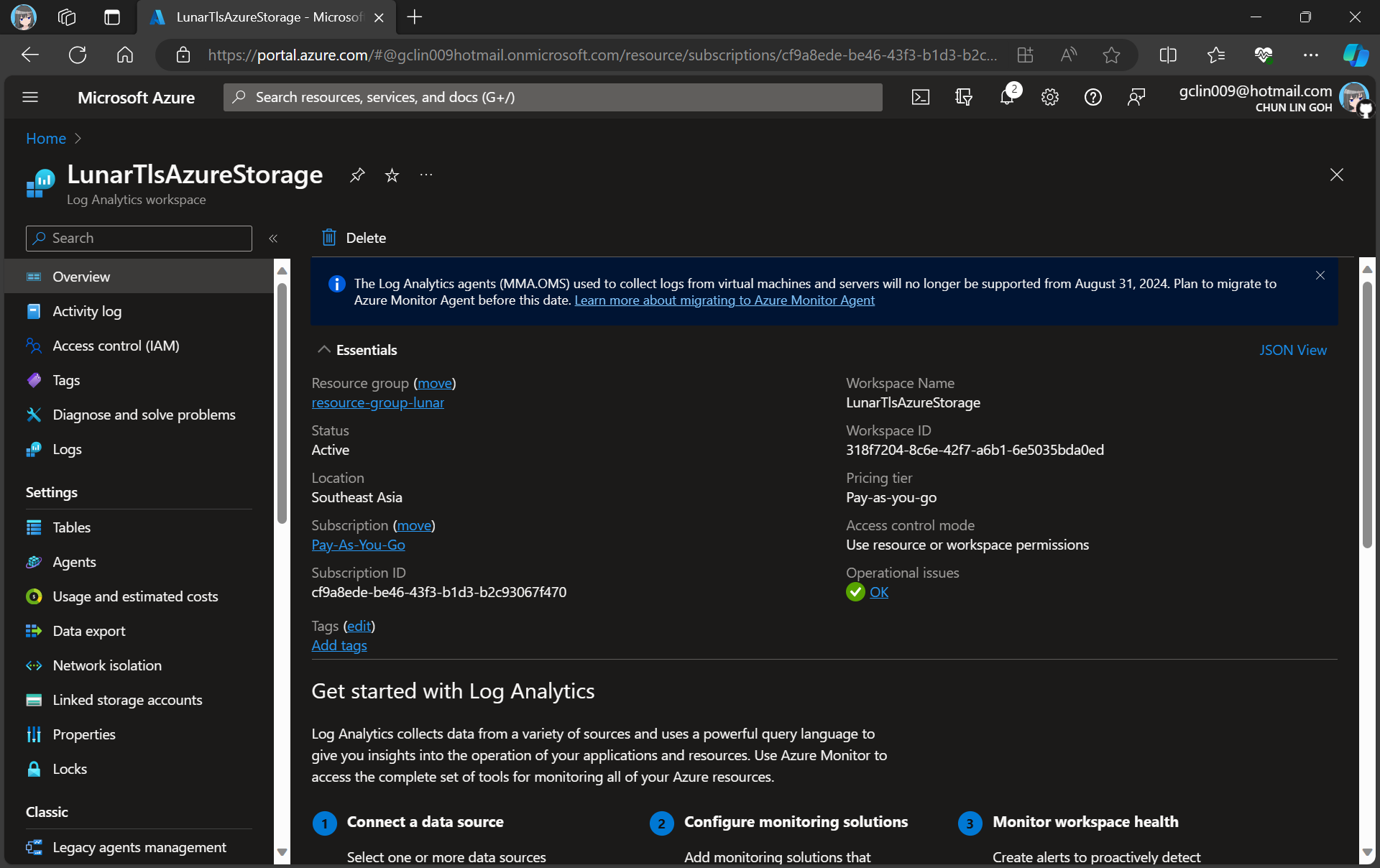
For demonstration purpose, we will create a new Log Analytics workspace called “LunarTlsAzureStorage”.

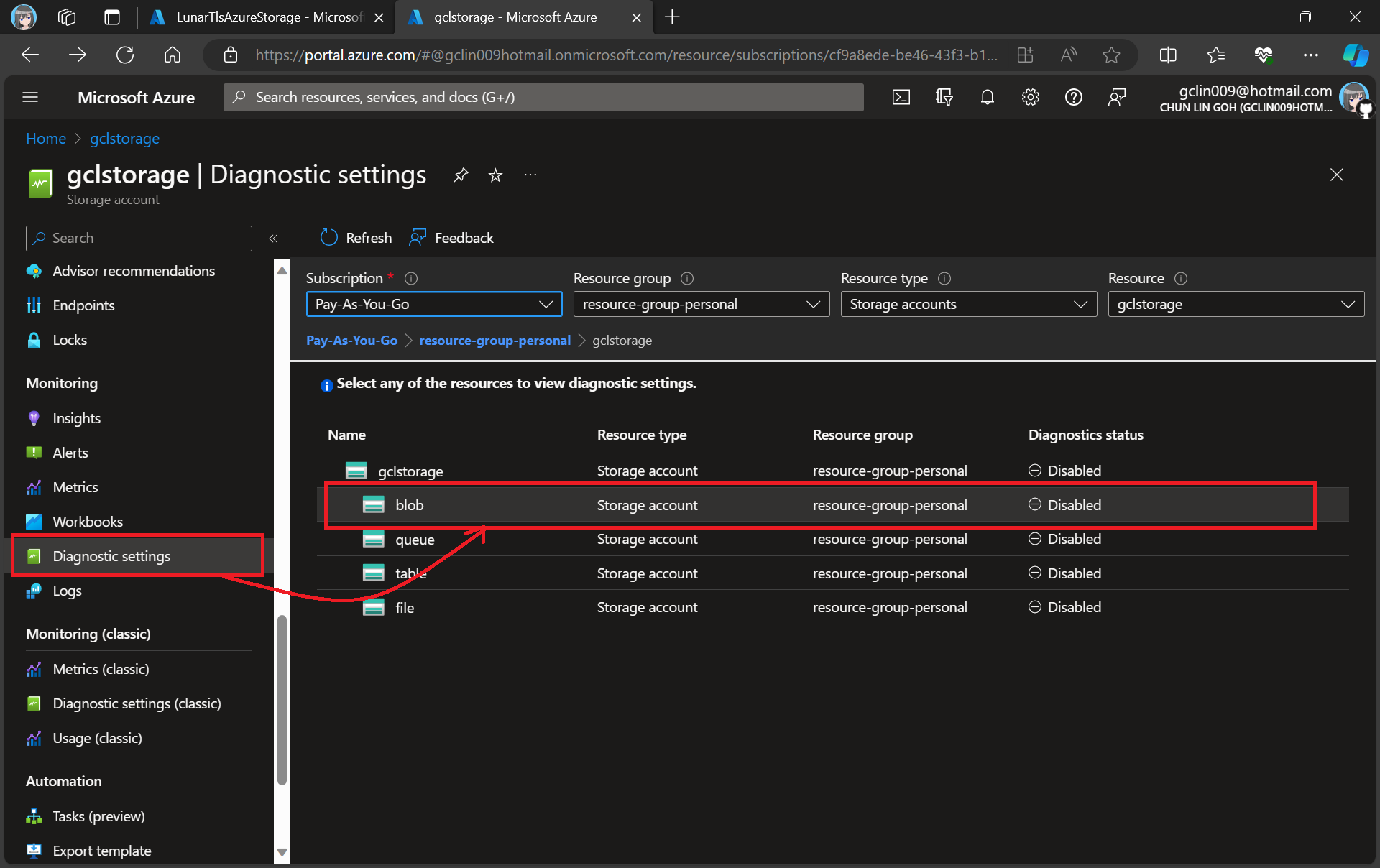
In this article, we will only be logging requests for the Blob Storage, hence, we will be setting up the Diagnostic of the Storage Account as shown in the screenshot below.

Adding new diagnostic settings for blob.

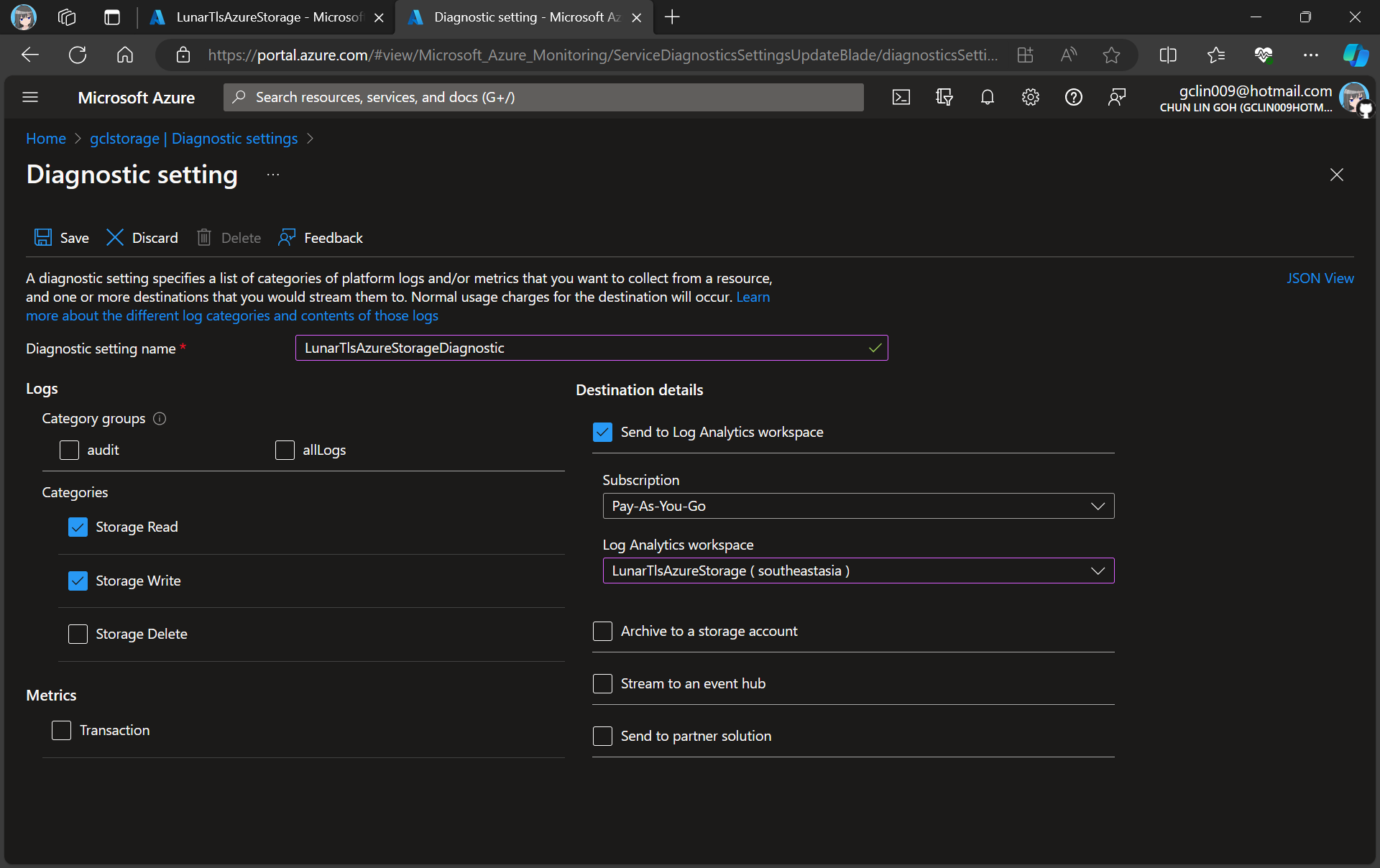
In the next step, we need to specify that we would like to collect the logs of only read and write requests of the Azure Blob Storage. After that, we will send the logs to Log Analytics we have just created above.

Creating a new diagnostic setting for our blob storage.

After we have created the diagnostic setting, requests to the storage account are subsequently logged according to that setting.

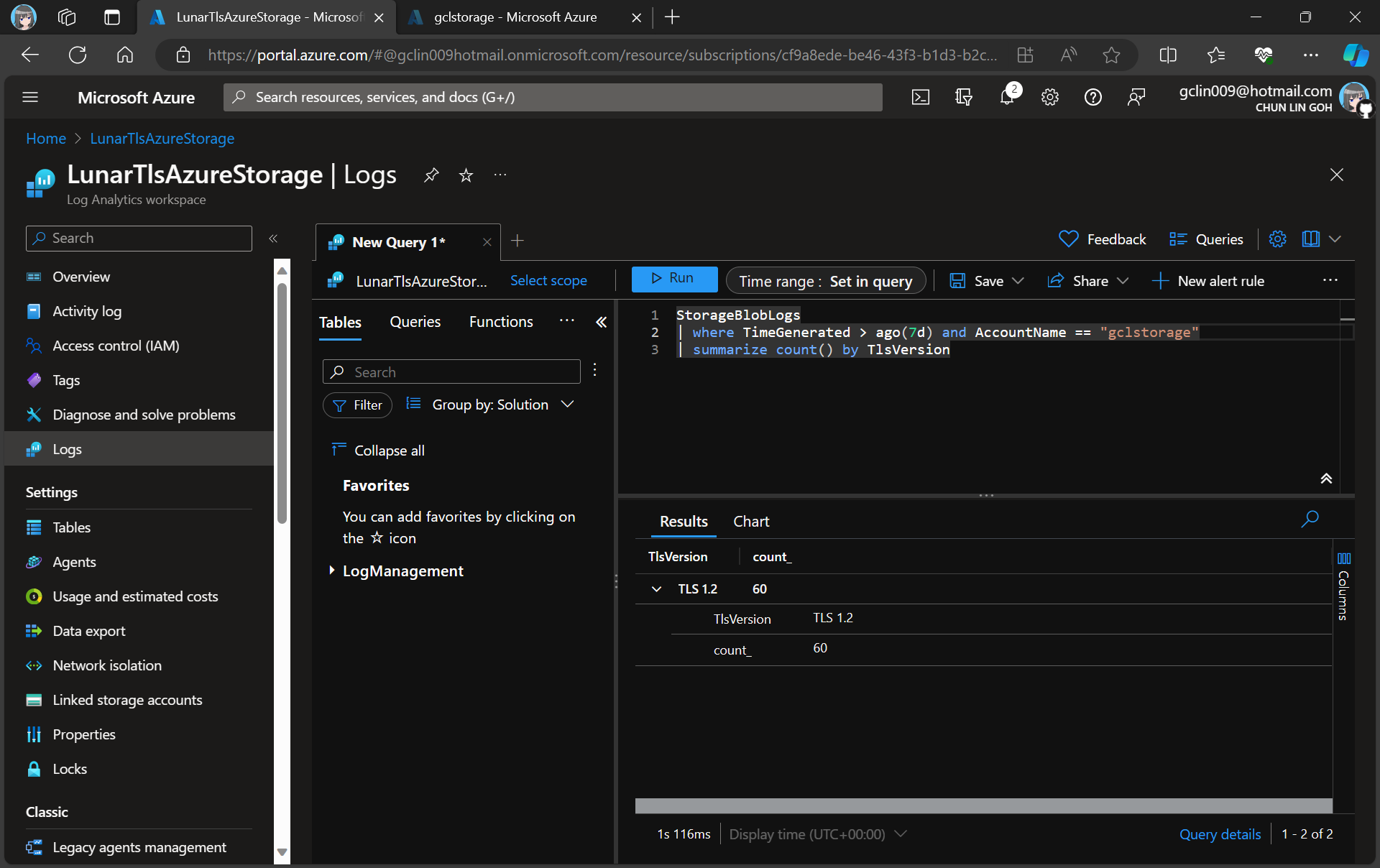
As demonstrated in the following screenshot, we use the query below to find out how many requests were made against our blob storage with different versions of TLS over the past seven day.

There are only TLS 1.2 requests for the “gclstorage” blob storage.

Verify with Telerik Fiddler

Fiddler is a popular web debugging proxy tool that allows us to monitor, inspect, and debug HTTP traffic between our machine and the Internet. Fiddler can thus be used to inspect and analyze both TLS and SSL requests.

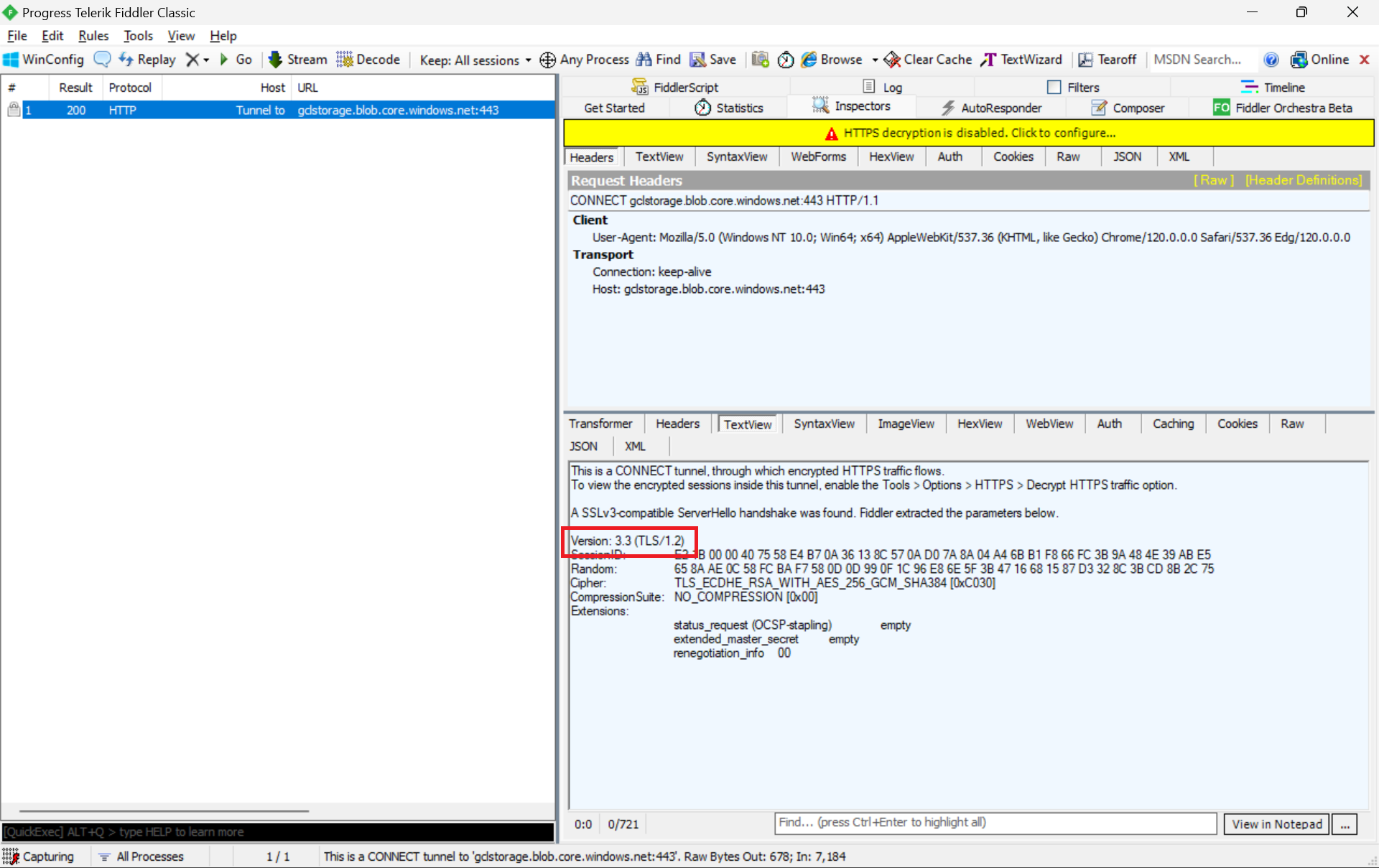
We can refer to the Fiddler trace to confirm that the correct version of TLS 1.2 was used to send the request to the blob storage “gclstorage”, as shown in the following screenshot.

TLS 1.2 is SSL 3.3, thus the version there states that it is version 3.3.

Enforce the Minimum Accepted TLS Version

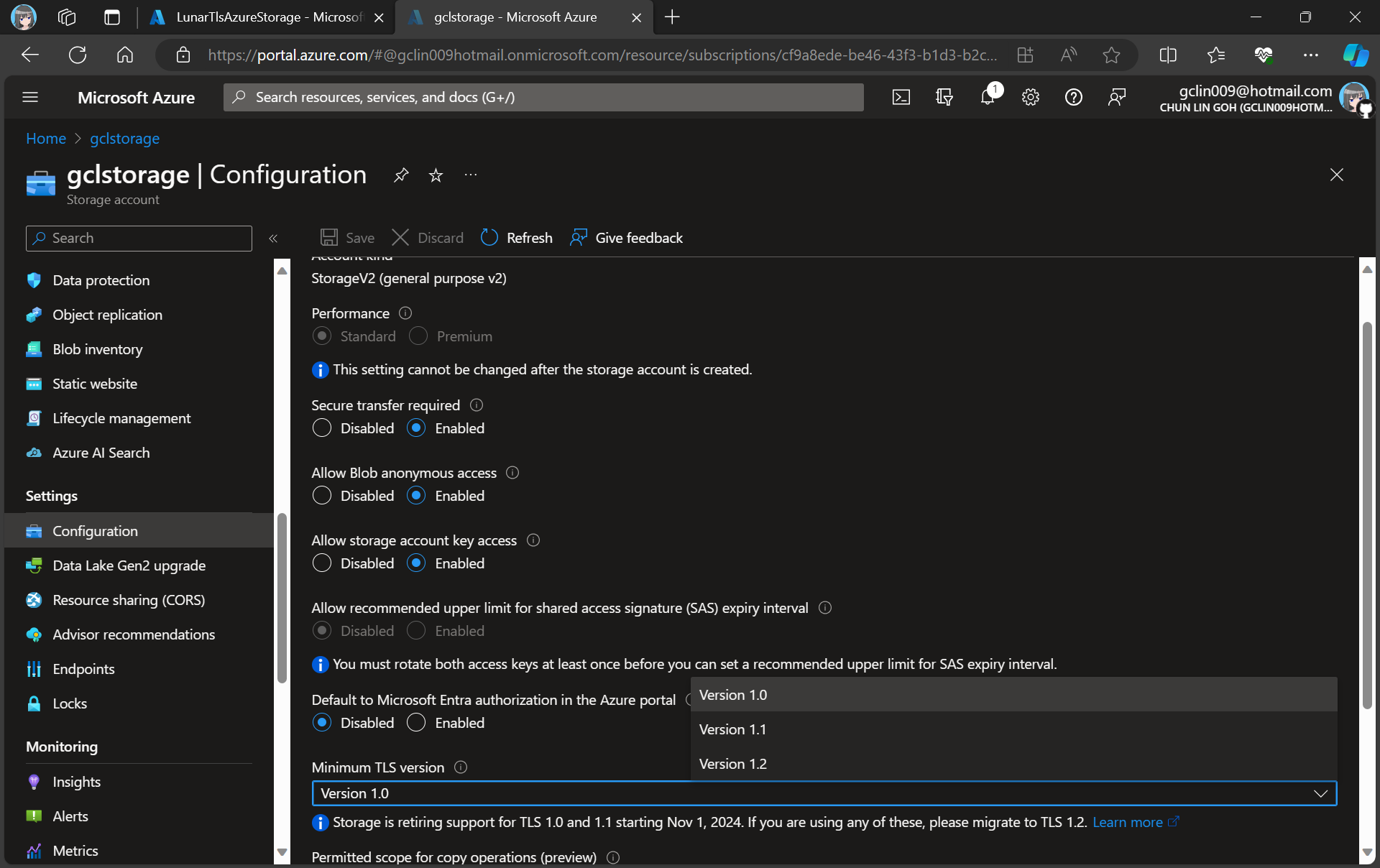
Currently, the minimum TLS version accepted by storage account is set to TLS 1.0 by default before November 2014.

We at most can only set Version 1.2 for the minumum TLS version.

In advance of the deprecation date, we can enable Azure policy to enforce minimum TLS version to be TLS 1.2. Hence, we can now update the value to 1.2 so that we can reject all requests from clients that are sending data to our Azure Storage with an TLS 1.0 and 1.1.

Change in Kestrel for ASP .NET Core

Meanwhile, Kestrel, the cross-platform web server for ASP.NET Core, now also uses the system default TLS protocol versions rather than restricting connections to the TLS 1.1 and TLS 1.2 protocols like it did previously.

Thus, if we are running our apps on the latest Windows servers, then the latest TLS should be automatically used by our apps without any configuration from our side.

In fact, according to the TLS best practices guide from Microsoft, we should not specify the TLS version. Instead, we shall configure our code to let the OS decide on the TLS version for us.

Wrap-Up

Enhancing the security stance for Windows users, as of September 2023, the default configuration of the operating system will deactivate TLS versions 1.0 and 1.1.

As developers, we should ensure that all apps and services running on Windows are using up-to-date versions that support TLS 1.2 or higher. Hence, prior to the enforcement of TLS updates, we must test our apps in a controlled environment to verify compatibility with TLS 1.2 or later.

While TLS 1.0 and 1.1 will be disabled by default, it is also good to confirm these settings and ensure they align with your security requirements.

By taking these proactive measures, we should be able to have a seamless transition to updated TLS versions, maintaining a secure computing environment while minimising any potential disruptions to applications or services.

References