Journey to ASP .NET MVC 5

When I first worked as web developer after graduation, I used to think what I knew about web development was already enough. However, as I learned more from friends and colleagues, I realized how difficult the field is, even though in Easibook.com we were just dealing with ASP .NET for web development.

New Ideas

Singapore .NET Developers Community meetup
Singapore .NET Developers Community meetup (Photo Credit: .NET Developers Singapore)

I participated in the Singapore .NET Developers Community meetup with my colleagues on 28 January. The theme is about web development. We had the chance to learn about ASP .NET MVC 5, Dependency Injection and how ASP .NET MVC 5 works with Angular JS.

What interested me is the ASP .NET MVC 5 talk given by Nguyen Quy Hy. In work, I was always using ASP .NET Web Forms. When I first started the ASP .NET MVC project in Visual Studio, I was already shocked by new terminologies like Razor, Identity, Scaffold, and all sort of folders, such as Models, Views, Controllers, App_Start, etc. Those are basically not found in my existing Web Forms project.

Working in a startup, there is always more to do and even more to learn, no matter the size of business. In many ways, my job changes frequently. I have to always take time to learn and challenge myself to play with new technology. Hence, learning ASP .NET MVC becomes my new challenge in this year.

I thus decided to write this post to share about what I’ve learned in my ASP .NET MVC 4/5 projects in February.

Bootstrap

Let’s start with simple stuff first. The GUI.

It’s nowadays quite common that people want a website which is responsive and mobile friendly. Luckily, there are frameworks to help. A even better news is that Visual Studio web application template by default is using Bootstrap, a framework providing design and theming features.

Previously we were using VS 2008. There was no such thing as bootstrap in our Web Forms application. Hence, I only started playing with Bootstrap when I did my first ASP .NET MVC 4 project in VS 2012.

ASP .NET web server controls can no longer be seen in ASP .NET MVC project. I was once asked about how GridView and paging were going to be handled in ASP .NET MVC without the use of the web server controls. I found some online discussions and articles which gave good answer to the question.

  1. Grid Controls for ASP .NET MVC
  2. Bootwatch: Free themes for Bootstrap including table and paging themes
  3. Paging, Searching, and Sorting in ASP .NET MVC 5
  4. ASP .NET MVC Paging Done Perfectly with @Html.PagedListPager()

12-Column Grid System is another thing I learnt when playing with Bootstrap. The grid system allows us to easily create complex grid layouts for different devices.

Grid System of Bootstrap 3

With the help of Bootstrap, even before I do anything, my web application is already responsive and mobile friendly. It’s true that technology is just a tool but with the right tools, we are able to work more efficiently and productively. =)

Native Support of Clean URL: Good News for SEO

My colleague, who was doing SEO, always received requests to do URL Rewrite in our existing Web Forms applications. Whenever there is a new page created, he has to add a new rule to web.config, sometimes just to get rid of the .aspx thingy.

<urlrewritingnet rewriteOnlyVirtualUrls="true" contextItemsPrefix="QueryString" defaultPage="default.aspx" xmlns="http://www.urlrewriting.net/schemas/config/2006/07">
    <rewrites>
        <add name="RedirectInDomain" virtualUrl="^http\://(.*)/SomethingFriendly"
            rewriteUrlParameter="IncludeQueryStringForRewrite" 
            destinationUrl="~/test.aspx" ignoreCase="true" 
            redirectMode="Permanent" rewrite="Domain" />
        ...
 
     </rewrites>
 </urlrewritingnet>

If there are one thousand pages, then there will be same amount of rules. So in the end, we even need to create separate config file just to keep the rules for URL rewrite.

In ASP .NET MVC 5, with the help of ASP .NET Routing, URLs no need to be mapped to specific web pages. Hence, in MVC web application, we can always see clean URLs which is friendly to not only the web crawler but also sometimes to the users. This is one of the features that I love in ASP .NET MVC.

Identity and Social Network Login

Whenever I visit an online store, I always find it more customer-friendly to accept Facebook or Google login.

Fortunately, ASP .NET Identity is powerful enough to not just accept application-wise user name and password, but also allows the connections from social websites like Facebook, Twitter, and Google+.

I only need to create a Facebook app and then key in the https URL of my website. After that, I put both the application ID and secret key to Startup.Auth.cs. Tada, users can now login to my website with their Facebook credentials.

app.UseFacebookAuthentication(
    appId: "<Facebook app ID here>",
    appSecret: "<Facebook app secret here>");
Localhost HTTPS URL is also accepted! =)

Just in case if you also encounter exception saying “Object reference not set to an instance of an object” on the line with AuthenticationManager.GetExternalLoginInfoAsync(), as shown in the following screenshot, please update Microsoft.Owin.Security.Facebook Nuget package.

Facebook Login Exception. Boom!
Update nuget.org - Microsoft.Owin.Security.Facebook
Update nuget.org – Microsoft.Owin.Security.Facebook

Entity Framework Code First

Due to the fact that my project is a new one. So, I used Code First to help me create tables in a new database according to my Model definition.

There is also a video on MSDN Data Developer Center website where they give an introduction to Code First development.

I like how easy it is to have all my tables created auto-magically by just defining model using classes. Then after that, I can create new views and controller by adding Scaffold.

Easily create MVC controller and views with Scafolding

Headache with Migrations

In order to have database scheme updated when the model is changed, I have enabled migration by running the Enable-Migrations command.

Ran Enable-Migrations command in the Package Manager Console

After that, whenever I changed my model classes, I will run Update-Database to have database schema updated as well. However, soon I encountered a problem.

When I was working on an ASP .NET MVC 4 project with VS2012, the Id in the Users table is integer. So, in VS2013, I assumed it to be the same when I created the model classes and updated the database. Unfortunately, nope. The default web application of VS2013 uses GUID for user ID. There is an online tutorial on how to change the primary key of Users back to integer, if you are interested.

Due to the fact that my project is a totally new project, so what I am going to do is just to change my model classes to use GUID as the type of storing user ID in other tables. However, when I ran the Update-Database command, the console prompted me an error message, saying “Operand type clash: int is incompatible with uniqueidentifier”. To quickly get rid of this problem, I deleted my tables (Don’t do this at home. =P) from the database. Then when I ran Update-Database command again, it complaint the table was missing. Finally, I had no choice but deleting the relevant records in __MigrationHistory table before making Update-Database to work again. =P

Yay, successfully updated database schema after deleting migration history.

Yay with Entity Framework

Before using Entity Framework, I played with stored procedure for few years. My colleagues have always been complaining that sometimes the logic was being hidden in stored procedures and thus made the debugging difficult. Also, having logic in stored procedures means that our business logic is actually split up into both C# and SQL. So, sometimes the developers need to spend a few hours debugging the C# code before realizing the store procedure was actually the culprit.

With Entity Framework, I am now able to modify the table structure and logic all in C# code which helps developers to easily find out where goes wrong.

Still, sometimes it is good to group related functions into one well-defined stored procedure so that the system only needs to call to the database once to get all the work done. However, after reading a 400-line store procedure once, I decided that doing this may not be the best option because no one in my team was interested to debug SQL code.

Review a long stored procedure?

There are more related topics online regarding Entity Framework vs. Stored Procedures, as listed below. If you are interested, feel free to check them out.

  1. Entity Framework Vs Stored Procedures – Performance Measure
  2. Stored Procedure or Entities?

Using MySQL Instead of Default SQL Server: I Was Having a Hard Time

By default, the data provider of ASP .NET Identity with Entity Framework is set to be MS SQL in VS 2013. However, MS SQL Server is not free. So, I decided to use MySQL instead. Hence, I need to find ways to configure Entity Framework on my project to work with MySQL.

The first tutorial that I started with is a detailed step-by-step guide on ASP .NET website regarding how to use use MySQL Storage with an Entity Framework MySQL Provider. It mainly involves steps on changing the web.config. Some important steps are listed below.

Change database connection string.

<add name="DefaultConnection" connectionString="Server=localhost;Uid=root;Pwd=password;Database=mediablog;" providerName="MySql.Data.MySqlClient" />

Configure Entity Framework to use MySQL.

<entityFramework codeConfigurationType="MySql.Data.Entity.MySqlEFConfiguration, MySql.Data.Entity.EF6">
    <defaultConnectionFactory type="System.Data.Entity.Infrastructure.SqlConnectionFactory, EntityFramework" />
    <providers>
        <provider invariantName="MySql.Data.MySqlClient" type="MySql.Data.MySqlClient.MySqlProviderServices, MySql.Data.Entity.EF6, Version=6.9.5.0, Culture=neutral, PublicKeyToken=c5687fc88969c44d" />
    </providers>
</entityFramework>
<system.data>
    <DbProviderFactories>
        <add name="MySQL Data Provider" invariant="MySql.Data.MySqlClient" description=".Net Framework Data Provider for MySQL" type="MySql.Data.MySqlClient.MySqlClientFactory, MySql.Data, Version=6.8.3.0" />
    </DbProviderFactories>
</system.data>

However, if I am not wrong, part of these can be done easily by just including the related MySQL nuget packages. I chose four of them to be installed in my project: MySQL.Data, MySQL.Data.Entity, MySQL,Data.Entities, and MySQL.Web.

Install related NuGet packages to make Entity Framework Code First works with MySQL.

After changing web.config, I followed the tutorial to introduce two new classes in the project. One is MySqlHistoryContext.cs which will sync the model changes with the database schema using MySQL standard and not MS SQL.

According to an online post, I added extra one line to the OnModelCreating method MySQLHistoryContext.cs. It’s to fix the exception of the famous Error 0040: The Type nvarchar(max) is not qualified with a namespace or alias. Only primitive types can be used without qualification.

modelBuilder.Properties<String>().Configure(c => c.HasColumnType("longtext"));

However, the Error 0040 didn’t disappear because of this line. I will share later the other steps I took to fix this problem.

The famous Error 0040 encountered when doing migrations for MySQL.

Another new class is called MySqlConfiguration which is used to make sure the Entity Framework will use MySqlHistoryContext, instead of the default one.

Besides, I also made changes to Configuration.cs. Remember the Error 0040? A discussion thread on Github actually suggested to add the following line to fix it.

SetSqlGenerator("MySql.Data.MySqlClient", new MySql.Data.Entity.MySqlMigrationSqlGenerator());

This didn’t fix the Error 0040 on my project too.

In the end, I found a Chinese post which said the following.

此时只需要将Data层的Migrations的文件夹删掉即可。因为SqlServer做过一些迁移,有些数据类型与MySql不兼容。

The sentence basically says that due to the fact that the migration earlier done in SQL Server and thus some data types are not compatible with MySQL, we need to delete the Migrations folder. So, after I excluded the 201502231459263_InitialCreate.cs file (which was created when I am still using MS SQL for my project) in Migrations folder from the project, the Error 0040 was gone when I did Update-Database. Yay!

So yup, sometimes it’s very, very useful to know more than one language. And yup, I spent half of my holiday to figure out how to make Entity Framework to work with MySQL. =)

Oh well, half day gone just to make MySQL work in my little project.

By the way, the Chinese web page mentioned above was already not available. What I shared with you is actually a link to its Google cached copy. I am not sure if the cache is still around when you visit it.

Self Learning ASP .NET MVC on MVA during Chinese New Year

The talks given during the community meetup are good. However, in order to learn more, I also need to get advice from my colleagues who have more experience with ASP .NET MVC.

In addition, during Chinese New Year period, instead of watching the new year shows, I stayed in front of my computer to complete the introductory series of ASP .NET MVC delivered by two Microsoft experts, Christopher Harrison and Jon Galloway. It’s definitely a good starting point for beginners. And yup, the two speakers are very good at explaining the key concepts and they also tell good jokes so you shouldn’t find the course to be boring. =P

Yup, people from Malaysia are watching the live too!

The End of the Beginning

I am now still a beginner in ASP .NET MVC. I always find that there are many new things to learn in just web development. Actually, it’s very challenging. For example, to get Entity Framework Code First to work with MySQL already takes me half day to figure it out.

Anyway, this is just a post sharing how I get started on ASP .NET MVC. In the future, I will do my best to share with you all more about what I learn in this cool technology. =)

App_offline.htm: The Super Weapon to Take ASP .NET Website Down

ASP .NET

When I am doing maintenance work for my ASP .NET web application, I will always take down the web application temporarily. This is because the application domain will always restart when I deploy a new version of the application. Hence, in order to prevent online users to make request when the website is still under deployment, there is a need to take the website down and then show the online users a friendly message that my website is currently unavailable.

Two Steps to Take Website Down

Luckily, there is a very convenient way of doing that in ASP .NET 2.0 or later.

Firstly, a file with the name “App_offline.htm” needs to be created. This is the only web page that will be shown to the online visitors when the website is down. Thus, we will put our friendly messages to notify the visitors that the website is currently under maintenance in the web page.

Secondly, we will put this file in the root of the website virtual directory.

Finally, visit the website now. You will realize that no matter which web page you visit in the website, you will always be redirected to App_offline.htm, the page telling you that the website is under maintenance.

Website is under maintenance. Sorry about that!

Things to Take Note of

Current Request Still Be Processed

According to an interesting experiment shared on Stack Overflow, only new request will be redirected to the App_Offline.htm. Existing requests when the App_Offline.htm is uploaded will still be processed.

Minimum of 512 Bytes

It turns out that Internet Explorer will show its own generic status code message if the App_Offline.htm contains less than 512 bytes.

Permission of App_offline.htm

Yes, check the permission of the file under Properties -> Security because if the App_offline.html doesn’t have correct permissions given, it will not work as expected as well.

Conclusion

As demonstrated above, it is indeed very easy to take an ASP .NET website down. What a convenient App_offline.htm!

Website Exploded After Using VS2012

VS2008 + VS2012

Two years ago, my friend recommended me to try out the latest Visual Studio after he found out that I was still using VS2008. Recently, I finally decided to switch to use VS2012 while the latest version is already VS2013. Oh well, never mind. However, there was a strange error when I first published my ASP.NET website from VS2012 to the server. Part of the error message is shown below.

Server Error in '/' Application.
Client found response content type of 'text/html; charset=utf-8', but expected 'text/xml'.
 The request failed with the error message:
--
<html>
 <head>
 <title>Configuration Error</title>
 <style>
 body {font-family:"Verdana";font-weight:normal;font-size: .7em;color:black;} 
 p {font-family:"Verdana";font-weight:normal;color:black;margin-top: -5px}
 b {font-family:"Verdana";font-weight:bold;color:black;margin-top: -5px}
 H1 { font-family:"Verdana";font-weight:normal;font-size:18pt;color:red }
 H2 { font-family:"Verdana";font-weight:normal;font-size:14pt;color:maroon }
 pre {font-family:"Lucida Console";font-size: .9em}
 .marker {font-weight: bold; color: black;text-decoration: none;}
 .version {color: gray;}
 .error {margin-bottom: 10px;}
 .expandable { text-decoration:underline; font-weight:bold; color:navy; cursor:hand; }
 </style>
 </head>
<body bgcolor="white">
<span><H1>Server Error in '/' Application.<hr width=100% size=1 color=silver></H1>
<h2> <i>Configuration Error</i> </h2></span>
<font face="Arial, Helvetica, Geneva, SunSans-Regular, sans-serif ">
<b> Description: </b>An error occurred during the processing of a configuration file required to service this request. Please review the specific error details below and modify your configuration file appropriately.
 <br><br>
<b> Parser Error Message: </b>It is an error to use a section registered as allowDefinition='MachineToApplication' beyond application level. This error can be caused by a virtual directory not being configured as an application in IIS.<br><br>
...

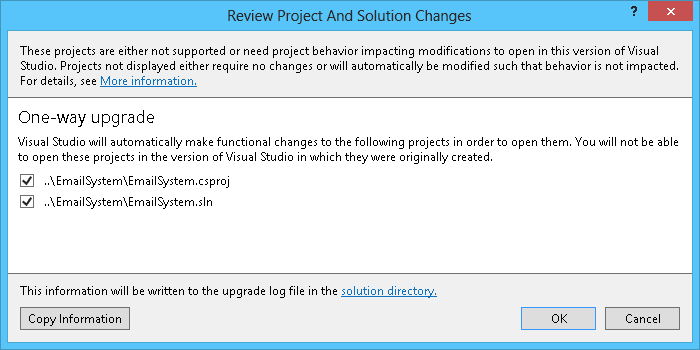
It turns out that I already did something wrong in the beginning of migration from older version of Visual Studio to VS2012. Normally, for projects created in older version of Visual Studio, they will need to go through some modifications before they can be opened in VS2012. So, there is a one-way upgrade performed when the project is opened in VS2012 for the first time.

There is a need to upgrade the project when it's created in older VS but is now opened in new VS.
There is a need to upgrade the project when it’s created in older VS but is now opened in new VS.

After the upgrade is done, a migration report will be available. In addition, there will be a Backup folder created in the solution directory. Visual Studio is so nice that it automatically creates a Backup folder storing the copy of the project before the one-way upgrade. However, this also creates a problem because inside the folder, there is a web.config file. So now there will be two web.config files in the solution directory. The error suggests that the code was expecting a virtual directory with only one web.config to be setup on IIS. Thus, having two web.config files in the same directory will cause the error mentioned above to happen.

So, the solution? Just move the Backup folder to somewhere else.

Sometimes, this solution may not be working for your case if you happen to encounter the same error. Hence, I’d like to share with you some other solutions which may help you.

Solution #2: Modify .csproj/.vsproj File

This solution is provided by Microsoft team on Visual Studio feedback page. They claimed that it’s a bug and it would be fixed in the future release of “ASP.NET Web Framework and Tools”.

Solution #3: Create Application on IIS

It turns out that if IIS application is not created, the same error will occur. We need to click on the “Create” button if we notice the “Application Name” is greyed out.

Solution #4: Clean the Project

There is a need to clean the solution before the build. There is a simple 3 steps to follow to do this, as suggested by Johnny Reilly on Stack Overflow.

  1. Clean solution when the solution is configured in Release mode;
  2. Clean solution whilst the solution is configured in Debug mode;
  3. Build the solution in Debug mode.

These are what I have found online so far. If you happen to find a solution that works for this issue, please post it as a comment here. Thank you!

Export Scheduled Report in an Excel Spreadsheet as an Email Attachment

People love reports. I do not know why but most of the time, the systems that I am working on always have this report module. The requirements of the report are usually given by the administrative staff. So normally the admin will always give me a sample of existing report as a reference during the development of the report module.

Previously, the admin was happy with just one report module giving them the ability to view reports by using their login id and password. After that, they wanted the function to export the report to Excel so that they could immediately work on the data analysis. Soon, they realized that logging in to the system just to view the report was a bit stupid. Thus, they required an email to be sent to them in midnight with the report in Excel format attached in the email.

Admin Loves Reading Reports (Photo Credit: Kono Aozora ni Yakusoku o)
Admin loves reading reports. Image Credits: Kono Aozora ni Yakusoku o

Although there is this cool stuff called Excel Interactive View which can generate Excel table and charts of  an HTML table on the fly, I don’t really like it. The generated Excel table looks very complicated with colourful bar appearing at the background of the cells containing numbers.

Also, as shown in the following screenshot, the Excel Interactive View does not do a good job because contact number and tutorial class number are wrongly taken as numerical data used to generate the charts. Hence, Excel Interactive View is great and convenient but it does not work in all kinds of reports.

The look-and-feel of Excel Interactive View can be simpler.
The four charts shown at the right are meaningless already.

In ASP.NET, I can have my own “Export to Excel” button by adding in the following codes in the Page_Load method of a web page.

Response.ContentType = "application/vnd.ms-excel";
Response.AddHeader("Content-Disposition", "attachment; filename=\"Sales_Report.xls\"");
string excelBody = "";

excelBody +=
 "<head>" +
 "<meta http-equiv=Content-Type content=\"text/html; charset=utf-8\">" +
 "<style>" +
 "<!--table" +
 "br {mso-data-placement:same-cell;}" +
 "tr {vertical-align:top;}" +
 "-->" +
 "</style>" +
 "</head>";
excelBody += "<body>" + <The HTML table goes here...> + "</body>";
excelBody += "</html>";
Response.Write(excelBody);

Then, I just need to redirect the user to this page when the “Export to Excel” button is pressed. This is the code used when admin staff was satisfied with just the functionality to export their reports to Excel.

Soon after that, I found another great library to help generating Excel spreadsheet in C#. It is called excellibrary, which is able to be downloaded on Google Code. Thanks to the library, I am able to do a system which will automatically send out an email attached with Excel report.

To do that, firstly, I need to generate the report in Excel format with the help of excellibrary.

Workbook workbook = new Workbook();
Worksheet wsReport = new Worksheet("Sales Report");
int startingRow = 0;
wsReport.Cells[startingRow, 0] = new Cell("Column 1 Row 1");
wsReport.Cells[startingRow, 1] = new Cell("Column 2 Row 2");
...
for (int i = startingRow + 1; i < 200; i++)
{
    wsReport.Cells[i, 0] = new Cell(" "); // Some dummy empty cells
}
workbook.Worksheets.Add(wsReport);
workbook.Save("C:\\ExcelOutputs\\Sales_Report.xls");

The reason for adding some dummy empty cells in the end is because Excel will complain that it found unreadable content in Sales_Report.xls when the number of cells containing real data is too small. This is a reported issue in the excellibrary project and one workaround suggested by the users is to increase the file size by adding more rows and columns with a space.

Secondly, I send out the email by using the following code.

string sSmtpServer = "smtp.gmail.com";
MailMessage myMessage = new MailMessage();
myMessage.Body = "The report in Excel format is attached in this email.";
myMessage.Subject = "Sales Report in Excel!";
myMessage.To = "...";
// Add the file attachment to this e-mail message.
myMessage.Attachments.Add(new MailAttachment("C:\\ExcelOutputs\\Sales_Report.xls"));
myMessage.Fields["http://schemas.microsoft.com/cdo/configuration/smtpauthenticate"] = 1;
myMessage.Fields["http://schemas.microsoft.com/cdo/configuration/sendusing"] = 2;
myMessage.Fields["http://schemas.microsoft.com/cdo/configuration/sendusername"] = "...";
myMessage.Fields["http://schemas.microsoft.com/cdo/configuration/sendpassword"] = "...";
myMessage.Fields["http://schemas.microsoft.com/cdo/configuration/smtpserverport"] = "465";
myMessage.Fields["http://schemas.microsoft.com/cdo/configuration/smtpusessl"] = "true";
myMessage.From = "...";
myMessage.BodyFormat = MailFormat.Html;
SmtpMail.SmtpServer = sSmtpServer;
SmtpMail.Send(myMessage);

Finally, I just need to create a scheduled task to run this little program daily.

Yup, this is how my automatic report exporting and emailing system is done in C#.