
Connecting Android App with IdentityServer4

android-identity-server-appauth.png

For those ASP .NET web developers, Identity Server should be quite familiar to them especially they are looking for SSO solution.

After successfully integrating Identity Server in our ASP .NET Core MVC web applications, it is now time for us to research about how our mobile app can be integrating with IdentityServer4 too.

Background

We have two types of users. The admin will be logging in to the system via our web application. The normal staff will log in to the system via mobile app. Different sets of features are provided for both web and mobile apps.

Setting up Client on Identity Server

To begin, we need to add new client to the MemoryClients of Identity Server.

According to the sample code done by Hadi Dbouk, we setup the new client as shown in the following code.

using IdentityServer4.Models;
...
public class ClientStore : IClientStore {
    ...
    var availableClients = new List();
    ...
    availableClients.Add(new Client 
    {
        ClientId = "my-awesome-app",
        ClientName = "My Awesome App",
        AllowedGrantTypes = GrantTypes.Code,
        RequirePkce = true,
        RequireConsent = false,
        ClientSecrets = 
        {
            new Secret("my-secret".Sha256())
        },
        RefreshTokenUsage = TokenUsage.ReUse,
        RedirectUris = { "gclprojects.chunlin.myapp:/oauth2callback" },
        AllowedScopes = 
        {
            StandardScopes.OpenId,
            StandardScopes.Profile,
            StandardScopes.Email,
            StandardScopes.OfflineAccess
        },
        AllowOfflineAccess = true
    }
    );
}

For mobile apps, there are two grant types recommended, i.e. Authorization Code and Hybrid. However, as when this post is written, the support of Hybrid is still not mature in AppAuth for Android, so we decided to use GrantTypes.Code instead.

However, OAuth2.0 clients using authorization codes can be attacked. In the attack, the authorization code returned from an authorization endpoint is intercepted within a communication path that is not protected by TLS. To mitigate the attack, PKCE (Proof Key for Code Exchange) is required.

We don’t have consent screen for our apps, so we set RequireConsent to false.

For the RefreshTokenUsage, there are two possible values, i.e. ReUse and OneTime. The only difference is that ReUse will make the refresh token handle to stay the same when refreshing tokens. OneTime will update the refresh token handle once the tokens are refreshed.

Once the authorization flow is completed, users will be redirected to a URI. As documented in AppAuth for Android Readme, custom scheme based redirect URI (i.e. those of form “my.scheme:/path”) should be used for the authorization redirect because it is the most widely supported across many Android versions.

By setting AllowOfflineAccess to be true and give the client access to the offline_access scope, we allow requesting refresh tokens for long lived API access.

Android Setup: Installation of AppAuth

The version of AppAuth for Android is v0.7.0 at the point of time this post is written. To install it for our app, we first need to set it in build.gradle (Module: app).

apply plugin: 'com.android.application'

android {
    ...    defaultConfig {
        ...
        minSdkVersion 21
        targetSdkVersion 26
        ...
        manifestPlaceholders = [
            'appAuthRedirectScheme': 'gclprojects.chunlin.myapp'
        ]
    }
    ...
}

dependencies {
    ...
    compile 'com.android.support:appcompat-v7:26.+'
    compile 'com.android.support:design:26.+'
    compile "com.android.support:customtabs:26.0.0-alpha1"
    compile 'net.openid:appauth:0.7.0'
    ...
}
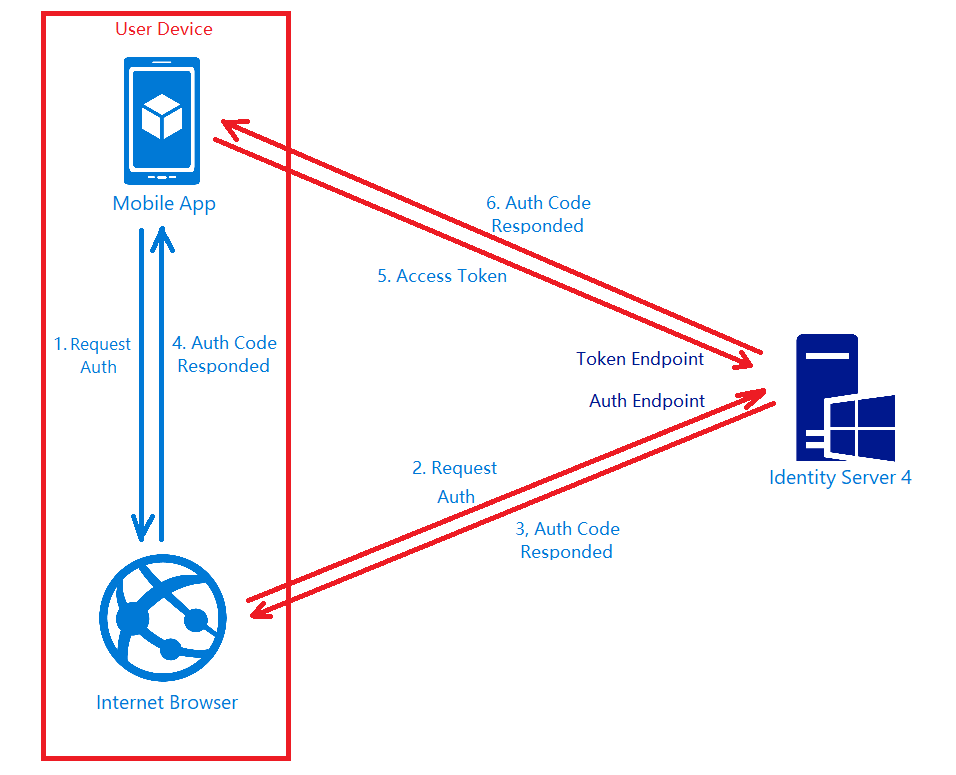
 

appauth-code-flow.png
AppAuth for Android authorization code flow. (Reference: The proper way to use OAuth in a native app.)

Android Setup: Updating Manifest

In the AndroidManifest.xml, we need to add the redirect URI to the RedirectUriReceiverActivity, as shown in the following code.

<?xml version="1.0" encoding="utf-8"?>
<manifest xmlns:android="http://schemas.android.com/apk/res/android"
    package="gclprojects.chunlin.myapp">
    ...
    <application...>
        <activity
            android:name="net.openid.appauth.RedirectUriReceiverActivity"
            android:theme="@style/Theme.AppCompact.NoActionBar">
        <intent-filter>
            <action android:name="android.intent.action.VIEW"/>

            <category android:name="android.intent.category.DEFAULT"/>
            <category android:name="android.intent.category.BROWSABLE"/>

            <data android:scheme="gclprojects.chunlin.myapp"/>
        </intent-filter>
    </application>
    ...
</manifest>

Android Setup: Authorizing Users

On the Android app, we will have one “Login” button.

<Button
    android:onClick="Login"
    android:layout_width="wrap_content"
    android:layout_height="wrap_content"
    android:text="Login"
    android:layout_centerInParent="true"/>

By clicking on it, the authorization steps will begin.

public void Login(View view) {
    AuthManager authManager = AuthManager.getInstance(this);
    AuthorizationService authService = authManager.getAuthService();

    AuthorizationRequest.Builder authRequestBuilder = new AuthorizationRequest
            .Builder(
            authManager.getAuthConfig(),
            "my-awesome-app",
            "code",
            Uri.parse("gclprojects.chunlin.myapp:/oauth2callback"))
            .setScope("openid profile email offline_access");

    String codeVerifier = CodeVerifierUtil.generateRandomCodeVerifier();
    SharedPreferencesRepository sharedPreferencesRepository = new SharedPreferencesRepository(this);
    sharedPreferencesRepository.saveCodeVerifier(codeVerifier);

    authRequestBuilder.setCodeVerifier(codeVerifier);

    AuthorizationRequest authRequest = authRequestBuilder.build();

    Intent authIntent = new Intent(this, LoginAuthActivity.class);
    PendingIntent pendingIntent = PendingIntent.getActivity(this, authRequest.hashCode(), authIntent, 0);

    authService.performAuthorizationRequest(
            authRequest,
            pendingIntent);
}

The code above uses some other classes and interact with other activity. I won’t talk about them here because the codes can be found on my Github repository which is forked from Hadi Dbouk’s.

Android Setup: Post Authorization and Refresh Token

According to the code in the LoginAuthActivity.java, if the login fails, the user will be brought back to the Login Activity. However, if it succeeds, the user can then reach to another activities in the app which require user to login first. We can also then get Access Token, Refresh Token, and ID Token from authManager. With the Access Token, we then can access our backend APIs.

Since access tokens have finite lifetimes, refresh tokens allow requesting new access tokens without user interaction. In order to have the client to request Refresh Token, we need to authorize it by setting AllowOfflineAccess to true. When we make a request to our APIs, we need to check if the Access Token is expired, if it is so, we need to make a new request with the Refresh Token to the IdentityServer to have a new Access Token.

The way how we can retrieve new Access Token with a Refresh Token in AppAuth is shown in the TokenTimer class in TokenService.java using createTokenRefreshRequest.

private class TokenTimer extends TimerTask {
    ...

    @Override
    public void run() {

        if(MyApp.Token == null)
            return;

        final AuthManager authManager = AuthManager.getInstance(TokenService.this);

        final AuthState authState = authManager.getAuthState();


        if(authState.getNeedsTokenRefresh()) {
            //Get New Token

            ClientSecretPost clientSecretPost = new ClientSecretPost("driver008!");
            final TokenRequest request = authState.createTokenRefreshRequest();
            final AuthorizationService authService = authManager.getAuthService();

            authService.performTokenRequest(request, clientSecretPost, new AuthorizationService.TokenResponseCallback() {
                @Override
                public void onTokenRequestCompleted(@Nullable TokenResponse response, @Nullable AuthorizationException ex) {
                    if(ex != null){
                        ex.printStackTrace();
                        return;
                    }
                    authManager.updateAuthState(response,ex);
                    MyApp.Token = authState.getIdToken();
                }
            });

        }

    }
}

Conclusion

Yup, that’s all for integrating the Identity Server in an Android App to provide a seamless login experience to our users. If you find any mistake in this article, kindly let me know in the comment section. Thanks in advance!

References


Magical Experience with Beacons

One month ago on 27th of March, my friend passed me a box of Estimote Proximity Beacons. That day marks the beginning of my journey towards a greater understanding of beacons and IoT.

Since the day I joined travel industry, I have always been thinking of providing a fun travel experience with beacon technology. When I joined Changi Airport team in 2015, I proposed to my manager the possibility of applying beacons in the airport. The idea was rejected. Now, I finally get the chance to build something with the small little Estimote Proximity Beacons.

estimote-beacons.png
We forcefully opened up the beacons and replaced the batteries.

Claiming Beacons

Every Estimote beacons are shipped with an unique ID which we can modify. By default, the beacon ID is in iBeacon format and consists of 3 values:

The three values are hierarchical. The purpose of UUID is to distinguish our beacons from all other beacons in the network. Major and Minor values allow us to label the beacons with higher accuracy.

ibeacon-format
An example of how a chain of retail shops will deploy and label their beacons. (Source: Estimote Developer Docs)

The iBeacon ID can be changed. One way is to use the Estimote app to do it. Since I wasn’t the owner of the beacons, my first step is to claim the beacon using the app. After I successfully claim the beacons, I can then proceed to retrieve detailed info of the beacons and modify their info.

claiming-beacons-and-changing-broadcasting-power.png
Claiming beacon and modifying its info, such as its range (by default it’s ~3.5m).

Google Beacon Platform

After configuring our beacons, we can then proceed to claim the ownership of our beacons on the Google Beacon Registry. There is a mobile app called Beacon Tools available from Google to help us registering our beacons on Google Beacon Registry. There is a very interesting video interviewing Peter Lewis in the Coffee with a Googler season talking about the steps of beacon registration.

google-beacon-registry.png
Peter shares about Google Beacon Registry and Google Beacon Platform. (Source: YouTube)

After that, we can associate a lot of information with our beacons. To do so, we first are recommended to use Google Beacon Dashboard. There is a very simple tutorial guiding us to use the Google Beacon Dashboard to associate the attachments with the beacons.

attachments
My beacon project, Icy Marshmallow, and the attachments of a beacon in the project.

Read Attachments

I’m using the Nearby Messages API to retrieve the attachments from the beacons. I did a small little Android app (which is properly configured following the recommended steps) with the codes as shown below to achieve this.

package gclprojects.icymarshmallow;

...
import com.google.android.gms.common.ConnectionResult;
import com.google.android.gms.common.api.GoogleApiClient;
import com.google.android.gms.Nearby;
import com.google.android.gms.nearby.messages.Message;
import com.google.android.gms.nearby.messages.MessageListener;
import com.google.android.gms.nearby.messages.Strategy;
import com.google.android.gms.nearby.messages.SubscribeOptions;

public class MainActivity extends AppCompatActivity 
        implements GoogleApiClient.ConnectionCallbacks,
        GoogleApiClient.OnConnectionFailedListener {
    
    private GoogleApiClient mGoogleApiClient;
    private MessageListener mMessageListener;
    ...

    @Override
    protected void onCreate(Bundle savedInstanceState) {
        super.onCreate(savedInstanceState);

        ...

        mGoogleApiClient = new GoogleApiClient.Builder(this)
                .addApi(Nearby.MESSAGES_API)
                .addConnectionCallbacks(this)
                .enableAutoManage(this, this)
                .build();

        mMessageListener = new MessageListener() {
            @Override
            public void onFound(final Message message) {
                // Called when a new message is found.
                // Use message.getType().toString() to read the attachment Type
                // Use new String(message.getContent()) to read the attachment Value
            }
        }
    }

    @Override
    protected void onStart() {
        super.onStart();
        mGoogleApiClient.connect();
    }

    @Override
    protected void onStop() {
        super.onStop();
        mGoogleApiClient.disconnect();
    }

    @Override
    public void onConnected(@Nullable Bundle bundle) {
        if (mGoogleApiClient != null && mGoogleApiClient.isConnected()) {
            subscribe();
        }
    }

    ...

    private void subscribe() {
        SubscribeOptions options = new SubscribeOptions.Builder()
                .setStrategy(Strategy.BLE_ONLY)
                .build();

        Nearby.Messages.subscribe(mGoogleApiClient, mMessageListener);
    }
}

With the codes above, when beacon gets detected by the mobile app, the onFound method gets called for each of the attachment associated with the beacons. If we print the variable message into Log, we shall see something as follows.

Message{namespace='icy-marshmallow', type='string', content=[29 bytes]}

As shown above, the Value of the attachment is base64 encoded. So to read it, we just need to use new String(message.getContent()).

In the subscribe method, since we are only interested in messages attached to BLE (Bluetooth Low Energy) beacons, we use Strategy.BLE_ONLY.

Problem #1: Unsubscribe Method

When the app is running and another app comes into the foreground, we also need to stop subscribing to messages from the beacons. Otherwise, when we navigate back to the app, the messages can no longer be received even though we re-trigger the subscribe method.

So, I added the following codes.

@Override
protected void onPause() {
    if (mGoogleApiClient != null && mGoogleApiCLient.isConnected) {
        unsubsribe();
    }

    super.onPause();
}

@Override
protected void onResume() {
    if (mGoogleApiClient != null && mGoogleApiClient.isConnected) {
        subscribe();
    }

    super.onResume();
}

private void unsubscribe() {
    Nearby.Messages.unsubscribe(mGoogleApiClient, mMessageListener);
}

Problem #2: Stop Receiving Messages After Few Minutes

Another problem I notice is that the messages will stop be “found” after one to two minutes. However, if I re-trigger the mobile app, then I can start seeing the messages being detected for another one or two minutes.

To solve this issue, I use a simple timer which helps to check whether it has been quite some time the app doesn’t detect the beacons. If it’s more than 1 minute, then the timer will do a unsubscribe-then-subscribe-again action. This will help the mobile app to keep receiving the messages from the beacons. It also solve the problem of the mobile app re-visiting the beacons.

Problem #3: Geo-Location

This is not a real problem if we don’t need the geo-location information of the beacons. However, if we need to know the geo-location of the beacon, one simple way is to just use the LocationManager which provides periodic updates of the mobile geographical location.

package gclprojects.icymarshmallow;

...
import android.location.Location;
import android.location.LocationListener;
import android.location.LocationManager;

public class MainActivity extends AppCompatActivity 
        implements GoogleApiClient.ConnectionCallbacks,
        GoogleApiClient.OnConnectionFailedListener {
    LocationManager locationManager;
    ...

    @Override
    protected void onCreate(Bundle savedInstanceState) {
        super.onCreate(savedInstanceState);

        ...

        LocationListener locationListener = new LocationListener() {
            public void onLocationChanged(Location location) {
                // Record down the latitude and longitude of the mobile
            }

            ...
        }

        locationManager = (LocationManager) this.getSystemService(Context.LOCATION_SERVICE);
    
        int permissionCheck = ContextCompat.checkSelfPermission(this, Manifest.permission.ACCESS_FINE_LOCATION);
        if (permissionCheck == PackageManager.PERMISSION_GRANTED) {
            locationManager.requestLocationUpdates(LocationManager.NETWORK.PROVIDER, 0, 0, locationListener);

            ...
        }
    }
}

Writing Data to Firebase

This step is optional unless the data collected needs to be stored for future use.

I use the following codes to write the beacon data to Firebase database.

package gclprojects.icymarshmallow;

...
import com.google.firebase.database.DatabaseReference;
import com.google.firebase.database.FirebaseDatabase;

public class MainActivity extends AppCompatActivity 
        implements GoogleApiClient.ConnectionCallbacks,
        GoogleApiClient.OnConnectionFailedListener {
    private DatabaseReference mDatabase;
    ...

    @Override
    protected void onCreate(Bundle savedInstanceState) {
        super.onCreate(savedInstanceState);

        ...
        
        mDatabase = FirebaseDatabase.getInstance().getReference();

        mMessageListener = new MessageListener() {
            @Override
            public void onFound(final Message message) {
                ...

                Beacon beaconInfo = new Beacon(...);

                Format formatter = new SimpleDateFormat("yyyy-MM-dd-HH:mm:ss");
                mDatabase.child("Person A")
                        .child(formatter.format(new Date())
                        .setValue(beaconInfo);
            }
        }
    }
}

...

public class Beacon { ... }
firebase.png
Successfully recorded the data from beacons in my Firebase database!

To integrate our Android app with Firebase, our friendly Android Studio comes with a tool called the Firebase Assistance which will help us connect to the Firebase. The assistance also comes with short getting-started tutorial to show us how to cinfigure and add realtime database to our mobile app.

beacon-in-changi-airport.png
Spot the beacon. =)

Installing Beacons in Changi Airport

Installing beacons in our Changi Airport is always one of my dreams to enhance the experience of millions of travelers flying in and out of the airport. In fact, currently the Armsterdam city is already making use of beacon technology to build a powerful beacon networks to give the people a better experience when they are walking around in the city. So why can’t we do the same in our friendly Changi Airport? =)

Burger and Cheese

xamarin-cognitive-services-android-voicetext

As a web developer, I don’t have many chances to play with mobile app projects. So rather than limit myself to just one field, I love to explore other technologies, especially mobile app development.

Burger Project: My First Xamarin App

Last month, I attended a Xamarin talk at Microsoft Singapore office with my colleague. The talk was about authentication and authorization with social networks such as Facebook and Twitter via Azure App Service: Mobile App.

Ben Ishiyama-Levy is talking about how Xamarin and Microsoft Azure works together.

The speaker is Ben Ishiyama-Levy, a Xamarin evangelist. His talk inspired me to further explore how I could retrieve user info from social network after authenticating the users.

Because I am geek-first and I really want to find out more, so I continue to read more about this topic. With the help from my colleague, I developed a simple Xamarin.Android app to demonstrate the Authentication and logged-in user’s info retrieval.

The demo app is called Burger and it can be found on my Github repository: https://github.com/goh-chunlin/Burger.

Challenges in Burger Project

Retrieving user's info from social network.
Retrieving user’s info from social network.

In Burger project, the first big challenge is to understand how Azure App Service: Mobile App works in Xamarin. Luckily, with the material and tutorial given in the Xamarin talk from Ben, I was able to get a quick start on this.

My colleague also shared another tutorial which is about getting authenticated user’s personal details on Universal Windows Platform (UWP). It helps me a lot to understand about how mobile app and Azure App Service can work together.

My second challenge in this project is to understand Facebook Graph API. I still remember that I spent quite some time finding out why I could not retrieve the friend list of a logged-in Facebook user. With the introduction of the Facebook Graph API 2.0, access to a user’s friends list via /me/friends is limited to just friends using the same app. Hence after reading a few other online tutorials, I finally somehow able to get another subset of a user’s friends via /me/taggable_friends.

In this project, it’s also the first time I apply Reflection in my personal project. It helps me easily get the according social network login class with a neat and organized code.

microsoftdeveloperday
Microsoft Developer Day at NUS, Singapore in May 2016

Cheese Project: When Google Speech Meets MS LUIS on Android

Few months ago, I’m fortunate to represent my company to attend Microsoft Developer Day 2016 in National University of Singapore (NUS).

The day is the first time Microsoft CEO Satya Nadella comes to Singapore. It’s also my first time learn about the powerful Cognitive Services and LUIS (Language Understanding Intelligence Service) in Microsoft Azure in Riza’s talk.

presentation
Riza’s presentation about Microsoft Cognitive APIs during Microsoft Developer Day.

Challenges in Cheese Project

Everyday, it takes about one hour for me to reach home from office. Hence, I will only have two to three hours every night to work on personal projects and learning. During weekends, when people are having fun out there, I will spend time on researching about some exciting new technologies.

There are many advance topics in LUIS. I still remember that when I was learning how LUIS works, my friend was actually playing the Rise of the Tomb Raider beside me. So while he was there phew-phew-phew, I was doing data training on LUIS web interface.

luis
Microsoft LUIS (Language Understanding Intelligence Service) and Intents

Currently, I only worked on some simple intents, such as returning me current date and time as well as understanding which language I want to translate to.

My first idea in Cheese project is to build an Android app such that if I say “Please translate blah-blah to xxx language”, the app will understand and do the translation accordingly. This can be quite easily done with the help of both LUIS and Google Translate.

After showing this app to my colleagues, we realized one problem in the app. It’s too troublesome for users to keep saying “Please translate blah-blah to xxx language” every time they need to translate something. Hence, recently I have changed it to use GUI to provide language selection. This, however, reduces the role played by LUIS in this project.

voicetext
VoiceText provides a range of speakers and voices with emotions!

To make the project even more fun, I implemented the VoiceText Web API from Japanese in the Android app. The cool thing about this TTS (Text-To-Speech) API is that it allows developers to specify the mood and characteristic of the voice. The challenge, of course, is to read the API written in Japanese. =P

Oh ya, this is the link to my Cheese repository on Github: https://github.com/goh-chunlin/Cheese. I will continue to work on this project while exploring more about LUIS. Stay tuned.

languagelist    googlespeech    SuccessfullyTranslated.png

After-Work Personal Projects

There are still more things in mobile app development for me to learn. Even though most of the time I feel exhausted after long work day, working on new and exciting technologies helps me getting energized again in the evening.

I’m not as hardworking as my friends who are willing to sacrifice their sleep for their hobby projects and learning, hence the progress of my personal project development is kind of slow. Oh well, at least now I have my little app to help me talking to people when I travel to Hong Kong and Japan next year!

The Little Problem when Consuming .NET Web Service via kSOAP

In one of our projects, we have a .NET web service. On the client side, we have phone running Android which will consume the web service. Hence, the first option that came to my teammate’s mind is to use kSOAP2, a lightweight SOAP client library for Android.

Problem

When we first tried out our Android app, we realized that it worked fine if the app was calling a web method with no parameter. However, when the app called another web method with one or more parameters, the web service complaint that the value it received was always null.

My colleague discovered this issue around 5:40pm, 20 minutes before I could leave the office. I always hope that I can enjoy a sunset on my way back from office. Hence, I decided to help him settle that little problem within the 20 minutes. Otherwise, I might miss the sunset for the day.

Just a monkey watching the sunset

First Check: Parameter Name

According to an article on CodeProject regarding kSOAP and .NET web services, it is a must to have the name and type of PropertyInfo to be the same as the web method parameter name and type.

My colleague had the parameter name same and the type is always string. So, this is not the cause.

Second Check: dotNet Flag

I am not sure why some people saying that the dotNet flag doesn’t need to be set to true (or commented out). However, it turns out that later even when we didn’t do anything about this dotNet flag, it still worked. So we just kept the following line in our code.

envelope.dotNet = true;

Third Check: Namespace

I finally came across this discussion on Stack Overflow which suggested that the problem we’re facing was probably caused by the namespace. DanneJaha, the author of the post, commented that if trailing “/” was used in our web service, we needed to have the same in our application as well.

After we added the trailing “/”, our application worked when calling web methods with parameters! Yahoo!

If this doesn’t help in your case, according to other comments on Stack Overflow, the namespace, SOAP action, etc are case sensitive. So, please check that too.

30 Minutes Crash Course of kSOAP

I left the office around 6:10pm so I still had chance to enjoy the sunset.

Anyway, this is actually a good opportunity for me to learn a bit about kSOAP and how Android app communicates with .NET web service. So, it’s fun to get involve in some other projects which you are not working on usually. =)

There are more to learn though.
