Publishing New Xamarin.Forms App with AAB to Play Store

In the past, we published our Android app with APK, or Android Package file format, to the Google Play Store. However, starting from August 2021, if we have new apps to be published to the Google Play Store, we must use the AAB format, or Android App Bundle, instead.

AAB was first introduced in May 2018. AAB is a publishing format that includes all the compiled code and resources of our app, and defers APK generation and signing to Google Play. AAB also makes our app smaller (on average, 15% smaller than a universal APK) and faster to download.

Hence, today in this article, we will see how we can publish our Android app which is newly built using Xamarin.Forms in AAB format to the Google Play Store.

Step 0: Configure MainActivity And Android Manifest

In the Android project, we will see a class called MainActivity which is used to powered our Android app. It has an attribute called Activity which lets Android know that the class is part of the app managed by the Android Manifest.

There are many properties in the Activity attribute. One of them is called MainLauncher. By default, MainLauncher will be set to true for MainActivity class to state that the MainActivity is where our app starts up.

Step 0.1: App Name, Icon, and MainActivity

We also can customise our app name by updating the Label property in MainActivity Activity attribute. However, please take note that the value of Label here will override the app name value in the Android Manifest. Hence, it is preferable to delete the Label property here and set the name in the Android Manifest instead with strings.xml.
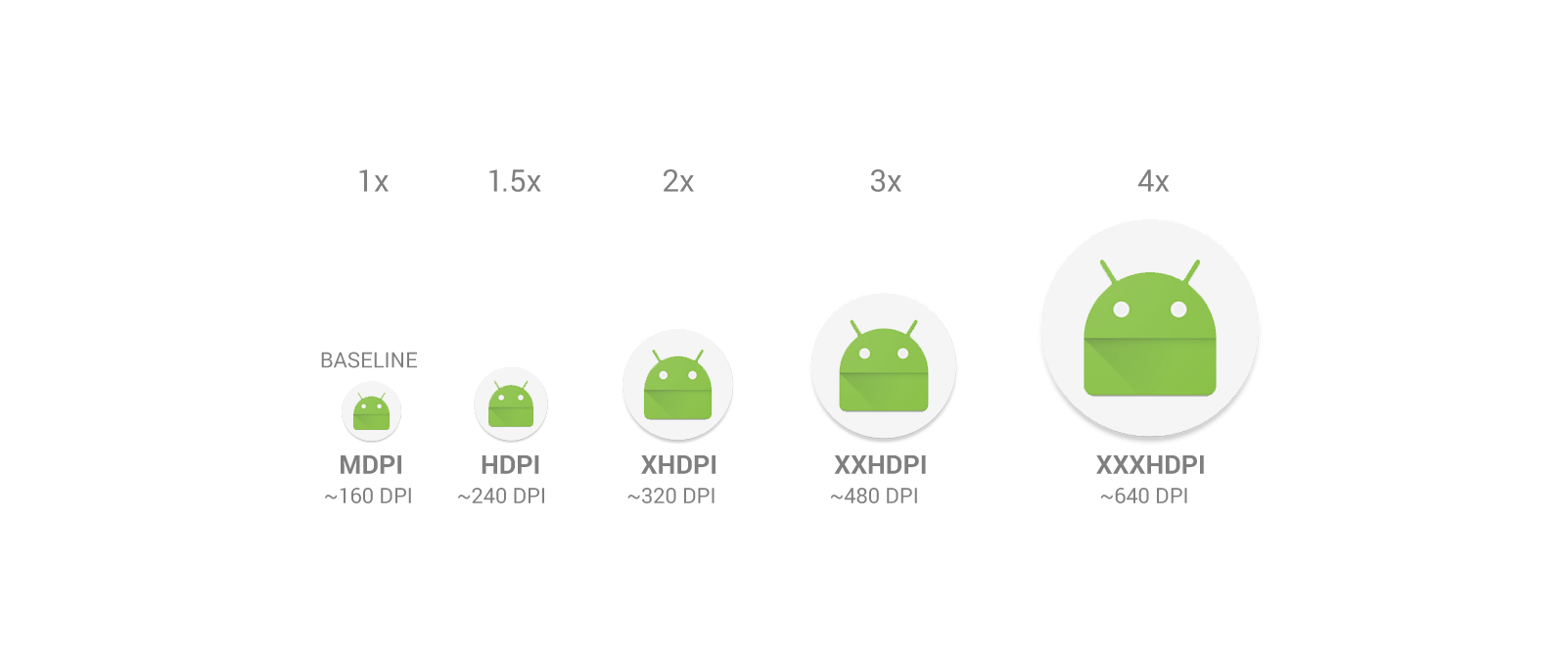
Relative sizes for bitmaps at different density sizes. (Image Source: Android Developers)

The Icon property here specifies the application icon. By default, it is set to be “@mipmap/icon”. Hence, we simply need to update the icon.png files in all the mipmap folders. We don’t use drawable folder because our app icon may need to be scaled differently on different UIs. The launcher app will then pick the best resolution icon to display on the screen. An alternative to creating multiple density-specific versions of an image is to create just one vector graphic.

Finally, if you are using Xamarin plugins, such as Rg.Plugins.Popup, you will be asked to configure the ConfigurationChanges property. This is to declare that our app handles the configuration change itself which prevents the system from restarting our activity.

Step 0.2: App Manifest
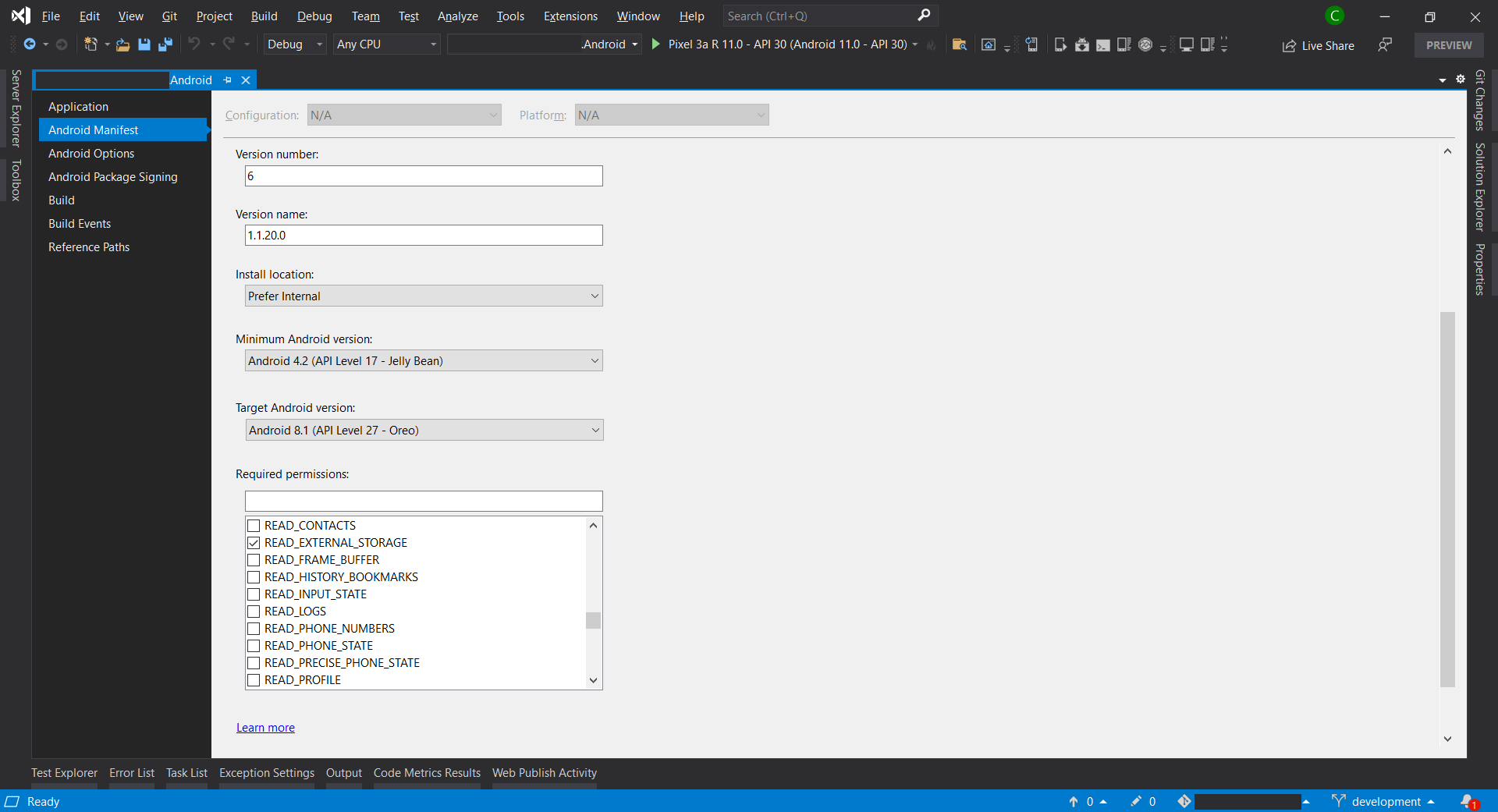
Updating Android Manifest of the Android project in Visual Studio. (Screenshot A)

Android Manifest allows us to describe the functionality and requirements of our Android app. We can either directly edit the AndroidManifest.xml file or edit it through the Properties window of the Android project.

Step 0.2.1: Android API Level

In the manifest, we can specify the minimum and target Android versions.

By November 2021, all apps that are being updated must target at least API Level 30, as shown in the announcement in Google Play Policies screenshot below.
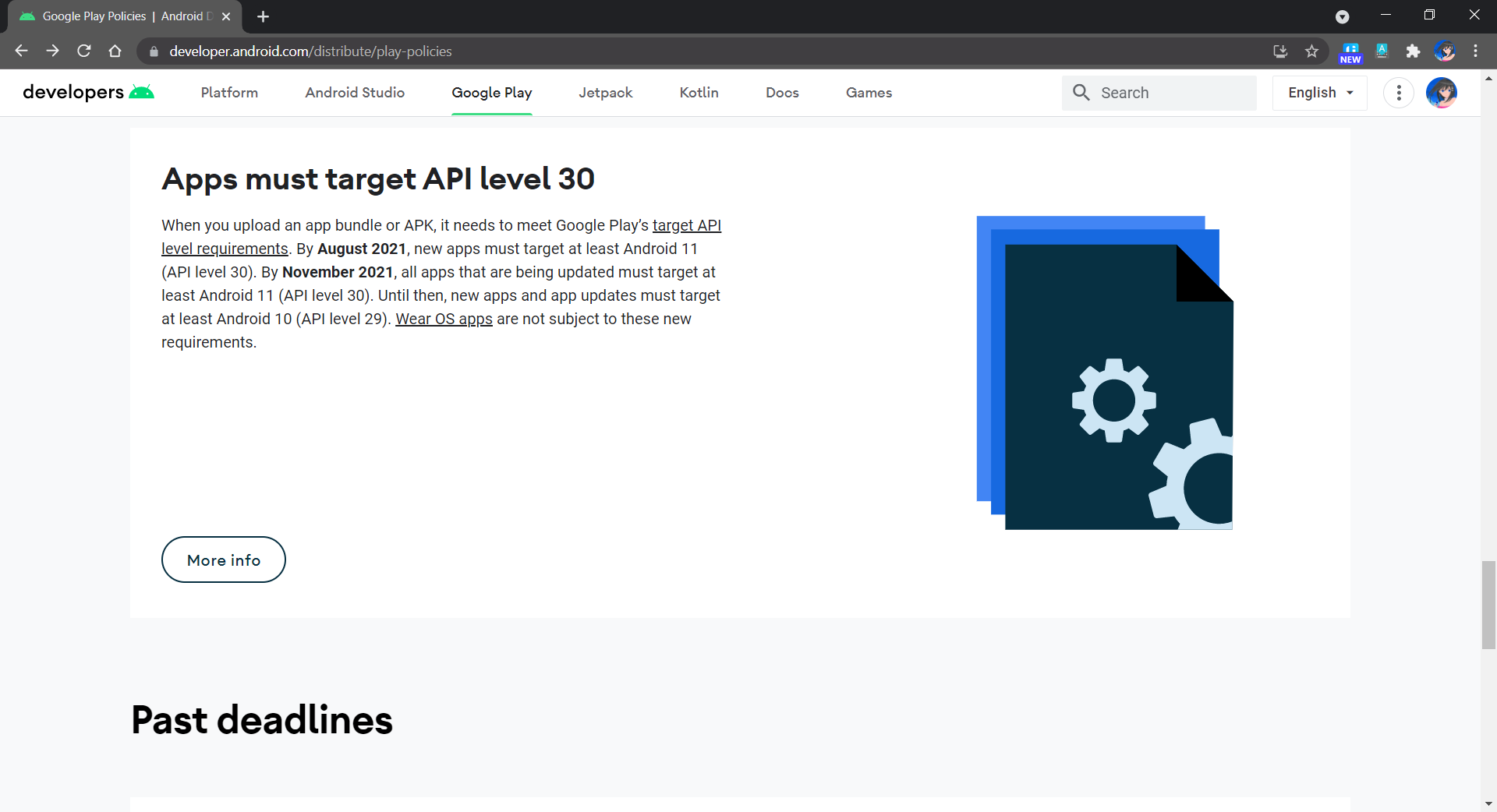
Apps now must target API Level 30.

In addition, in order to not make our app to run on Android devices which are still using the discontinued Dalvik VM, we shall set minimum Android API Level to be 21 at least. According to the chart provided in Android Studio, we can see that 94.1% of the Android devices are already using API Level 21 and above as of October 2021. So it is safe to set the minimum Android API Level to be 21.
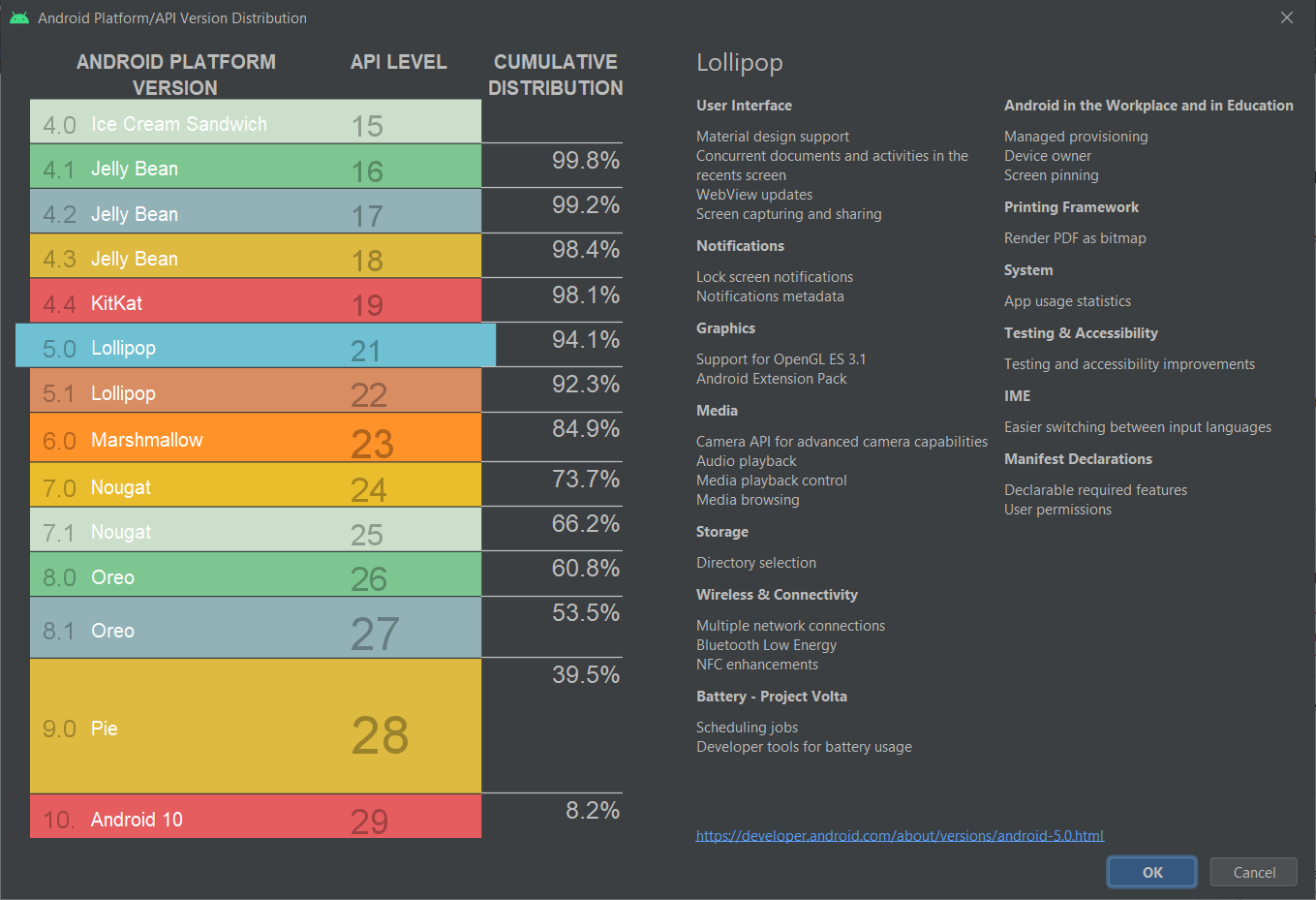
API Version distribution chart in Android Studio (as of October 2021).
Step 0.2.2: Permissions

In the manifest, we also need to specify the permissions our app requires to run. We should only request necessary permissions because users will be prompted to allow these permissions when they download our app from the Google Play Store.

By the way, if we find that switching to a Release build causes our app to lose a permission that was available in the Debug build, verify that the permission is explicitly set in the Android Manifest in Properties window, as shown in the Screenshot A above.

Step 0.2.3: App Version

Finally, in the manifest, we need to version our app release. Android recognises two different types of version information:

  • Version Number: A positive integer value (used internally by Android and the application, and thus not displayed to users) that represents the version of the application. Normally it starts with 1;
  • Version Name: A string about the app version and it’s displayed to users in Google Play Store.

Step 1: Change To AAB

As mentioned earlier, Google requires us to publish our apps with the Android App Bundle (AAB). Hence, we need to first update the Android Package Format for our app in Android Options to use bundle instead of apk, as shown in the following screenshot.

Change to use Android App Bundle.

Step 2: Configure Linker

In order to have an efficient app deployment, we need to build and release small app packages. To do so, we execute a process, known as Linking, that examines the application and removes any code that is not directly used.

The Linker in Xamarin.Android uses static analysis to determine which assemblies, types, and type members are used or referenced by a Xamarin.Android application. The linker will then discard all the unused assemblies, types, and members that are not used or referenced.

There are three linking options available:

  • None: No linking will be executed;
  • SDK Assembly Only: Linking will be performed on the assemblies required by Xamarin.Android only, NOT user’s assemblies;
  • SDK and User Assemblies: Linking will be performed on ALL assemblies, including user’s assemblies.

Normally, we will pick “SDK Assembly Only”. If we choose the “SDK and User Assemblies” option, the Linker may sometimes remove classes that are not seemed to be used by our code, especially if they are in the Xamarin shared project (or PCL library project).

Please take note that linking can produce some unintended side effects, so it is important that an application be re-tested in Release mode on a physical device.

Step 3: Dex Compilation

In order to have our app run on Android Runtime (ART), which is the successor of Dalvik VM, there is a process known as Dex (Dalvik Executable) Compilation which will transform .class bytecode into .dex bytecode. Inevitably, Xamarin.Android also has to compile Java source code into Dex format as part of the build.

In 2017, Google introduced a new Dex compiler know as D8 and one year later Google made it as the default Dex compiler in Android Studio. Soon, in Visual Studio 2019 Preview 2, D8 was allowed to be set in csproj.
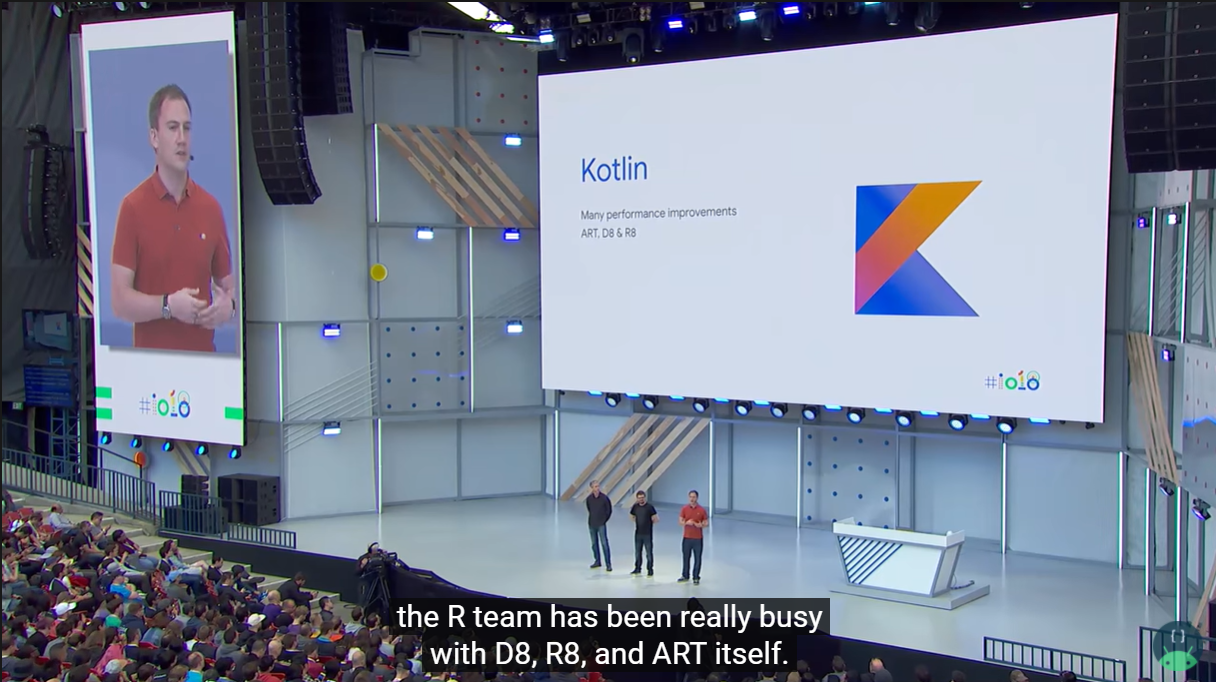
ART, D8, and R8 in Google I/O 2018. (Image Source: Android Developers YouTube)

As an extension to D8, R8 is a Java code shrinker. R8 will remove unused code and resources from our app release so that the released is shrank. According to Google, in R8, we can also benefit from obfuscation, which shortens the names of classes and members in our app, and optimization, which applies more aggressive strategies to further reduce the size of our app. However, R8 doesn’t obfuscate when used with Xamarin.
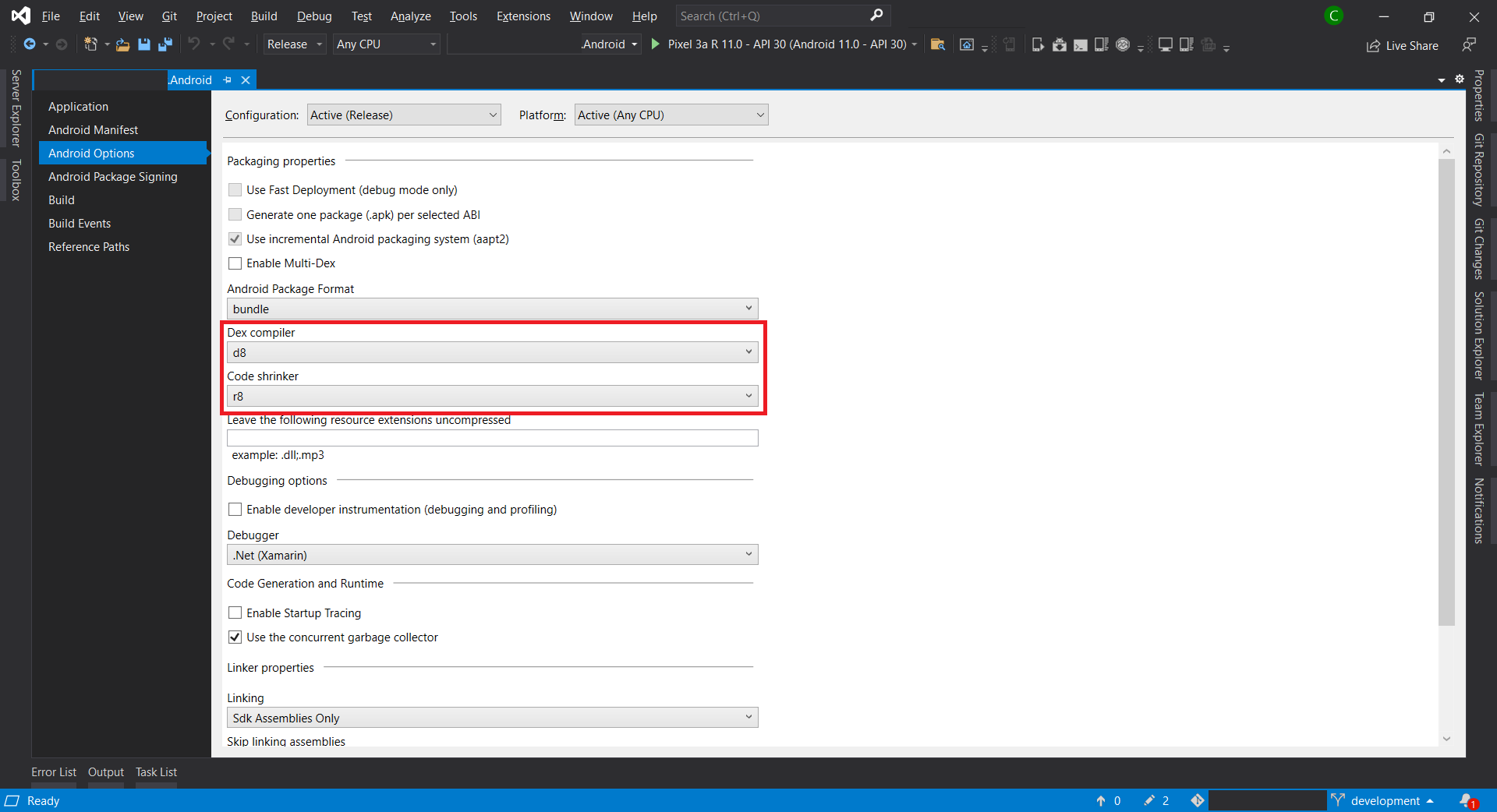
Setting D8 and R8 as the Dex Compiler and Code Shrinker, respectively.

Step 4: Disable Debugging

In the Android Options shown above, we need to make sure we have disabled the “Enable developer instrumentation (debugging and profiling)” option for Release mode.

In addition, we should disable the debug state in a released application as it is possible to gain full access to the Java process and execute arbitrary code in the context of the app via JDWP (Java Debug Wire Protocol, which is turned on by default) if this debug state is not disabled. To disable it, we need to add the following lines into AssemblyInfo.cs file.

#if DEBUG
[assembly: Application(Debuggable=true)]
#else
[assembly: Application(Debuggable=false)]
#endif

Step 5: Set Supported Architecture

Currently, all our apps published on Google Play must support 64-bit architectures because starting from August 2021, Google Play stops serving non-64-bit capable devices. This means that apps with 32-bit native code will need to have an additional 64-bit version as well.

Fortunately, Xamarin.Android having supported 64-bit CPU architectures for some time and is the default in Visual Studio 2019.
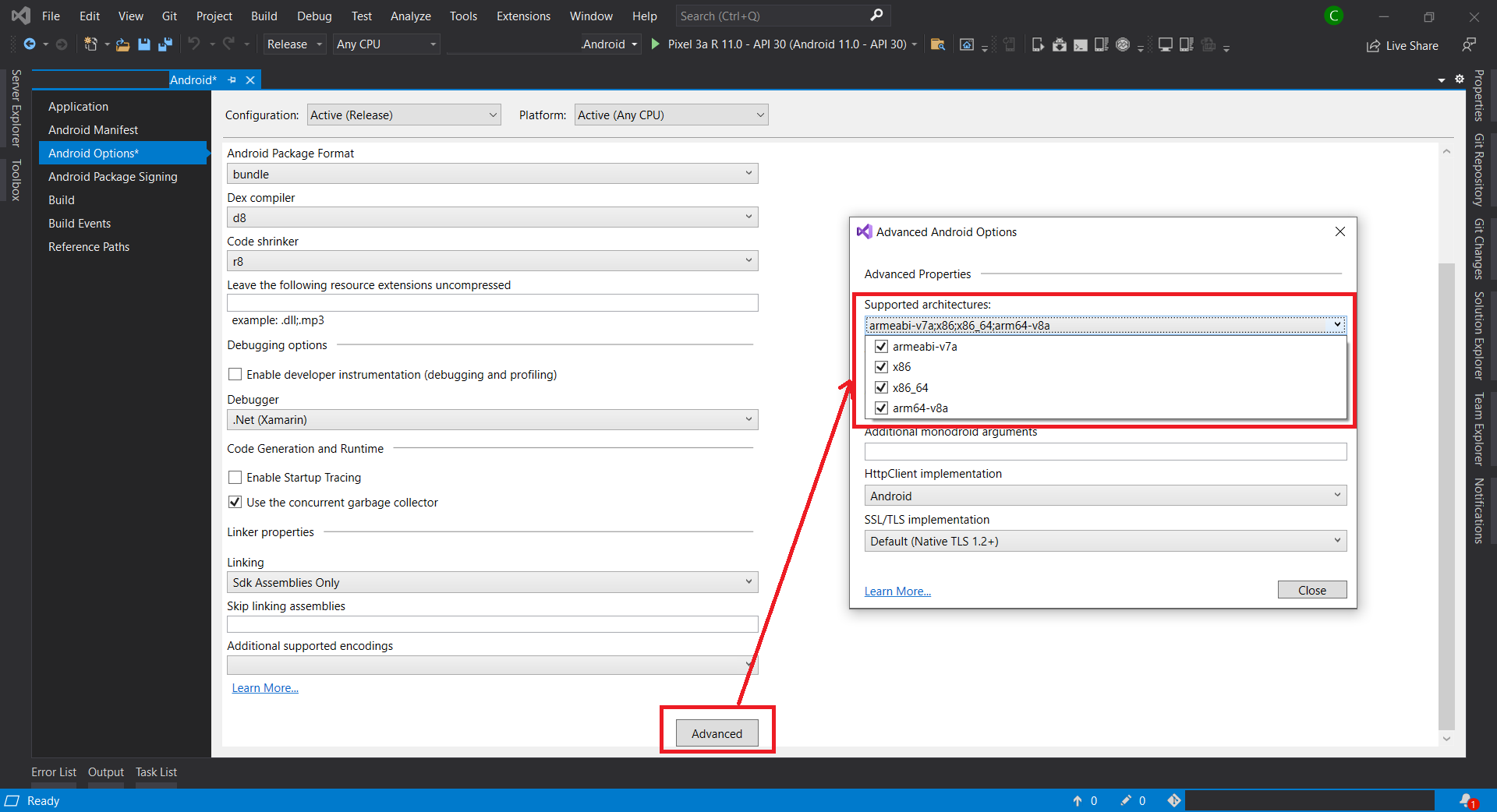
We can pick the supported architectures for our app in Android Options.

Take note that with AAB, Google Play now can use our app bundle to generate and serve optimized APKs for each device configuration. Hence, only the code and resources that are needed for a specific device are downloaded to run our app. This means that including additional architectures will no longer have any impact on the binary size when using AAB.

Step 6: Compile and Archive

After all of the above steps are completed, we can now proceed to compile our app in Release mode. We need to make sure that our app can be built successfully in Release mode.

Next, we will right-click on the Android project and choose the “Archive…” option. Then the Archive Manager will be displayed, as shown below. We just need wait for the packaging process to finish.
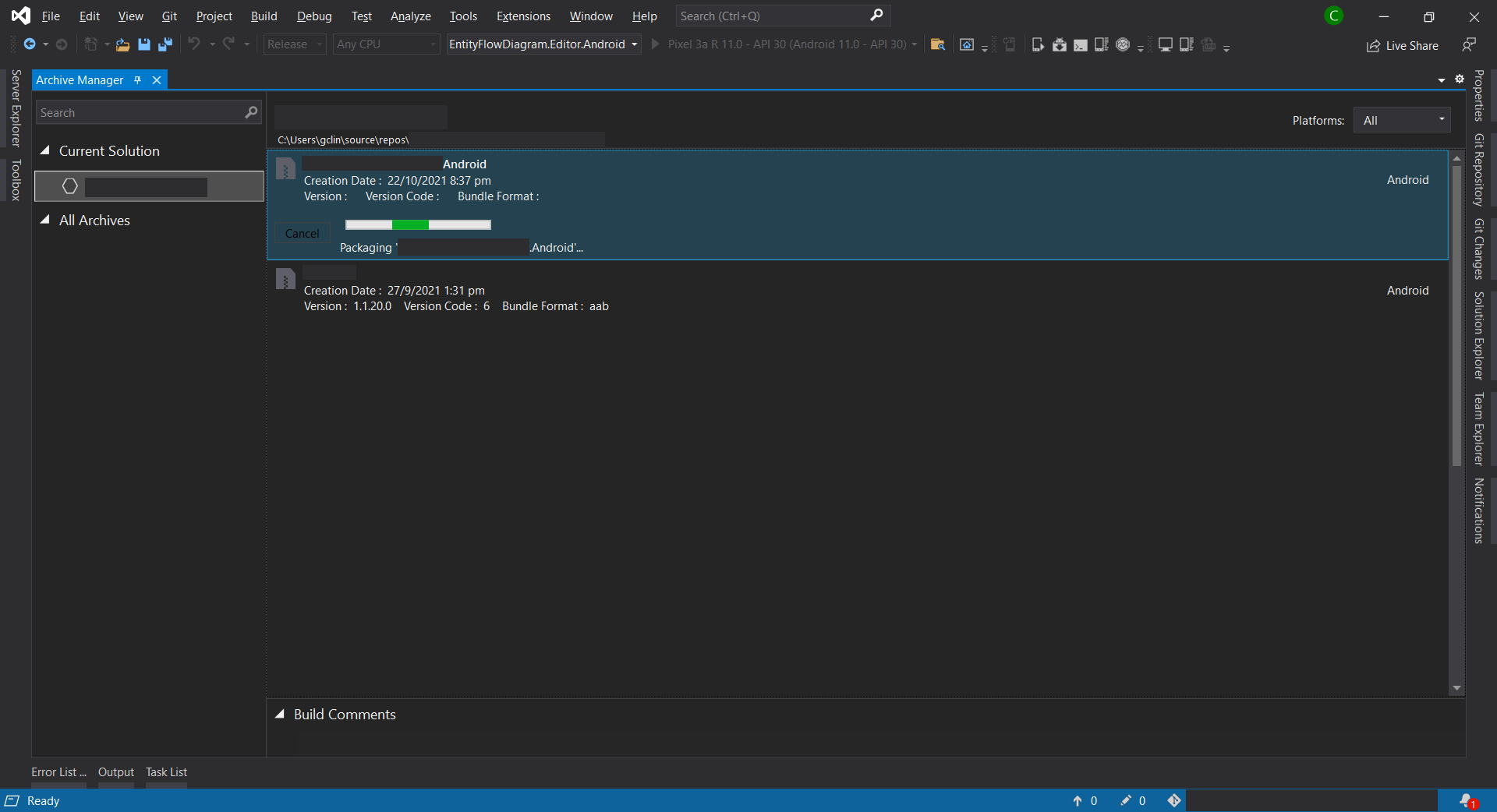
The Archive Manager.

Sometimes, the archive process will fail with an error message saying “Cannot create the archive file because the copy of mdbs files failed.” or “Could not find part of the path”. According to the discussion on MSDN, this is because the Xamarin Android Archive Location path is too long. Hence, the solution is to update it to a shorter path under Tools -> Options in Visual Studio, as shown below.
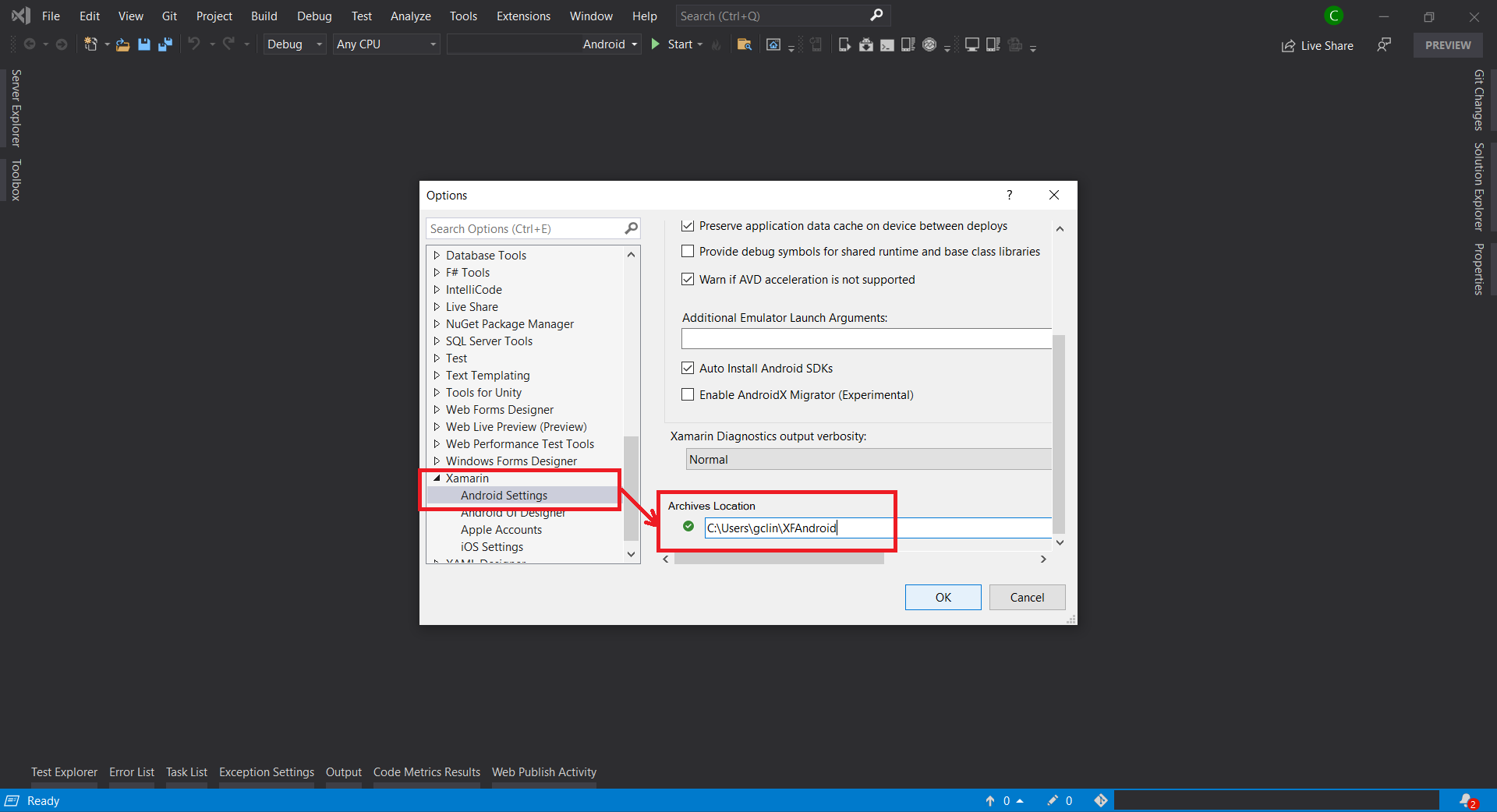
Update Xamarin Android Archive Location in Visual Studio.

Step 7: Configure Distribution Channel

After the archive has been successfully built, we can proceed to choose the distribution channel. Here, we will choose Ad Hoc instead of Google Play as our distribution channel. This is because to Ad Hoc approach does not restrict our app to be published to Google Play only and thus gives us more freedom. In addition, to use Google Play as the channel, we will need to obtain OAuth 2.0 client credentials from the Google Cloud Console. So, to keep thing simple, we will use the Ad Hoc approach here.
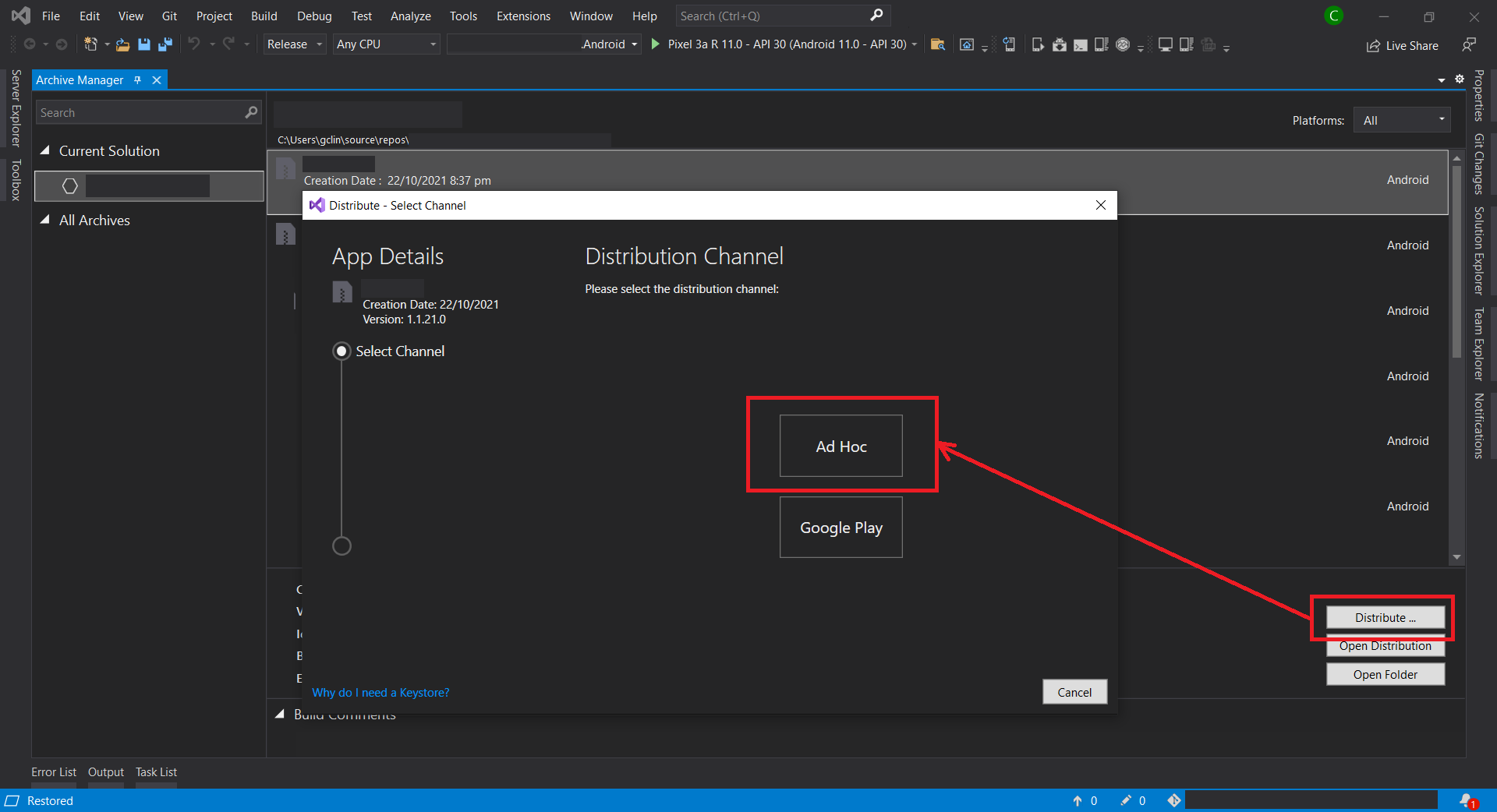
Choosing Ad Hoc as the distribution channel of our aab.

Step 8: Generate Signed Bundle

Before we can publish our app on the Google Play, we need to sign our aab with a certificate (aka upload key). We sign our aab so users know the app is really from us. Hence, after Ad Hoc is selected, Visual Studio will display the Signing Identity page.

If we already have an existing certificate, we can simply import it (password is needed). Otherwise, we can choose to create a new signing certificate.

Created certificated will be saved and listed under Signing Identity.

When we upload our signed package to Google Play, it remembers the key that was used to upload the initial package and makes sure subsequent packages are signed with the same key.

We must back up the resulting keystore file and password in a safe place. To retrieve the keystore, we can simply double click on the certificate in the list shown in the screenshot above. From there we can choose to view the keystore file in the Windows Explorer.
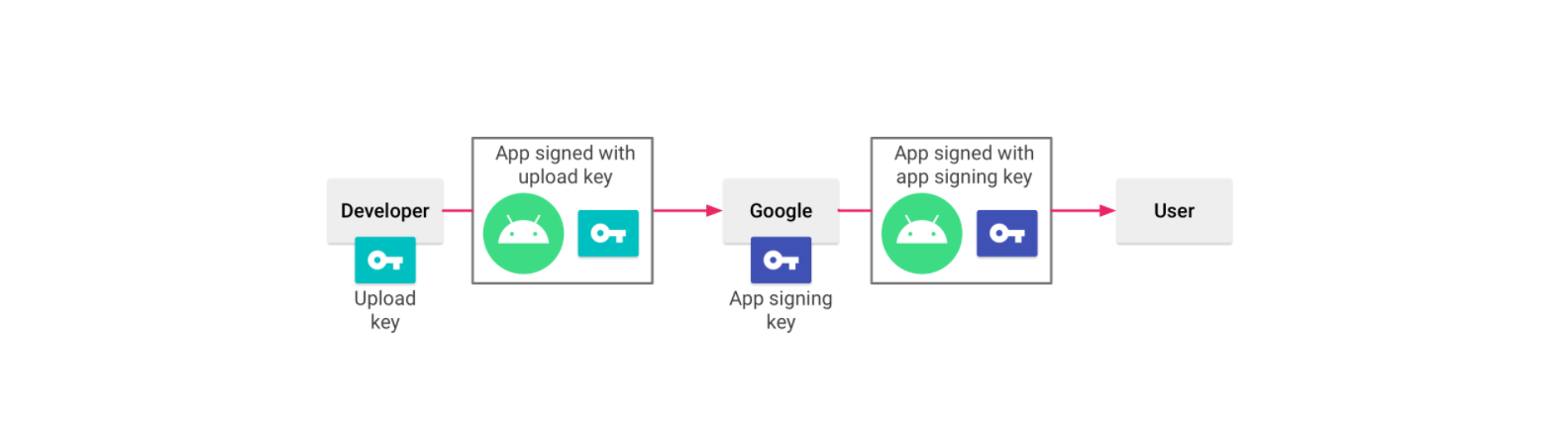
Signing an app with Play App Signing. (Image Source: Android Developers)

Once we have signed our aab, Play App Signing will take care of the rest. With Play App Signing, Google manages and protects our app signing key for us and uses it to sign optimized, distribution APKs that are generated from our aab, as illustrated in the chart above.

Currently, when our app is updated to a new version, Android will first makes sure the certificate of new version is same as the one in the previous version. Hence, when the app signing key expires, users will no longer be able to seamlessly upgrade to new versions of our app. Now, with Play App Signing, Google helps to keep our app signing key safe, and ensures our apps are correctly signed and able to receive updates throughout their lifespans.

In addition, when we use Play App Signing, if we lose our upload key, we can request for Upload Key Rest by contacting Play Store support. Since our app signing key is secured by Google, we can then continue to upload new versions of our app as updates to the original app, even if the upload keys have been changed.

For more information about Play App Signing, please watch the video below.

Wojtek Kaliciński talks about Play App Signing.

After we have signed and save our app bundle as aab file locally, we can move on to create and setup our new app on Google Play Store.

Step 9: Setup App on Google Play Console

In June 2020, new Google Play Console was introduced.

There are many steps involved to setup our app on Google Play Console. Fortunately, there is a very good YouTube tutorial from MJSD Coding about how to create and setup a new app on the new Google Play Console. You can simply refer to the video below.

How to Publish an Android App to Google Play in 2021.

Step 10: Release our App

In the video above, we learnt about the step to create production release. After we have confirmed to use the Play App Signing, we can proceed to upload our aab file generated in Step 8, as shown in the screenshot below. Once it is successfully uploaded to the Google Play Console, we can proceed to rollout our app release.
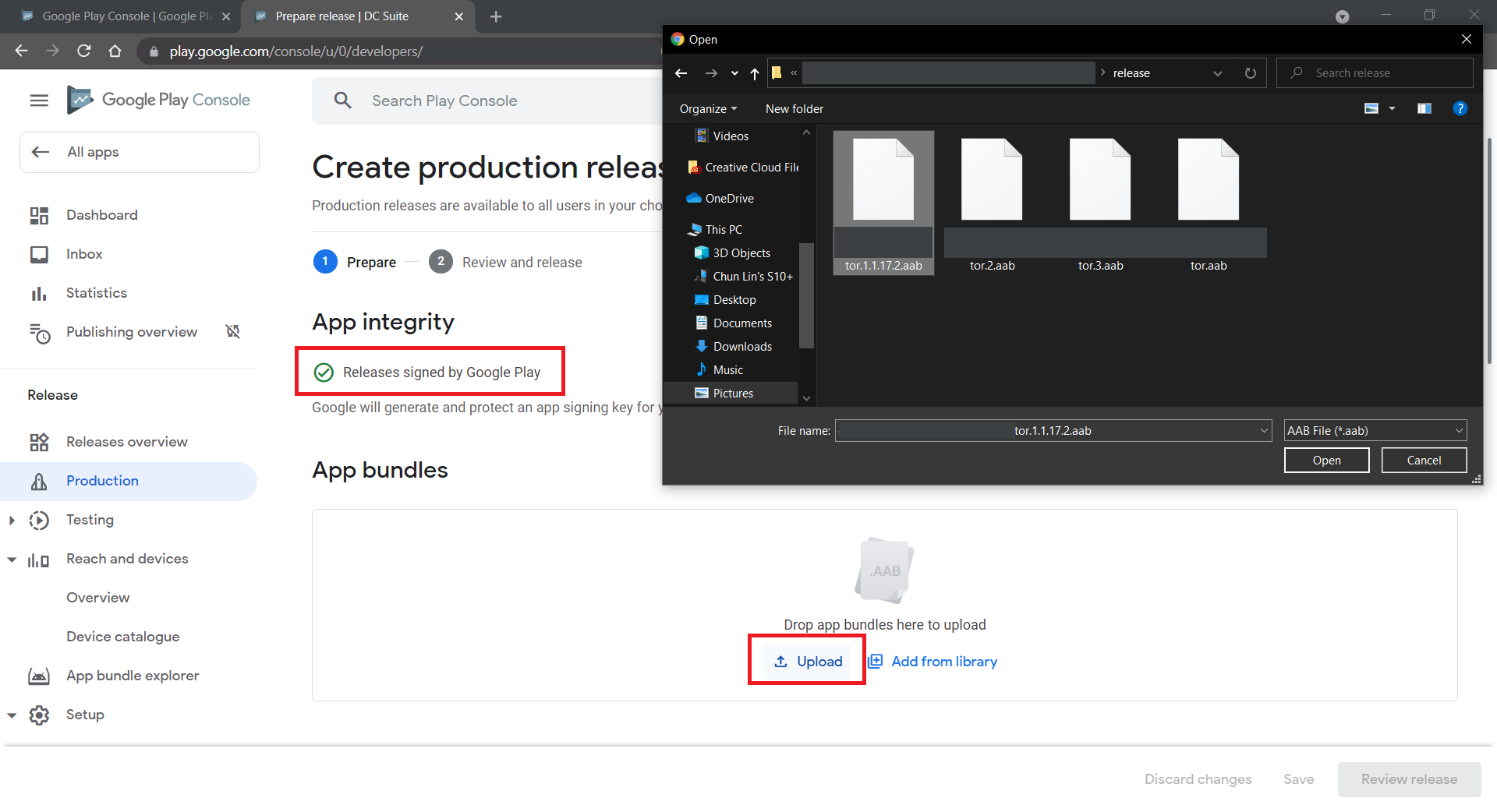
Uploading our signed app bundle to Google Play Console.

References

Build Cross-Platform App with Embedded Images on Xamarin.Forms

As we all know, a picture is worth 1,000 words. More and more, we see developers utilising images as the core of their app. Images play an important role in application navigation, usability, and branding. Hence, sharing images across all platforms, i.e. iOS, Android, and Windows 10, is often a task we need to work on. Today, I will share about how we do just that with Embedded Images.

Distributing images across different platforms with Embedded Images is recommended when identical images are used on each platform, and is particularly suited to creating components, as the image is bundled with the code. In this post, I will demo how we can do that in a new Xamarin.Forms blank project.

PROJECT GITHUB REPOSITORY

The complete source code of this project can be found at https://github.com/goh-chunlin/gcl-boilterplate.csharp/tree/master/xamarin-forms/CPEI.

Setup Images Folder

Let’s say we would like to show some images in the first screen of our app for each of the platforms. We will first have a folder called Images to store all those images. Then, we need to proceed to set the Build Action of the images to be “Embedded resource”.

Right-click the selected images and then select “Properties” to modify their Build Action.

The project name is called CPEI which stands for Cross-Platform Embedded Images. I use shortform here so that the Android project will not complain about our path to the files being too long.

ACCESS Embedded ImageS on XAML

Now, let’s say if we can to show only one of the images in the first screen of our app, we can do so by editing the XAML code of MainPage.xaml. However, we need to have the following extension first to convert the image file name which is in string to ResourceImageSource, then only the image can be natively loaded by XAML.

[ContentProperty(nameof(Source))]
public class ImageResourceExtension : IMarkupExtension
{
    public string Source { get; set; }

    public object ProvideValue(IServiceProvider serviceProvider)
    {
        if (Source == null) return null;

        Assembly assembly = typeof(ImageResourceExtension).Assembly;
        var imageSource = ImageSource.FromResource(Source, assembly);

        return imageSource;
    }
}

Here we use the overload of ImageSource.FromResource that specifies the source assembly in which to search for the image so that it can work on the Release mode of UWP on Windows 10.

Now we can use this extension in the XAML, as shown below, in MainPage.xaml.

<?xml version="1.0" encoding="utf-8" ?>
<ContentPage xmlns="http://xamarin.com/schemas/2014/forms"
             xmlns:x="http://schemas.microsoft.com/winfx/2009/xaml"
             xmlns:embeddedImage="clr-namespace:CPEI.Extensions;assembly=CPEI"
             x:Class="CPEI.MainPage">

    <ScrollView>
        ...

        <Image x:Name="MainImage" Source="{embeddedImage:ImageResource CPEI}" 
            WidthRequest="600" HeightRequest="400" HorizontalOptions="CenterAndExpand" />

        ...
    </ScrollView>

</ContentPage>

The highlighted sections are the parts newly added. At this point of time, we’re still not sure the name of the image. So our app now should not show any image at that part. To find out the actual image names, we can add a debugging code (which we should remove in production) in the ImageResourceExtension class as follows.

[ContentProperty(nameof(Source))]
public class ImageResourceExtension : IMarkupExtension
{
    ...

    public object ProvideValue(IServiceProvider serviceProvider)
    {
        ...

        foreach (var res in assembly.GetManifestResourceNames())
        {
            System.Diagnostics.Debug.WriteLine("found resource: " + res);
        }

        ...
    }
}

When we debug our app, the following should be shown in the Output window.

found resource: CPEI.Images.Genshin-Impact-Pic01.png
found resource: CPEI.Images.Genshin-Impact-Pic02.png
found resource: CPEI.Images.Genshin-Impact-Pic03.png
found resource: CPEI.Images.Genshin-Impact-Pic04.png
found resource: CPEI.Images.Genshin-Impact-Pic05.png
found resource: CPEI.Images.Genshin-Impact-Pic06.png

So now we know the name for each of the images. We simply update the Source in the XAML code above to correctly show the image, for example

<Image x:Name="MainImage" Source="{embeddedImage:ImageResource CPEI.Images.Genshin-Impact-Pic02.png}" WidthRequest="600" HeightRequest="400" HorizontalOptions="CenterAndExpand" /> 
Yay, the selected image is now displayed on our UWP app.

Access Embedded Images from Code Behind

Instead of XAML, we can access the embedded images from code behind too. For example, if we want to change the image above randomly through a click of button, we can have the following code in the click event of the button.

private void Button_Clicked(object sender, EventArgs e)
{
    Random rnd = new Random();
    int imageIndex = rnd.Next(1, 7);

    MainImage.Source = ImageSource.FromResource(
        $"CPEI.Images.Genshin-Impact-Pic{imageIndex:00}.png", 
        typeof(MainPage).Assembly);
}
Yay, we now can choose embedded images to be displayed in frontend from code behind.

Android and iOS

Since embedded images are shipped with those images embedded in the assembly as a resource, the images can be also displayed on Android, as demonstrated below.

Debugging our Xamarin.Forms app on Android emulator.

In order to test our app on the iOS platform, it’s easier if we choose to build our iOS app project on a Mac machine directly. Visual Studio for Mac offers the support for debugging Xamarin.iOS applications both in the iOS simulator and on iOS devices.

This is my first time building Xamarin.iOS app on my MacBook Air, so I need to download Xcode 12.5 from the Apple Developer Downloads page first. I don’t download it from the App Store because that will take a longer time and the installation may fail. Interestingly, there is a tip on how to install Xcode with xip in a faster manner but I’d still waited for like one hour to have it installed on my machine.

After getting both XCode 12.5 and VS 2019 for Mac installed, I proceed to checkout the Xamarin.iOS app from the source control and update the Deployment Target accordingly in order to have our app running on the simulators, as shown in the following screenshot.

Running our Xamarin.iOS app on iPhone 12 simulator.

As demonstrated below, our app can be run on iPad as well with all the embedded images loaded successfully.

This shows our Xamarin.iOS app running on iPad Air (4th Generation) simulator.

References

The code of this project described in this article can be found in my GitHub repository: https://github.com/goh-chunlin/gcl-boilterplate.csharp/tree/master/xamarin-forms/CPEI.

Build Xamarin.CommunityToolkit Sample App on Windows 10 in March 2021

In January 2021, a new stable version of Xamarin.Forms, the version 5.0, is released. Actually I had been playing with it when its preview version was released in the previous year. Together with the release of Xamarin.Forms 5, Microsoft also announced Xamarin Community Toolkit which provides a collection of common elements for mobile development with Xamarin.Forms.

Xamarin Community Toolkit is available on GitHub as an open-source .NET Foundation project. There is a sample solution offered as well in the repository. So, we can simply clone the GitHub project and build it on our Windows 10 machine to find out how behaviors, converters, effects, MVVM utilities, and new controls can be implemented.

UWP version of the Xamarin Community Toolkit sample.

However, to successfully build the sample project, it’s not that straightforward, at least at the point of time I write this article in March 2021. So I will guide you through building and running the Xamarin Community Toolkit sample on Windows 10 machine.

Tools

In this article, I’m using the following tools.

  • Windows 10 Home version 20H2;
  • Visual Studio 2019 Professional Preview (16.10.0 Preview 10);
  • .NET 5 (5.0.200-preview.21077.7);
  • NuGet Packages:
    • Xamarin.Essentials 1.6.1;
    • Xamarin.Forms 5 (5.0.0.2012);
    • Microsoft.NETCore.UniversalWindowsPlatform 6.2.12;
    • Xamarin.CommunityToolkit 1.0.3.

Setup the Project

Firstly, we can directly clone the Xamarin Community Toolkit sample from its GitHub repository.

There are many platforms supported in the sample application. However, here I will only talk about UWP and a bit of Android. So I am going to unload the projects for iOS, GTK, Tizen, and WPF. After that, I will set the UWP project as the Startup Project, as shown in the screenshot below.

UWP project is set as the Startup Project.

Now, we can proceed to run it. However, some of us may encounter a few issues. I will share what I have encountered so far and how I proceed to fix them.

Issue 01: UWP Build Errors

The build errors that I encountered all originated from the Xamarin.CommunityToolkit project which targets at Windows 10 SDK 10.0.17763 and .NET Standard 1.0, as shown in the following screenshot.

Build errors in Xamarin.CommunityToolkit targetting at Windows 10

There are a few solutions to this problem. Firstly is head to Visual Studio Installer to install the Windows 10 SDK 10.0.17763.0, which took additional 2.8 GB in space.

Installing Windows 10 SDK 10.0.17763.0.

Second solution to this issue is that we can re-target the Xamarin.CommunityToolkit to the latest Windows 10 SDK that you have. For my case, it is 10.0.19041.0. So I simply need to update the UAP version in the .csproj of the project, as shown in the screenshot below.

Re-targeting Xamarin.CommunityToolkit dependency on UWP framework.

Once we have done either of the above, the build errors should be gone.

Of course, if you don’t want to touch the Xamarin.Community.Toolkit project which is referenced by the sample application, we can unload the project. After that, in each of the platform project, we change to use the NuGet package of the Xamarin.Community.Toolkit which is stable and we don’t have to re-build it ourselves.

Issue 02: File Path Too Long

If you happen to put the sample project in a directory having a long path length, then there will be some files not being generated, for example the Java file as shown in the screenshot below. This is because on Windows, there is a limitation of the file path length.

The path length is too long!

So, once we move the entire solution to another directory with shorter path length, we shall be able to see the sample project being shown successfully.

Xamarin Community Toolkit sample on Android.

Issue 03: Blank UWP Page

The sample application will look similar on the UWP as well. However, besides the first screen, most of the subsequent screen has a blank content. However, as shown in the video clip below, the pages will actually back to normal once we resize the app window.

After few hours of investigation, I found that as long as we comment out or remove the CollectionView.Footer used in those pages, we realise that the problem above will be fixed.

The CollectionView.Footer in App.xaml is shared by those blank UWP pages.

Currently, I have filed an issue on the Xamarin Community Toolkit GitHub about this issue and workaround. So, let’s wait and see if this will be fixed in the future releases. Other than all these issues, the Xamarin Community Toolkit is still a very good tool for the developers.

Learn More about Xamarin Community Toolkit

There is a Xamarin Community Toolkit YouTube video with Gerald Versluis shared by my senior Riza Marhaban. I find it to be very useful and I hope you enjoy learning more about Xamarin too. Have fun!

Building Driver Tracking System with Eventing in Microsoft Azure

Recently due to the coronavirus pandemic, ordering food from online platform becomes one of the popular choices here. Drivers will deliver the food to us without us leaving our house to pickup the food from the restaurants.

The drivers are all equipped with a smart phone that will send I’m not sure how those online food ordering platforms design their backend system to track the drivers. However, today I’d like to suggest how we can build such driver tracking system with Azure Event Hub and Stream Analytics.

The Traditional Approach

Previously, the approach that I took to build such system by building a Web API which provides endpoints for the mobile devices (assuming to be only Android and iOS) to send the GPS data to. Then our Web API will save the data to CosmosDB, which is a good choice for any serverless application that needs low order-of-millisecond response times.

However, this approach is costly in terms of hosting and maintainability, especially with the expensive CosmosDB even though there is now a free tier available for CosmosDB starting March 2020. Also it is not scalable unless we spent extra time working on the infrastructure to load balance the Web APIs and the reporting servers.

So, let’s see how we can use the robust Azure services and Microsoft tools to help us build a better tracking system.

Eventing in Azure

As we all know, GPS reporting of drivers in delivery industry needs real-time processing and the volume of data is always huge to a certain level that there are millions of events happening in every second.

Hence, in this article, I’d like to share with you all an alternative, which is cheaper (unfortunately, not free) and more scalable with higher maintainability.

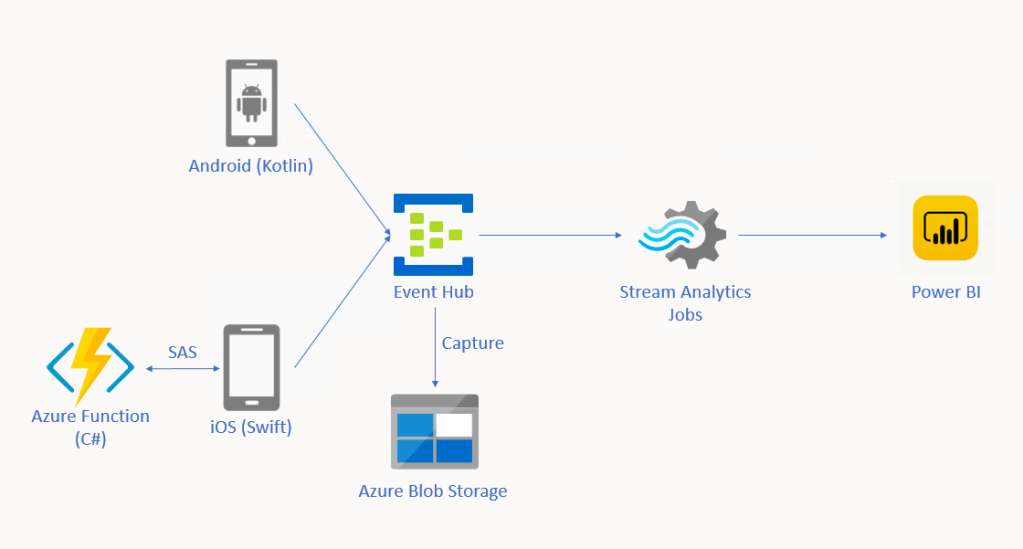
🎨  Alternative solution for driver tracking system with Eventing in Microsoft Azure. 🎨 

In this approach, we will be using tools such as Event Hub, Stream Analytics, and Power BI. There is also Azure Function needed for iOS side which I will explain why later in this article.

Event Hub

As shown in the diagram above, we remove the needs of building the API endpoints and maintaining a reporting module ourselves. Instead, we have Event Hub, a serverless Big Data streaming platform and event ingestion service which can provide real-time event processing and is able to stream million of events per second. Since it’s a serverless setup, we don’t need to provision server resources to handle the events and we also don’t have to pay for large upfront infrastructure cost.

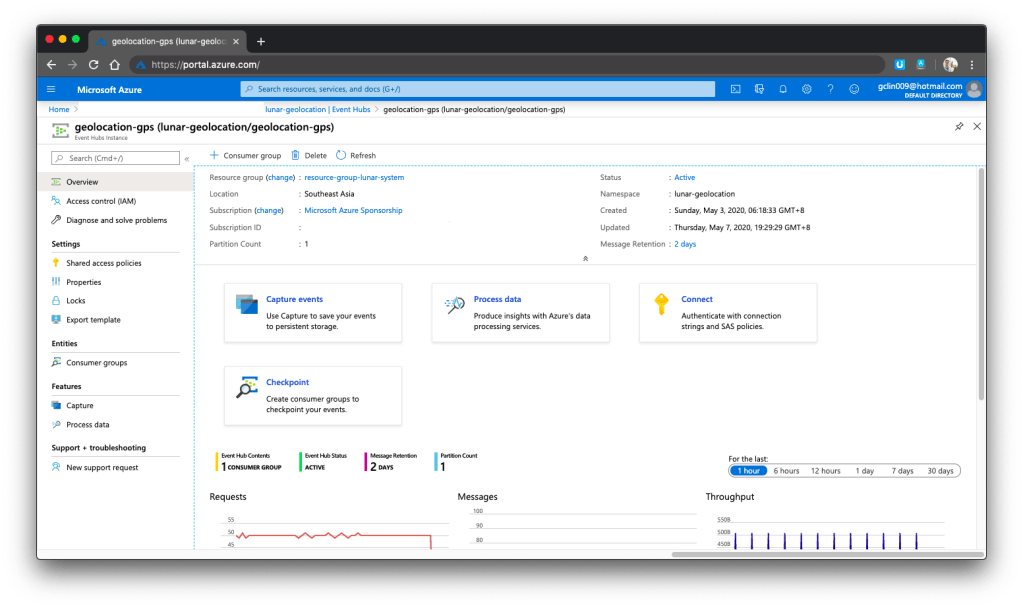
🎨  One of my event hubs that is receiving geolocation data from the mobile devices. 🎨 

Since Event Hub is an open multi-platform, it accepts a range of input methods. So later we shall see how data can be sent to Event Hub from both Android app and iOS app directly.

Event Hub Namespace Throughput Unit

There is a very interesting property in Event Hub Namespace called the Throughput Unit (TU), which is the amount of work that we want to assign to the namespace.

1 TU gives us 1MB/s ingress or 1,000 events/s and 2MB/s outgress or 2,000 events/s. We can scale our namespace up to 20 TUs.

🎨  Scaling the event hub namespace by its TU. 🎨 

In the screenshot above, we can see that there is also a functionality to auto-inflate our namespace which will auto scale-up the TU to a defined limit. This is good for handling sudden peak in volume. However, take note that there is no auto-deflate, so once the TU goes up, we need to use another way to scale it down when the peak is over.

One more thing to take note here is that the TU is shared among the Event Hubs under the namespace.

Capture in Event Hub

By default, Event Hub can store the data for one day. We can adjust it to be the maximum, which is 7 days (in Standard pricing tier only). This is to remind us that Event Hub should not be used as a data storage.

However, with the easy integration of Event Hub with the Azure Stream Analytics, Event Hub can serve as input of the Stream Analytics and output the data to places such as Power BI for data analysis and visualisation or SQL / Azure Storage for data storage.

In addition, we can also enable the Capture function in Event Hub. Capture will automatically persist the data to Azure Storage with no administrative cost. This is the easiest way to load streaming data into Azure without the need of Stream Analytics. The captured streaming data will be stored in the AVRO format which has the data serialised in a compact binary format.

🎨  Viewing the captured streaming data in Azure Storage on the portal. 🎨 

Mobile Clients

Now with the Event Hub setup, we will proceed to discuss how we can send data from our mobile devices to the Event Hub.

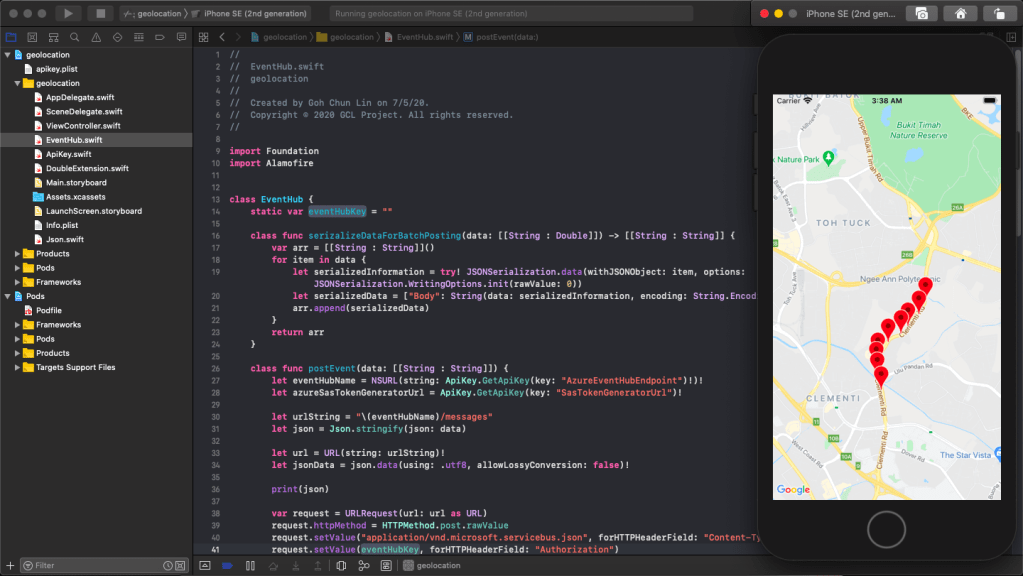
🎨  “Driving” on iOS Google map. 🎨 

Unfortunately, there are very little documentation about how to do this online, especially on Kotlin/Swift + Event Hub. Hence, I hope this article can help somebody out there who are interested in similar approach.

Since during the coronavirus pandemic, we are advised not to leave our house so how do I test in such a situation? I thus decide to cheat a bit here. Instead of using the actual mobile location, I will be running my apps on the emulator/simulator. What the apps do is then collecting the latitude and longitude of the points that I click on the app and send them to the Event Hub.

Connecting Android App with Event Hub

GitHub Repo: https://github.com/goh-chunlin/Lunar.Geolocation.Android

In the system, we have both Android and iOS mobile devices that will send GPS data of the users to the Event Hub. For the Android, I will be using Kotlin because it’s the modern recommended way of developing Android app.

If you are interested in using Java, Microsoft has a documentation for connecting Android app to Event Hub in Java. So far I still can’t find Microsoft documentation on using Kotlin to do this task, hence I will be using Kotlin.

Having said that, I will still be using the existing Java client library for Event Hub from the repository. However, there are a few configurations we need to take care of in order to use this Java library.

Firstly, we will add the dependency to the project as follows in the build.gradle of the app.

dependencies {
    ...
    implementation 'com.azure:azure-messaging-eventhubs:5.0.3'
    ...
}

Secondly, there is a need to make adjustment to our gradle file to specify the compatibility of Java in the compileOptions as shown below.

compileOptions {
sourceCompatibility JavaVersion.VERSION_1_8
targetCompatibility JavaVersion.VERSION_1_8
}

Without doing so, it will complain that no methods found for the Event Hub.

Thirdly, there are two markdown files in conflict after we add the library to the project. We can fix that by doing pickFirst.

packagingOptions {
pickFirst 'META-INF/LICENSE.md'
pickFirst 'META-INF/NOTICE.md'
}
🎨 Geolocation data will be sent in batches. 🎨

Another thing why we choose Event Hub is that it allows us to send data in batches. The following function shows how to send data in batch to the Event Hub.

private fun sendLatitudeAndLongitudeDataToAzure() {
    var producer = EventHubClientBuilder()
        .connectionString(BuildConfig.AZURE_EVENT_HUB_CONNECTION_STRING, BuildConfig.AZURE_EVENT_HUB_NAME)
        .buildProducerClient()

    val batch = producer.createBatch()

    recentLatitudeAndLongitudeRecords.forEach {
        batch.tryAdd(EventData(it))
    }

    if (batch.count > 0) {
        producer.send(batch)
    }

    producer.close()
}

The variable recentLatitudeAndLogitudeRecords is a collection of all recent latitude and longitude data collected by the device. In my demo code, which is not shown above, I make it to hold 10 records. So in just one send command, 10 geolocation records will be sent altogether to the Event Hub. The devices thus do not need to make multiple connections to the server to send multiple records.

I only highlighted the key points here for programming an Android app in Kotlin to connect to the Azure Event Hub. The complete demo code is available on GitHub for those who want to find out more about how we can integrate Event Hub in Android projects.

Connecting iOS App with Event Hub

GitHub Repo: https://github.com/goh-chunlin/Lunar.Geolocation.iOS

We should be glad that there is still Event Hub documentation and library available for Android platform because for iOS, there is basically nothing, not even an Event Hub SDK for iOS from Microsoft.

Luckily, there is an excellent blog post on how to connect iOS app to Event Hub written by Luis Delgado back in April 2016. Hmm… 2016? That was written when the President of the USA was still Barack Obama! As we can see, that article is quite outdated so I decided to write down a newer approach on how I do it with Swift 5.

🎨  Barack Obama served as the 44th president of the United States from 2009 to 2017. (Image Credit: CBS News) 🎨 

Since there is no Event Hub SDK for iOS, we have to use its REST APIs instead. For using Event Hub REST APIs, we first need to programmatically generate a SAS (Shared Access Signature) token in order to call the APIs.

This is where the Azure Function comes into picture. In Luis’ blog post, he setup an Azure Web App to host a NodeJS application which will generate SAS token. To be more cost effective, we will be using Azure Function with a short and sweet C# code as shown in the Microsoft documentation.

🎨  Simple C# code to generate SAS token (Please refer to my GitHub repo and its README file for the complete code). 🎨 

With this, then we can then use Alamofire, an HTTP networking library, to make a request to the Azure Event Hub. To send batch data, we first need to make sure the message body to have a valid JSON payload, which is something as follows.

[
{"Body": "<stringify of the record 01 JSON object to send>"}, 
{"Body": "<stringify of the record 02 JSON object to send>"}, 
...
]

We then also need to make sure we have set the Content-Type header to “application/vnd.microsoft.servicebus.json”. For more details, please refer to the Microsoft documentation on sending batch data.

Of course, here I also highlight only the key points to successfully send event data in batch from iOS using Swift 5 to Azure Event Hub. If you would like to find out more, I have my entire demo project for this available on my GitHub repository, please review it.

🎨 Running the app which is sending data to the Event Hub on iPhone simulator. 🎨

Stream Analytics

With the events sent from the mobile devices to the Event Hub, we now can link the Event Hub with the Stream Analytics. Take note that Stream Analytics is just one of the many ways of pulling data from the Event Hub. For example, if you are familiar with Apache Storm, you can link it up with that too.

Stream Analytics is a real-time analytics and complex event-processing engine that is designed to analyse and process high volumes of fast streaming data from multiple sources simultaneously. Besides Event Hub, it can also accept inputs from IoT devices or Blob Storage.

The reason why we choose Stream Analytics in our solution is that it requires no upfront infrastructure setup and it is easy to configure and scale.

Consumer Groups in Event Hub

The publish/subscribe mechanism of Event Hubs is enabled through consumer groups. Hence, when we are creating a new Stream Analytics Job, we need to specify the consumer group that we are going to use.

Consumer groups enable multiple consuming applications to each have a separate view of the event stream, and to read the data stream independently. Hence, it is recommended to create a new consumer group for each Stream Analytics Job.

Stream Analytics Query

One exciting feature in the Stream Analytics is the query of data. Stream Analytics has a SQL-like query language which accepts user-defined functions written in JavaScript.

The Stream Analytics accepts multiple inputs and multiple outputs with multiple queries. In our scenario, we have one input from the Event Hub and two outputs to two different datasets on the Power BI.

One dataset is to show all the data points collected by the mobile devices. We will use this dataset to plot the places visited by the drivers on a map. Another dataset will be showing the number of points collected in each mobile device.

Hence, we have the following queries in our Stream Analytics.

SELECT *
INTO [geolocation]
FROM [geolocation-input]

SELECT DeviceLabel, System.Timestamp() AS HappenedAt, COUNT(1) As NumberOfEvents
INTO [geolocation-count]
FROM [geolocation-input]
GROUP BY DeviceLabel, TumblingWindow(minute,3)  

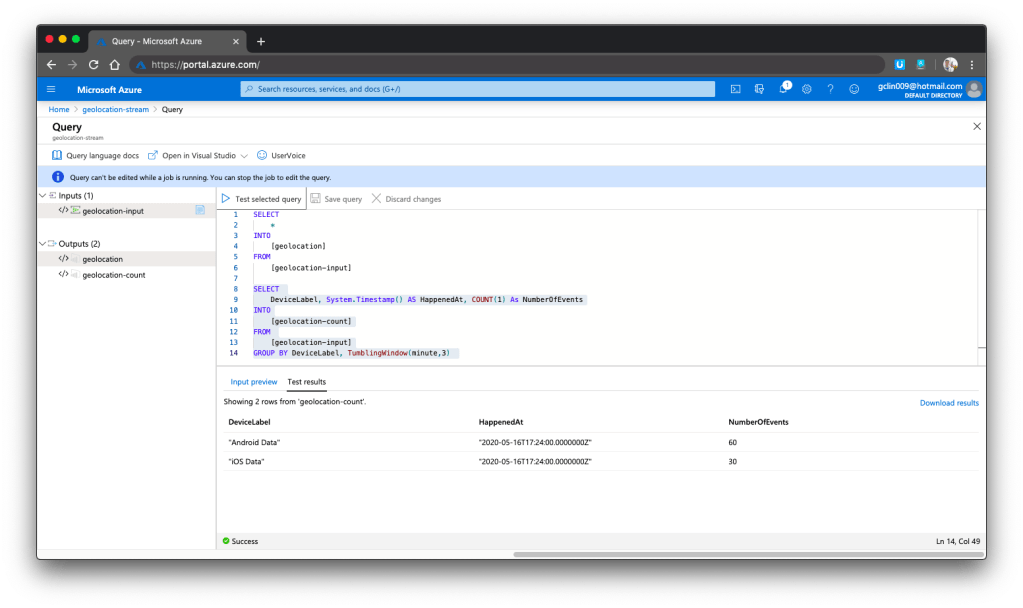
The first query is very straight-forward. What is interesting is the second query where TumblingWindow is used. Tumbling windows are a series of fixed-sized, non-overlapping and contiguous time intervals. So what the query does is using the Aggregate Function Count() over the time window to count the number of data points collected in each device (identified with DeviceLabel) within the 3-minute time window. For more information about the Time Management in Stream Analytics, please read its documentation.

Another interesting point in the second query is the HappenedAt field. It gets its value from System.Timestamp(). In Stream Analytics, every event that flows through the system comes with a timestamp that can be accessed via System.Timestamp(). In our case, since we are using Event Hub, this time is the timestamp given by the Event Hub.

We can now test run the queries above on the Azure Portal, as shown in the screenshot below.

🎨  We can choose to test only the selected query and view its test results. 🎨 

Here, there are additional two things that I’d like to highlight.

Firstly, the data format that we sent to Event Hub is very important. Sometimes it is possible that the Event Hub can receive the messages but due to the wrong format in the messages, Stream Analytics cannot take them as inputs and there will be warning shown in the Overview page of the Stream Analytics.

Secondly, to view detailed logs so that we can better understand what’s happening in Stream Analytics when something goes wrong, it is important to understand how to debug using its Activity Log page and monitor its activities with Azure Monitor.

Data Visualisation with Power BI

Now, let’s see some colourful graphs.

In Power BI, with our setup above in the Stream Analytics, it should now show two datasets.

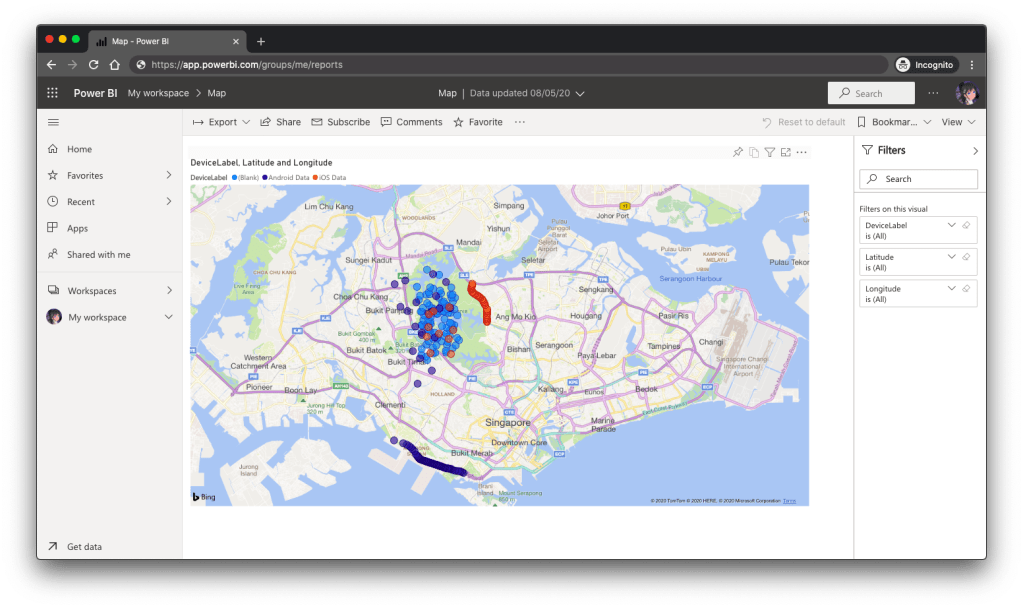
Firstly, we have the map in Power BI using the first dataset to show the location of the drivers. There are some data points having blank Device ID because it is a new field I added after I setup the first dataset in the Stream Analytics.

🎨  Map showing the driver locations using results returned from the first query in Stream Analytics. 🎨 

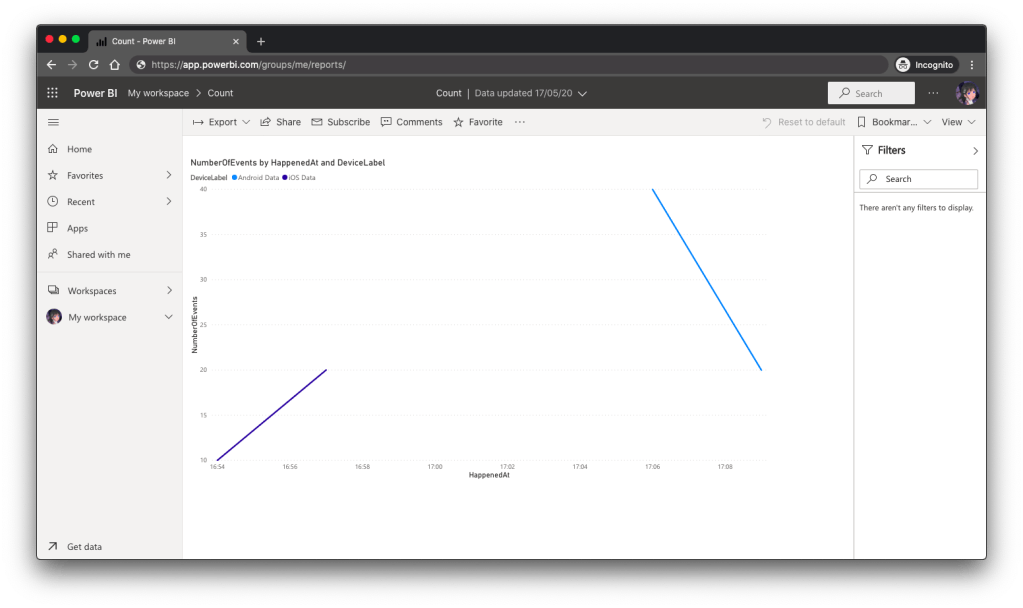
Secondly, we can also visualise the results returned from the second dataset using the Line Chart in Power BI, as shown below.

🎨  The second driver starts work after the first driver. 🎨 

Conclusion

So, what do you think about my alternative above? In fact, there are other ways of doing this as well. There is one more alternative that requires Azure Time Series Insights service which I will be researching. Hopefully I can have time to blog about it soon.

If you have any other better solution, feel free to let me know in the comment section. I may not have time to try all of them out but it may help other developers to find out more alternatives. Thank you in advance!

🎨  If you have a good suggestion to share, let’s discuss over a meal. 🎨