Serverless Web App on AWS Lambda with .NET 6

We have a static website for marketing purpose hosting on Amazon S3 buckets. S3 offers a pay-as-you-go model, which means we only pay for the storage and bandwidth used. This can be significantly cheaper than traditional web hosting providers, especially for websites with low traffic.

However, S3 is designed as a storage service, not a web server. Hence, it lacks many features found in common web hosting providers. We thus decide to use AWS Lambda to power our website.

AWS Lambda and .NET 6

AWS Lambda is a serverless service that runs code for backend service without the need to provision or manage servers. Building serverless apps means that we can focus on our web app business logic instead of worrying about managing and operating servers. Similar to S3, Lambda helps to reduce overhead and lets us reclaim time and energy that we can spent on developing our products and services.

Lambda natively supports several programming languages such as Node.js, Go, and Python. In February 2022, the AWS team announced that .NET 6 runtime can be officially used to build Lambda functions. That means now Lambda also supports C#10 natively.

So as the beginning, we will setup the following simple architecture to retrieve website content from S3 via Lambda.

Simple architecture to host our website using Lambda and S3.

API Gateway

When we are creating a new Lambda service, we have the option to enable the function URL so that a HTTP(S) endpoint will be assigned to our Lambda function. With the URL, we can then use it to invoke our function through, for example, an Internet browser directly.

The Function URL feature is an excellent choice when we seek rapid exposure of our Lambda function to the wider public on the Internet. However, if we are in search of a more comprehensive solution, then opting for API Gateway in conjunction with Lambda may prove to be the better choice.
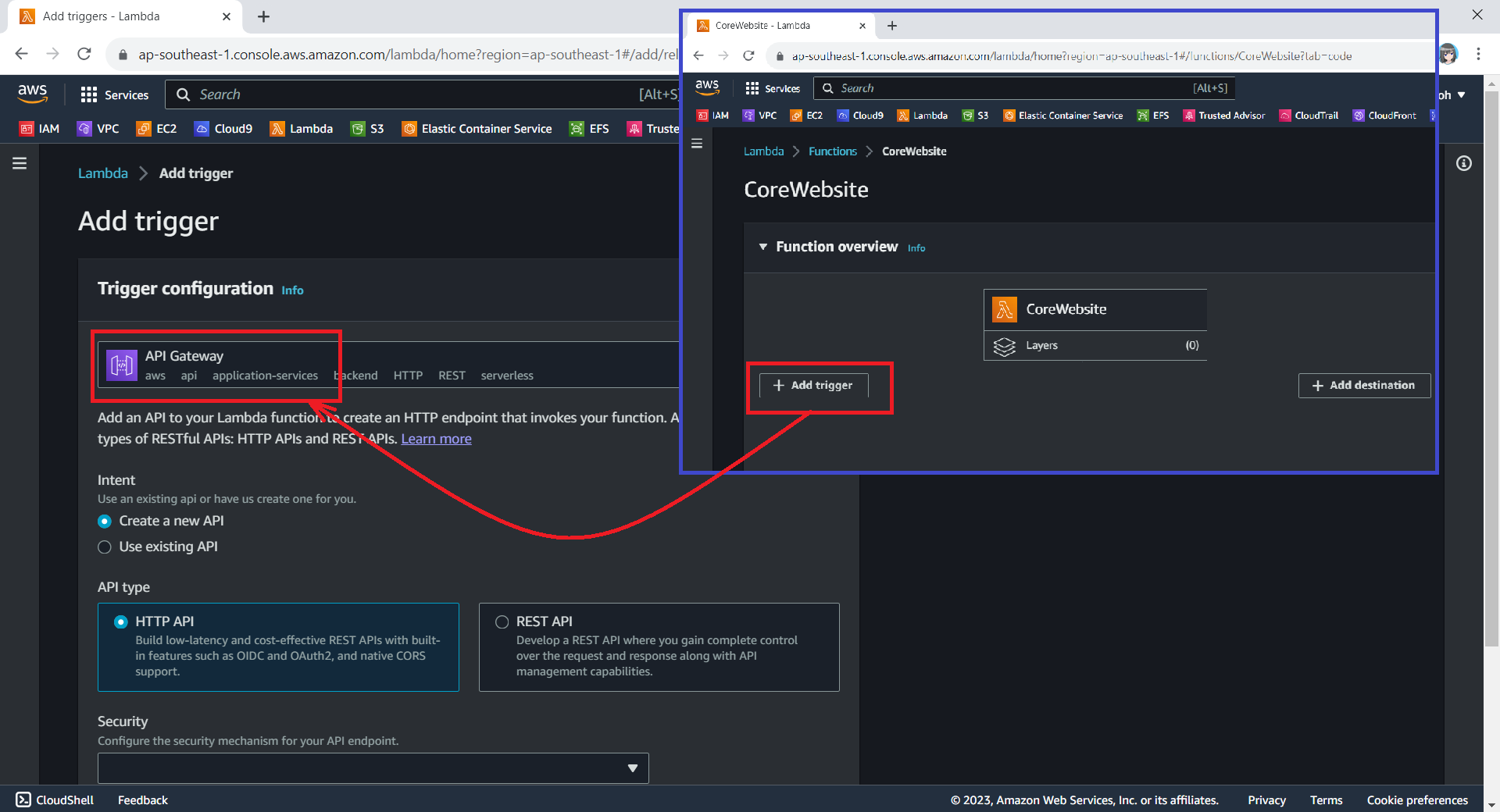
We can configure API Gateway as a trigger for our Lambda function.

Using API Gateway also enables us to invoke our Lambda function with a secure HTTP endpoint. In addition, it can do a bit more, such as managing large volumes of calls to our function by throttling traffic and automatically validating and authorising API calls.

Keeping Web Content in S3

Now, we will create a new S3 bucket called “corewebsitehtml” to store our web content files.

We then can upload our HTML file for our website homepage to the S3 bucket.

We will store our homepage HTML in the S3 for Lambda function to retrieve it later.

Retrieving Web Content from S3 with C# in Lambda

With our web content in S3, the next issue will be retrieving the content from S3 and returning it as response via the API Gateway.

According to performance evaluation, even though C# is the slowest on a cold start, it is one of the fastest languages if few invocations go one by one.

The code editor on AWS console does not support the .NET 6 runtime. Thus, we have to install the AWS Toolkit for Visual Studio, so that we can easily develop, debug, and deploy .NET applications using AWS, including the AWS Lambda.
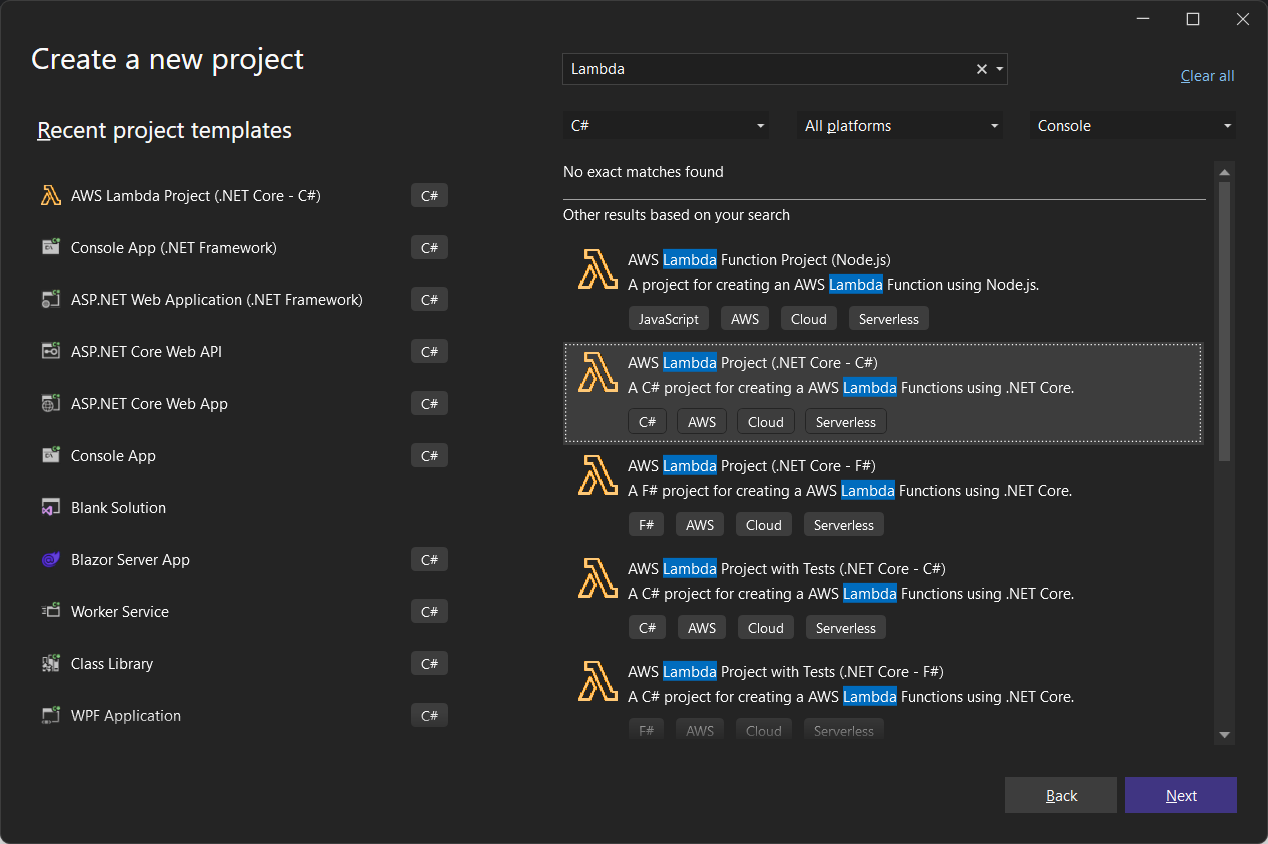
Here, we will use the AWS SDK for reading the file from S3 as shown below.

public async Task<APIGatewayProxyResponse> FunctionHandler(APIGatewayProxyRequest request, ILambdaContext context)
{
    try 
    {
        RegionEndpoint bucketRegion = RegionEndpoint.APSoutheast1;

        AmazonS3Client client = new(bucketRegion);

        GetObjectRequest s3Request = new()
        {
            BucketName = "corewebsitehtml",
            Key = "index.html"
        };

        GetObjectResponse s3Response = await client.GetObjectAsync(s3Request);

        StreamReader reader = new(s3Response.ResponseStream);

        string content = reader.ReadToEnd();

        APIGatewayProxyResponse response = new()
        {
            StatusCode = (int)HttpStatusCode.OK,
            Body = content,
            Headers = new Dictionary<string, string> { { "Content-Type", "text/html" } }
        };

        return response;
    } 
    catch (Exception ex) 
    {
        context.Logger.LogWarning($"{ex.Message} - {ex.InnerException?.Message} - {ex.StackTrace}");

        throw;
    }
}

As shown in the code above, we first need to specify the region of our S3 Bucket, which is Asia Pacific (Singapore). After that, we also need to specify our bucket name “corewebsitehtml” and the key of the file which we are going to retrieve the web content from, i.e. “index.html”, as shown in the screenshot below.

Getting file key in S3 bucket.

Deploy from Visual Studio

After ew have done the coding of the function, we can right click on our project in the Visual Studio and then choose “Publish to AWS Lambda…” to deploy our C# code to Lambda function, as shown in the screenshot below.

Publishing our function code to AWS Lambda from Visual Studio.

After that, we will be prompted to key in the name of the Lambda function as well as the handler in the format of <assembly>::<type>::<method>.
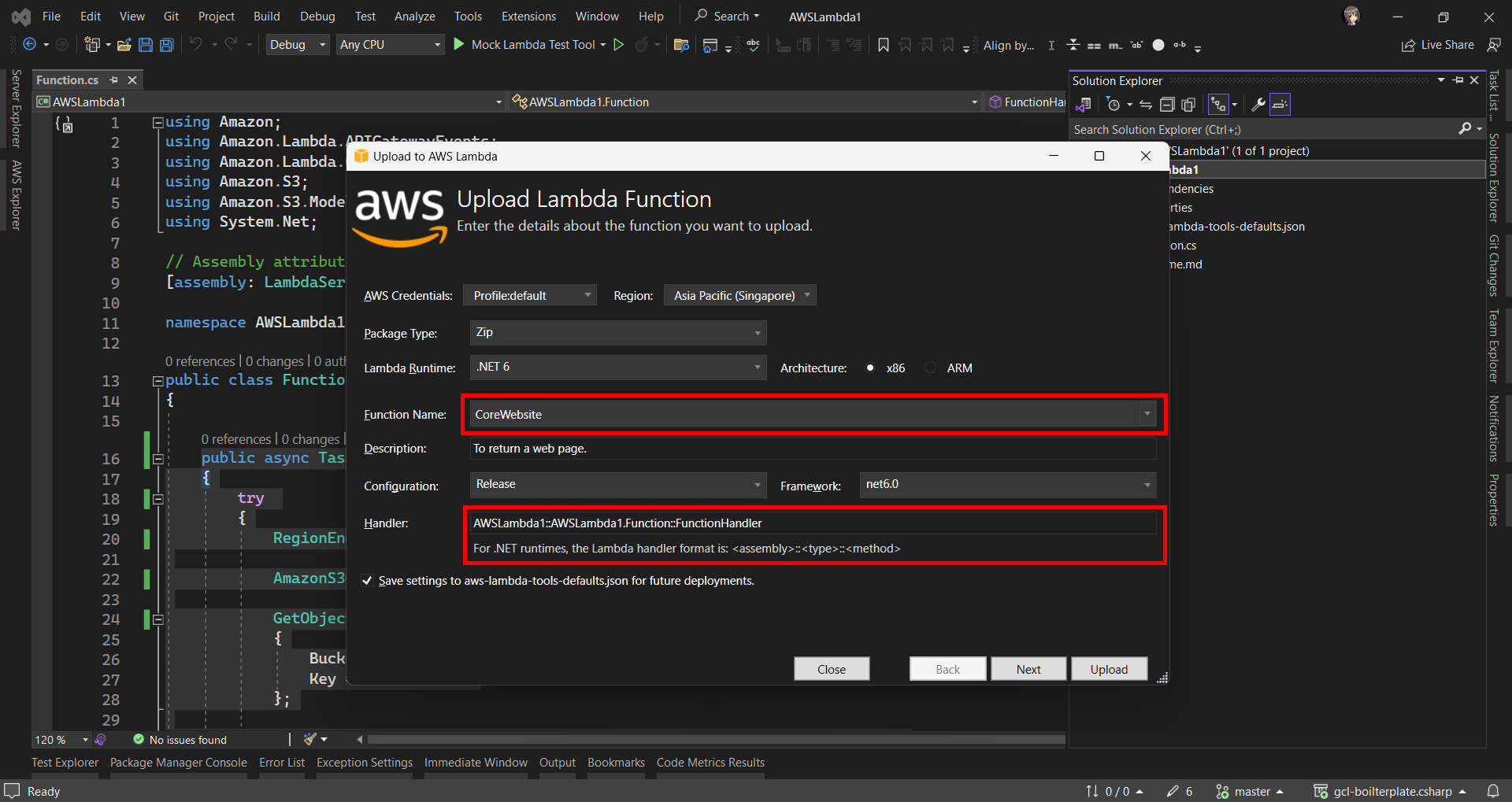
Then we are good to proceed to deploy our Lambda function.

Logging with .NET in Lambda Function

Now when we hit the URL of the API Gateway, we will receive a HTTP 500 internal server error. To investigate, we need to check the error logs.

Lambda logs all requests handled by our function and automatically stores logs generated by our code through CloudWatch Logs. By default, info level messages or higher are written to CloudWatch Logs.

Thus, in our code above, we can use the Logger to write a warning message if the file is not found or there is an error retrieving the file.

context.Logger.LogWarning($"{ex.Message} - {ex.InnerException?.Message} - {ex.StackTrace}");

Hence, now if we access our API Gateway URL now, we should find a warning log message in our CloudWatch, as shown in the screenshot below. The page can be accessed from the “View CloudWatch logs” button under the “Monitor” tab of the Lambda function.
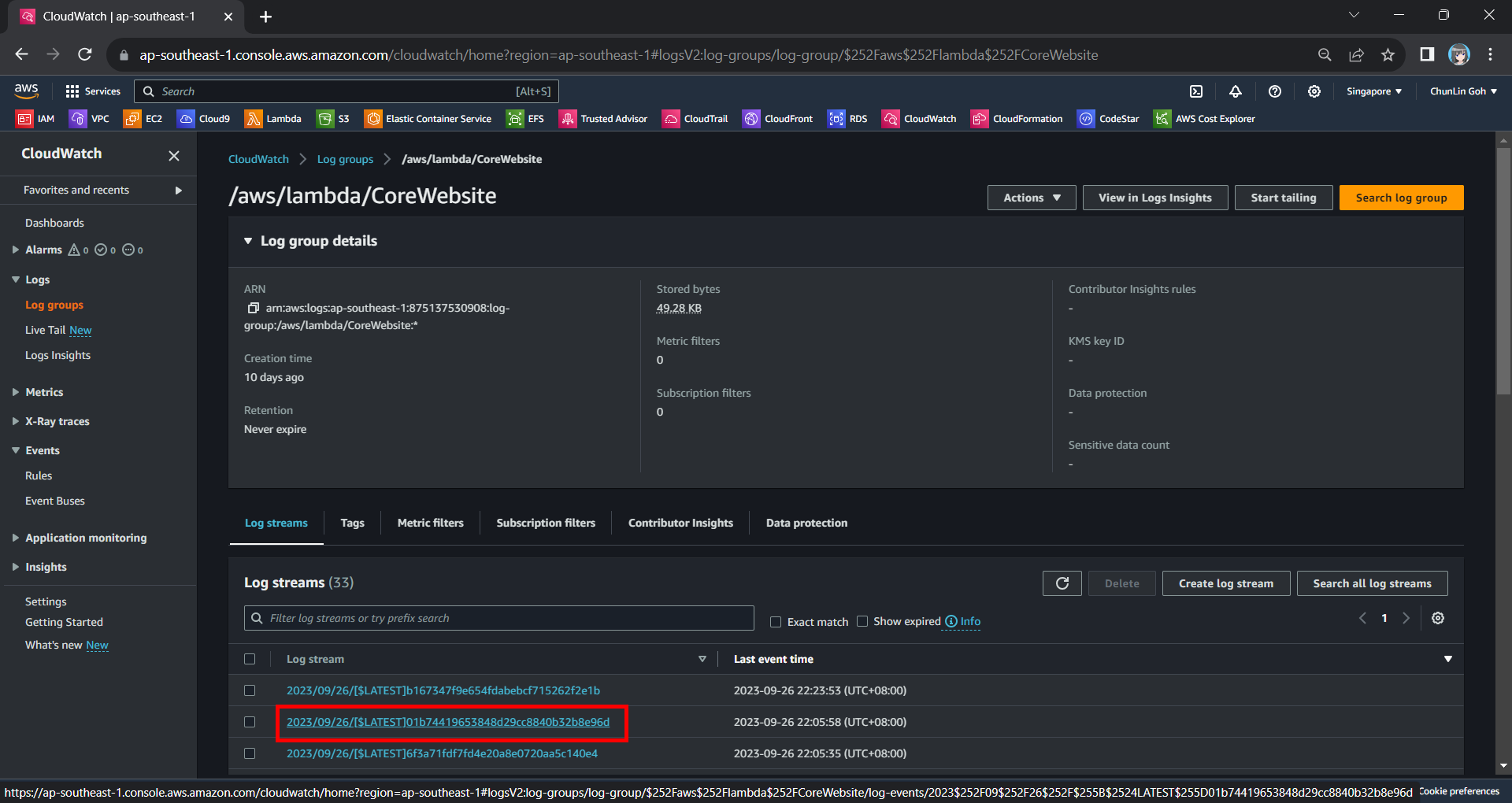
Viewing the log streams of our Lambda function on CloudWatch.

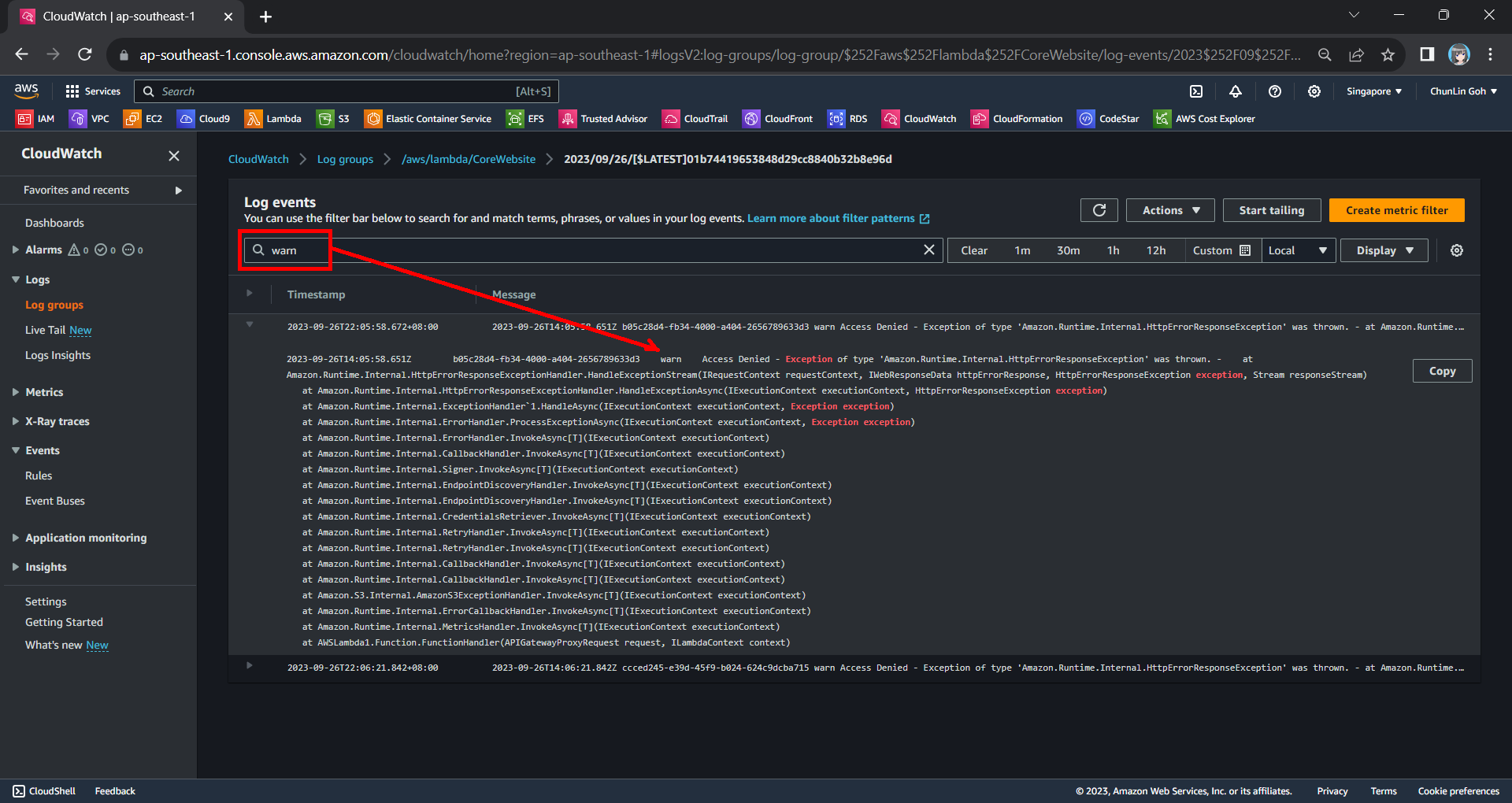
From one of the log streams, we can filter the results to list only those with the keyword “warn”. From the log message, we then know that our Lambda function has access denied from accessing our S3 bucket. So, next we will setup the access accordingly.
Connecting Lambda and S3

Since both our Lambda function and S3 bucket are in the same AWS account, we can easily grant the access from the function to the bucket.

Step 1: Create IAM Role

By default, Lambda creates an execution role with minimal permissions when we create a function in the Lambda console. So, now we first need to create an AWS Identity and Access Management (IAM) role for the Lambda function that also grants access to the S3 bucket.

In the IAM homepage, we head to the Access Management > Roles section to create a new role, as shown in the screenshot below.

Click on the “Create role” button to create a new role.

In the next screen, we will choose “AWS service” as the Trusted Entity Type and “Lambda” as the Use Case so that Lambda function can call AWS services like S3 on our behalf.

Select Lambda as our Use Case.

Next, we need to select the AWS managed policies AWSLambdaBasicExecutionRole and AWSXRayDaemonWriteAccess.
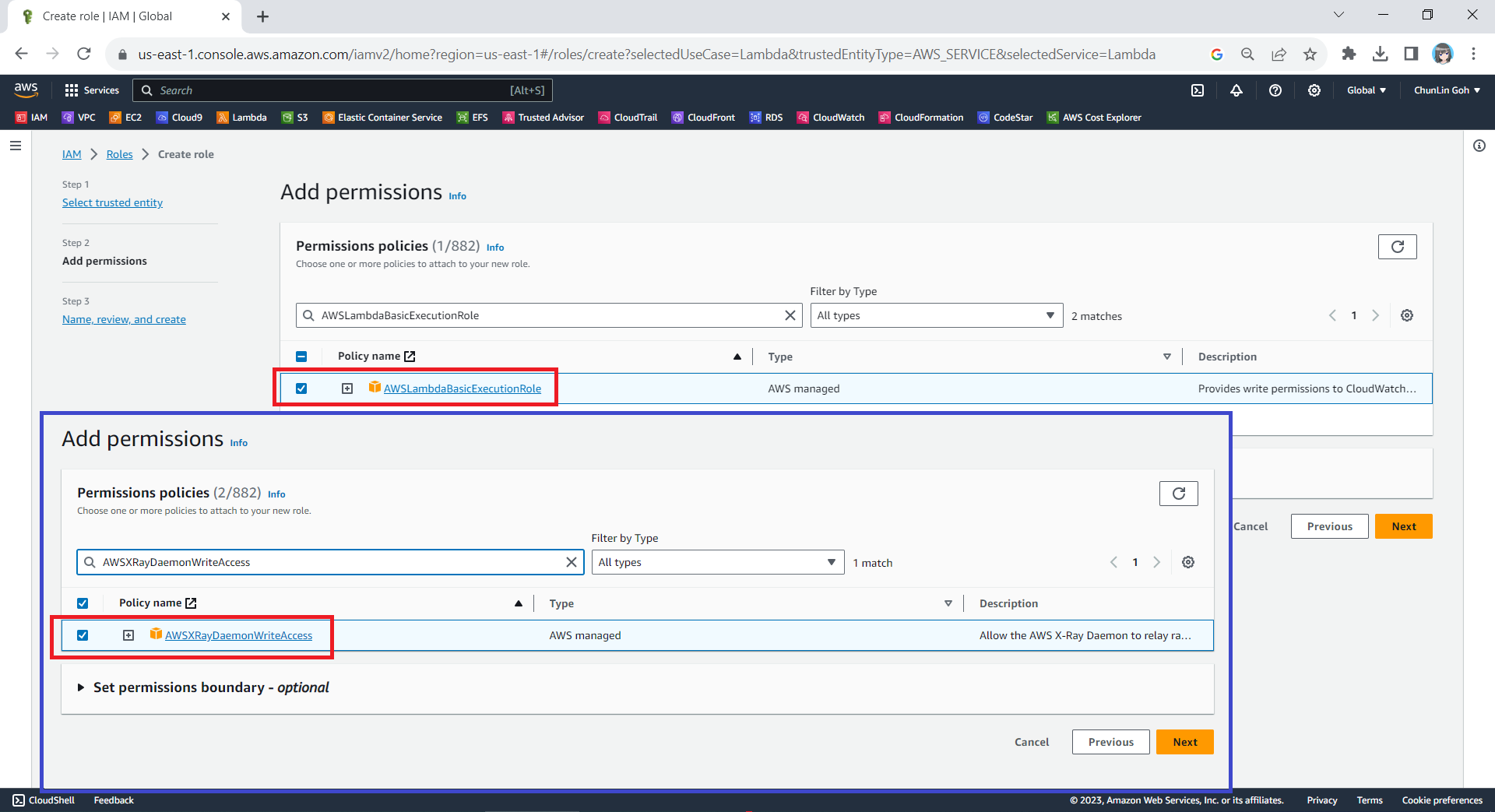
Attaching two policies to our new role.

Finally, in the Step 3, we simply need to key in a name for our new role and proceed, as shown in the screenshot below.
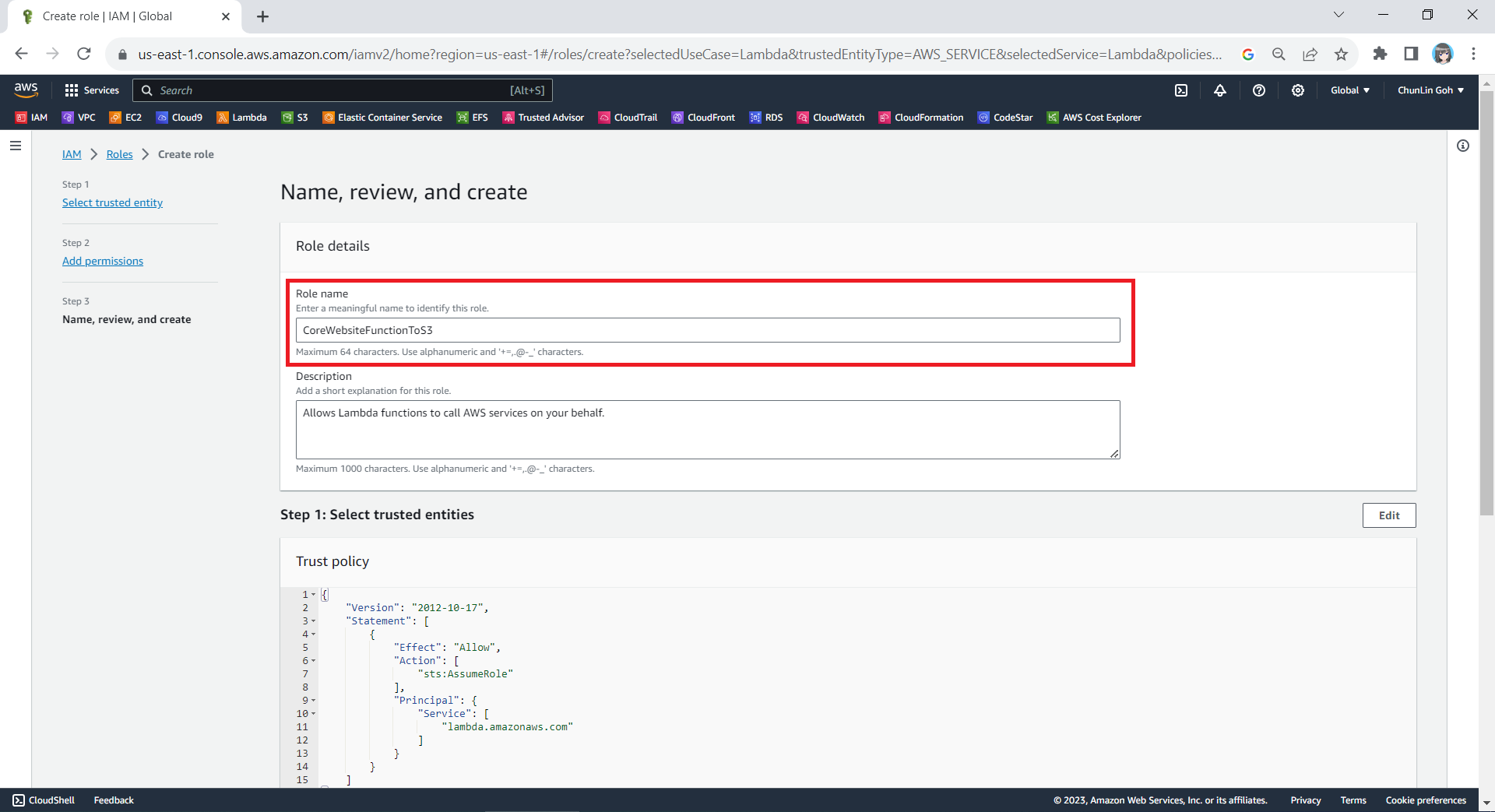
We will call our new role “CoreWebsiteFunctionToS3”.

Step 2: Configure the New IAM Role

After we have created this new role, we can head back to the IAM homepage. From the list of IAM roles, we should be able to see the role we have just created, as shown in the screenshot below.

Search for the new role that we have just created.

Since the Lambda needs to assume the execution role, we need to add lambda.amazonaws.com as a trusted service. To do so, we simply edit the trust policy under the Trust Relationships tab.
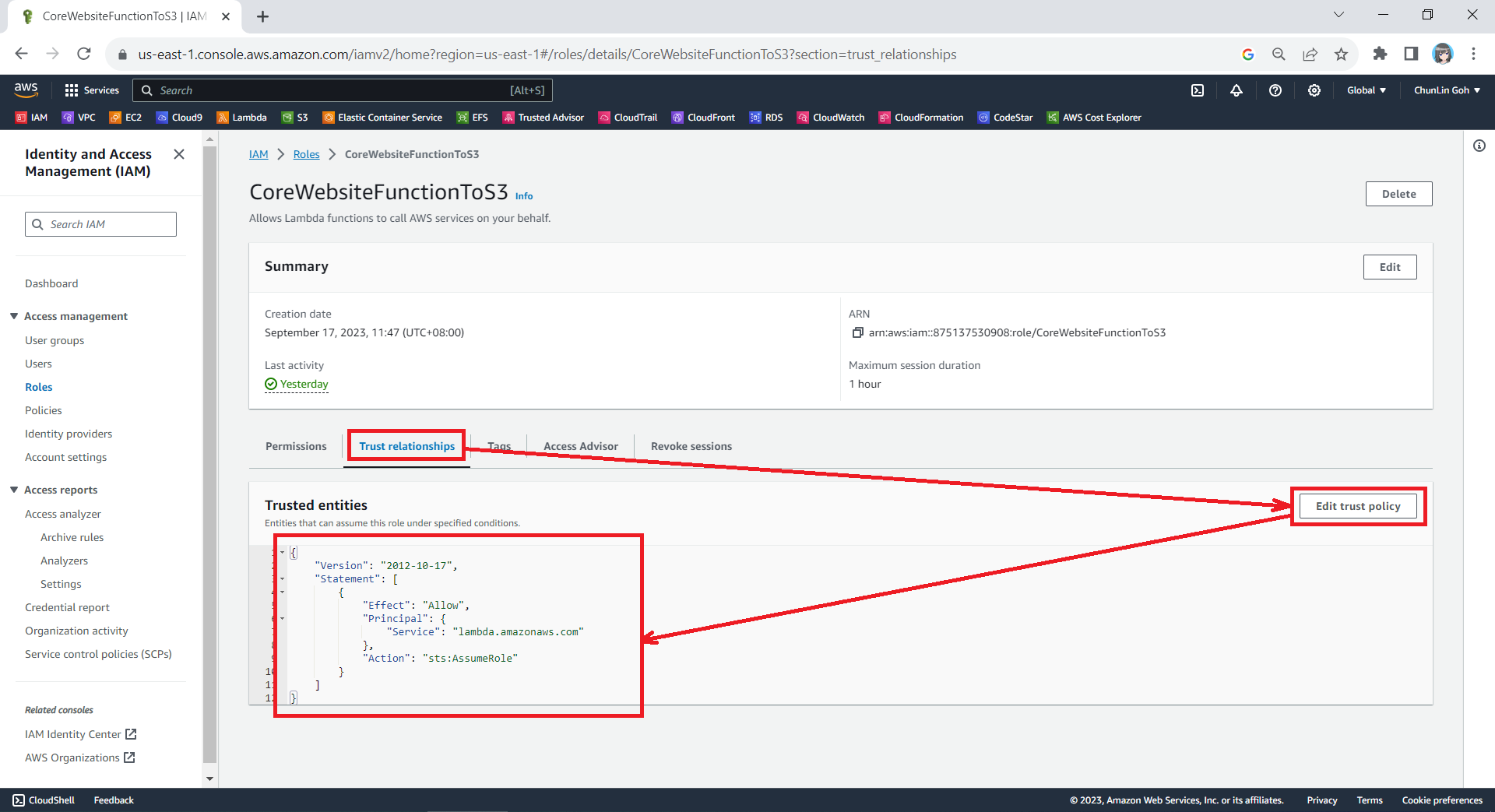
Updating the Trust Policy of the new role.

The trust policy should be updated to be as follows.

{
    "Version": "2012-10-17",
    "Statement": [
        {
            "Effect": "Allow",
            "Principal": {
                "Service": "lambda.amazonaws.com"
            },
            "Action": "sts:AssumeRole"
        }
    ]
}

After that, we also need to add one new inline policy under the Permissions tab.
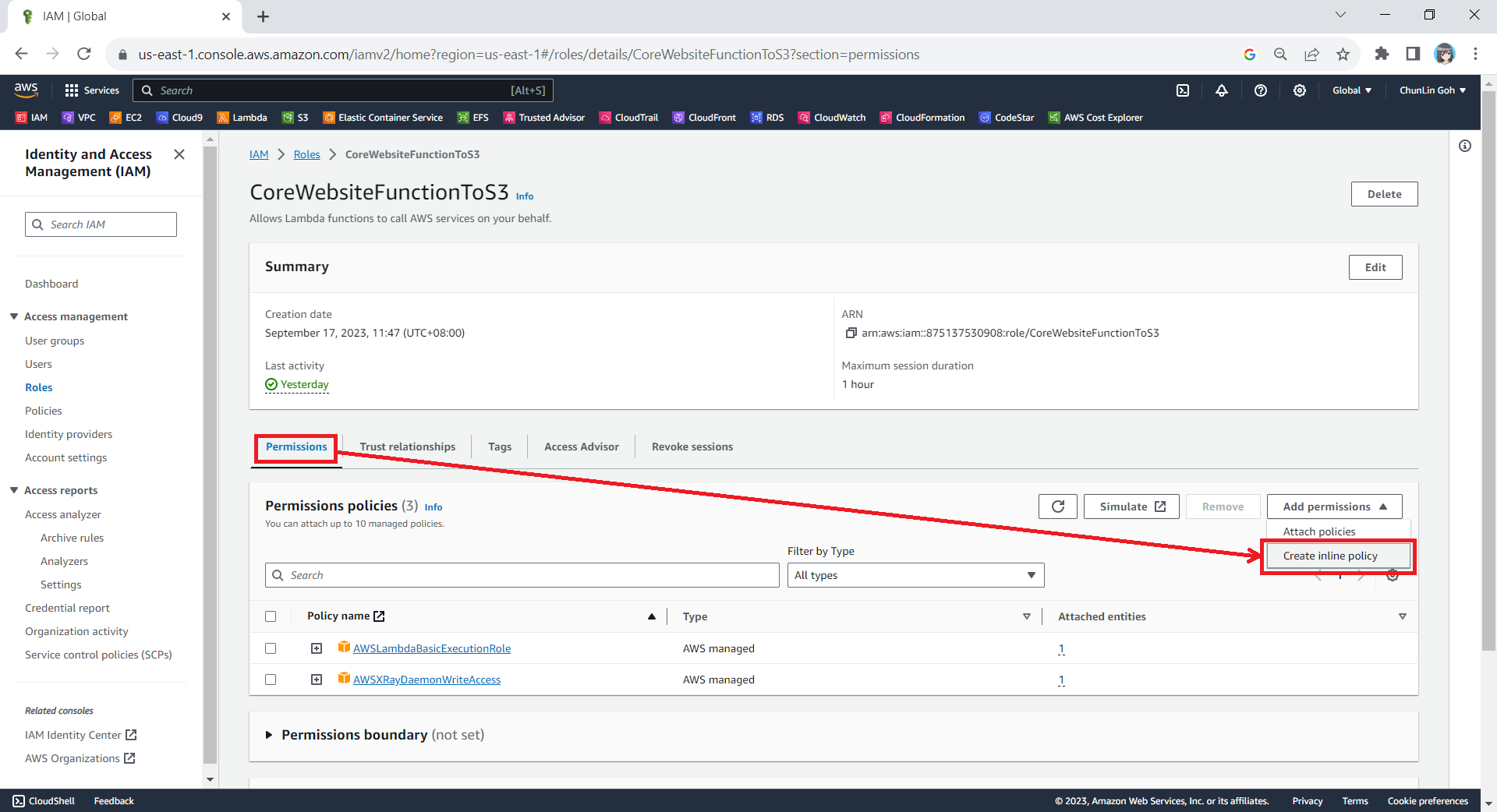
Creating new inline policy.

We need to grant this new role to the list and read access (s3:ListBucket and s3:GetObject) access our S3 bucket (arn:aws:s3:::corewebsitehtml) and its content (arn:aws:s3:::corewebsitehtml/*) with the following policy in JSON. The reason why we grant the list access is so that our .NET code later can tell whether the list is empty or not. If we only grant this new role the read access, the AWS S3 SDK will always return 404.

{
    "Version": "2012-10-17",
    "Statement": [
        {
            "Sid": "VisualEditor0",
	    "Effect": "Allow",
	    "Action": [
                "s3:GetObject",
	        "s3:ListBucket"
	    ],
	    "Resource": [
	        "arn:aws:s3:::corewebsitehtml/*",
	        "arn:aws:s3:::corewebsitehtml"
	    ]
        }
    ]
}

You can switch to the JSON editor, as shown in the following screenshot, to easily paste the JSON above into the AWS console.

Creating inline policy for our new role to access our S3 bucket.

After giving this inline policy a name, for example “CoreWebsiteS3Access”, we can then proceed to create it in the next step. We should now be able to see the policy being created under the Permission Policies section.
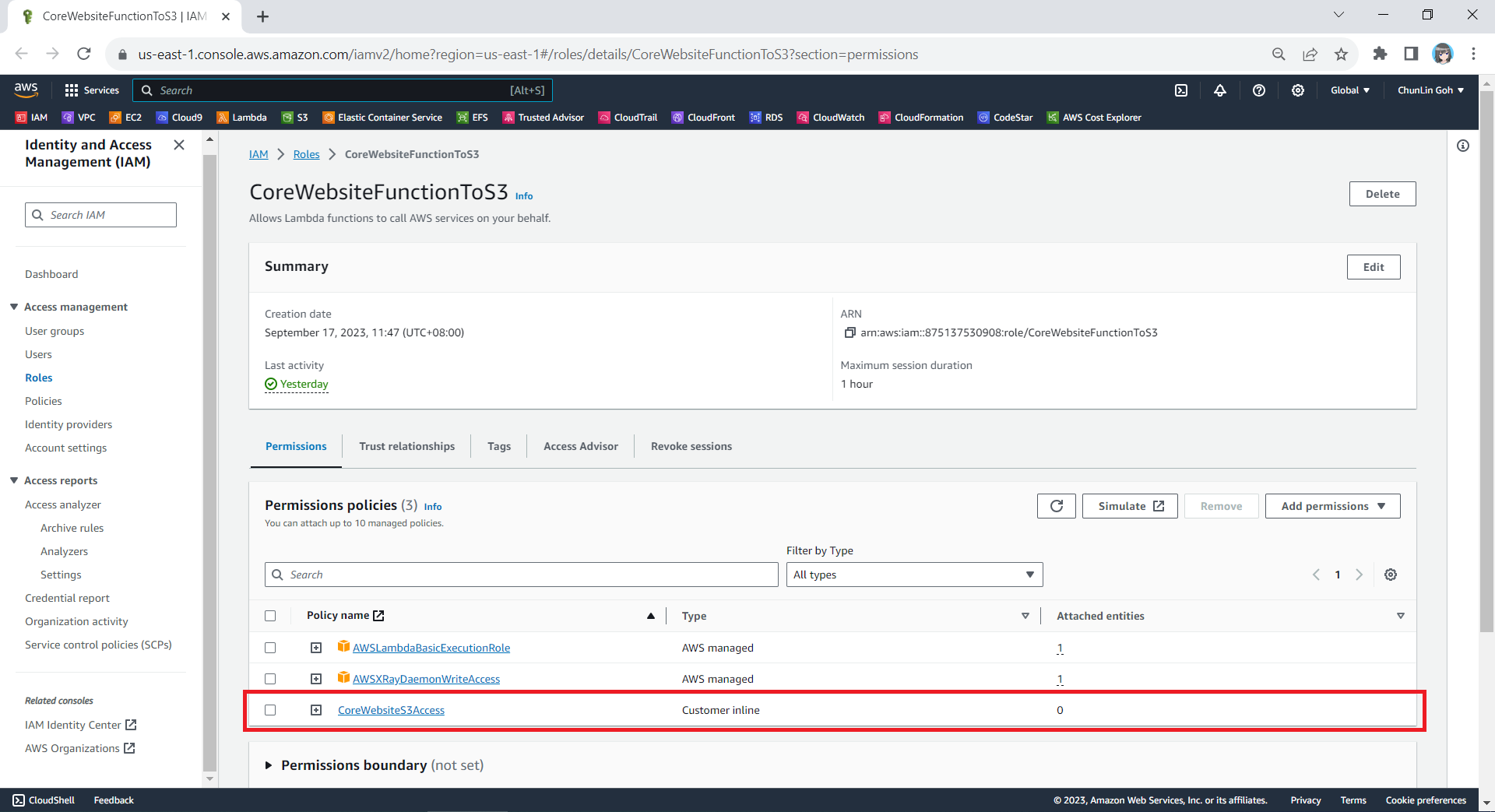
We will now have three permission policies for our new role.

Step 3: Set New Role as Lambda Execution Role

So far we have only setup the new IAM role. Now, we need to configure this new role as the Lambda functions execution role. To do so, we have to edit the current Execution Role of the function, as shown in the screenshot below.
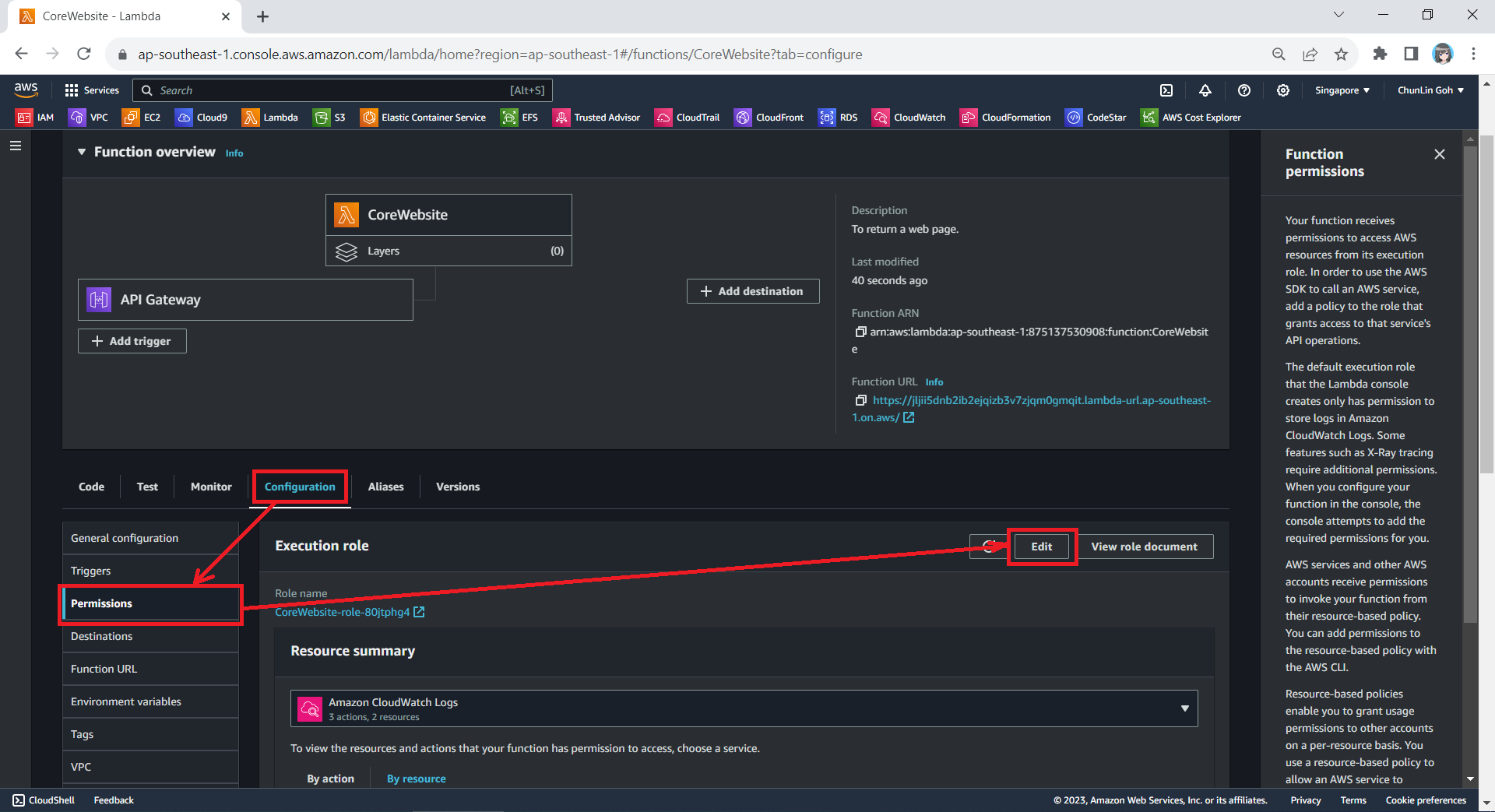
Edit the current execution role of a Lambda function.

Next, we need to change the execution role to the new IAM role that we have just created, i.e. CoreWebsiteFunctionToS3.
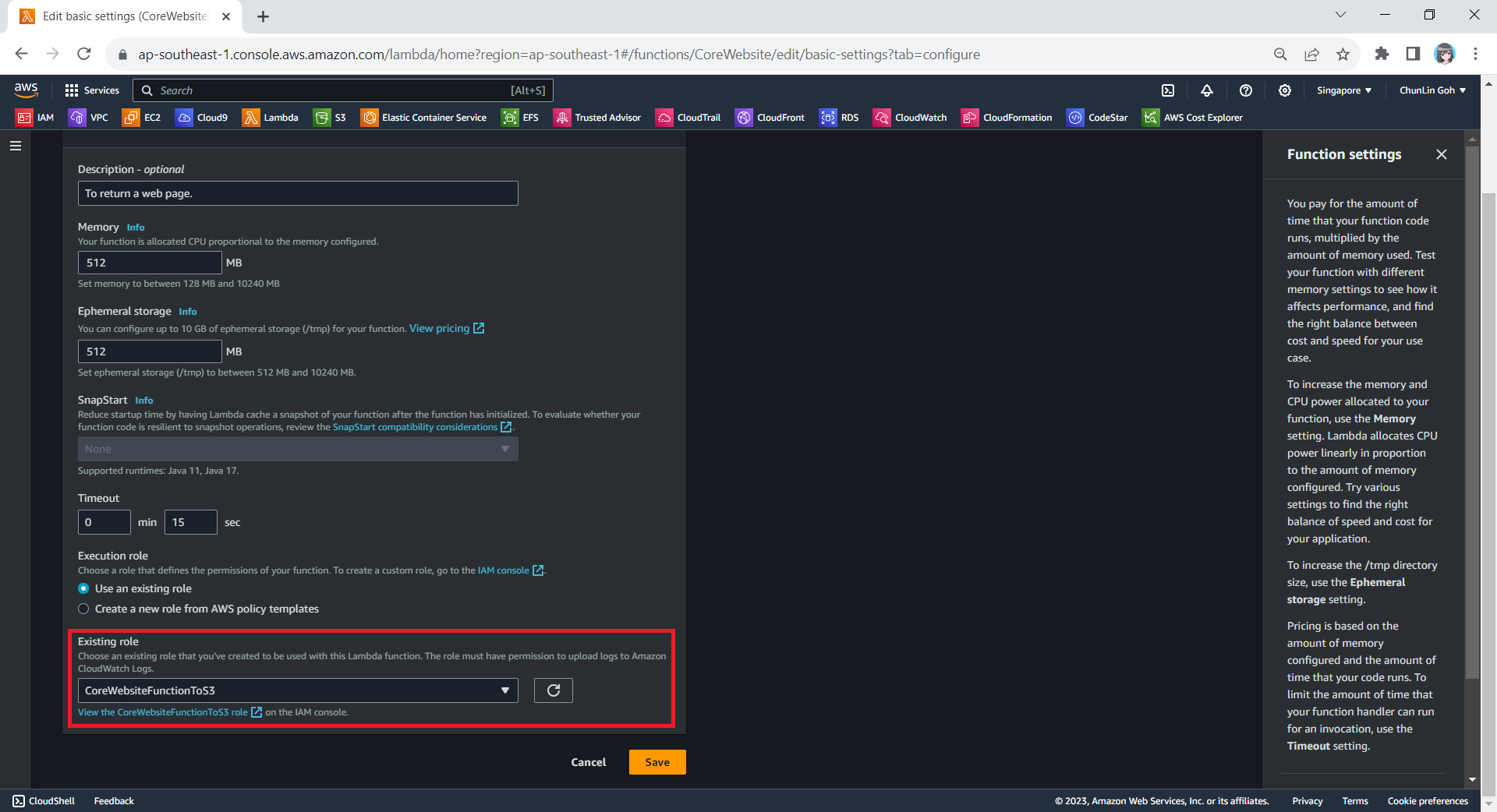
After save the change above, when we visit the Execution Role section of this function again, we should see that it can already access Amazon S3, as shown in the following screenshot.

Yay, our Lambda function can access S3 bucket now.

Step 4: Allow Lambda Access in S3 Bucket

Finally, we also need to make sure that the S3 bucket policy doesn’t explicitly deny access to our Lambda function or its execution role with the following policy.

{
    "Version": "2012-10-17",
    "Id": "CoreWebsitePolicy",
    "Statement": [
        {
            "Sid": "CoreWebsite",
            "Effect": "Allow",
            "Principal": {
                "AWS": "arn:aws:iam::875137530908:role/CoreWebsiteFunctionToS3"
            },
            "Action": "s3:GetObject",
            "Resource": [
                "arn:aws:s3:::corewebsitehtml/*",
                "arn:aws:s3:::corewebsitehtml"
            ]
        }
    ]
}

The JSON policy above can be entered in the Bucket Policy section, as demonstrated in the screenshot below.

Simply click on the Edit button to input our new bucket policy.

Setup Execution Role During Deployment

Since we have updated to use the new execution role for our Lambda function, in our subsequent deployment of the function, we should remember to set the role to be the correct role, i.e. CoreWebsiteFunctionToS3, as highlighted in the screenshot below.

Please remember to use the correct execution role during the deployment.

After we have done all these, we shall be able to see our web content which is stored in S3 bucket to be displayed when we visit the API Gateway URL on our browser.

References

Infrastructure Management with Terraform

Last week, my friend working in the field of infrastructure management gave me an overview of Infrastructure as Code (IaC).

He came across a tool called Terraform which can automate the deployment and management of cloud resources. Hence, together, we researched on ways to build a simple demo in order to demonstrate how Terraform can help in the cloud infrastructure management.

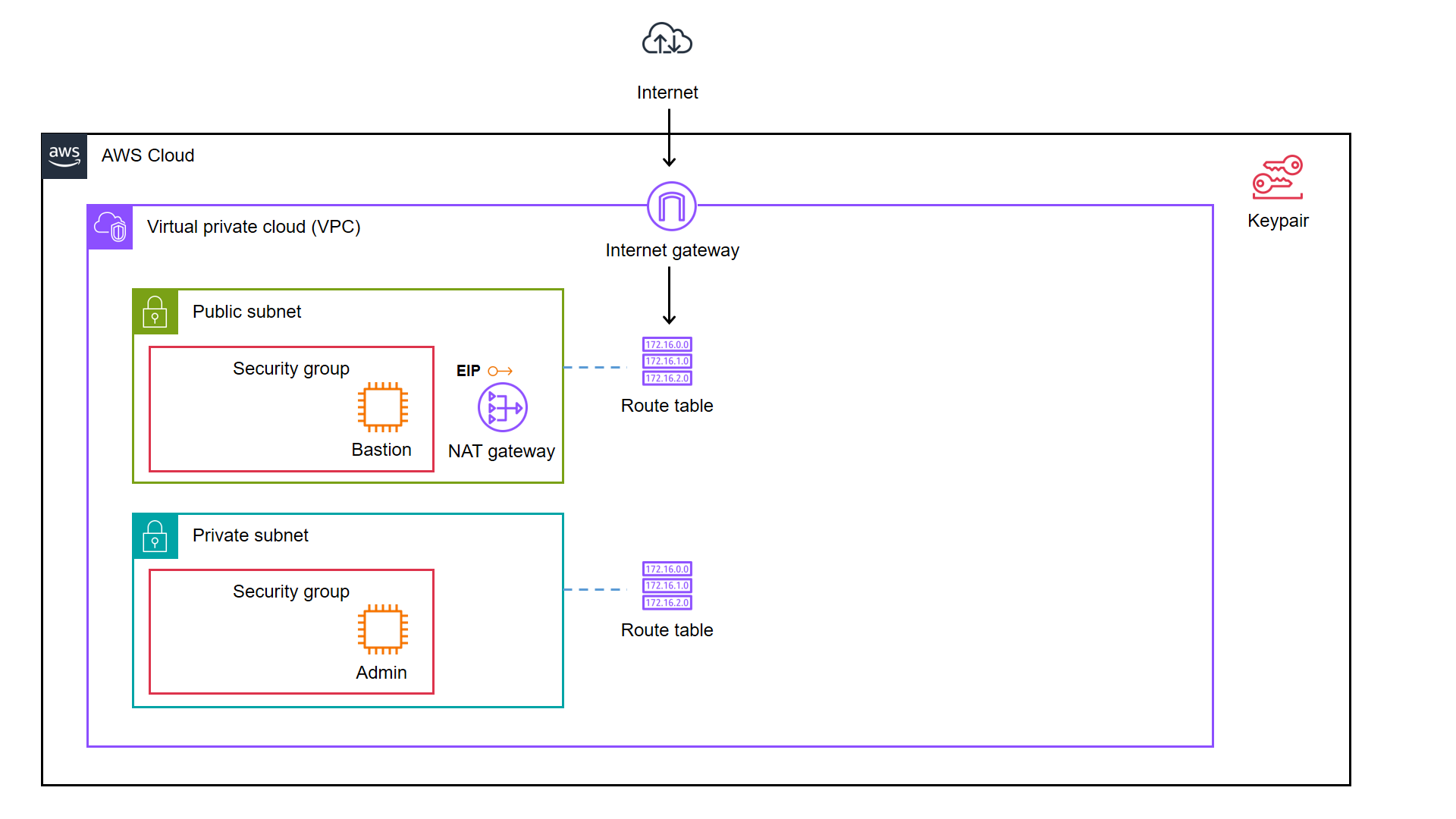
We decided to start from a simple AWS cloud architecture as demonstrated below.

As illustrated in the diagram, we have a bastion server and an admin server.

A bastion server, aka a jump host, is a server that sits between internet network of a company and the external network, such as the Internet. It is to provide an additional layer of security by limiting the number of entry points to the internet network and allowing for strict access controls and monitoring.

An admin server, on the other hand, is a server used by system admins to manage the cloud resources. Hence the admin server typically includes tools for managing cloud resources, monitoring system performance, deploying apps, and configuring security settings. It’s generally recommended to place an admin server in a private subnet to enhance security and reduce the attack surface of our cloud infrastructure.

In combination, the two servers help to ensure that the cloud infrastructure is secure, well-managed, and highly available.

Show Me the Code!

The complete source code of this project can be found at https://github.com/goh-chunlin/terraform-bastion-and-admin-servers-on-aws.

Infrastructure as Code (IaC)

As we can see in the architecture diagram above, the cloud resources are all available on AWS. We can set them up by creating the resources one by one through the AWS Console. However, doing it manually is not efficient and it is also not easy to be repeatedly done. In fact, there will be other problems arising from doing it with AWS Console manually.

  • Manual cloud resource setup leads to higher possibility of human errors and it takes longer time relatively;
  • Difficult to identify cloud resource in use;
  • Difficult to track modifications in infrastructure;
  • Burden on infrastructure setup and configuration;
  • Redundant work is inevitable for various development environments;
  • Restriction is how only the infrastructure PIC can setup the infrastructure.

A concept known as IaC is thus introduced to solve these problems.

IaC is a way to manage our infrastructure through code in configuration files instead of through manual processes. It is thus a key DevOps practice and a component of continuous delivery.

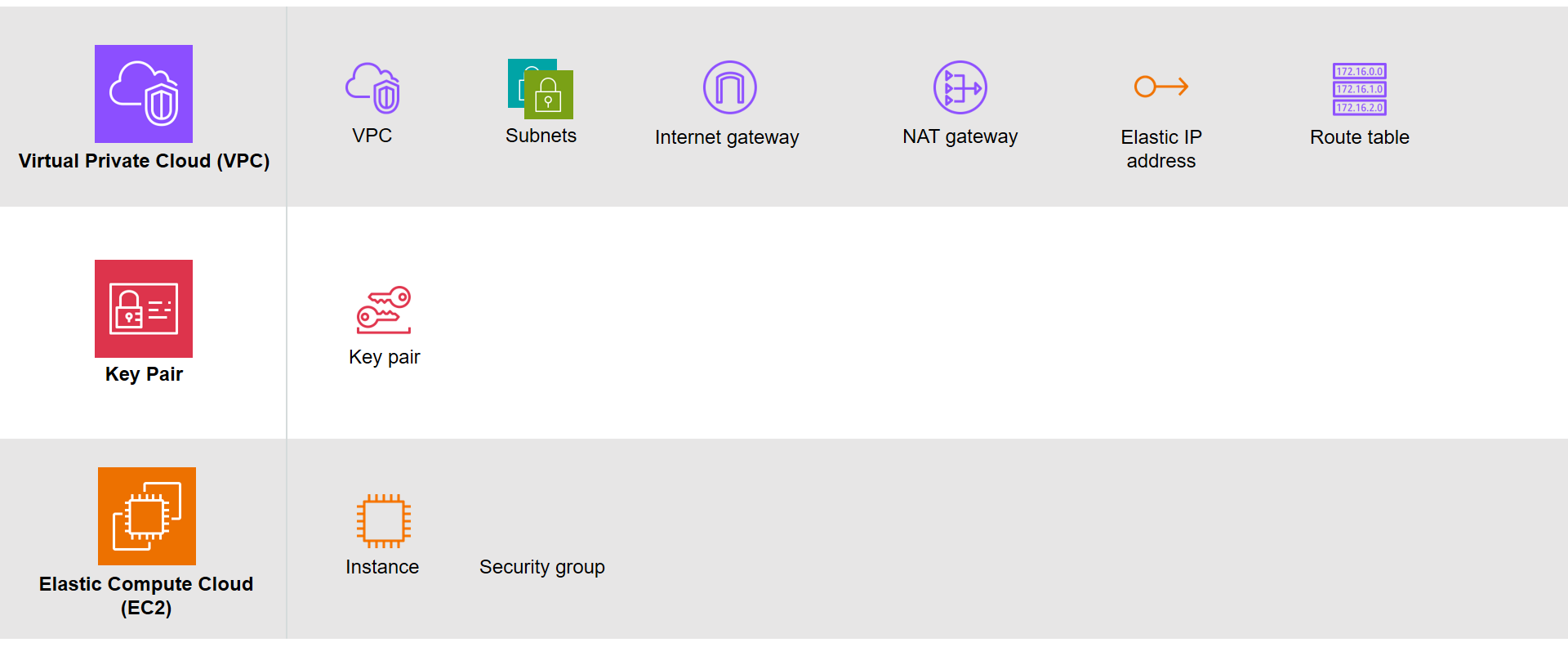
Based on the architecture diagram, the services and resources necessary for configuring with IaC can be categorised into three parts, i.e. Virtual Private Cloud (VPC), Key Pair, and Elastic Compute Cloud (EC2).

The resources necessary to be created.

There are currently many IaC tools available. The tools are categorised into two major groups, i.e. those using declarative language and those using imperative language. Terraform is one of them and it is using Hashicorp Configuration Language (HCL), a declarative language.

The workflow for infrastructure provisioning using Terraform can be summarised as shown in the following diagram.

The basic process of Terraform. (Credit: HashiCorp Developer)

We first write the HCL code. Then Terraform will verify the status of the code and apply it to the infrastructure if there is no issue in verification. Since Terraform is using a declarative language, it will do the identification of resources itself without the need of us to manually specify the dependency of resources, sometimes.

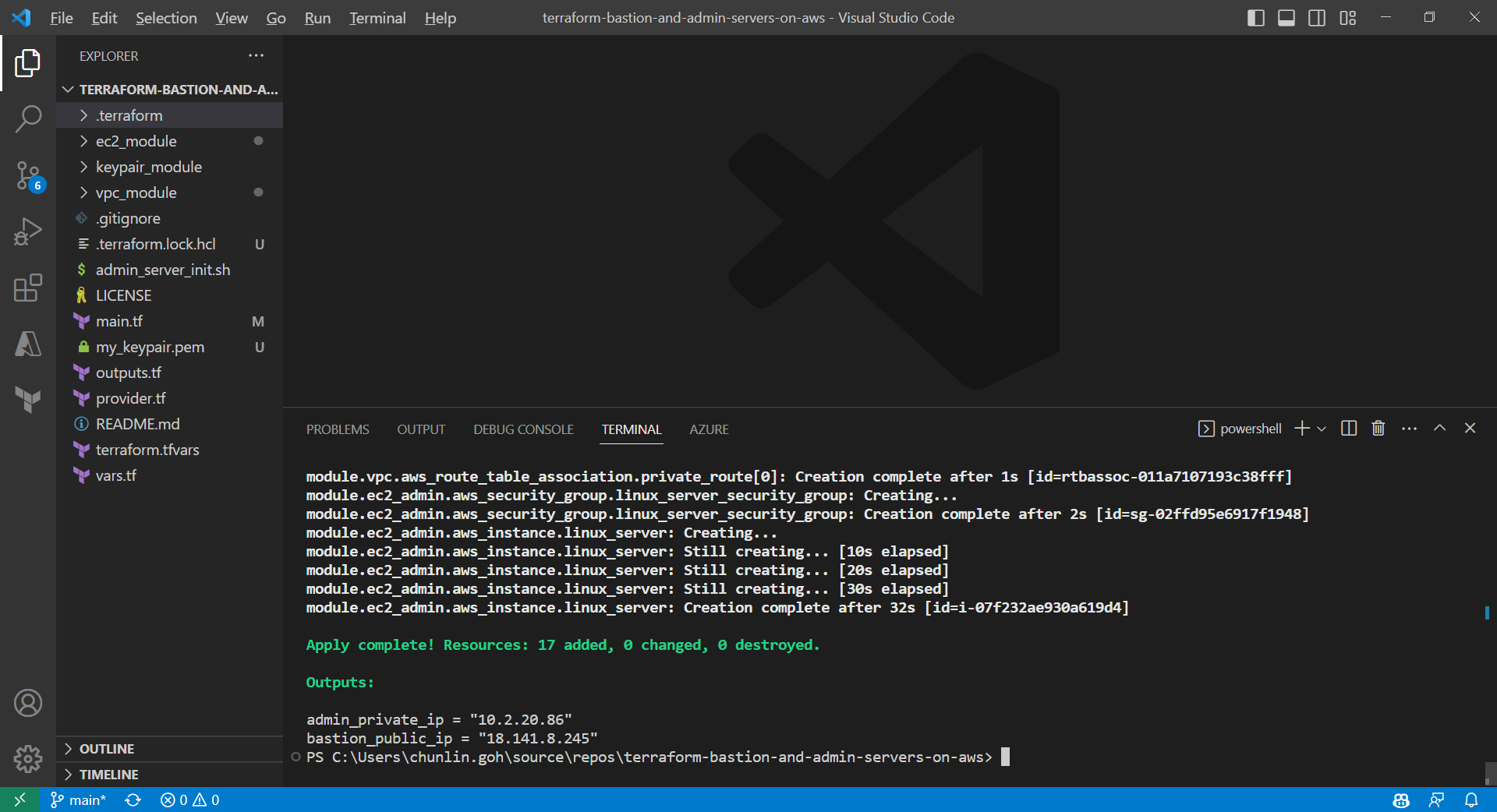
After command apply is executed successfully, we can check the applied infrastructure list through the command terraform state list. We can also check records of output variable we defined through the command terraform output.

When the command terraform apply is executed, a status information file called terraform.tfstate will be automatically created.

After understanding the basic process of Terraform, we proceed to write the HCL for different modules of the infrastructure.

Terraform

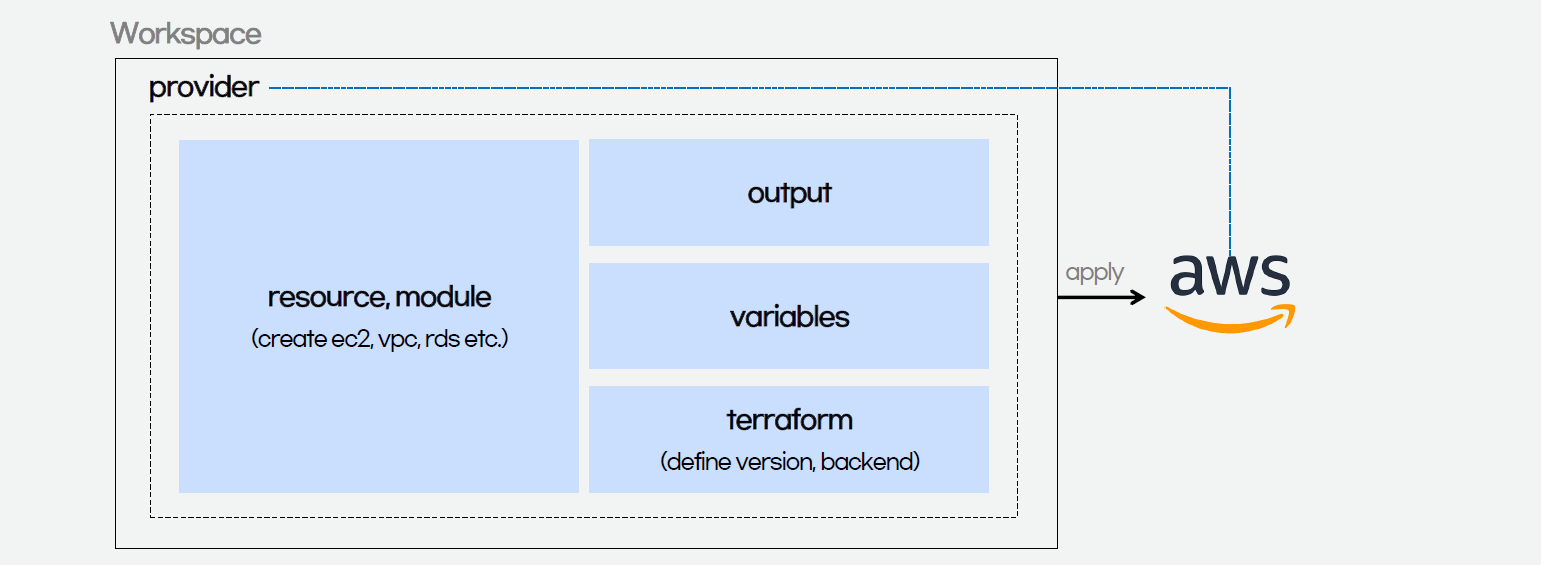
The components of a Terraform code written with the HCL are as follows.

Terraform code.

In Terraform, there are three files, i.e. main.tf, variables.tf, and outputs.tf recommended to have for a minimal module, even if they’re empty. The file main.tf should be the primary entry point. The other two files, variables.tf and outputs.tf, should contain the declarations for variables and outputs, respectively.

For variables, we have vars.tf file which defines the necessary variables and terraform.tfvars file which allocated value to the defined variables.

In the diagram above, we also see that there is a terraform block. It is to declare status info, version info, action, etc. of Terraform. For example, we use the following HCL code to set the Terraform version to use and also specify the location for storing the status info file generated by Terraform.

terraform {
  backend "s3" {
    bucket  = "my-terraform-01"
    key     = "test/terraform.tfstate"
    region  = "ap-southeast-1"
  }
  required_version = ">=1.1.3"
}

Terraform uses a state file to map real world resources to our configuration, keep track of metadata, and to improve performance for large infrastructures. The state is stored by default in a file named “terraform.tfstate”.

This is a S3 bucket we use for storing our Terraform state file.

The reason why we keep our terraform.tfstat file on the cloud, i.e. the S3 bucket, is because state is a necessary requirement for Terraform to function and thus we must make sure that it is stored in a centralised repo which cannot be easily deleted. Doing this also good for everyone in the team because they will be working with the same state so that operations will be applied to the same remote objects.

Finally, we have a provider block which declares cloud environment or provider to be created with Terraform, as shown below. Here, we will be creating our resources on AWS Singapore region.

provider "aws" {
  region = "ap-southeast-1"
}

Module 1: VPC

Firstly, in Terraform, we will have a VPC module created with resources listed below.

1.1 VPC

resource "aws_vpc" "my_simple_vpc" {
  cidr_block = "10.2.0.0/16"

  tags = {
    Name = "${var.resource_prefix}-my-vpc",
  }
}

The resource_prefix is a string to make sure all the resources created with the Terraform getting the same prefix. If your organisation has different naming rules, then feel free to change the format accordingly.

1.2 Subnets

The public subnet for the bastion server is defined as follows. The private IP of the bastion server will be in the format of 10.2.10.X. We also set the map_public_ip_on_launch to true so that instances launched into the subnet should be assigned a public IP address.

resource "aws_subnet" "public" {
  count                   = 1
  vpc_id                  = aws_vpc.my_simple_vpc.id
  availability_zone       = data.aws_availability_zones.available.names[count.index]
  cidr_block              = "10.2.1${count.index}.0/24"
  map_public_ip_on_launch = true

  tags = tomap({
    Name = "${var.resource_prefix}-public-subnet${count.index + 1}",
  })
}

The private subnet for the bastion server is defined as follows. The admin server will then have a private IP with the format of 10.2.20.X.

resource "aws_subnet" "private" {
  count                   = 1
  vpc_id                  = aws_vpc.my_simple_vpc.id
  availability_zone       = data.aws_availability_zones.available.names[count.index]
  cidr_block              = "10.2.2${count.index}.0/24"
  map_public_ip_on_launch = false

  tags = tomap({
    Name = "${var.resource_prefix}-private-subnet${count.index + 1}",
  })
}

The aws_availability_zones data source is part of the AWS provider and retrieves a list of availability zones based on the arguments supplied. Here, we make the public subnet and private subnet to be in the same first availability zones.

1.3 Internet Gateway

Normally, if we create an internet gateway via AWS console, for example, we will sometimes forget to associate it with the VPC. With Terraform, we can do the association in the code and thus reduce the chance of setting up the internet gateway wrongly.

resource "aws_internet_gateway" "igw" {
  vpc_id = aws_vpc.my_simple_vpc.id

  tags = {
    Name = "${var.resource_prefix}-igw"
  }
}

1.4 NAT Gateway

Even though Terraform is a declarative language, i.e. a language describing an intended goal rather than the steps to reach that goal, we can use the depends_on meta-argument to handle hidden resource or module dependencies that Terraform cannot automatically infer.

resource "aws_nat_gateway" "nat_gateway" {
  allocation_id = aws_eip.nat.id
  subnet_id     = element(aws_subnet.public.*.id, 0)
  depends_on    = [aws_internet_gateway.igw]

  tags = {
    Name = "${var.resource_prefix}-nat-gw"
  }
}

1.5 Elastic IP (EIP)

If you have noticed, in the NAT gateway definition above, we have assigned a public IP to it using EIP. Since Terraform is declarative, the ordering of blocks is generally not significant. So we can define the EIP after the NAT gateway.

resource "aws_eip" "nat" {
  vpc        = true
  depends_on = [aws_internet_gateway.igw]

  tags = {
    Name = "${var.resource_prefix}-NAT"
  }
}

1.6 Route Tables

Finally, we just need to link the resources above with both public and private route tables, as defined below.

resource "aws_route_table" "public_route" {
  vpc_id = aws_vpc.my_simple_vpc.id
  route {
    cidr_block = "0.0.0.0/0"
    gateway_id = aws_internet_gateway.igw.id
  }

  tags = {
    Name = "${var.resource_prefix}-public-route"
  }
}

resource "aws_route_table_association" "public_route" {
  count          = 1
  subnet_id      = aws_subnet.public.*.id[count.index]
  route_table_id = aws_route_table.public_route.id
}

resource "aws_route_table" "private_route" {
  vpc_id = aws_vpc.my_simple_vpc.id
  route {
    cidr_block     = "0.0.0.0/0"
    nat_gateway_id = aws_nat_gateway.nat_gateway.id
  }

  tags = {
    Name = "${var.resource_prefix}-private-route",
  }
}

resource "aws_route_table_association" "private_route" {
  count          = 1
  subnet_id      = aws_subnet.private.*.id[count.index]
  route_table_id = aws_route_table.private_route.id
}

That’s all we need to do the setup the VPC on AWS as illustrated in the diagram.

MODULE 2: Key pair

Before we move on the create the two instances, we will need to define a key pair. A key pair is a set of security credentials that we use to prove our identity when connecting to an EC2 instance. Hence, we need to ensure that we have access to the selected key pair before we launch the instances.

If we are doing this on the AWS Console, we will be seeing this part on the console as shown below.

The GUI on the AWS Console to create a new key pair.

So, we can use the same info to define the key pair.

resource "tls_private_key" "instance_key" {
  algorithm = "RSA"
}

resource "aws_key_pair" "generated_key" {
  key_name = var.keypair_name
  public_key = tls_private_key.instance_key.public_key_openssh
  depends_on = [
    tls_private_key.instance_key
  ]
}

resource "local_file" "key" {
  content = tls_private_key.instance_key.private_key_pem
  filename = "${var.keypair_name}.pem"
  file_permission ="0400"
  depends_on = [
    tls_private_key.instance_key
  ]
}

The tls_private_key is to create a PEM (and OpenSSH) formatted private key. This is not a recommended way for production because it will generate the private key file and keep it unencrypted in the directory where we run the Terraform commands. Instead, we should generate the private key file outside of Terraform and distribute it securely to the system where Terraform will be run.

MODULE 3: EC2

Once we have the key pair, we can finally move on to define how the bastion and admin servers can be created. We can define a module for the servers as follows.

resource "aws_instance" "linux_server" {
  ami                         = var.ami
  instance_type               = var.instance_type
  subnet_id                   = var.subnet_id
  associate_public_ip_address = var.is_in_public_subnet
  key_name                    = var.key_name
  vpc_security_group_ids      = [ aws_security_group.linux_server_security_group.id ]
  tags = {
    Name = var.server_name
  }
  user_data = var.user_data
}

resource "aws_security_group" "linux_server_security_group" {
  name         = var.security_group.name
  description  = var.security_group.description
  vpc_id       = var.vpc_id
 
  ingress {
    description = "SSH inbound"
    from_port = 22
    to_port = 22
    protocol = "tcp"
    cidr_blocks = ["0.0.0.0/0"]
  }
  
  egress {
    description = "Allow All egress rule"
    from_port = 0
    to_port = 0
    protocol = "-1"
    cidr_blocks = ["0.0.0.0/0"]
  }
 
  tags = {
    Name = var.security_group.name
  }
}

By default, AWS creates an ALLOW ALL egress rule when creating a new security group inside of a VPC. However, Terraform will remove this default rule, and require us to specifically re-create it if we desire that rule. Hence that is why we need to include the protocol=”-1″ egress block above.

The output.tf of EC2 instance module is defined as follows.

output "instance_public_ip" {
  description = "Public IP address of the EC2 instance."
  value       = aws_instance.linux_server.public_ip
}

output "instance_private_ip" {
  description = "Private IP address of the EC2 instance in the VPC."
  value       = aws_instance.linux_server.private_ip
}

With this definition, once the Terraform workflow is completed, the public IP of our bastion server and the private IP of our admin server will be displayed. We can then easily use these two IPs to connect to the servers.

Main Configuration

With all the above modules, we can finally define our AWS infrastructure using the following main.tf.

module "vpc" {
  source          = "./vpc_module"
  resource_prefix = var.resource_prefix
}
  
module "keypair" {
  source              = "./keypair_module"
  keypair_name        = "my_keypair"
}
    
module "ec2_bastion" {
  source              = "./ec2_module"
  ami                 = "ami-062550af7b9fa7d05"       # Ubuntu 20.04 LTS (HVM), SSD Volume Type
  instance_type       = "t2.micro"
  server_name         = "bastion_server"
  subnet_id           = module.vpc.public_subnet_ids[0]
  is_in_public_subnet = true
  key_name            = module.keypair.key_name
  security_group      = {
    name        = "bastion_sg"
    description = "This firewall allows SSH"
  }
  vpc_id              = module.vpc.vpc_id
}
    
module "ec2_admin" {
  source              = "./ec2_module"
  ami                 = "ami-062550af7b9fa7d05"       # Ubuntu 20.04 LTS (HVM), SSD Volume Type
  instance_type       = "t2.micro"
  server_name         = "admin_server"
  subnet_id           = module.vpc.private_subnet_ids[0]
  is_in_public_subnet = false
  key_name            = module.keypair.key_name
  security_group      = {
    name        = "admin_sg"
    description = "This firewall allows SSH"
  }
  user_data           = "${file("admin_server_init.sh")}"
  vpc_id              = module.vpc.vpc_id
  depends_on          = [module.vpc.aws_route_table_association]
}

Here, we will pre-install the AWS Command Line Interface (AWS CLI) in the admin server. Hence, we have the following script in the admin_server_init.sh file. The script will be run when the admin server is launched.

#!/bin/bash
sudo apt-get update
sudo apt-get install -y awscli

However, since the script above will be downloading AWS CLI from the Internet, we need to make sure that the routing from private network to the Internet via the NAT gateway is already done. Instead of using the depends_on meta-argument directly on the module, which will have side effect, we choose to use a recommended way, i.e. expression references.

Expression references let Terraform understand which value the reference derives from and avoid planning changes if that particular value hasn’t changed, even if other parts of the upstream object have planned changes.

Thus, I made the change accordingly with expression references. In the change, I forced the description of security group which the admin server depends on to use the the private route table association ID returned from the VPC module. Doing so will make sure that the admin server is created only after the private route table is setup properly.

With expression references, we force the admin server to be created at a later time, as compared to the bastion server.

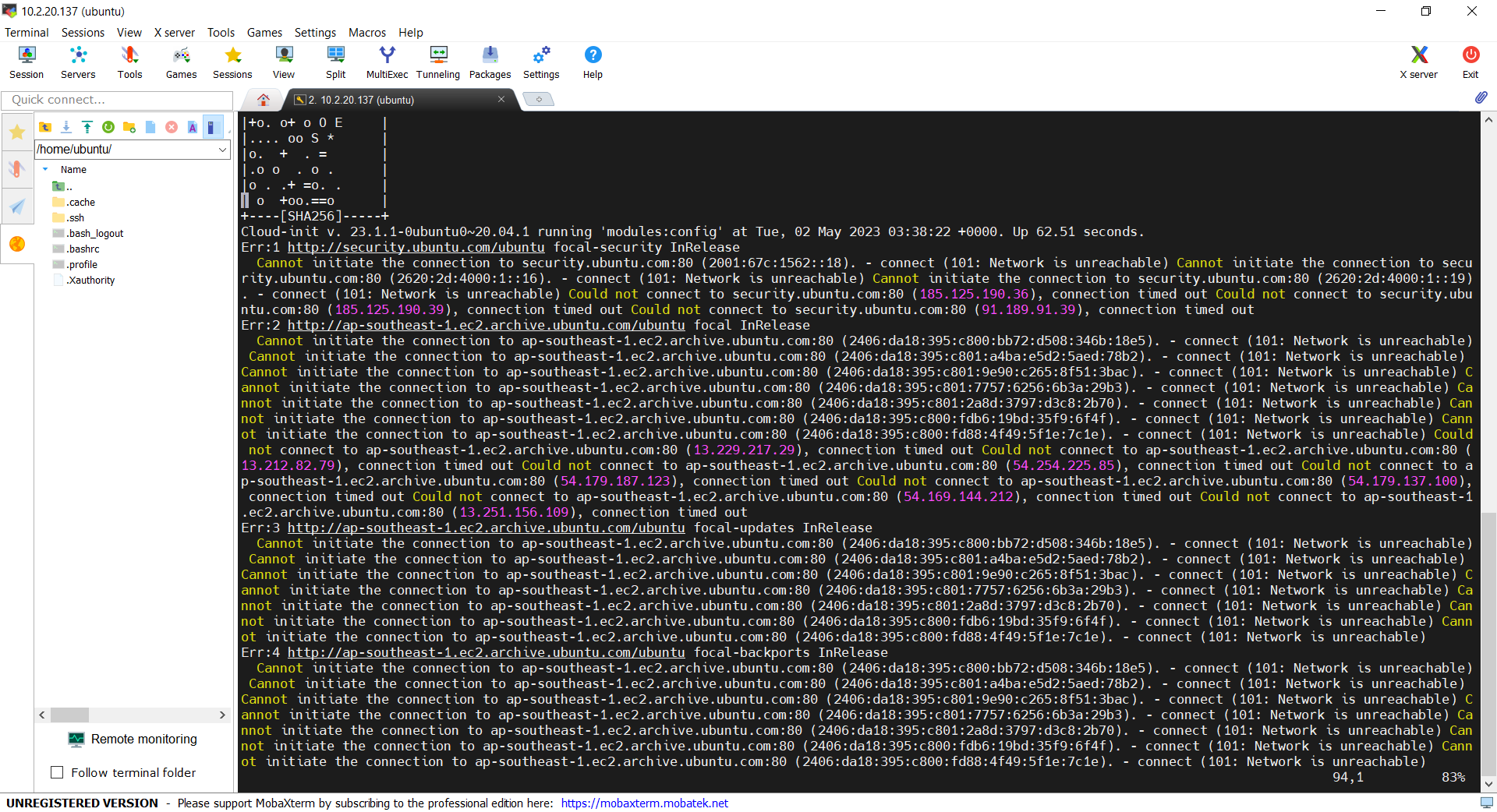
If we don’t force the admin_server to be created after the private route table is completed, the script may fail and we can find the error logs at /var/log/cloud-init-output.log on the admin server. In addition, please remember that even though terraform apply runs just fine without any error, it does not mean user_data script is run successfully without any error as well. This is because Terraform knows nothing about the status of user_data script.

We can find the error in the log file cloud-init-output.log in the admin server.

Demo

With the Terraform files ready, now we can move on to go through the Terraform workflow using the commands.

Before we begin, besides installing Terraform, since we will deploy the infrastructure on AWS, we also shall configure the AWS CLI using the following command on the machine where we will run the Terraform commands.

aws configure

Once it is done then only we can move on to the following steps.

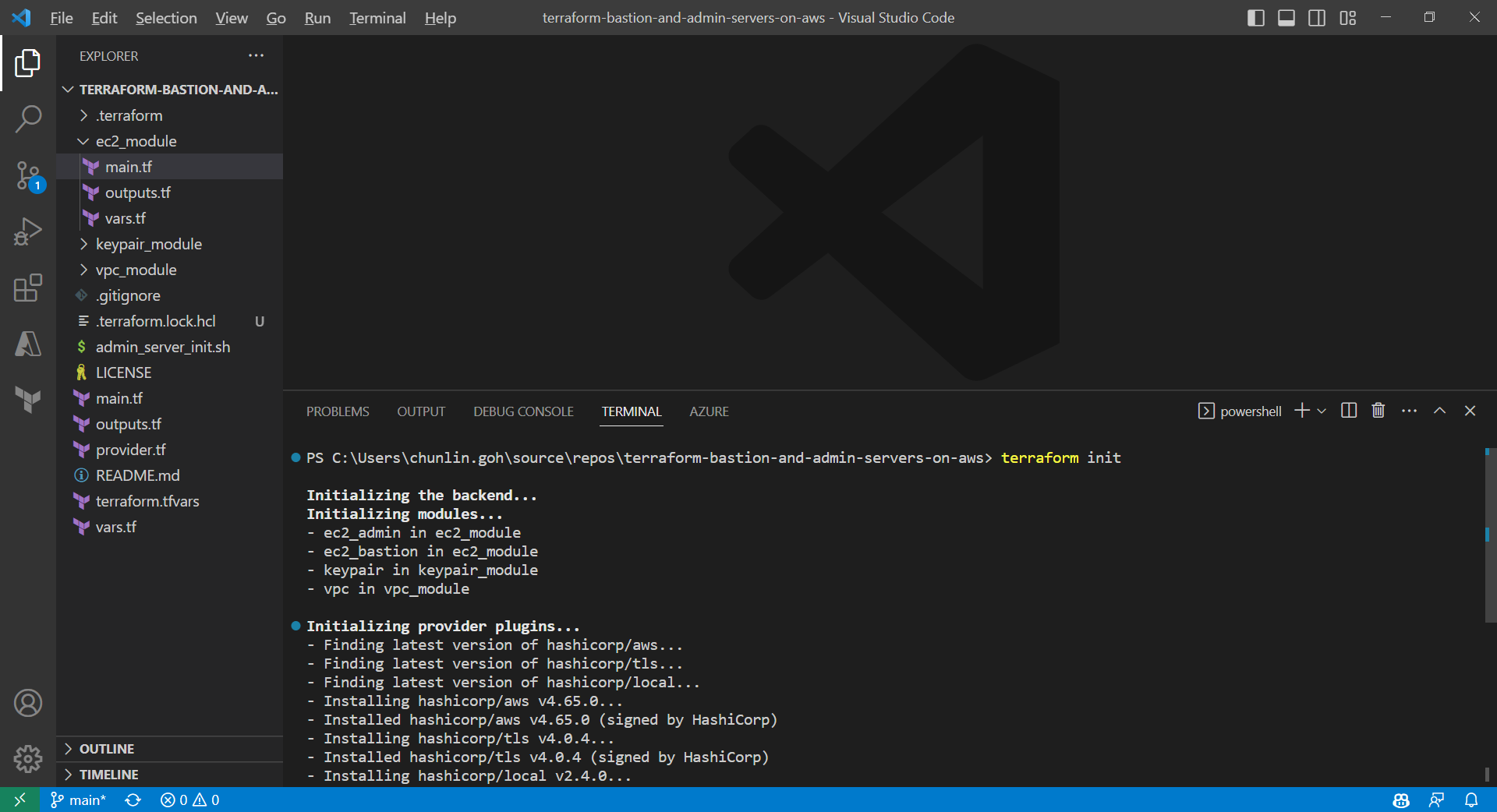
Firstly, we need to download plug-in necessary for the defined provider, backend, etc.

Initialising Terraform with the command terraform init.

After it is successful, there will be a message saying “Terraform has been successfully initialized!” A hidden .terraform directory, which Terraform uses to manage cached provider plugins and modules, will be automatically created.

Only after initialisation is completed, we can execute other commands, like terraform plan.

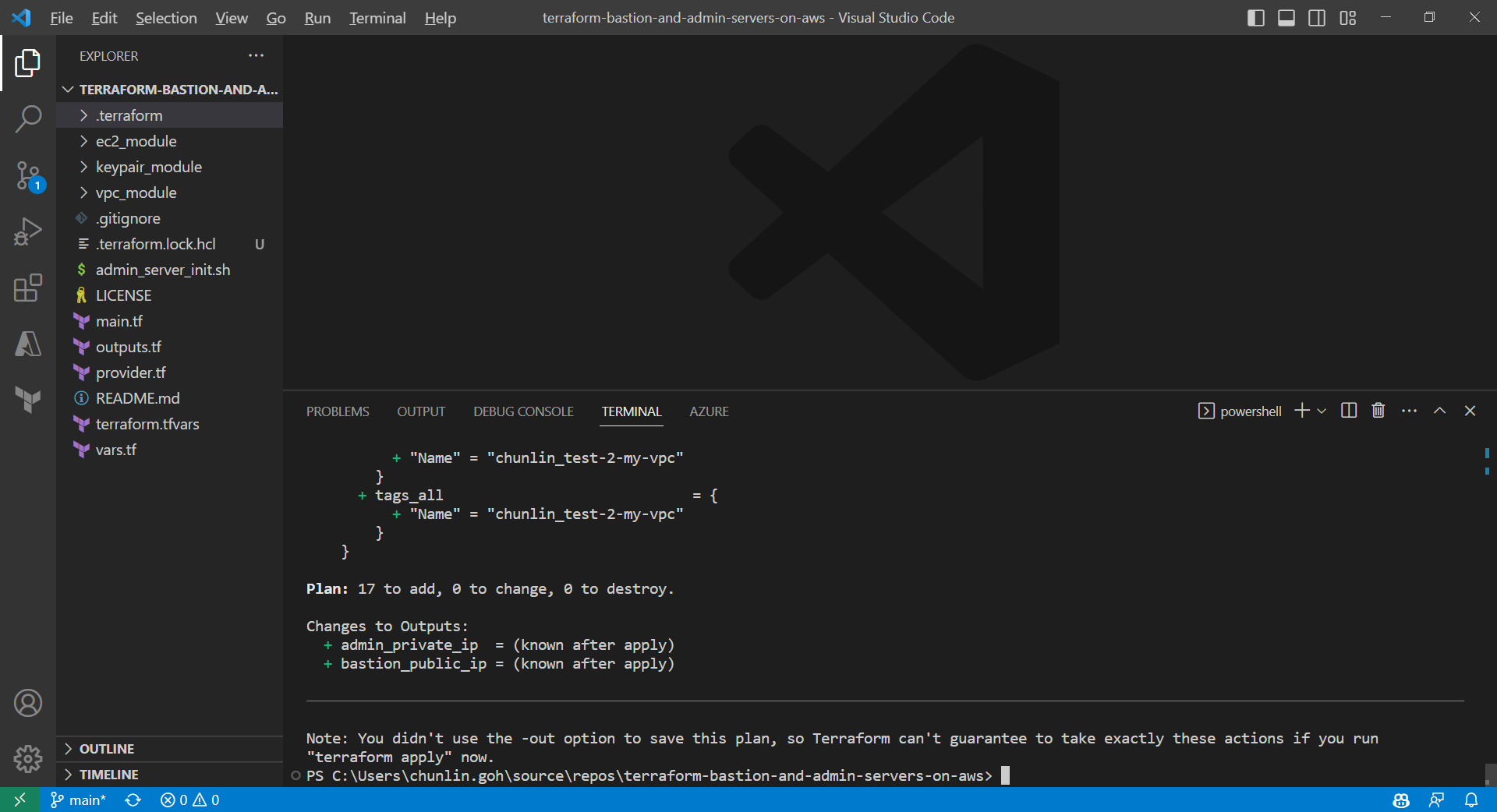
Result of executing the command terraform plan.

After running the command terraform plan, as shown in the screenshot above, we know that there are in total 17 resources to be added and two outputs, i.e. the two IPs of the two servers, will be generated.

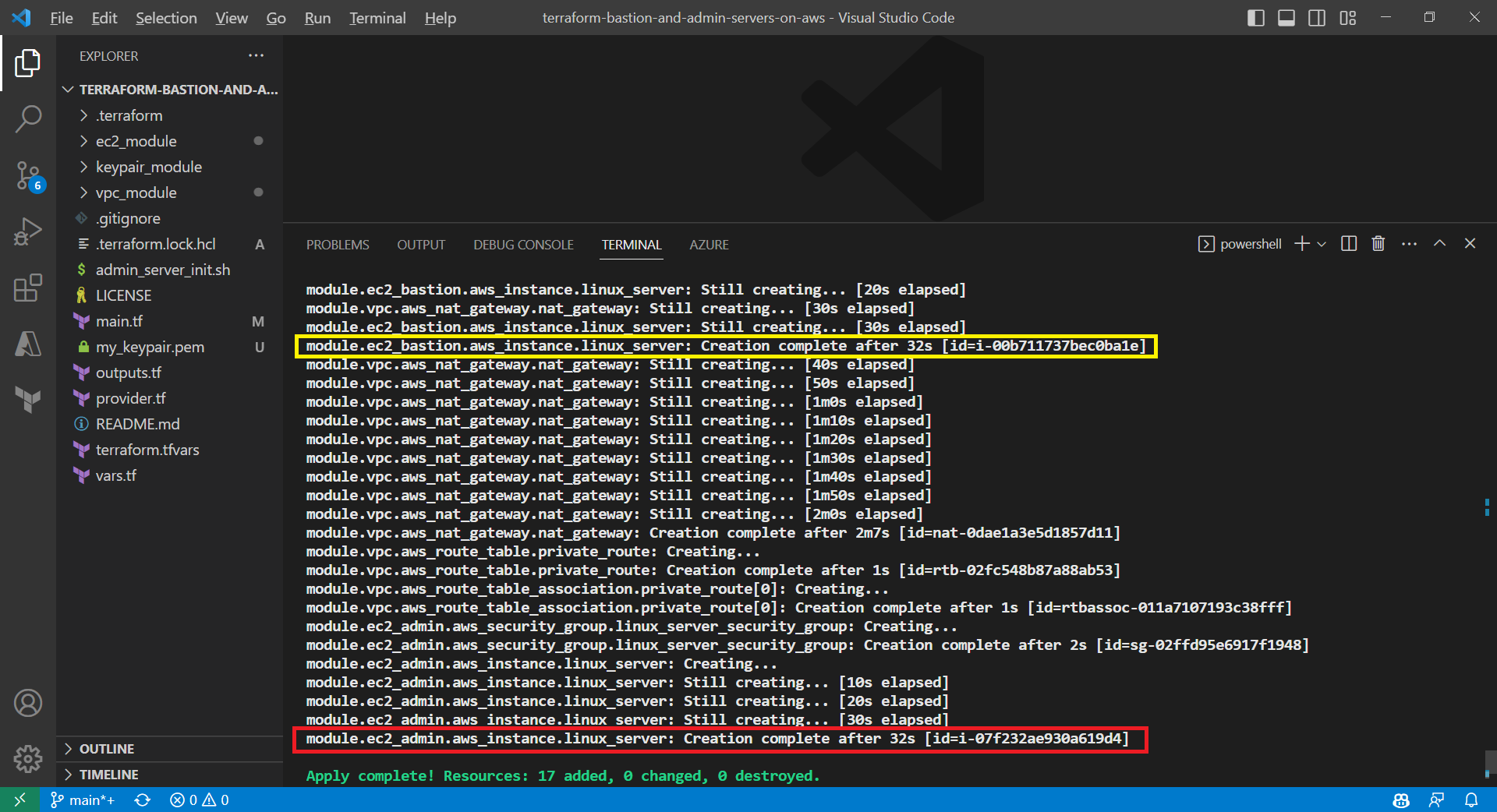
Apply is successfully completed. All 17 resources added to AWS.

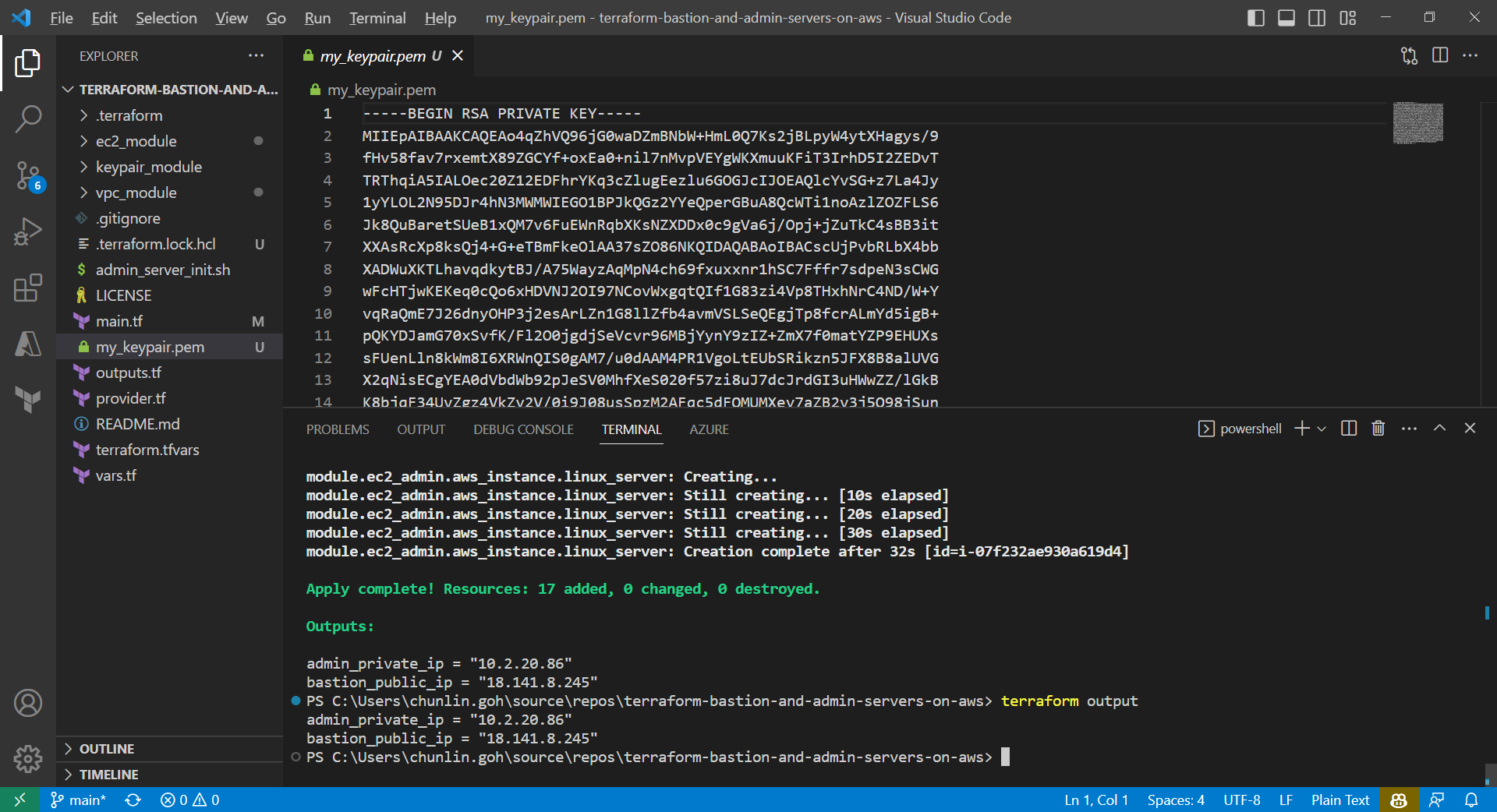
We can also run the command terraform output to get the two IPs. Meanwhile, we can also find the my_keypair.pem file which is generated by the tls_private_key we defined earlier.

The PEM file is generated by Terraform.

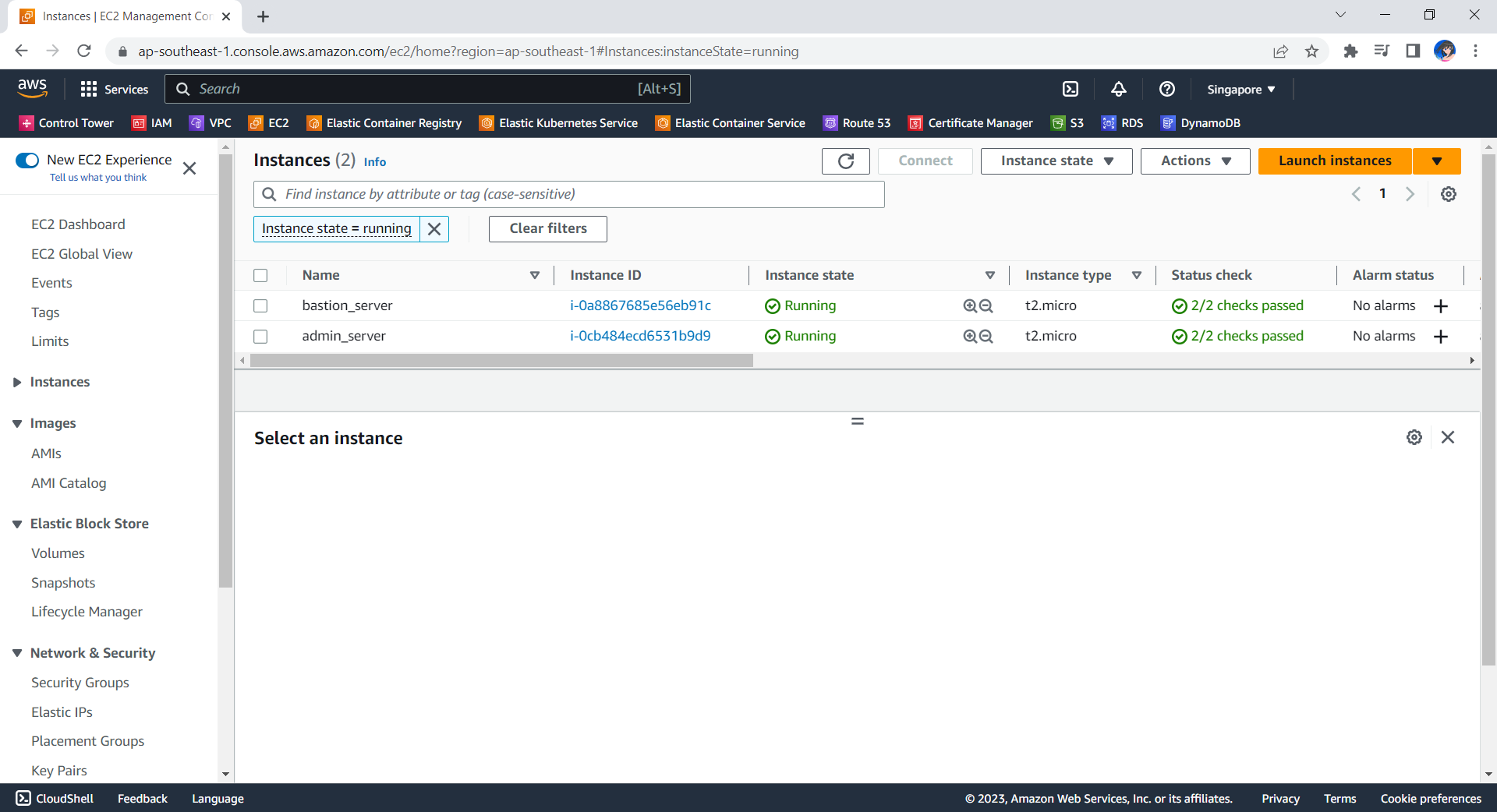
Now, if we check the resources, such as the two EC2 instances, on AWS Console, we should see they are all there up and running.

The bastion server and admin server are created automatically with Terraform.

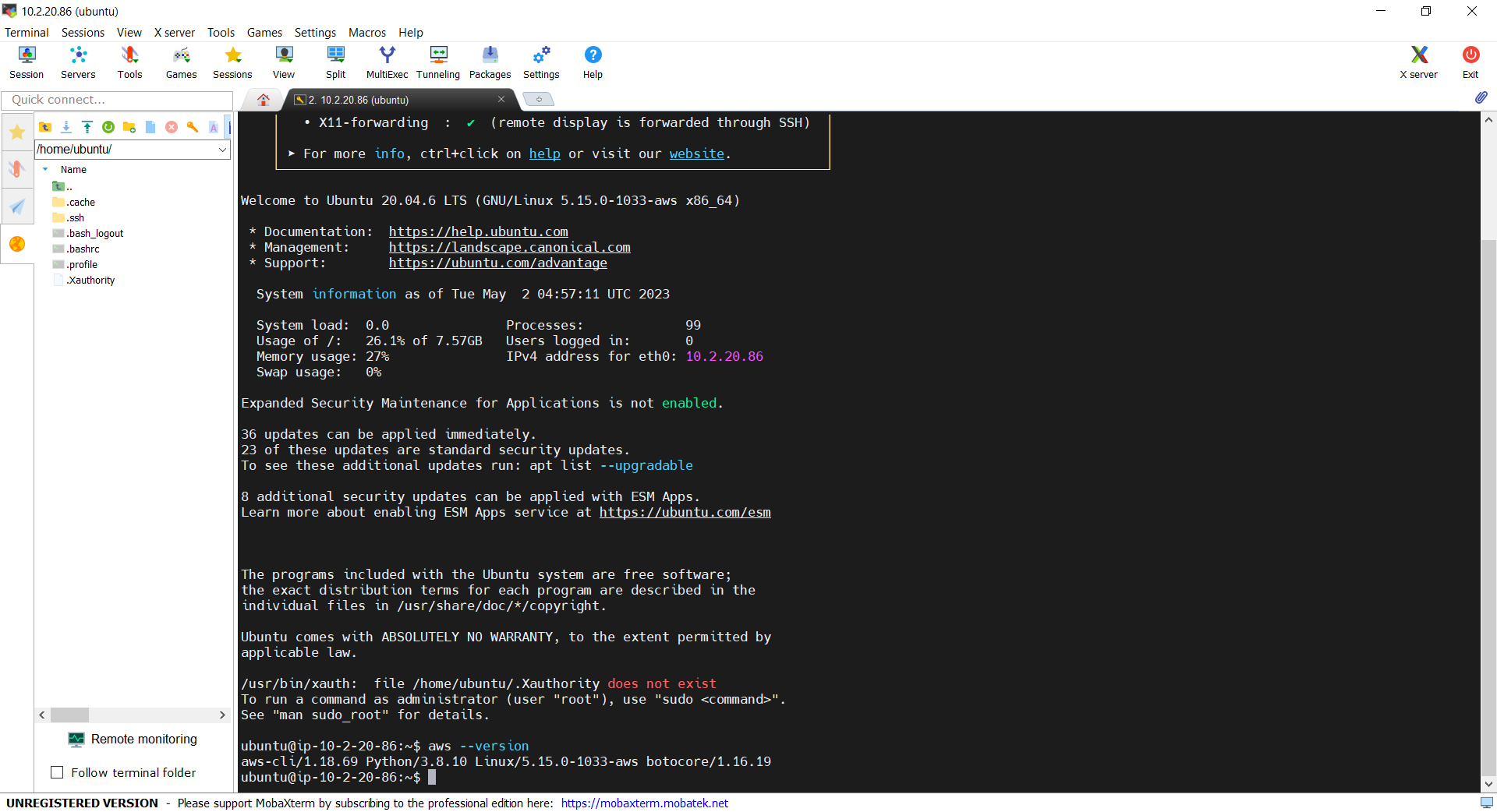
Now, let’s see if we can access the admin server via the bastion server using the private key. In fact, there is no problem to access and we can also realise that the AWS CLI is already installed properly, as shown in the screenshot below.

With the success of user_data script, we can use AWS CLI on the admin server.

Deleting the Cloud Resources

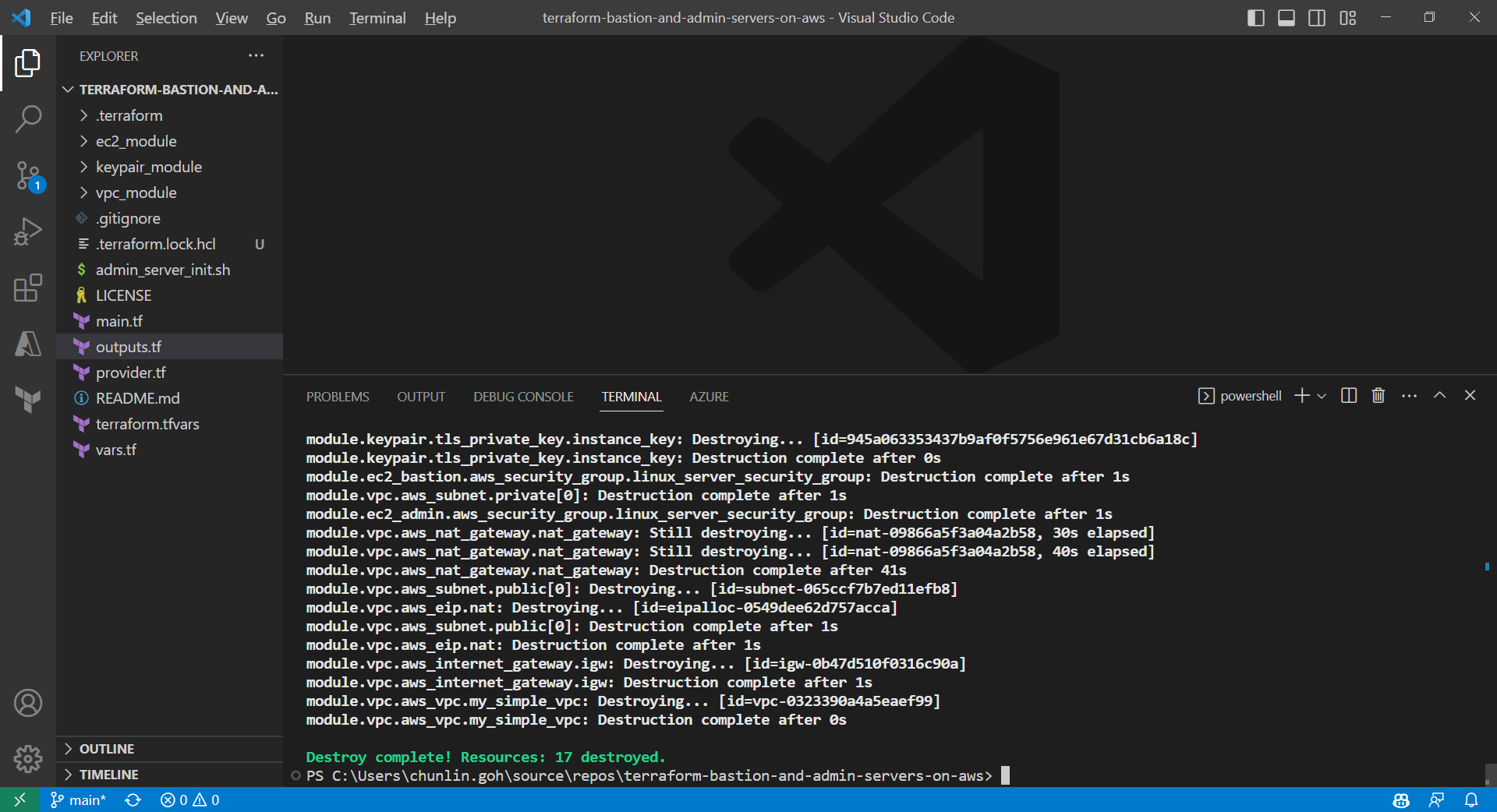
To delete what we have just setup using the Terraform code, we simply run the command terraform destroy. The complete deletion of the cloud resources is done within 3 minutes. This is definitely way more efficient than doing it manually on AWS Console.

All the 17 resources have been deleted successfully and the private key file is deleted too.

Conclusion

That is all for what I had researched on with my friend.

If you are interested, feel free to checkout our Terraform source code at https://github.com/goh-chunlin/terraform-bastion-and-admin-servers-on-aws.

MS SQL on AWS: Amazon RDS

amazon-rds-ms-sql-server

There are some startups and SMEs hosting their databases on AWS. However, most of them choose to use Amazon EC2 because doing so is similar to running a SQL Server on-premise at data centres. So, to them, it’s something that they are familiar with back in the old days. However, doing so actually increases their cost of hosting services on AWS. The companies also need to hire experts to do database administration such as database backup and recovery and OS patching.

Hence, if I’m given the opportunity, I usually recommend the small companies with limited resources to consider Amazon RDS (or Azure SQL) first. Amazon RDS is a fully managed service which provides cost-efficient and resizable capacity while automating time-consuming database administration tasks.

Multi-AZ Deployments for MS SQL Server

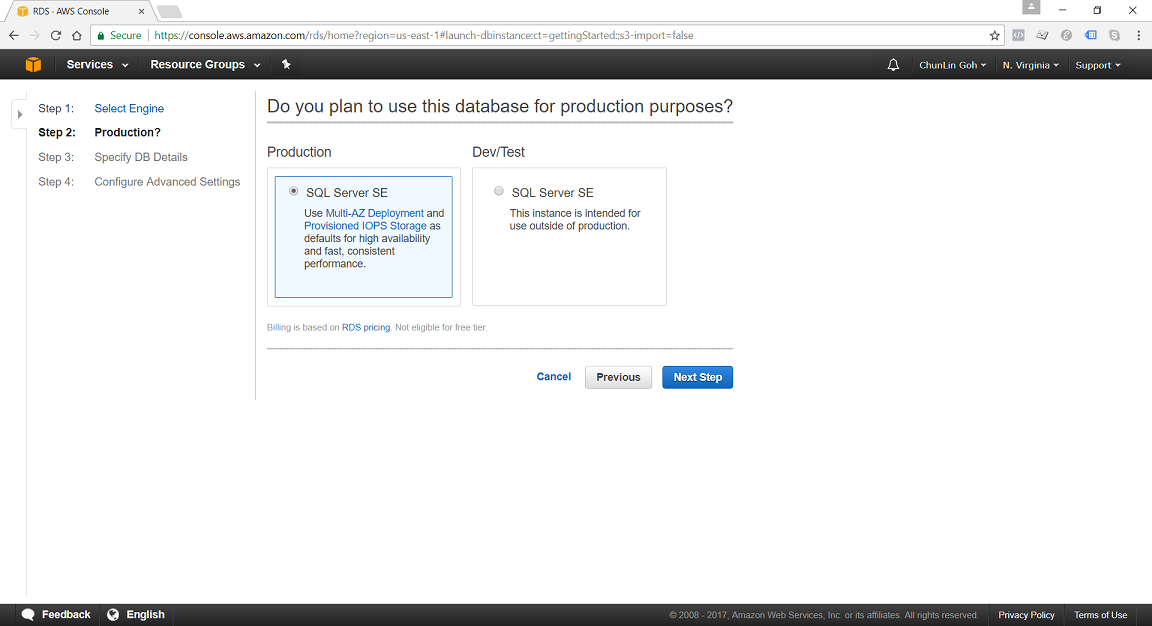
Starting from May 2014, Amazon RDS also provides a highly available database solution with the synchronous Multi-AZ replication for MS SQL. Multi-AZ deployments for MS SQL database instances use SQL Server Mirroring.

Currently, Amazon RDS only supports Standard Edition and Enterprise Edition of SQL Server 2008 R2, 2012, 2014, and 2016. Amazon RDS also does not support Multi-AZ with Mirroring for the following regions yet:

  • US West (N. California);
  • Asia Pacific (Singapore);
  • European Union (Frankfurt);
  • AWS GovCloud (US);
  • Asia Pacific (Sdyney): Supported for DB instances in VPCs only;
  • Asia Pacific (Tokyo): Supported for DB instances in VPCs only;
  • South America (São Paulo): Supported for all DB instance classes except m1/m2.

It’s quite unfortunate that Singapore Region is one of them.

use-multi-az-deployment-for-production-sql-server-se.png
In N. Virginia Region, we’re able to specify to use Multi-AZ Deployment in Production SQL Server SE.

DB Instance Class

We can specify the DB Instance Class that allocates the computational, network, and memory capacity required by planned workload of the database instance.

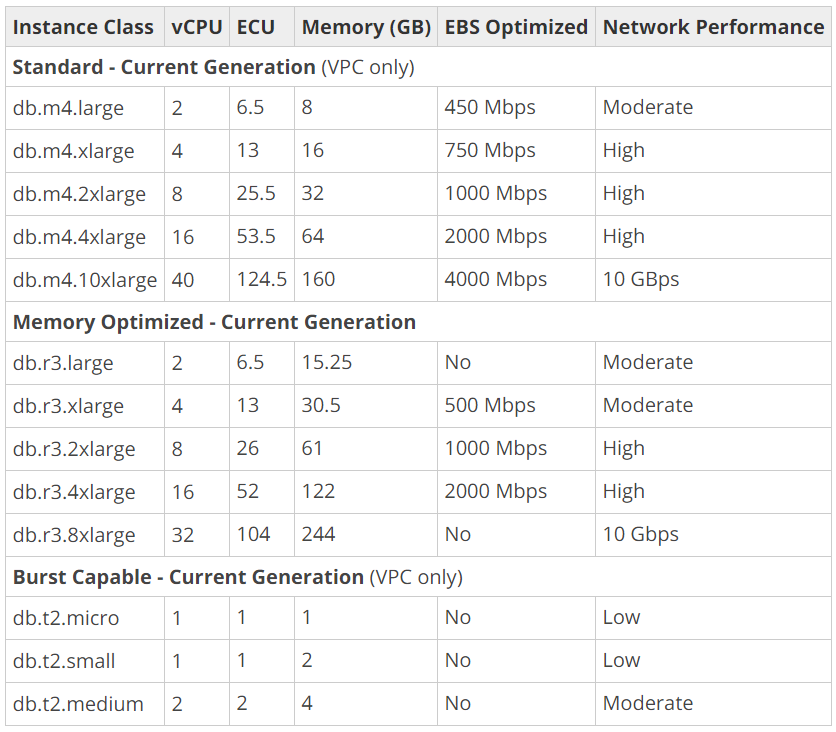
available-instance-class-for-ms-sql.png
DB Instance Classes available in MS SQL 2016 on AWS.

Standard (db.m4) instances offer a balance of compute, memory, and network resources, and are a good choice for many applications.

Memory Optimized (db.r3) instances are designed to deliver fast performance for workloads that process large data sets in memory. The instances are well suited for the applications, such as high performance relational databases, in-memory analytics, and enterprise applications (for example, Microsoft SharePoint).

Burst Capable (db.t2) instances are instances that provide baseline performance level with the ability to burst to full CPU usage.

Storage Types

Most of the Amazon RDS are using Amazon EBS (Elastic Block Store) volumes for database and log storage. There are currently two main Storage Types available when setting up MS SQL database instances, as listed below.

General Purpose (SSD) storage, aka gp2, offers cost-effective storage which is suitable for a broad range of database workloads. Hence, it’s ideal for small to medium-sized databases. It provides baseline of 3 IOPS/GB and ability to burst to 3,000 IOPS for extended periods of time. Its volume can range from 20GB to 4TB for MS SQL database instances. However, provisioning less than 100 GB of General Purpose (SSD) storage for high throughput workloads could result in higher latencies upon exhaustion of the initial General Purpose (SSD) I/O Credit balance.

Provisioned IOPS (SSD) storage, aka io1, is suitable for I/O intensive database workloads which pay attention to storage performance and consistency in random access I/O throughput. It provides flexibility to provision I/O ranging from 1,000 to 30,000 IOPS. MS SQL can have provisioned IOPS volumes between 100GB (Express/Web edition) or 200GB (Standard/Enterprise edition) and 4TB.

amazon-ebs-pricing.png
Amazon Elastic Block Store (EBS) Pricing for Singapore region.

Allocated Storage and I/O Credits

General Purpose (SSD) storage performance is controlled by the volume size. Larger volumes have higher base performance levels and can accumulate I/O Credits faster. The more storage, the greater the base performance is and the faster it replenishes the credit balance.

For General Purpose (SSD) storage, the DB instance has an initial I/O Credits balance of 5.4 million. When the storage requires more than the base performance I/O level, it uses I/O credits in the credit balance to burst to the required performance level, up to a maximum of 3,000 IOPS. If the storage uses all of its I/O credit balance, its maximum performance will remain at the base performance level until I/O demand drops below the base level and unused credits are added to the I/O credit balance at the baseline performance rate of 3 IOPS/GB of volume size. Hence, we can use the formula below to calculate the Burst Duration.

burst-duration-formula.png

burst-duration-tabular.png

Thus, for production application that requires fast and consistent I/O performance, it’s recommended to use Provisioned IOPS (SSD) storage that is optimized for I/O intensive, online transaction processing workloads that have consistent performance requirements. Note that we cannot decrease storage allocated for a DB instance.

For MS SQL Server, Amazon RDS does not currently support increasing storage. Hence, we need to provision storage based on anticipated future storage growth. If we predict it wrongly, then we need to increase the storage of an existing SQL Server DB instance by first exporting the data, creating a new database instance with increased storage, and then importing the data into the new database instance.

Specifying Database Instance Specification

After understanding key concepts above, we can then proceed to setup our database instance.

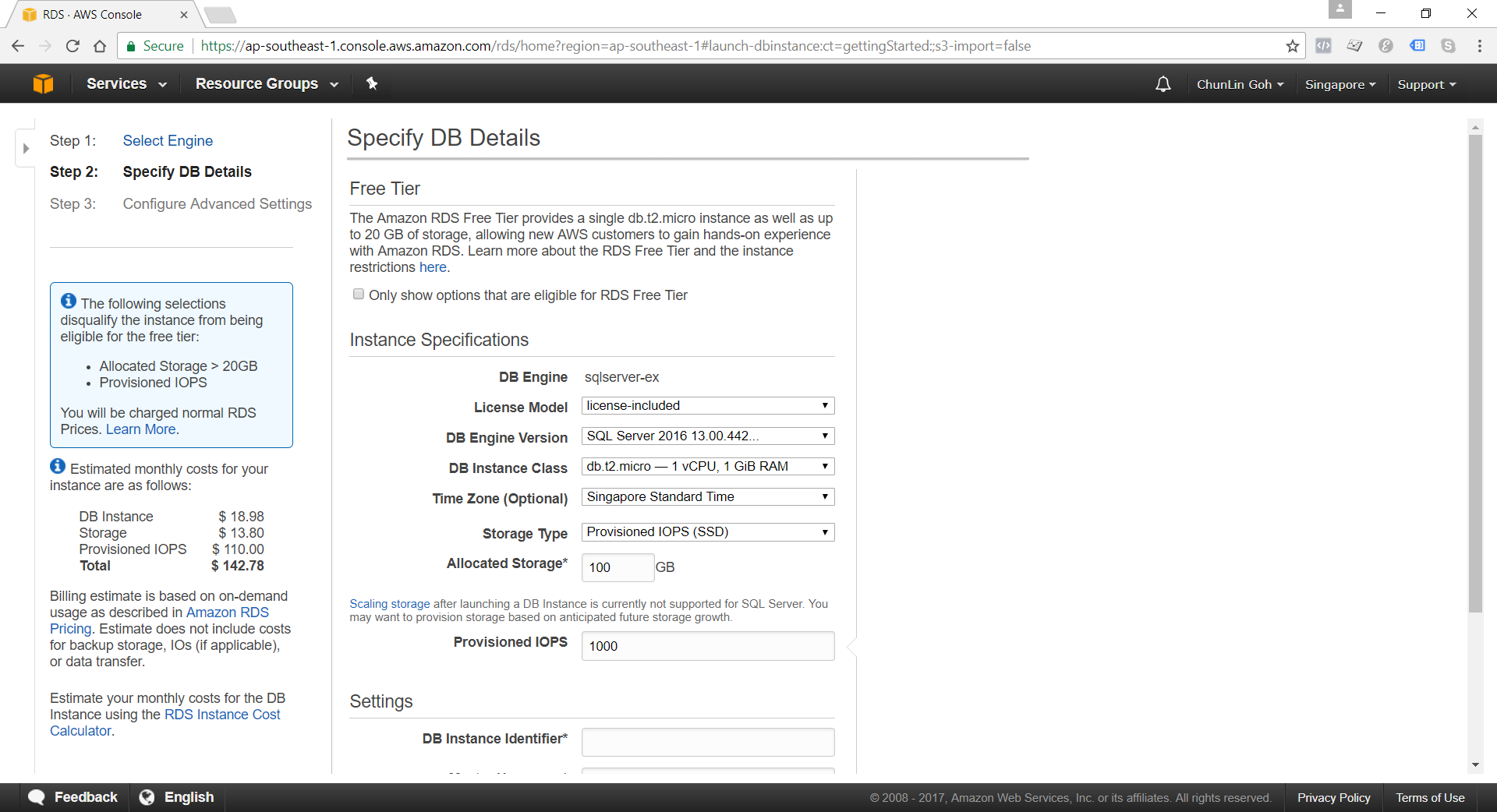
specifying-db-instance-specifications.png
Although there is Free Tier available but allocating storage > 20GB or adding provisioned IOPS will disqualify the databse instance from being eligible for the Free Tier.

Network and Security: VPC (Virtual Private Cloud)

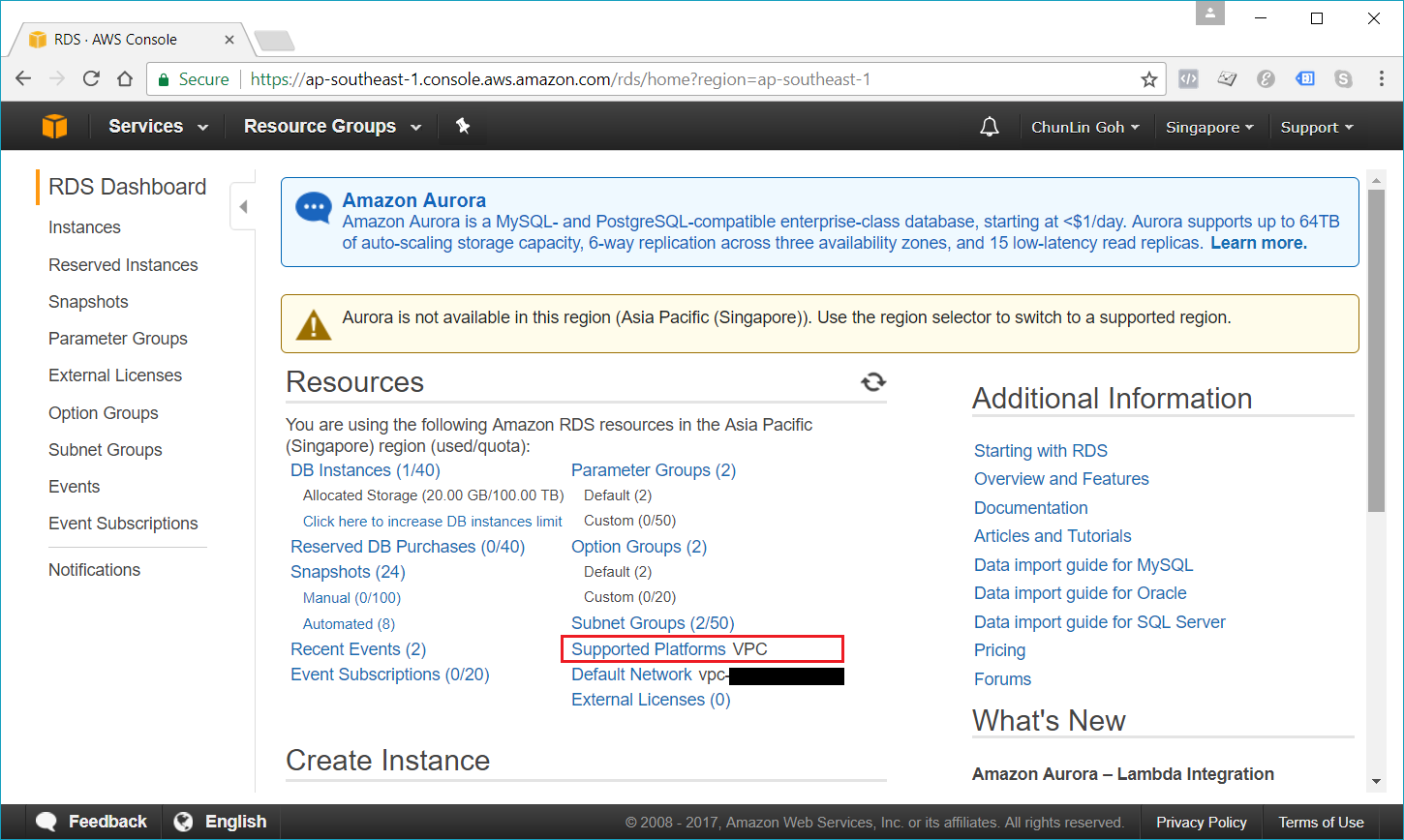
Amazon RDS database instances can be hosted on either EC2-VPC platform or the legacy EC2-Classic platform, the original platform used by Amazon RDS. Amazon VPC launches AWS resources, such as database instances, into a virtual private cloud.

Nowadays, if we are creating a database instance in a region that we have not used before, we normally are already on the EC2-VPC platform.

rds-supported-platforms.png
We are already on EC2-VPC platform.

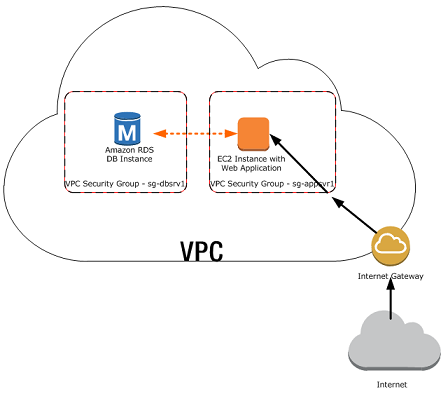
There are many scenarios for accessing a database instance in a VPC. Today, I will only focus on having an EC2 web server to access the database instance in the same VPC.

web-server-and-db-instance-in-the-same-vpc.png
A database instance in a VPC accessed by an EC2 instance in the same VPC (Source: AWS Documentation)

In such scenario, Amazon RDS database instance normally needs to be available to the web server, and not to the public Internet. Hence, we can create a VPC with both public and private subnets. The web server will be hosted in the public subnet so that it is accessible by the public. The database instance is hosted in the private subnet so that it won’t be available to the public Internet, providing greater security.

The Security Group used to restrict access to the database instances can have a custom rule that allows TCP access using the port 1433 and an IP address we will use to access the database instance for development or other purposes. In addition, we also need to set the Public Accessible option to Yes first (It is recommended to set the option to No for production database instance to limit the potential thread with no public routes).

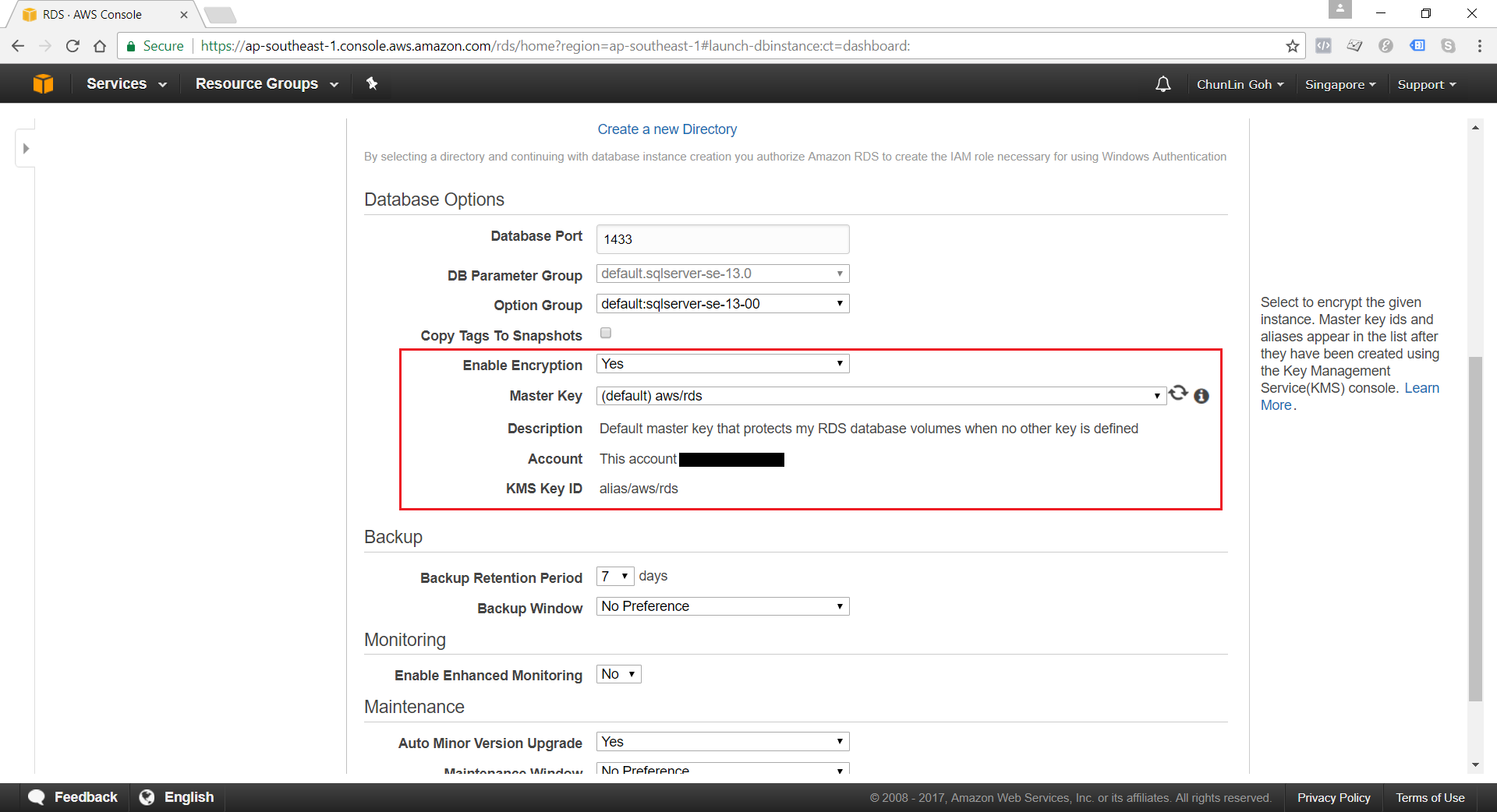
Encryption of Database Instances using Key Management Service (KMS)

Amazon RDS for MS SQL supports the encryption of database instances with encryption keys managed in AWS KMS. Once the data is encrypted, Amazon RDS handles authentication of access and decryption of the data transparently without having the need to change our database client applications.

enable-database-encryption.png
Currently, encryption of database instances (Data-in-Rest Protection) is not available for those which are running SQL Server Express Edition.

Backup and Maintenance

Amazon RDS automatically backup our database instances. It creates a storage volume snapshot of our database instance, backing up the entire database instance and not just individual databases. We can setup and modify our preferred Backup Window from time to time. During the automatic backup window, storage I/O might be suspended briefly while the backup process initializes (typically under a few seconds). For SQL Server, I/O activity is suspended briefly during backup for Multi-AZ deployments.

By default, Amazon RDS has a 30-minute backup window randomly selected from an 8-hour block (Singapore region will be 14:00–22:00 UTC).

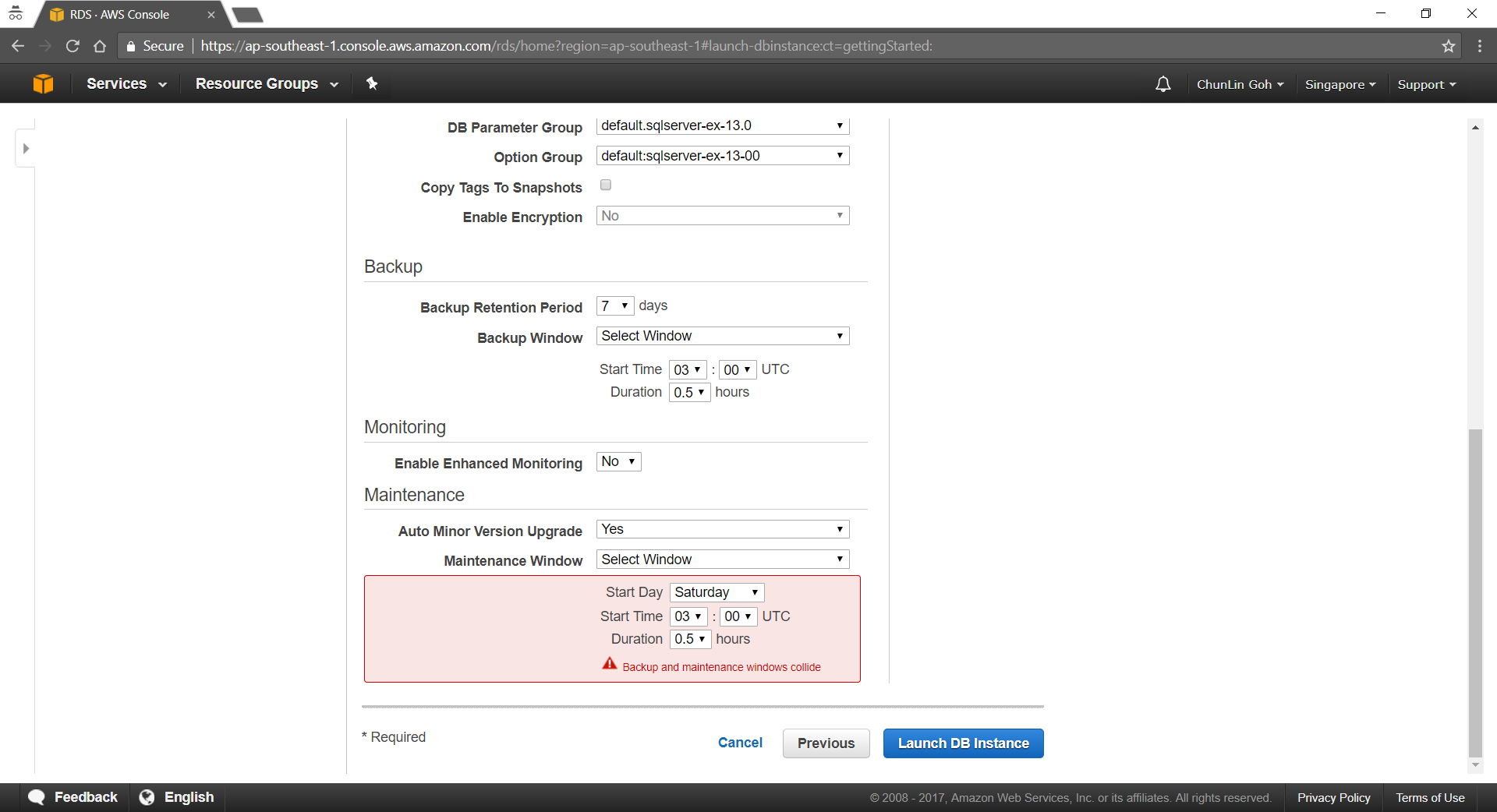
Periodically, Amazon RDS also automatically does maintenance work such as, updating the databse instance’s or database cluster’s OS. We can choose to manually apply maintenance, or wait for the automatic maintenance process initiated during our preferred maintenance window. There is one thing to take note is that the maintenance window determines when pending operations start, but does not limit the total execution time of these operations.

By default, Amazon RDS also has a 30-minute maintenance window randomly selected from an 8-hour block (Singapore region will be 14:00–22:00 UTC).

maintenance-window-collide-with-backup-window.png
We’re not allowed to make the maintenance window and the backup window overlap.

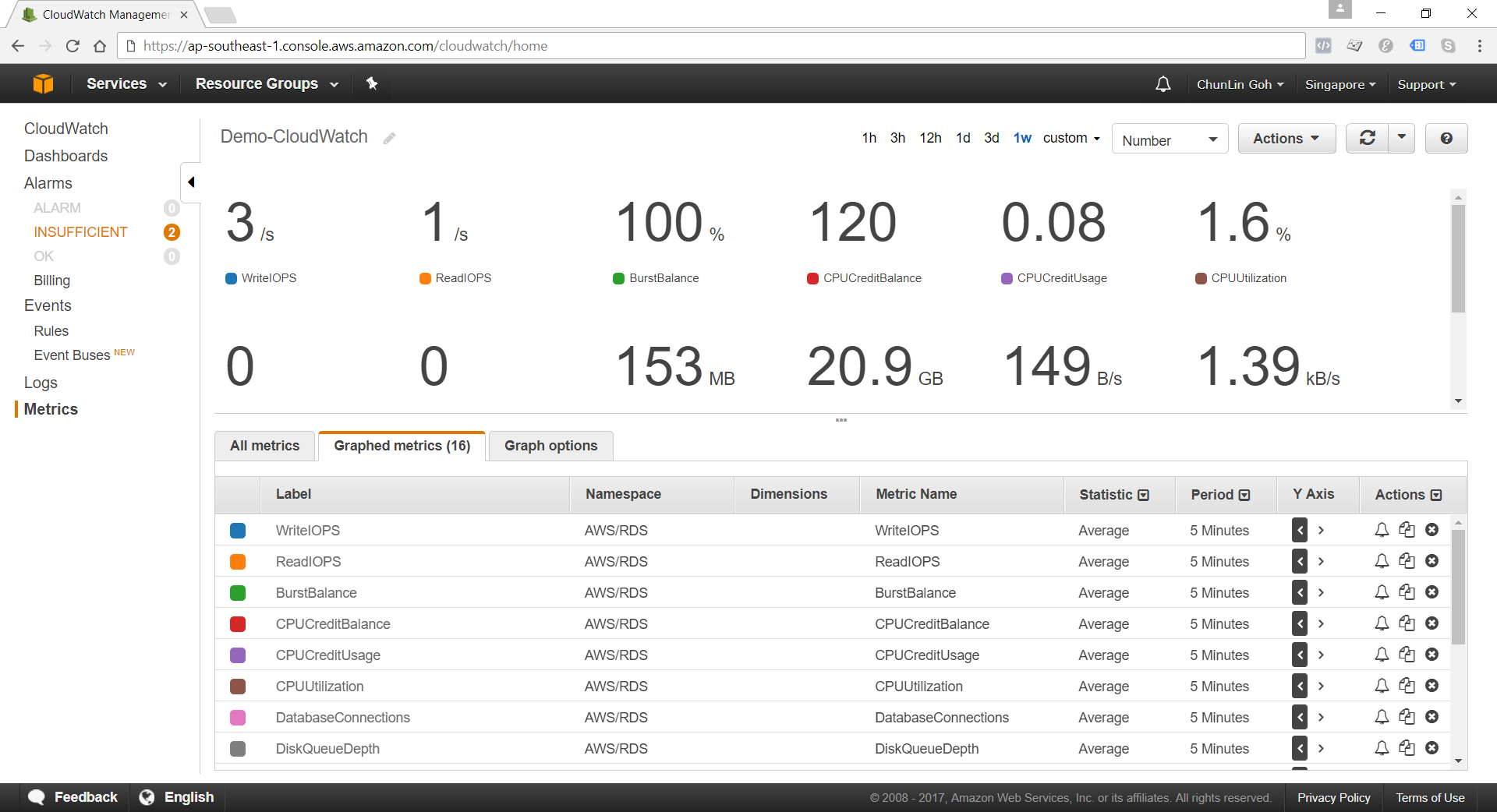
CloudWatch

Amazon RDS sends metrics to CloudWatch for each active database instance every minute. Detailed monitoring is enabled by default.

cloudwatch.png
Amazon RDS Metrics

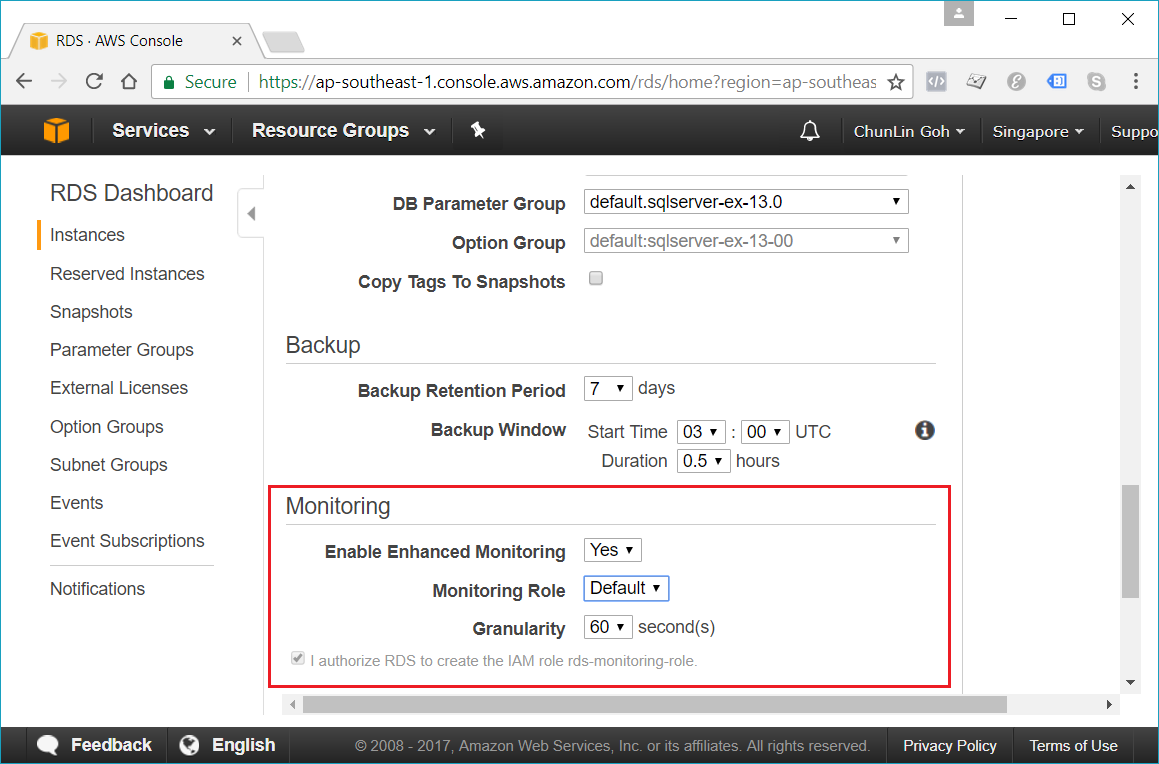
When setting up the database instance, there is an option for us to specify whether to enable Enhanced Monitoring or not. Enhanced Monitoring is not exactly like CloudWatch. CloudWatch gathers metrics about CPU utilization from the hypervisor for a database instance, and Enhanced Monitoring gathers its metrics from an agent on the instance.

enable-enhanced-monitoring.png
Enhanced monitoring requires permission to act on our behalf to send OS metric information to CloudWatch Logs.

Conclusion

It’s true that AWS allows us to deploy our MS SQL Server database on either Amazon RDS and Amazon EC2. However, it’s very crucial to analyze our needs and our application before deciding which one to use. In general, it is still recommended to consider Amazon RDS first so that developers can focus on high-level tasks and business logic implementation.

That’s all for my first trip to Amazon RDS. As a frequent user of Microsoft Azure, I never host MS SQL Server on AWS platform. So, if there is any mistake made in this article, kindly feedback to me. Thanks in advance!

Further Reading

Deploying Microsoft SQL Server on Amazon Web Services

Journey to ASP .NET MVC 5 (Episode 2)

ASP .NET MVC - Google Search - Automapper - Excel - Amazon SES

Previous Episode: https://cuteprogramming.wordpress.com/2015/03/01/journey-to-asp-net-mvc-5/

I first said hi to ASP .NET MVC in the beginning of this year. On 28th January, I attended the .NET Developers Singapore meetup and listened to Nguyen Quy Hy’s talk about ASP .NET MVC. After that, I have been learning ASP .NET MVC and applying this new knowledge in both my work and personal projects.

After 6 months of learning ASP .NET MVC, I decided to again write down some new things that I have learnt so far.

URL in ASP .NET MVC and Google Recommendation

According to Google recommendation on URLs, it’s good to have URLs to be as simple as possible and human-readable. This can be easily done with the default URL mapping in ASP .NET MVC. For example, the following code allows to have human-readable URL such as http://www.example.com/Ticket/Singapore-Airlines.

routes.MapRoute(
    name: "Customized",
    url: "Ticket/{airlineName}",
    defaults: new { controller = "Booking", action = "Details", airlineName = UrlParameter.Optional }
);

In addition, Google also encourages us to use hyphens instead of underscores in our URLs as punctuation to separate the words. However, by default, ASP .NET MVC doesn’t support hyphens. One of the easy solutions is to extend the MvcRouteHandler to automatically replace underscores with hyphens.

public class HyphenatedRouteHandler : MvcRouteHandler
{
    protected override IHttpHandler GetHttpHandler(RequestContext requestContext)
    {
        requestContext.RouteData.Values["controller"] =
        requestContext.RouteData.Values["controller"].ToString().Replace("-", "_");

        requestContext.RouteData.Values["action"] =
        requestContext.RouteData.Values["action"].ToString().Replace("-", "_");
 
        return base.GetHttpHandler(requestContext);
    }
}

Then in the RouteConfig.cs, we will replace the default route map to the following mapping.

routes.Add(
    new Route("{controller}/{action}/{id}",
    new RouteValueDictionary(
        new { controller = "Home", action = "Index", id = UrlParameter.Optional }),
        new HyphenatedRouteHandler())
);

By doing this, we can name our controllers and actions using underscores and then we set all the hyperlinks and links in sitemap to use hyphens.

There are actually many discussions about this online. I have listed below some of the online discussions that I found to be interesting.

  1. Allow Dashes Within URLs using ASP.NET MVC 4
  2. ASP .NET MVC Support for URL’s with Hyphens
  3. Asp.Net MVC: How Do I Enable Dashes in My URLs?
  4. Automate MVC Routing

MVC-ViewModel

Previously when I was working on WPF projects, I learnt the MVVM design pattern. So, it confused me when there was also a “View Model” in MVC. I thought with the use of View Model in ASP .NET MVC, I would be using MVVM too. It later turns out to be not the case.

In MVC, the View Model is only a class and is still considered part of the M (Model). The reason of having ViewModel is for the V (View) to have a single object to render. With the help of ViewModel, there won’t be too much of UI logic code in the V and thus the job of the V is just to render that single object. Finally, there will also be a cleaner separation of concerns.

Why is ViewModel able to provide the V a single object? This is because ViewModel can shape multiple entities from different data models into a single object.

public class CartViewModel
{
    ...

    public List<CartItems> items { get; set; }
 
    public UserProfile user { get; set; }
}

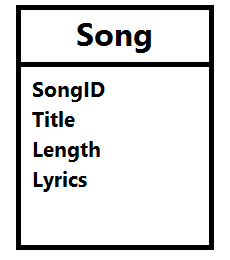
Besides, what I like about ViewModel is that it contains only fields that are needed in the V. Imagine the following model Song, we need to create a form to edit everything but the lyrics, what should we do?

The Song model.
The Song model.

Wait a minute. Why do we need to care about this? Can’t we just remove the Lyrics field from the edit form? Well, we can. However, generally we do not want to expose domain entities to the V.

If people manage to do a form post directly to your server, then they can add in the Lyrics field themselves and your server will happily accept the new Lyrics value. There will be a bigger problem if we are not talking about Lyrics, but something more critical, for example price, access rights, etc.

You want to control what is being passed into the binder.
You want to control what is being passed into the binder. (Image Credit: Microsoft Virtual Academy)

Please take note that the default model binder in ASP .NET MVC automatically binds all inbound properties.

The first simple solution is to use the bind attribute to indicate which properties to bind.

Edit([Bind(Include = "SongID,Title,Length")] Song song)

I don’t like this approach because it’s just a string. There are many mistakes can happen just because of having typo in a string.

So the second solution that I use often is creating a ViewModel which we can use to define only the fields that are needed in the edit form (V).

Same as M (Model), ViewModel also has validation rules using data annotation or IDataErrorInfo.

AutoMapper

By using ViewModel, we need to having mapping code to map between the view model and the domain model. However, writing mapping code is very troublesome especially when there are many properties involved.

Luckily, there is AutoMapper. AutoMapper performs object-object mapping by transforming an input object of one type into an output object of another type.

Mapper.CreateMap<Location, LocationViewModel>();

AutoMapper has a smart way to map the properties from view model and the domain model. If there is a property called “LocationName” in the domain model, AutoMapper will automatically map to a property with the same name “LocationName” in the view model.

Session, ViewData, ViewBag, and TempData

In my first e-commerce project which is using ASP .NET, Session is widely used. From small things like referral URL to huge cart table, all are stored in Session. Everyone in the team was satisfied with using Session until the day we realized we had to do load balancing.

There is a very interesting discussion on Stack Overflow about the use of Session in ASP .NET web applications. I like how one of them described Session as follows.

Fundamentally, session pollutes HTTP. It makes requests (often containing their own state) dependent on the internal state of the receiving server.

In the e-commerce project, we are using In-Process Session State. That means the session has “affinity” with the server. So in order to use load balancing in Microsoft Azure, we have to use Source IP Affinity to make sure the connections initiated from the same client computer goes to the same Datacenter IP endpoint. However, that will cause an imbalanced distribution of traffic load.

Another problem of using In-Process Session State is that once there is a restart on IIS or the server itself, the session variables stored on the server will be gone. Hence, for every deploy to the server, the customers will be automatically logged out from the e-commerce website.

Then you might wonder why we didn’t store session state in a database. Well, this won’t work because we store inserialisable objects in session variables, such as HtmlTable. Actually, there is another interesting mode for Session State, called StateServer. I will talk more about it in my another post about Azure load balancing.

Source IP Affinity
Source IP Affinity

When I was learning ASP .NET MVC in the beginning, I always found creating view model to be not intuitive. So, I used ViewBag and ViewData a lot. However, this caused headaches for code maintenance. Hence, in the end, I started to use ViewModel in MVC projects to provide better Separation of Concern and easily maintainable code. Nevertheless, I am still using ViewBag and ViewData to provide extra data from controller to view.

So what is ViewData? ViewData is a property allowing data to be passed from a controller to a view using a dynamic-bound dictionary API. In MVC3, a new dynamic property called ViewBag was introduced. ViewBag enables developers to use simpler syntax to do what ViewData can do. For example, instead of writing

ViewData["ErrorMessage"] = "Please enter your name";

, we can now write

 ViewBag.ErrorMessage = "Please enter your name";

.

ViewData and ViewBag help to pass data from a controller to a view. What if we want to pass data from a controller to another controller, i.e. redirection. Both ViewData and ViewBag will contain null values once the controller redirects. However, this is not the case for TempData.

There is one important feature in TempData is that anything stored in it will be discarded after it is accessed in the next request. So, it is useful to pass data from a controller to another controller. Unfortunately, TempData is backed by Session in ASP .NET MVC. So, we need to be careful when to use TempData as well and how it will behave in load balancing servers.

JsonResult

Sometimes, I need to return JSON-formatted content to the response. To do so, I will use JsonResult class, for example

[AllowCrossSiteJson]
public JsonResult GetAllMovies()
{
    Response.CacheControl = "no-cache";
    try
    {
        using (var db = new ApplicationDbContext())
        {
            var availableMovies = db.Movies.Where(m => m.Status).ToList();
            
            return Json(new 
            { 
                success = true, 
                data = availableMovies
            }, 
            JsonRequestBehavior.AllowGet);
        }
    }
    catch (Exception ex)
    {
        return Json(new 
        { 
            success = false, 
            message = ex.Message 
        }, 
        JsonRequestBehavior.AllowGet);
    }
}

There are a few new things here.

(1) [AllowCrossSiteJson]

This is my custom attribute to give access to requests coming from different domains. The following code shows how I define the class.

public class AllowCrossSiteJsonAttribute : ActionFilterAttribute
{
    public override void OnActionExecuting(ActionExecutingContext filterContext)
    {
        filterContext.RequestContext.HttpContext.Response.AddHeader(
            "Access-Control-Allow-Origin", "*");
       
        base.OnActionExecuting(filterContext);
    }
}

(2) Response.CacheControl = “no-cache”;

This is to prevent caching to the action. There is a great post on Stack Overflow which provides more alternatives to prevent caching.

(3) return Json()

This is to return an instance of the JsonResult class.

(4) success

If you are calling the GetAllMovies() through AJAX, probably you can do something as follows to check if there is any exception or error thrown.

$.ajax({
    url: '/GetAllMovies',
    success: function(data) {
        // No problem
    },
    error: function(XMLHttpRequest, textStatus, errorThrown) {
        var obj = JSON.parse(jqXHR.responseText);
        alert(obj.error);
    }
});

The error callback above will only be triggered when the server returns non-200 status code. I thus introduced another status field to tell the caller more info, for example an exception raised in C# code or any invalid value being passed to GetAllMovies method through AJAX. Hence, in the AJAX call, we just need to update it to

$.ajax({
    url: '/GetAllMovies',
    success: function(data) {
        if (data.success) {
            // No problem
        } else {
            alert(data.message);
        }
    },
    error: function(XMLHttpRequest, textStatus, errorThrown) {
        var obj = JSON.parse(jqXHR.responseText);
        alert(obj.error);
    }
});

(5) JsonRequestBehavior.AllowGet

To give permission to GET request for GetAllMovies method. This has thing to do with JSON Hijacking which will be discussed in my another post.

ActionResult

Other than JsonResult, there are many other ActionResult classes which represent the result of an action method and their respective helper methods.

Currently, I use the following frequently.

  1. ViewResult and View: Render a view as a web page;
  2. RedirectToRouteResult and RedirectToAction: Redirect to another action (TempData is normally used here);
  3. JsonResult and Json: Explained above;
  4. EmptyResult and null: Allow action method to return null.

Export Report to Excel

Two years ago, I wrote a post about how to export report to Excel in ASP .NET Web Form project. So, how do we export report to Excel in MVC project? There are two ways available.

First one can be done using normal ViewResult, as suggested in a discussion on Stack Overflow.

public ActionResult ExportToExcel()
{
    var sales = new System.Data.DataTable("Sales Report");
    sales.Columns.Add("col1", typeof(int));
    sales.Columns.Add("col2", typeof(string));

    sales.Rows.Add(1, "Sales 1");
    sales.Rows.Add(2, "Sales 2");
    sales.Rows.Add(3, "Sales 3");
    sales.Rows.Add(4, "Sales 4");

    var grid = new GridView();
    grid.DataSource = sales;
    grid.DataBind();

    Response.ClearContent();
    Response.Buffer = true;
    Response.AddHeader("content-disposition", "attachment; filename=Report.xls");
    Response.ContentType = "application/ms-excel";
    Response.Charset = "";
 
    StringWriter sw = new StringWriter();
    HtmlTextWriter htw = new HtmlTextWriter(sw);
    grid.RenderControl(htw);

    Response.Output.Write(sw.ToString());
    Response.Flush();
    Response.End();

    return View("Index");
}

Second way will be using FileResult, as suggested in another discussion thread on Stack Overflow. I simplified the code by removing the styling related codes.

public sealed class ExcelFileResult : FileResult
{
    private DataTable dtReport;

    public ExcelFileResult(DataTable dt) : base("application/ms-excel")
    {
        dtReport = dt;
    }

    protected override void  WriteFile(HttpResponseBase response)
    {
        // Create HtmlTextWriter
        StringWriter sw = new StringWriter();
        HtmlTextWriter tw = new HtmlTextWriter(sw);

        tw.RenderBeginTag(HtmlTextWriterTag.Table);

        // Create Header Row
        tw.RenderBeginTag(HtmlTextWriterTag.Tr);
        DataColumn col = null;
        for (int i = 0; i < dtReport.Columns.Count; i++)
        {
            col = dtReport.Columns[i];
            tw.RenderBeginTag(HtmlTextWriterTag.Th);
            tw.RenderBeginTag(HtmlTextWriterTag.Strong);
            tw.WriteLineNoTabs(col.ColumnName);
            tw.RenderEndTag();
            tw.RenderEndTag();
        }
        tw.RenderEndTag();

        // Create Data Rows
        foreach (DataRow row in dtReport.Rows)
        {
            tw.RenderBeginTag(HtmlTextWriterTag.Tr);
            for (int i = 0; i <= dtReport.Columns.Count - 1; i++)
            {
                tw.RenderBeginTag(HtmlTextWriterTag.Td);
                tw.WriteLineNoTabs(HttpUtility.HtmlEncode(row[i]));
                tw.RenderEndTag();
            }
            tw.RenderEndTag();
        }

        tw.RenderEndTag();

        // Write result to output-stream
        Stream outputStream = response.OutputStream;
        byte[] byteArray = Encoding.Default.GetBytes(sw.ToString());
        response.OutputStream.Write(byteArray, 0, byteArray.GetLength(0));
    }
}

To use the code above, we just need to do the following in our controller.

public ExcelFileResult ExportToExcel()
{
    ...
    ExcelFileResult actionResult = new ExcelFileResult(dtSales) 
    { 
        FileDownloadName = "Report.xls" 
    };

    return actionResult;
}

Sending Email

To send email from my MVC project, I have the following code to help me out. It can accept multiple attachments too. So I also use it to send email with report generated using the code above attached. =)

In the code below, I am using Amazon Simple Email Service (SES) SMTP.

public Task SendEmail(
    string sentTo, string sentCC, string sentBCC,  string subject, string body, 
    string[] attachments = null) 
{
    // Credentials:
    var credentialUserName = "<username provided by Amazon SES>;
    var sentFrom = "no-reply@mydomain.com";
    var pwd = "<password provided by Amazon SES>";

    // Configure the client:
    System.Net.Mail.SmtpClient client = 
        new System.Net.Mail.SmtpClient("email-smtp.us-west-2.amazonaws.com");
    client.Port = 25;
    client.DeliveryMethod = System.Net.Mail.SmtpDeliveryMethod.Network;
    client.UseDefaultCredentials = false;

    // Create the credentials:
    System.Net.NetworkCredential credentials = 
        new System.Net.NetworkCredential(credentialUserName, pwd);
    client.EnableSsl = true;
    client.Credentials = credentials;

    // Create the message:
    var mail = new System.Net.Mail.MailMessage(sentFrom, sentTo);
    string[] ccAccounts = sentCC.Split(new char[] { ';' }, StringSplitOptions.RemoveEmptyEntries);
 
    foreach (string ccEmail in additionalCcAccounts)
    {
        mail.CC.Add(ccEmail);
    }
    
    string[] bccAccounts = sentBCC.Split(new char[] { ';' }, StringSplitOptions.RemoveEmptyEntries);

    foreach (string bccEmail in additionalBccAccounts) 
    {
        mail.Bcc.Add(bccEmail); 
    }
    
    mail.Subject = subject;
    mail.Body = body;
    mail.IsBodyHtml = true;

    if (attachments != null) 
    {
        for (int i = 0; i < attachments.Length; i++)
        {
            mail.Attachments.Add(new System.Net.Mail.Attachment(attachments[i]));
        }
    }

    client.SendComplete += (s, e) => client.Dispose();
    return client.SendMailAsync(mail);
}

To send an email without attachment, I just need to do the following in action method.

var emailClient = new Email();
await emailClient.SendEmail(
    "to@mydomain.com", "cc1@mydomain.com;cc2@domain.com", "bcc@mydomain.com", 
    "Email Subject", "Email Body");

To send email with attachment, I will then use the following code.

string[] attachmentPaths = new string[1];

var reportServerPath = Server.MapPath("~/report");

attachmentPaths[0] = reportServerPath + "\\Report.xls";

var emailClient = new Email();
await emailClient.SendEmail(
    "admin@mydomain.com", "", "", 
    "Email Subject", "Email Body", attachmentPaths);

Yup, that’s all what I have learnt so far in my MVC projects. I know this post is very, very long. However, I am still new to MVC and thus I am happy to be able to share with you what I learn in the projects. Please correct me if you find anything wrong in the post. Thanks! =)

Summer 2015 Self-Learning Project

This article is part of my Self-Learning in this summer. To read the other topics in this project, please click here to visit the project overview page.

Summer Self-Learning Banner